Burn In on LCD Monitor: What It Is and How to Fix It
Table of contents
An LCD monitor almost never gets true burn-in. If you see a faint ghost image on your screen, it is far more likely to be image retention, which is temporary and clears by itself in a few hours. Real, permanent burn-in is a problem for OLED, plasma, and old CRT screens, not the LCD and LED panels most of us use every day.
So if a shadow of your taskbar or a game HUD is lingering on your display, take a breath. In most cases you can get rid of it, and it will not come back if you change a couple of habits. Here is what is really happening and what to do about it.
Does an LCD monitor actually get burn-in?
Not in the way most people mean. The word “burn-in” comes from the old days, when a static image left on a CRT or plasma screen for too long would physically scorch the display and leave a mark forever. That kind of permanent damage does not happen on a normal LCD.
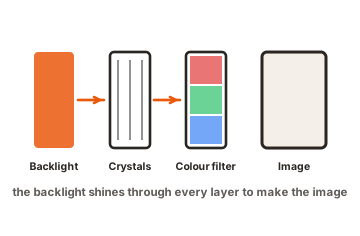
An LCD makes a picture in a completely different way. It has a backlight that shines through a layer of liquid crystals. Those crystals twist and untwist to let the right amount of light and color through for each pixel. Nothing is burning, and nothing is being scorched. When a static image sticks around on an LCD, the crystals in that spot can get a little lazy about snapping back to their normal position. That leaves a faint outline, but it is a temporary state, not lasting harm.
This matters because the fix is different. If you think you have permanent burn-in, you might rush out to buy a new monitor you do not need. Once you know it is retention, the problem usually solves itself with a little time or a short fix routine.
Image retention vs. burn-in: the real difference
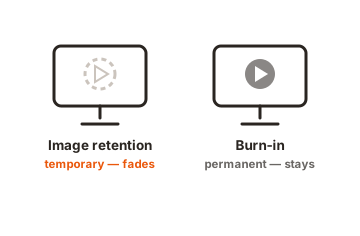
These two terms get mixed up constantly, so it helps to pin down what each one means. The short version: retention is temporary and fixable, while burn-in is permanent and usually is not.
Image retention is a ghost of whatever was on screen, and it fades once you change the content or rest the display. Burn-in is baked in. The pixels themselves have worn down or aged, so the mark stays even on a blank screen. Here is how they compare.
| Image retention | True burn-in | |
|---|---|---|
| Permanent? | No. It fades on its own. | Yes. The pixels are physically worn. |
| What causes it | Trapped electric charge in the liquid crystal cells. | Pixels aging unevenly and losing brightness. |
| Screen type | LCD and LED-backlit LCD. | OLED, plasma, and old CRT. |
| Can you fix it | Yes, usually within hours. | Rarely. Often needs a new panel. |
The table also explains why your monitor type is the first thing to check. If you have a standard LCD or LED-backlit LCD, you are dealing with retention, and you can almost always clear it. If you have an OLED monitor, the risk is real burn-in, and prevention matters much more than any fix.
What causes image retention on an LCD
Image retention on an LCD comes down to electric charge getting stuck where it should not. Each pixel is controlled by a tiny transistor that applies a voltage to twist the liquid crystals. When the same image sits in one spot for hours, a small residual charge can build up in those cells.
That trapped charge keeps the crystals slightly out of position even after the picture changes. The result is a faint outline of the old image. It is not damage. It is more like a temporary memory in the pixel that fades once the charge drains away.
Modern LCDs are actually built to fight this. They flip the voltage back and forth on a regular rhythm so no single pixel sits under a steady charge for too long. That design is why retention is rare and short-lived on a healthy panel. It tends to show up only when a bright, unchanging image sits in one place for hours, which is exactly the situation the voltage-flipping was not meant to handle alone.
A few things make retention more likely:
- Static images left on for a long time, such as a taskbar, a spreadsheet, a channel logo, or a game interface that never moves.
- High brightness and contrast. Running the panel hot puts more strain on the crystals and can make retention more stubborn.
- Heat. A warm room or poor airflow around the monitor makes the crystals slower to reset.
- A brand-new panel. Screens tend to be a little more sensitive during their first stretch of use, so it is worth varying the content early on.
Notice that none of these involve permanent wear. Every one of them is about a static picture plus stress, and every one of them can be undone.
How to fix image retention on your LCD monitor
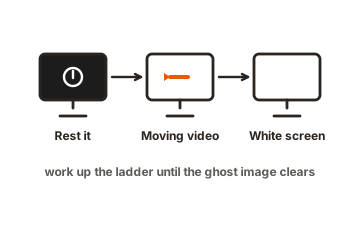
Most image retention clears on its own if you simply give the screen something else to do. Work through these steps in order, and stop as soon as the ghost image is gone.
-
Turn the monitor off and let it rest
Switch off the display, or the whole computer, and leave it for a few hours. Overnight is even better. For mild retention, this alone often does the job, because it gives the trapped charge time to drain. -
Play full-screen video with lots of movement and color
Put on a fast-moving clip or a colorful animation and run it full screen for 30 to 60 minutes. The changing colors force the affected pixels to switch rapidly, which helps them reset. -
Cycle solid colors across the screen
Show a full-screen white image, then black, then red, green, and blue, a few minutes each. This exercises every subpixel evenly and is a classic way to lift a lingering outline. -
Use a pixel-refresh tool
A free browser tool like JScreenFix rapidly flickers colors over a chosen area. Drag its window over the ghosted spot and leave it running for at least 10 minutes, longer for a stubborn case. -
Lower your brightness afterward
Once the image clears, drop the brightness a little. A cooler, less-stressed panel is far less likely to hold a ghost image again.
If the outline fades a bit more with each round, you are on the right track. Retention often needs a little patience, and a second or third pass can finish the job.
When the ghost image will not go away
If you have tried resting the screen and running color cycles for a full day and the mark is still there, a few other things could be going on. It helps to figure out which, because the solution changes.
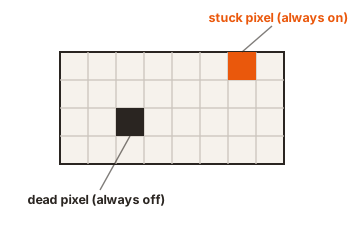
First, check whether you are actually looking at a stuck or dead pixel rather than retention. A stuck pixel is a single bright dot of red, green, or blue that stays lit no matter what. A dead pixel stays black. Both look different from retention, which is a faint copy of a larger image, like a logo or a bar. An easy way to tell them apart is to display a plain black screen and then a plain white one: a stuck or dead pixel shows up as one tiny dot, while retention shows up as a soft shape. A pixel-refresh tool can sometimes revive a stuck pixel, but a truly dead one usually needs a repair.
Second, in rare cases an older or lower-quality LCD can develop retention that is very slow to clear, sometimes taking days. This is uncommon, and it is still not the permanent scorching that hits OLED and plasma. If the panel is old and heavily used, the mark may just take much longer to fade, or fade only part of the way.
Third, if the panel took a knock or was pressed hard, you might be seeing physical damage, not retention. That looks like a blotch that is not a clean pixel shape and does not respond to any fix. In that situation, and for a new monitor still under warranty, contact the maker before trying anything else.
How to prevent it in the first place
Preventing retention is easier than fixing it, and it takes almost no effort. The whole idea is simple: do not leave the same bright image frozen on the screen for hours, and do not run the panel hotter than you need to.
A few habits cover most of it:
- Set a screen saver or sleep timer. Have the display blank or sleep after a few minutes of no activity. This is the single most effective habit, because it stops static images from sitting there while you are away.
- Keep brightness moderate. Around 50 percent or lower is plenty for most rooms, especially if you leave a fixed layout on screen for a long stretch.
- Move things around. Hide the taskbar automatically, switch windows, and avoid parking one static interface in the same place all day.
- Give it airflow. Keep the monitor out of direct sun and away from heat sources so the panel stays cool.
- Go easy on a new screen. For the first stretch of use, vary what is on the display rather than leaving one image up for hours.
Do these and you will most likely never see a ghost image on your LCD again. For the deeper technical background on how different screen technologies handle this, the screen burn-in overview on Wikipedia lays out why LCDs behave so differently from OLED and CRT.
Conclusion
A ghost image on an LCD monitor is almost always temporary image retention, not permanent burn-in, so you can usually clear it. Rest the screen, play moving video, cycle solid colors, or run a pixel-refresh tool, and the outline should fade within a few hours. To keep it from returning, use a screen saver, keep brightness moderate, and avoid leaving one static image frozen on screen all day. A good result is a clean, even display and a monitor you never have to worry about again.
For more screen faults and fixes, browse our monitor troubleshooting guides.
Frequently asked questions
Is burn-in on an LCD monitor permanent?
Almost never. On an LCD, what looks like burn-in is usually temporary image retention caused by trapped charge, and it clears on its own within hours. True permanent burn-in mainly affects OLED, plasma, and old CRT screens.
How long does it take for LCD image retention to go away?
Mild retention often fades within a few hours of resting the screen or playing moving content. Stubborn cases can take a day or two of color cycling or a pixel-refresh tool. If it lasts longer, the panel may be old or damaged.
Will JScreenFix fix my monitor?
It can help. JScreenFix flickers rapid colors to reset lazy or stuck pixels, and it often clears mild retention and some stuck pixels within 10 to 30 minutes. It cannot revive a truly dead pixel or repair physical damage.
Does lowering brightness really prevent image retention?
Yes. Lower brightness and contrast put less strain on the liquid crystals, so a static image is far less likely to leave a lasting outline. Keeping brightness around 50 percent or lower is a simple, effective habit.
Should I worry about burn-in when buying an LCD or LED monitor?
No. Standard LCD and LED-backlit monitors are very resistant to permanent burn-in. As long as you use a screen saver and avoid leaving one bright, static image up for hours, it should not affect your buying decision.