AOC Monitor Dead Pixel: How to Spot It, Fix It, and Claim Warranty
Table of contents
Spotting a tiny black or colored dot on a new AOC monitor is frustrating, but before you assume the worst, two things are worth knowing. First, what looks like a dead pixel is often only a stuck pixel, which can sometimes be fixed. Second, even if it is truly dead, AOC’s warranty may entitle you to a replacement, depending on how many bad pixels there are. This guide walks you through confirming what you have, the fixes worth trying, and exactly when AOC will step in.
Dead pixel vs stuck pixel: which one do you have?
These two terms get used interchangeably, but they are different problems with different odds of a fix. Telling them apart is the first step, because it decides whether trying to fix it is even worth your time.
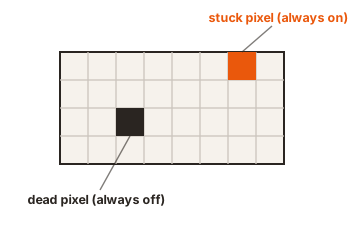
Dead pixel
A dead pixel receives no power at all. It stays black no matter what is on screen, because the part of the panel driving it has failed completely. Dead pixels are the harder of the two to fix, and often cannot be revived at all, since there is no signal reaching them to work with.
Stuck pixel
A stuck pixel is still receiving power, but it is frozen on one color, usually red, green, or blue, or a mix. It happens when a sub-pixel gets locked in one state instead of changing with the image. Because the pixel is still active, stuck pixels are the ones that respond best to fixes, and some clear up on their own over time.
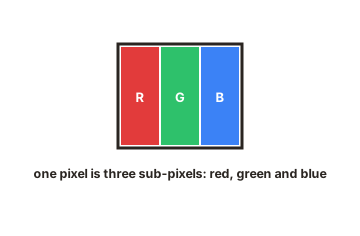
It is also worth knowing that a single pixel is made of three sub-pixels: one red, one green, one blue. Sometimes only one sub-pixel fails, which is why you might see a small colored dot rather than a full black or white square. This distinction matters later, because AOC’s warranty counts full-pixel and sub-pixel defects differently.
How to find and confirm a dead pixel on your AOC monitor
Before trying any fix or starting a warranty claim, confirm the defect properly. A speck of dust or a smudge can look just like a dead pixel, so rule those out first.
-
Clean the screen
Gently wipe the area with a soft, dry microfiber cloth. If the dot moves or disappears, it was dirt, not a pixel. -
Set the monitor to its native resolution
Pixel checks only make sense at the panel’s native resolution, so the image maps one-to-one to the pixels. -
Cycle through solid colors
Display full-screen images of white, black, red, green, and blue in turn. A dead pixel shows up against white; a stuck pixel shows against whichever colors it does not match. Free online tools such as a dead-pixel test page make this easy. -
View from a normal distance
Look at the screen from a typical viewing distance, around 50 cm (20 inches), not with your nose against the glass. This is the same standard AOC uses to judge a defect, so it keeps your expectations realistic.
Note how many bad pixels you find, what color each one is, and whether each is a full pixel or a single sub-pixel. You will need this information to know whether you have a warranty claim, and clear photos taken at a normal distance will help if you do.
How to try to fix a stuck or dead pixel
If you have confirmed a stuck pixel, or even a dead one you want to attempt to revive, a few methods are worth trying. None are guaranteed, and they work far more often on stuck pixels than truly dead ones, but they are low-risk and cost nothing.
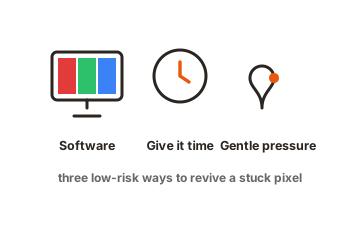
Method 1: Pixel-fixing software
The most popular approach uses software that rapidly flashes the screen through different colors, which can jolt a stuck sub-pixel back into normal operation. Free tools like JScreenFix run in a browser, while others such as UndeadPixel are small downloads. Run the flashing pattern over the affected area for anywhere from ten minutes to a few hours. Many people find a stuck pixel clears after one or more sessions.
Method 2: Gentle pressure
This one carries a little more risk, so go gently. With the monitor off, place a soft, slightly damp cloth over the stuck pixel and apply light pressure with a fingertip or a blunt, soft-tipped object on the exact spot. While keeping light pressure, turn the monitor on. The idea is to nudge the liquid crystal in that pixel back into place. Press softly, never hard, since too much force can create more bad pixels or damage the panel.
Method 3: Give it time
Stuck pixels sometimes resolve on their own over hours or days of normal use, and some users report a stuck pixel fading until it is barely noticeable. If the dot is faint and not bothering you much, simply using the monitor for a while is a perfectly reasonable option before doing anything more.
Does AOC’s warranty cover dead pixels?
This is the question most people really came for, and the answer is: sometimes, depending on how many bad pixels there are and where you bought the monitor. AOC, like most manufacturers, does not treat a single bad pixel as an automatic defect, because perfectly flawless panels are extremely difficult to mass-produce. Instead, it sets a threshold.
AOC judges monitor pixels against the ISO 9241-307 Class 1 standard. Under AOC’s US warranty terms, a panel is only considered defective if it exceeds all of the following limits, meaning a defect that stays within these numbers is not covered:
- More than 1 full bright (“stuck on white”) pixel.
- More than 1 full dark (“stuck off”) pixel.
- More than 2 single or double bright or dark sub-pixels.
- More than 3 to 5 “stuck on” or “stuck off” sub-pixels, depending on the mix of each.
In plain terms: a single dead full pixel, or one or two bad sub-pixels, generally falls within the allowed limit and will not by itself qualify for a replacement under the standard warranty. You usually need more than that to cross the line.
The exception worth knowing: AOC has offered a zero dead pixel guarantee in some regions, which covers even a single dead pixel but only for a short window from the purchase date (commonly around 30 days, and the exact terms and length vary by country). If your monitor is brand new, check whether this applies to you, because it is far more generous than the standard Class 1 threshold.
Two more details affect coverage. AOC’s standard warranty length and the portion that applies to the panel itself can differ from the rest of the monitor, and all of these terms vary by region and change over time. Because of that, treat the numbers above as a guide and confirm the current policy for your own country before making a claim.
How to make an AOC warranty or return claim
If your situation crosses the threshold, or you are still inside a return window, here is how to proceed. Move quickly, since the most generous options are usually the most time-limited.
-
Check the seller's return window first
If the monitor is recent, the shop you bought it from may let you return or exchange it for any reason, which is often faster and simpler than a manufacturer claim. This is frequently the easiest route for a brand-new monitor. -
Confirm you exceed the pixel threshold (or the zero-pixel guarantee)
Match your pixel count and type against the limits above, or against your region’s dead-pixel guarantee if the monitor is new. -
Gather your proof
Have your proof of purchase ready, plus clear photos of the defect taken at a normal viewing distance and at native resolution. -
Contact AOC support for an RMA
Reach AOC’s customer service for your region to request a Return Merchandise Authorization (RMA) number, which is required before sending anything back. You can start this from the AOC support site. -
Keep the original packaging
Many warranty and replacement programs require the original box and accessories, and you can be charged a fee if they are missing, so do not throw the packaging away.
To find the exact contact route and forms for your country, AOC’s official support site is the place to start, and the AOC warranty information page lists the current terms and pixel policy in full.
How to avoid dead pixels on your next monitor
You cannot prevent a dead pixel entirely, since it comes down to the panel’s manufacturing, but a few habits lower the chance of getting stuck with one.
- Test immediately after unboxing. Run a solid-color pixel check the day your monitor arrives, while you are still well inside every return window.
- Buy from sellers with good return policies. A retailer that accepts no-questions returns within 14 to 30 days is your best safety net against a single bad pixel the standard warranty would not cover.
- Consider a zero-pixel guarantee. If you are buying new and your region offers a dead-pixel guarantee, register or claim promptly so you are covered for even one bad pixel.
- Keep the box for a while. Hold onto the original packaging through the early weeks, since returns and claims usually require it.
Conclusion
A dead pixel on an AOC monitor is annoying, but it is not always the end of the story. Start by confirming whether it is dead or merely stuck, since stuck pixels often respond to simple software or gentle-pressure fixes. If it is truly dead, check it against AOC’s pixel thresholds and any dead-pixel guarantee in your region, and act fast while return windows are open. With the right diagnosis and a quick claim, most people end up either fixing the pixel or getting a clean replacement.
For more screen problems and fixes, like LCD screen burn and image retention, browse our monitor troubleshooting guides.
Frequently asked questions
Will AOC replace a monitor for one dead pixel?
Usually not under the standard warranty, since a single dead pixel typically falls within AOC's allowed Class 1 limit. The exception is a regional zero dead pixel guarantee, which can cover even one bad pixel if your monitor is new and within the guarantee window.
How do I know if my AOC pixel is dead or stuck?
Show a full white screen. A dead pixel stays black against the white, while a stuck pixel appears as a small red, green, blue, or bright dot. Stuck pixels are the ones most likely to be fixable.
Can a dead pixel be fixed?
A truly dead pixel often cannot be fixed, because it gets no power. A stuck pixel, on the other hand, frequently responds to pixel-fixing software, gentle pressure, or simply time. It is always worth confirming which you have before giving up.
Is it safe to press on a stuck pixel?
It can help, but only with very light pressure through a soft cloth on the exact spot, never hard. Too much force can damage the panel or create more bad pixels, so if you are unsure, try software methods first.
How long do I have to claim a dead pixel on a new AOC monitor?
It depends on your region and where you bought it. A seller's return window is often 14 to 30 days, and AOC's zero dead pixel guarantee, where offered, also runs for a limited period from the purchase date. Check both right away, since the best options expire quickly.