How to Transport Computer Monitors Without Cracking the Screen
Table of contents
The safest way to move a monitor is to keep it upright, pad every side so nothing presses on the panel, and wedge it in place so it cannot slide or tip. Screens rarely break from the drive itself. They break from pressure on the glass and from the panel flexing over bumps. Get those two things right and the rest is easy.
This guide walks through what you need, how to pack it, how to load it in a car, and how to ship one by courier. It works whether or not you still have the original box.
Why monitors break during a move
A flat-panel screen is a stack of very thin layers: glass, filters, and a liquid crystal or LED layer, all held flat by the frame. The layers are strong when the pressure is spread evenly across the whole panel. They are weak against two things: a point of pressure in one spot, and bending or flexing across the middle.
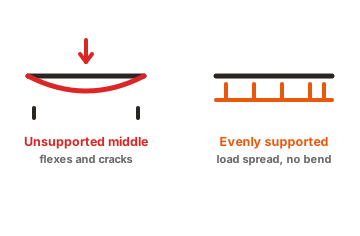
Most damage comes from one of four situations: something presses on the screen face, the panel flexes as the vehicle bounces, the monitor tips over onto a hard edge, or a corner takes a knock. The cruel part is timing. A cracked layer or a stressed connection can look fine when you plug it in, then show lines, dark patches, or dead pixels days later, once it is too late to file a claim.
What you need to pack a monitor
You do not need much, but skipping the cushioning is where people go wrong. Gather these before you start:
- A sturdy box, ideally the original. If not, a double-wall cardboard box with 2 to 3 inches of space on every side of the monitor.
- Bubble wrap, enough for three to five wraps around the whole unit.
- Foam corner protectors, or folded cardboard, to shield the four corners.
- Packing tape, for the wrap and the box. Never tape directly onto the screen.
- Soft fill, such as packing paper, foam sheets, or peanuts, to kill any empty space.
- A zip bag and twist ties, for the stand screws and the cables.
A clean box matters more than it sounds. A carton that once held drinks, or one with crushed corners, gives way under stacking and is a common reason carriers reject a damage claim.
Prep the monitor first
A few minutes of prep protects the panel and saves you a headache at the other end.
-
Power down and unplug everything
Let it cool for a few minutes if it was on. -
Remove and label the cables
Put a strip of tape on each end noting where it goes, then bag them together. -
Detach the stand
Most stands pop off with a button or a few screws. Bag the screws and tape the bag to the stand so it cannot get lost. -
Wipe the screen
Grit trapped against the glass under wrap can scratch it. A dry microfibre cloth is enough. -
Cover the screen face
Lay a soft cloth or a foam sheet across the glass before you wrap, so the bubble wrap never sits straight on the panel.
Upright or flat: which is safer?
Keep the monitor upright, the same way it sits on your desk. Upright, the frame carries the weight the way it was built to, and no load rests on the glass.
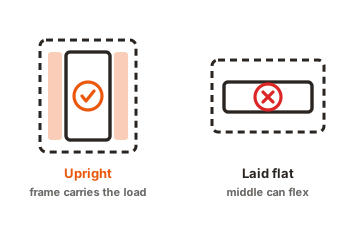
Laid flat and face up, the panel has nothing supporting its middle. Every bump lets the centre flex, and that flex is exactly what causes micro-cracks and later distortion. The bigger the screen, the more it sags, so the risk climbs with size. Face down is worse, because any pressure on the back pushes straight into the panel.
OLED panels deserve extra care. They are thinner than LCD and have no rigid backlight behind them, so they bend more easily. If you have an OLED, upright is not optional.
Packing with the box, and without it
If you kept the original packaging, use it. The foam inserts were moulded for your exact model and beat anything you can build. Slide the monitor in, pack the cables and stand in their spaces, and tape it shut.
No box? Build your own protection:
- Wrap the padded screen and body in three to five layers of bubble wrap, and tape the wrap to itself, never to the monitor.
- Fit foam or folded cardboard over each corner.
- Put a 2 to 3 inch cushion of soft fill in the bottom of the box.
- Stand the monitor upright in the centre so it touches no wall of the box directly.
- Fill every gap around it until it cannot move. A gentle shake should produce no shifting at all.
- Tape the box well and mark it Fragile and This Way Up on more than one side.
If you are nervous about the drive, the double-box method adds a real margin: pack the wrapped monitor in one box, then set that box inside a slightly larger one with a couple of inches of fill between them. The outer layer takes the knocks so the inner one does not.
Carrying a monitor in a car
For a short drive you do not need a box, but you still need to control position and movement. How you load it decides whether it survives.
- Set it upright, not flat. The footwell behind a front seat is the best spot: it is low, flat, and boxed in on three sides.
- Wedge it so it cannot tip. Push a seat back against the box, or brace it with soft bags, so hard braking cannot throw it forward.
- Face the screen inward, toward a padded seat back rather than a hard surface or a door.
- Skip the boot floor for long trips if it is a hard, bouncy surface. If you must use it, lay down a folded blanket and keep the monitor standing.
- Drive gently. Slow over speed bumps and potholes. Vibration is the quiet enemy here.
Shipping a monitor by courier
Shipping is the hardest test, because handlers are rough and you are not there to watch. The packing rules above become non-negotiable, plus a few extras.
Use a double-wall box with 2 to 3 inches of cushioning on all sides, and consider double-boxing for anything valuable. Because a courier box can pick up static, add an anti-static film or bag over the screen before wrapping. Then compare carrier options on what matters for a fragile, high-value item:
| What to check | Why it matters | What to aim for |
|---|---|---|
| Box strength | Weak or reused boxes crush and void claims | New double-wall, undamaged corners |
| Declared value | Standard liability is low, often too low | Add declared value or third-party insurance |
| Fragile handling | Reduces stacking and rough sorting | Pay for fragile or priority where offered |
| Transit time | Longer routes mean more handling | Choose the shorter route when close in price |
Take a few photos of the packed box and the screen working before it ships. If a claim comes up, that record is what settles it. Carriers routinely deny claims when the outer packaging looks compromised, so the box condition on arrival is part of your evidence.
Cold, heat, and condensation
Temperature is the risk people forget. A monitor that travels through a cold truck and then goes into a warm room can grow condensation inside, and powering it up wet can short the electronics.
Most monitors have a stated storage range. A typical Dell office monitor, for example, lists non-operating storage from about minus 20 degrees Celsius up to 60 degrees, at non-condensing humidity, in its user guide. Extreme cold can also stress the liquid crystal layer, so an unheated vehicle overnight in winter is worth avoiding.
Conclusion
Moving a monitor safely comes down to three habits: keep it upright, cushion every side so no point presses on the glass, and pin it in place so it cannot shift or flex. Prep it by removing the stand and cables, use the original box or a well-padded double-wall one, and let it reach room temperature before powering on after a cold trip. Do that, and a good result is simple: you plug it in and the picture is perfect, then and weeks later too.
Arrived with a fault? See our guide to diagnosing monitor screen issues, or browse all our monitor mounting guides.
Frequently asked questions
Can I lay a monitor flat if I have nothing to stand it against?
It is risky without the original foam, because the middle of the panel can flex over bumps. If you truly cannot keep it upright, lay it face up on a thick folded blanket, put nothing on top, and drive slowly.
Do I really need the original box to ship a monitor?
No. A new double-wall box with 2 to 3 inches of cushioning on every side works well, especially if you double-box it. The original foam is best, but good padding and a snug fit match it closely.
Should I remove the monitor stand before moving it?
Yes, when it detaches easily. Removing the stand saves space, cuts the chance of it snapping off, and makes the unit pack flatter. Bag the screws and tape them to the stand so nothing goes missing.
How long should I wait before turning on a monitor after transport?
If it travelled through cold or heat, let it sit in its box at room temperature for two to three hours first. This lets any condensation clear so you do not power on a damp screen.
Is it safe to transport an OLED monitor the same way as an LCD?
Handle an OLED with more care. Its panel is thinner and lacks a rigid backing, so it flexes more easily. Always keep it upright, pad it generously, and never lay it flat outside its fitted foam.