Monitor HP 1740 Manual: Setup, Specs & Fixes
Table of contents
The HP 1740 is HP’s L1740, a 17-inch flat-panel LCD built for office and home desks. You can get its full manual and driver free from HP’s support site, and this page walks through the same things that manual covers: getting the monitor out of the box, plugging it in, using the buttons and menu, and fixing the problems that come up most. If your screen shows nothing, looks fuzzy, or just needs the right resolution, the fix is usually quick once you know where to look.
Which monitor is this, and where’s the manual?
“HP 1740” and “HP L1740” are the same monitor. The full model name is the HP L1740, a 17-inch (43.2 cm) LCD that first shipped in early 2005. People often leave the “L” off when they search, so if you typed “HP 1740,” the L1740 is the screen you want.
Some L1740 units add a DVI port and some are VGA only. To see which you have, look at the row of connectors on the back: a single blue 15-pin plug means VGA only, while a second, white plug means it also takes DVI. Either way, the setup and the menu work the same.
There are two different manuals for it, and it helps to pick the right one. The user guide is the everyday manual. It covers setup, the on-screen menu, basic fixes, and the specs, and it’s the one almost everyone needs. The service manual is for repair technicians. It holds circuit diagrams and board-level repair steps, and you only need it if you’re opening the case to work on the electronics.
Both are free. The safest place to get them, along with the monitor’s driver, is HP’s own support site. Open HP’s support page for the L1740, enter your model if asked, and you’ll find the driver, the HP Display LiteSaver software, and the documentation in one place. Getting files straight from HP also means you skip the ad-heavy “driver” sites that wrap downloads in extra installers.
What’s in the box, and how to set it up
A new L1740 ships with the monitor and a folded base, a VGA cable, an AC power cord, a USB cable, and a user CD-ROM. The base arrives folded flat, so the first job is to stand it up.
Set it up in this order, with everything powered off first:
-
Unfold the base
Lift the panel until the stand clicks into its upright position, then set the monitor on a flat, steady surface near your computer. -
Connect the video cable
Plug the VGA cable (or DVI, if your monitor and computer both have it) into the matching port on the back, and the other end into your PC’s graphics output. Hand-tighten the screws so the plug can’t work loose. -
Connect power
Plug the AC cord into the monitor, then into a wall outlet you can reach easily. Don’t run the cord where it can be stepped on or pinched. -
Connect USB if you want it
Run the USB cable from the upstream port on the monitor to a USB port on your PC. The downstream ports then work like a small hub for a mouse, keyboard, or flash drive. -
Power on
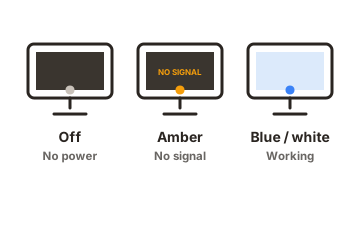
Switch on the computer first, then press the monitor’s power button. A green light means it’s on. An amber or orange light means it’s asleep or getting no video signal.
Tilt the screen to a comfortable angle once it’s running. The stand also pivots, so you can turn the screen 90 degrees into a tall portrait layout if your graphics software supports it.
VGA or DVI, and getting the picture sharp
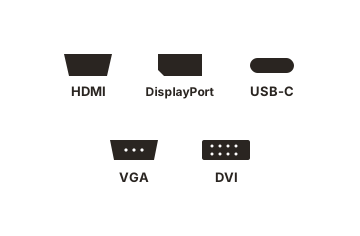
The L1740 always has a VGA port (the blue 15-pin plug), and some versions add a DVI port for a pure digital link. If you have the choice, use DVI. It sends the image digitally, so text looks cleaner and you skip the small focus tweaks that analog VGA sometimes needs.
Whichever cable you use, set your computer to the screen’s native resolution of 1280 x 1024. That’s the exact number of pixels the panel has, and matching it keeps text crisp. In Windows, right-click the desktop, open Display settings (or Screen resolution on older versions), choose 1280 x 1024, and confirm the change.
If text still looks soft over a VGA cable, run the monitor’s auto-adjustment. Press the auto button on the front, or open the menu and choose the auto-adjustment option. The monitor measures the incoming signal and lines the image up by itself, which clears up most blur and any faint vertical bands. Auto-adjustment only applies to the VGA connection, so a DVI link doesn’t need it.
For the cleanest match between the monitor and Windows, install the driver from HP’s support site. Windows will often show a working picture without it by using a generic Plug and Play driver, but the proper driver makes sure 1280 x 1024 and the correct refresh rate appear as options.
One thing to expect: the L1740 has a 5:4 shape rather than today’s widescreen, so a 16:9 video can show thin black bars or look slightly stretched, depending on your settings. At 1280 x 1024 the monitor runs at a 60 Hz to 75 Hz refresh rate, which is fine for office work, browsing, and everyday video.
Using the buttons and the on-screen menu
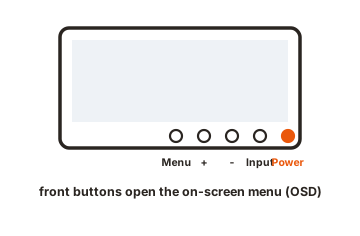
All of the L1740’s settings live in a small set of front-panel buttons and the on-screen display, or OSD. The buttons are simple: a power button, a Menu button that opens and closes the OSD, and plus and minus buttons that move through the options and change values. Press Menu to open the menu, use plus and minus to move and adjust, and press Menu again to select or step back.
Inside the menu you can set:
- Brightness and contrast, for comfortable viewing in your room’s light.
- Color, with preset color temperatures (a warmer or cooler white) and an option to fine-tune the red, green, and blue mix.
- Image position, clock, and phase, mainly for tidying up a VGA picture.
- Language, so the menu reads in English, Dutch, French, German, Italian, Spanish, or Simplified Chinese.
You can also assign the plus and minus buttons as shortcuts, so a single press jumps straight to a setting you change often, like brightness.
To save power, the monitor drops into a low-power sleep mode on its own when your computer stops sending a signal, and it wakes the moment you move the mouse. HP’s Display LiteSaver software builds on this by letting you schedule sleep at set times. That lowers running costs and helps protect the panel from image retention when the same picture sits on screen for long stretches.
If a setting ever looks wrong, the menu has a reset option that returns the picture to its factory defaults, which is a quick way to undo a change you can’t quite place. The menu also closes on its own after a few seconds if you stop pressing buttons, so you can’t get stuck in it.
HP 1740 (L1740) specs at a glance
| Spec | Detail |
|---|---|
| Screen size | 17 inches (43.2 cm), flat-panel LCD |
| Native resolution | 1280 x 1024 (5:4) |
| Brightness | 300 cd/m² |
| Contrast ratio | 500:1 |
| Response time | 8 ms |
| Viewing angles | 150° horizontal, 135° vertical |
| Video inputs | VGA (15-pin); DVI-D on select models |
| USB | Built-in USB 2.0 hub (upstream and downstream ports) |
| Speakers | None built in; optional clip-on HP speaker bar |
| Stand | Tilt and 90° pivot to portrait |
| Mounting | VESA-compliant for arms and wall mounts |
| Released | Early 2005 |
Fixing common problems
Most L1740 issues trace back to a short list of causes. Work through them in order.
-
Nothing on screen, power light is amber
The monitor isn’t getting a signal. Check that the video cable is firmly seated at both ends, that the computer is on and awake, and that you picked the matching input if your monitor has both VGA and DVI. Swapping in a known-good cable rules out a bad one. -
No power at all
Make sure the power cord is pushed fully into the monitor and a live outlet, and test that outlet with another device. If the cord is damaged, replace it rather than using it. -
Fuzzy or smeared text on VGA
Set Windows to 1280 x 1024, then run the monitor’s auto-adjustment. If a little softness remains, open the menu and nudge the clock and phase settings until text snaps into focus. -
Wrong or stretched resolution
This usually means the driver isn’t installed, or Windows is set below the native resolution. Install the driver from HP, then set the resolution to 1280 x 1024. -
Screen too dim or too bright
Open the menu and adjust brightness and contrast. If a warm or cool tint bothers you, change the color temperature in the same menu. -
Image won't rotate to portrait
The stand turns, but Windows also has to rotate the picture. Set the display orientation to portrait in your graphics control panel or Windows display settings. -
A stuck or dead pixel
A tiny number of always-on or always-off dots can show up on any LCD, and it’s not unusual on a panel of this age. HP’s pixel policy sets the point at which a panel counts as faulty, which matters mainly if the monitor is still under warranty. -
Monitor keeps dropping to sleep
If the screen sleeps while you’re still using the computer, check the cable seating first, then your PC’s power settings, since Windows can blank the display after a set idle time. A LiteSaver schedule can also send it to sleep at preset times, so check there too.
If none of this helps and the monitor is still in warranty, HP’s support site lists the steps to get service.
Putting it on an arm or wall
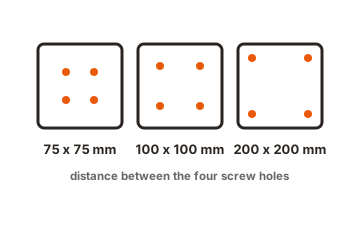
The L1740 is VESA-compliant, so it fits standard monitor arms and wall mounts. To move it from the desk stand to a mount, set the monitor face-down on a soft, clean surface, remove the base to expose the VESA screw holes, and attach your arm or bracket with the VESA screws.
If you’re adding a second device to the same quick-release mount, such as a small thin client behind the screen, keep the combined weight within the mount’s limit. For HP’s quick-release plate that’s about 24 pounds (10.9 kg) in total. For a wall install, it’s worth having someone who knows the wall type confirm the fixings will hold.
Cleaning and everyday care
Turn the monitor off and unplug it before you clean it. Wipe the screen gently with a soft, dry, lint-free cloth, or one barely dampened with water. Don’t spray liquid straight onto the panel, and skip household glass cleaners or anything with ammonia or alcohol, since those can damage the screen’s surface over time. Keep the vents on the back clear so the monitor can shed heat, and don’t rest anything on the power or video cables.
Conclusion
The HP 1740 is the HP L1740, a 17-inch LCD that runs best at 1280 x 1024 with the driver and manual from HP’s support site. Set it up with the power off, use DVI if you have it, and run auto-adjustment to sharpen a VGA picture. The front buttons and on-screen menu handle brightness, color, and position, and most faults come down to a loose cable or the wrong resolution. Get those right and it’s a dependable everyday screen.
For more on getting a monitor onto an arm or wall, see our monitor mounting guides.
Frequently asked questions
Is the HP 1740 the same as the HP L1740?
Yes. They're the same 17-inch monitor. The full model name is L1740, and people often leave the L off when searching, so HP 1740 points to the same screen.
What's the native resolution of the HP L1740?
1280 x 1024. Set your computer to this exact resolution so text and images stay sharp. Anything lower can look soft or stretched on the panel.
Where can I download the HP L1740 manual and driver for free?
From HP's official support site. Search the L1740 model and you'll find the driver, the user guide, and the HP Display LiteSaver software in one place.
Does the HP L1740 have built-in speakers?
No. It has no internal speakers, so you'll need external speakers or headphones. HP also made a clip-on speaker bar that mounts to the bottom edge for audio.
Why does my HP L1740 say no signal?
It isn't receiving video. Check the cable at both ends, make sure the PC is on, and select the right input if the monitor has both VGA and DVI. A spare cable rules out a bad one.