LCD Monitor Screen Burn: What It Is and How to Fix It
Table of contents
You closed a game or a spreadsheet and a faint shape is still sitting on the screen. The good news first: on an LCD monitor, real burn-in is rare. What you are almost certainly looking at is image retention, a temporary ghost image that you can usually clear in an afternoon. Below is how to tell the two apart, the exact steps to remove the ghost, and how to keep it from coming back.
Is LCD monitor screen burn permanent?
Usually no. On an LCD, a leftover image is almost always temporary and goes away on its own or with a little help. True permanent burn-in does happen, but it is rare on this type of screen.
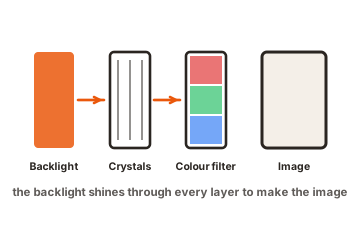
The reason is how an LCD is built. An LCD does not make its own light. It has a backlight behind the panel, and a layer of liquid crystals that twist to let more or less of that light through for each pixel. When one image sits in place for hours, the crystals in that spot can get sluggish and take a while to snap back. That lag is what leaves the faint shape, and it is the part that fades.
This is different from the screens people think of when they hear “burn-in.” Old CRT tubes and modern OLED panels make their own light, pixel by pixel. Hold a bright static image on those long enough and the glowing parts wear down unevenly, which leaves a mark that does not heal. An LCD has no glowing pixels to wear out the same way, so it dodges most of that problem.
What causes screen burn on an LCD monitor?
One thing above all: a still image left in the same spot for a long time. Anything that does not move is a candidate. Common culprits include:
- Game HUDs such as a health bar, minimap, or crosshair that stays put for hours.
- Taskbars and toolbars that never change, including the Windows taskbar or a docked app sidebar.
- Channel or app logos parked in a corner, and paused video left frozen on one frame.
- Spreadsheets and dashboards with fixed headers or panels that you keep open all day.
Two things make it worse. High brightness is the big one: a bright static image stresses the crystals harder than a dim one, so a panel run at full brightness all day is more likely to hold a shape. Heat is the other, since a warm panel relaxes more slowly. Sitting in direct sun or jammed into a tight space with poor airflow both add to the risk.
New panels are also a little more sensitive. It is worth being a bit more careful in the first 100 hours or so of a monitor’s life, and not parking a fixed image on a brand-new screen for hours on end.
It also helps to know what does not cause it, so you do not worry over the wrong thing. A few minutes of gaming will not burn an image into a modern LCD. Brightness changing as the picture moves is normal. And a dim screen saver that drifts around is helping, not hurting. The risk only really builds when one bright, unchanging image holds the same position for a long stretch, hour after hour, day after day. Short bursts and moving content are fine.
Image retention or burn-in: how do you tell?
The simple test is time. Image retention fades; burn-in does not. If the shape clears after you turn the monitor off for a while or run some moving content, it was retention, which is the common, fixable case. If it survives everything below and still does not budge, you are in the rare burn-in territory.
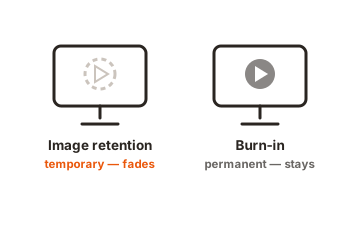
Here is a side-by-side so you know which one you are dealing with before you start.
| What to check | Image retention | True burn-in |
|---|---|---|
| Is it permanent? | No, it fades on its own | Yes, it stays for good |
| How long it lasts | Minutes to a few hours | Indefinitely |
| How strong it looks | Faint, ghostly outline | Clear and easy to see |
| Does turning it off help? | Yes, often clears it | No, the mark remains |
| How common on LCD | Fairly common | Rare |
How do you fix a ghost image on an LCD monitor?
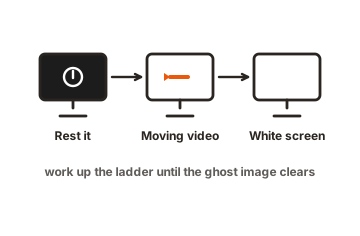
Start gentle and only escalate if you need to. Work through these in order and check after each step. The whole point is that the easy fixes usually work, so you rarely reach the bottom.
-
Clear the static element first
Close the game or app that caused it. Set the taskbar to auto-hide and turn off any always-on overlays so nothing keeps re-burning the same spot. -
Turn the monitor off and rest it
Power it down for a few hours, or overnight if you can. For mild ghosting this alone often does the job, because the crystals simply relax back to normal. -
Run full-screen moving content
If a shape is still there, play 1 to 2 hours of fast, colorful video that fills the screen. Constant motion exercises every pixel and pulls the lag out. -
Try the white-screen pass
Show a pure white image full screen at a moderate-to-high brightness for about 30 minutes, then turn the display off for 15 minutes, then check again on a gray screen. White light drives all the pixels evenly. -
Use a color-cycle or pixel-refresh tool
For a stubborn mark, run a red-green-blue cycling pattern for a few hours. Free pixel-refresher videos made for this exist, and some monitors include a built-in pixel-refresh or panel-conditioning function in their menu, so trigger that if yours has one.
Patience is the trick most people miss. A good rule is to run the recovery for at least as long as the image was stuck in place. A shape that built up over a full workday may need several hours, and sometimes more than one round, to clear.
Most makers also publish their own steps for this. ViewSonic’s guide to fixing image persistence walks through the same rest-and-refresh approach and points to refresh videos you can play straight away.
How do you stop it coming back?
Prevention is mostly about not letting one image sit still at full brightness for hours. A few habits cover almost all of it:
- Use a screen saver or sleep timer. Set the screen to sleep after 10 to 15 minutes of no use. On Windows this lives in Power settings; on a Mac it is under Lock Screen and Energy settings.
- Pick a dynamic screen saver. A moving one helps; another still image does not. The goal is to keep pixels changing, not to swap one frozen picture for another.
- Keep brightness sensible. Around 50 to 70 percent is plenty for most rooms. Save full brightness for bright daylight, since high brightness is the single biggest risk factor.
- Break up long static sessions. If you game with a fixed HUD or stare at one dashboard all day, drop to the desktop, switch tasks, or play a short video every now and then to vary what is on screen.
- Turn pixel shift on if you have it. Many monitors can nudge the whole image a pixel or two on a timer, so no single spot carries a fixed shape. It is usually in the on-screen menu.
- Mind heat and sun. Give the monitor room to breathe and keep it out of direct sunlight. A cooler panel resists retention better.
When is it time to repair or replace the monitor?
Replacement is a last resort, and you will rarely need it for a ghost image alone. The signal is simple: a mark that does not improve at all after a full round of rest and moving content is no longer ordinary retention.
Look for these warning signs together. If the shape is sharp and vivid rather than faint, if it survives the white-screen and color-cycle passes, or if you also see dead or stuck pixels, color blotches, or visible cracks and lifting at the edges, then the panel itself may be damaged. At that point the fix is hardware, not a refresh video.
If the monitor is still under warranty, contact the maker before you do anything else. Note, though, that many manufacturers specifically exclude damage from static images left on screen too long, so retention and burn-in are often not covered. Check the terms first. If it is out of warranty and truly burned in, a replacement is usually more sensible than a repair for a typical desktop monitor.
Before you spend anything, give the panel one honest, full recovery attempt. Run a white-screen pass, then several hours of color-cycling content overnight, then recheck on a plain gray screen in the morning. Many marks that look permanent at first will lift after one long, patient session. If even part of the shape softens, keep going, because that fading is a sign the panel is still recovering and not actually damaged. Only a mark that holds firm through all of that, with no change at all, points to a panel you cannot rescue with software.
Conclusion
On an LCD monitor, a leftover ghost image is almost always temporary image retention, not permanent burn-in, and you can usually clear it yourself. Remove the static element, rest the screen, then run moving or white content, giving it at least as long as the image was stuck. To keep it away, use a sleep timer, keep brightness moderate, and avoid parking one image in place for hours. A clean screen with no lasting shape is the result you want.
For more screen faults and fixes, browse our monitor troubleshooting guides.
Frequently asked questions
How long does it take for an LCD monitor to get screen burn?
Ordinary retention can appear after a few hours of the same static image, especially at high brightness. True permanent burn-in is rare and usually needs the same image held for many hours daily over weeks or months.
Can image retention on an LCD go away by itself?
Yes, that is the usual outcome. Turn the monitor off for a few hours or run varied content, and a faint ghost typically fades on its own. Retention that never clears after that is the rare exception.
Does a white screen really fix monitor ghosting?
Often, for temporary retention. A full-screen white image at moderate-to-high brightness for about 30 minutes drives all pixels evenly and helps them reset. Follow it with a short rest and recheck on a gray screen.
Are LCD monitors or OLED monitors more prone to burn-in?
OLED is more prone to permanent burn-in because its pixels make their own light and wear unevenly. LCDs mostly get temporary retention instead, which is why a ghost on an LCD is usually fixable.
Will leaving my monitor on overnight cause burn-in?
One night with a moving image or a screen saver is low risk. The danger is a bright, fixed image left in place for hours. Set the screen to sleep when idle and you avoid most of the worry.