Docking Station for Dual Monitors HDMI: How to Pick One That Works
Table of contents
A dual-monitor HDMI docking station connects two HDMI screens to your laptop through one cable, then adds extra USB, Ethernet, and charging ports so your whole desk lives on a single connection. The catch is that a dock with two HDMI ports does not guarantee two separate screens. Whether both monitors extend as their own displays depends on your laptop’s chip and the video technology inside the dock. Match those two things and it just works. Get them wrong and your second monitor mirrors the first, or never turns on.
This guide walks through what these docks do, why the second screen sometimes fails, and how to pick one that fits your exact laptop.
What a dual-monitor HDMI docking station is
It is a small hub you plug into one USB-C or Thunderbolt port on your laptop. On the other side it gives you two HDMI outputs for two monitors, plus a set of everyday ports: USB-A for a keyboard and mouse, USB-C for fast drives, Gigabit Ethernet for wired internet, an SD card slot, and a power input that charges your laptop while you work.
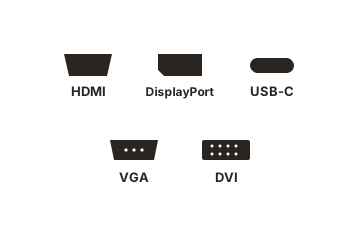
The appeal is one cable. You sit down, plug in a single connector, and two screens, your peripherals, and charging all come alive at once. When you leave, you unplug that one cable and take the laptop with you.
Will it really run two separate screens?
This is the question that trips people up, so here is the direct answer: two HDMI ports on a dock do not automatically give you two independent monitors. Your laptop has to be able to send two separate video streams in the first place. If it can only send one, the dock has nothing extra to split, and your second screen ends up as a copy of the first.
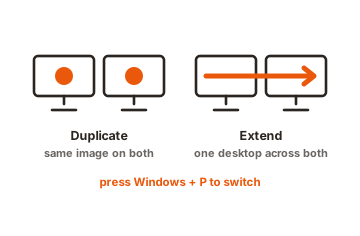
There are two common ways this goes wrong. On some Windows laptops, the USB-C port does not carry video at all, so no dock will produce even one external screen through it. On Apple Silicon MacBooks, the chip itself limits how many external displays it can drive, no matter how many ports the dock has.
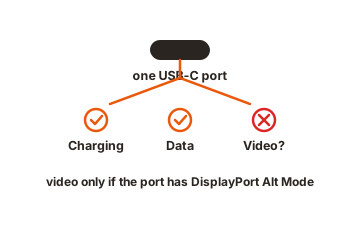
The fix is to know which display technology your dock uses and whether your laptop supports it. There are three, and picking the right one is the whole game.
The three ways a dock drives two monitors
Every dual-HDMI dock uses one of three methods to push video to two screens. They differ in what your laptop needs, whether you install a driver, and how much they cost.
| How the dock drives 2 screens | What your laptop needs | Best for |
|---|---|---|
| Two HDMI ports using MST | A Windows laptop whose USB-C port supports DisplayPort Alt Mode and MST | Windows users who want a driver-free setup and two 4K screens at 60Hz |
| DisplayLink | A free driver installed once; works over plain USB | MacBooks and any laptop that natively caps out at one external screen |
| Thunderbolt or USB4 | A USB-C port marked with the Thunderbolt or USB4 logo | Two 4K screens at 60Hz with no driver, no lag, plus fast data and charging |
MST: the driver-free Windows route
Multi-Stream Transport, or MST, is a DisplayPort feature that splits one video signal into two streams inside the dock. Your laptop’s graphics chip still does the work of drawing both screens; the dock just hands each stream to a separate HDMI port. It needs no software and it is common on business Windows laptops.
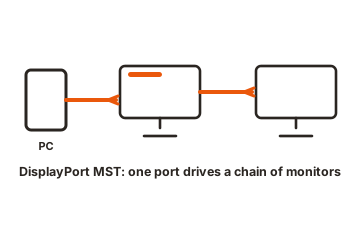
The requirement is that your laptop’s USB-C port supports DisplayPort Alt Mode and that the chip allows MST. Most modern Dell, HP, and Lenovo laptops do. The important limit: MST does not work on macOS. Apple has never supported it, so an MST-only dock will only mirror on a Mac.
DisplayLink: the MacBook fix
DisplayLink takes a different path. Instead of leaning on your laptop’s graphics output, it puts a dedicated chip inside the dock that builds the video itself and sends it over plain USB. Because it sidesteps the laptop’s display limit, it can add a second, or even third, monitor to machines that natively support only one.
That makes DisplayLink the standard answer for the base MacBook Air. You install the free DisplayLink Manager app once and both screens extend properly. The trade-offs are worth knowing: there is a small amount of extra load on your processor, older machines can feel it under heavy use, and some streaming apps like Netflix or Disney+ may refuse to play on a DisplayLink screen because of copy protection. For office work, spreadsheets, browsers, and video calls, it runs fine.
Which brings up a Mac point worth checking before you buy. Apple lists exactly how many external screens each chip can drive on its MacBook Air display support page. A base M1 or M2 Air handles one external display, an M3 Air can do two but only with the lid closed, and M4 and M5 models finally run two with the lid open. If your chip caps at one and you want two lid-open screens, DisplayLink is the way there.
Thunderbolt and USB4: the no-compromise option
Thunderbolt 3, Thunderbolt 4, and USB4 all carry 40 Gbps, which is enough raw bandwidth to drive two 4K monitors at 60Hz at the same time with no driver, no processor overhead, and no streaming restrictions. Thunderbolt 5 pushes this to 80 Gbps. This is the smoothest experience of the three.
The catch lives on the laptop side, not the dock. Your USB-C port has to actually be a Thunderbolt or USB4 port, marked with the Thunderbolt lightning-bolt logo or a “USB4” label. These docks also cost more, often $180 to $350 against roughly $60 to $150 for MST or DisplayLink models.
Do you need HDMI 2.0 or HDMI 2.1?
For a normal two-monitor desk, HDMI 2.0 is enough. It carries 18 Gbps, which comfortably runs a 4K screen at 60Hz, the sweet spot for office work, coding, browsing, and editing. Almost every dual-HDMI dock uses HDMI 2.0 ports, and almost every monitor sold in the last several years accepts that signal.
HDMI 2.1 raises the ceiling to 48 Gbps, which unlocks 4K at 120Hz and 8K at 60Hz. You only need it if you are pushing a high-refresh 4K gaming monitor or an 8K panel. For two standard 4K or 1440p office screens at 60Hz, paying extra for HDMI 2.1 buys you nothing you will see.
One thing worth checking: when a single dock splits bandwidth across two monitors, some cheaper models drop each screen to 30Hz to fit both signals. A 30Hz screen looks laggy when you move the mouse. Confirm the dock lists dual 4K at 60Hz, not just “4K support,” which can quietly hide a 30Hz dual-screen mode.
How much charging power you need
A good dock charges your laptop through the same cable that carries video. The number to look at is Power Delivery wattage. A thin ultrabook is happy with 65W. A 14-inch or larger laptop, or anything with a discrete graphics card, wants 90W to 100W so it charges while you push it hard.
Check two numbers, not one. Docks advertise their total input wattage, but some of that runs the dock itself, so the power that reaches your laptop is lower. A dock rated “100W” might deliver 85W to the machine. If your laptop’s own charger is 90W, aim for a dock that delivers at least that to the laptop, not just 90W total.
A quick buying checklist
Before you buy, run through these in order. The first two decide whether the dock works at all; the rest fine-tune the fit.
-
Find your laptop's chip and port
On Windows, check whether the USB-C port supports DisplayPort Alt Mode. On a Mac, note the exact chip (M1, M2, M3, M4). This decides everything else. -
Match the technology
Windows with MST support: a two-HDMI MST dock is the cheapest good option. Base MacBook Air, or any laptop capped at one screen: choose DisplayLink. Want zero compromise and have a Thunderbolt port: go Thunderbolt or USB4. -
Confirm dual 4K at 60Hz in the spec
Not just “4K,” so you don’t land in a 30Hz dual-screen mode. -
Check Power Delivery to the laptop
matches or beats your laptop’s own charger, ideally 90W to 100W for larger machines. -
Count the extra ports you actually use
Ethernet, card reader, spare USB-A, so one cable really does replace the pile on your desk.
Conclusion
A dual-monitor HDMI docking station turns one laptop port into two screens plus a full set of ports, but only when the dock’s display technology matches your laptop. Windows machines with MST support take a simple two-HDMI dock; base MacBooks need DisplayLink; a Thunderbolt or USB4 port gives the cleanest dual-4K result. Confirm dual 4K at 60Hz and enough charging power for your laptop, and you get a tidy one-cable desk that works the first time you plug it in.
Setting the screens up afterwards? See our guide to connecting a monitor, or browse all our monitor buying guides.
Frequently asked questions
Can I connect two monitors to a dock with only one HDMI port?
Not through HDMI alone. HDMI cannot split into two screens on its own. You would need a second video output on the dock, such as a DisplayPort, with your laptop able to send two streams. A single HDMI port drives one monitor.
Why does my second monitor just mirror the first?
Usually your laptop can only send one video stream, so the dock copies it to both screens. On Windows, check that the port supports MST. On a base MacBook, you need a DisplayLink dock and its driver to extend rather than mirror.
Will a dual-HDMI dock work with a MacBook Air?
Only if it uses DisplayLink. Base M1 and M2 MacBook Airs drive one external screen natively, and the M3 needs its lid closed for two. A DisplayLink dock plus the free driver adds a second screen with the lid open.
Is HDMI 2.0 good enough for two 4K monitors?
Yes, for 4K at 60Hz, which covers almost all office and creative work. HDMI 2.0's 18 Gbps handles a 4K 60Hz screen with room to spare. You only need HDMI 2.1 for 4K at 120Hz or 8K, mainly high-refresh gaming.
How much charging power does my laptop need from a dock?
Around 65W for a thin ultrabook and 90W to 100W for a larger or graphics-heavy laptop. Match the dock's delivered wattage to your laptop's own charger, and remember delivered power is a little lower than the dock's total rating.