Monitor Connect: How to Hook Up Any Screen Fast
Table of contents
To connect a monitor, you match a cable to the ports on both your computer and the screen, plug it into each, turn both on, and select the right input on the monitor. That is the whole job for most people, and it usually takes about two minutes.
The part that trips people up is not the plugging in. It is picking the right cable, and knowing what to do when the screen stays black even though everything looks connected. This guide walks you through both, in plain steps, whether you are setting up your first monitor or adding a second one.
What you need before you start
You need three things: the monitor, a video cable, and a computer with a matching port. Most new monitors come with one cable in the box, often HDMI or DisplayPort, so check there first before buying anything.
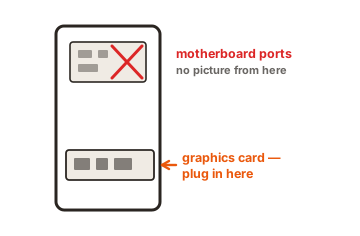
The key step is to look at the ports on both devices. Turn your monitor around and look at the back. Then look at the side of your laptop, or the back of your desktop tower. You are trying to find one port type that appears on both. That shared port decides which cable you use.
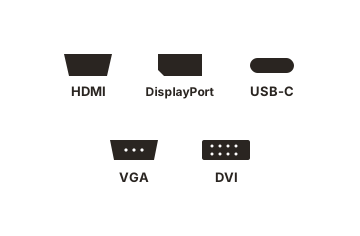
Knowing what each port looks like makes this faster. HDMI is a flat, slightly tapered slot, the same shape you see on a TV. DisplayPort looks similar but has one squared corner and one clipped corner. USB-C is the small, rounded oval that plugs in either way up. VGA is the older trapezoid-shaped port with holes for pins, usually colored blue, and DVI is a wider white connector with lots of pins. Spotting the shape tells you what you are working with before you even read a label.
Which cable should you use?
Use whatever cable matches a port on both your computer and your monitor. If both have HDMI, use HDMI. If both have DisplayPort, use that. If the ports do not match, a cheap adapter can bridge the gap. Here is how the common options compare.
| Connector | Best for | Good to know |
|---|---|---|
| HDMI | Most home and office setups | The most common port. Carries video and audio. Plug-and-play on nearly any laptop, TV, or monitor. |
| DisplayPort | Gaming and high refresh rates | Handles higher resolutions and refresh rates than older HDMI. Common on PC monitors and graphics cards. |
| USB-C | Modern laptops, single-cable desks | Can carry video, data, and power in one cable, but only if the port supports video output. See the USB-C section below. |
| VGA / DVI | Older PCs and monitors | Older analog or early digital standards. Still found on some legacy gear. Use an adapter to reach a modern monitor. |
If you only care about a clear picture for everyday work, HDMI is the simplest choice and works almost everywhere. If you are a gamer chasing a high refresh rate, DisplayPort or a recent HDMI version is the better pick. If your laptop is newer and thin, you may only have USB-C ports, which brings us to the one thing worth understanding before you buy.
When the ports do not match, an adapter or a conversion cable solves it, for example USB-C to HDMI, DisplayPort to HDMI, or HDMI to VGA for older screens. These are cheap and widely available. One thing to watch: most adapters only pass a signal in one direction, from your computer out to the monitor, so buy the adapter that names that direction. And as the USB-C section explains, an adapter can only pass along a video signal that the port is already capable of sending.
How to connect a monitor, step by step
Once you have the right cable, the connection itself is quick. Follow these steps in order.
- Plug in the monitor’s power cable and connect it to a wall outlet or surge protector.
- Connect one end of the video cable to the port on your computer, and the other end to the matching port on the monitor.
- Turn on the monitor, then turn on (or wake) your computer.
- If you see your desktop, you are done. If the screen says “No Signal,” press the monitor’s input or source button and select the input you used, such as HDMI 1 or DisplayPort.
On Windows, the screen is usually detected on its own. If you want to change resolution or how the screen sits next to another, go to Start, then Settings, then System, then Display, and adjust from there.
On a Mac, plug the cable in and the display normally appears right away. To fine-tune it, open System Settings and go to Displays. If you are using a USB-C to HDMI or USB-C to DisplayPort adapter, the same rule about video output applies, which is covered in the next section.
Getting the picture to look right
A connected screen does not always show its best picture straight away. Two settings are worth a quick check once the desktop appears.
The first is resolution, which is how sharp the image is. Windows usually picks the best one and labels it “Recommended” in Settings, then System, then Display. If text looks fuzzy or oversized, make sure the resolution matches what the monitor is built for, such as 1920 by 1080 for a Full HD screen or 3840 by 2160 for a 4K one. On the same screen you can also adjust scale, which makes text and icons larger without losing sharpness, handy on a high-resolution display where everything looks tiny.
The second is refresh rate, measured in hertz, which is how many times per second the screen redraws. A higher number means smoother motion, which matters most for gaming. If your monitor supports 120Hz or 144Hz but feels no smoother than a basic screen, it may be running at 60Hz by default. In Windows, open Settings, then System, then Display, then Advanced display, and choose the higher rate from the dropdown. Keep in mind the cable and port have to support that rate too, which is where DisplayPort or a newer HDMI version earns its place.
The USB-C catch (why the screen stays black)
Here is the thing that catches almost everyone. A USB-C port is just the shape of the plug. It does not promise video. Some USB-C ports send video to a monitor, some only charge, and some only move files. Plug a monitor into the wrong one and the cable will charge your laptop while the screen stays black.
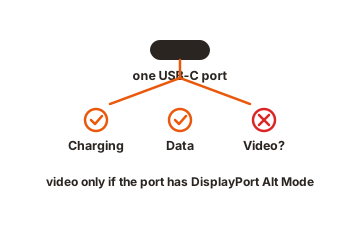
The feature that lets a USB-C port carry video is called DisplayPort Alt Mode. Both your laptop’s port and the cable have to support it for video to pass through. You cannot add this with a setting or a driver. If the port was not built for video, no adapter can create a signal from nothing.
So before you buy a USB-C monitor or adapter, check your laptop’s exact model on the maker’s website and look for a USB-C port that lists “DisplayPort Alt Mode,” “video output,” or Thunderbolt. A small DisplayPort or lightning-bolt symbol next to the port is a good sign too. For the full rundown of how video travels over a USB-C cable, the VESA standard is explained on Dell’s DisplayPort over USB-C page.
If your laptop’s USB-C port does not do video but you still want to use it, a software-based USB display adapter (often called DisplayLink) can add a screen through plain USB data. It needs a driver and is fine for email, documents, and dashboards, but it is not ideal for fast gaming or color-critical work. It is also a useful way to add a third screen when your ports are already full.
How to set up a second monitor
Adding a second screen works the same way: find a free video port on your computer and connect the second monitor to it. The difference is what you do afterward, because Windows often mirrors both screens by default, which wastes the extra space.
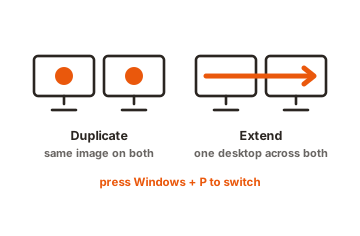
To spread your desktop across both screens on Windows, press the Windows key and P at the same time, then choose Extend. This turns the second monitor into more room rather than a copy of the first. The same menu lets you pick Duplicate, or show the picture on only one screen.
Next, tell Windows where each screen physically sits so your mouse moves between them naturally. Go to Settings, then System, then Display. You will see numbered boxes for each screen. Click Identify to see which box is which, then drag the boxes to match how the monitors are arranged on your desk. Click the screen you use most and check the box to make it your main display.
A few practical limits are worth knowing. A simple display splitter copies one signal to two screens, so it cannot give you two separate desktops. If your computer has only one video output, you will need a docking station or a USB display adapter to drive a second monitor. On a laptop, a dock connected over a single USB-C or Thunderbolt cable is often the cleanest way to run two screens and charge at once.
There is also a neat trick called daisy-chaining, where one monitor connects to your computer and a second monitor connects to the first, so you run both from a single port. This needs monitors that support DisplayPort MST or Thunderbolt, and it only works with those specific connections. If your monitors have it, it cuts down on cable clutter and frees up ports on your laptop.
Monitor connected but no signal? Quick fixes
A black screen or a “No Signal” message almost always comes down to a few simple causes. Work through these in order and one of them usually fixes it.
-
Check the input
Press the monitor’s source or input button and select the port you actually plugged into, such as HDMI 1 or DisplayPort. -
Reseat the cable
A loose cable is the most common cause of “No Signal.” Unplug both ends, wait a few seconds, and firmly plug them back in. -
Try a different cable
Cables fail. If you have a spare, swap it in. If the new one works, the old one was the problem. -
Remove extra gear
Unplug docks, dongles, and adapters and connect the monitor straight to the computer to rule them out. -
Force a detect
On Windows, go to Settings, then System, then Display, and click Detect under the Multiple displays section. This makes the computer look again for a screen it may have missed. -
Restart both
Turn the monitor off and on, and restart the computer. A graphics driver hiccup can be cleared by pressing Windows, Ctrl, Shift, and B together to reset the display driver.
If the screen still will not show up, Microsoft has a detailed walkthrough for troubleshooting external monitor connections in Windows that covers driver and adapter problems in more depth.
Conclusion
Connecting a monitor comes down to matching a cable to ports that both devices share, plugging it in, and selecting the right input. The one detail to get right is video over USB-C: confirm your port actually supports it before you buy. Do that, and a working second screen is two minutes away. If you hit a black screen, check the input and the cable first, since that fixes most cases.
Ready for more screens? See our quadruple monitor setup guide, or browse all our monitor setup guides.
Frequently asked questions
Do I need to install anything to connect a monitor?
Usually no. Most monitors are plug-and-play, and your computer detects them automatically. The exception is a USB display adapter, which needs a small driver, or a monitor that ships with optional software for extra features.
Why does my laptop charge through USB-C but not show a picture?
That port likely supports charging but not video. A USB-C port only sends a picture if it has DisplayPort Alt Mode. Check your laptop's specs, or use its HDMI port instead if it has one.
HDMI or DisplayPort: which is better?
For everyday use they look the same, so use whichever both devices have. For gaming at high refresh rates, DisplayPort or a recent HDMI version handles more bandwidth, which means smoother motion at high resolution.
Can I connect two monitors to one laptop?
Yes, if it has enough video outputs. If it has only one, use a docking station or a USB display adapter to add a second. A simple splitter will not work, since it copies one signal rather than creating two.
My second screen only mirrors the first. How do I fix it?
Press the Windows key and P together, then choose Extend. That turns the second monitor into extra desktop space instead of a copy. You can then arrange the screens in Settings, then System, then Display.