Are All Monitors Compatible With Dual Monitor Arms? What to Check
Table of contents
Not every monitor is compatible with a dual monitor arm. Most modern ones are, because they carry a standardized set of four screw holes on the back called a VESA mount, usually in a 75x75 mm or 100x100 mm pattern, which is exactly what nearly all dual arms grip. But plenty of monitors miss one of the requirements: some have no mounting holes at all, some are too heavy or too light for a given arm, and some are simply too wide to share an arm with a twin.
Compatibility comes down to five checks: the VESA pattern, the mounting holes’ existence in the first place, the weight range, the size and geometry of two screens side by side, and the desk the arm clamps to. Run through them before buying and the answer for your exact monitors takes about ten minutes.
Here are the five checks at a glance:
| Check | What to verify | Where to find it |
|---|---|---|
| VESA pattern | 75x75 or 100x100 mm holes matching the arm's plate | Back of the monitor; spec sheet under "VESA" |
| Holes exist at all | Some slim and budget designs have none | Remove the stand and look; check the manual |
| Weight range | Each screen within the arm's min and max per-arm rating | Monitor spec "weight without stand"; arm spec |
| Size and geometry | Screen size within the arm's rating; both fit side by side | Arm's max size and reach; your desk width |
| The desk | Clamp fits the desk's thickness and edge | Arm's clamp range; measure your desktop |
Check 1: The VESA pattern
The four-hole square on the back of a monitor follows a standard from the Video Electronics Standards Association, formally the Flat Display Mounting Interface (FDMI), which fixes the hole spacing, screw size, and weight class so that any compliant screen fits any compliant mount. Ergotron’s VESA guide is a practical reference for identifying patterns, and the standard itself lives with VESA’s mounting standard documentation.
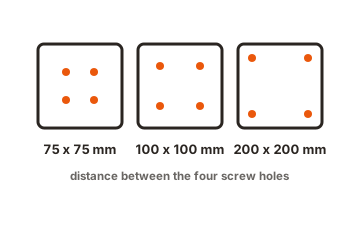
For desktop monitors, two patterns dominate: 75x75 mm and 100x100 mm, both fastened with M4 screws. Nearly every dual monitor arm ships with a plate that accepts both, which is why the honest answer to the title question is “most, but not all.” Larger patterns like 200x100 mm appear on some big or older displays, and those need an inexpensive adapter bracket to sit on a standard 100x100 arm plate.
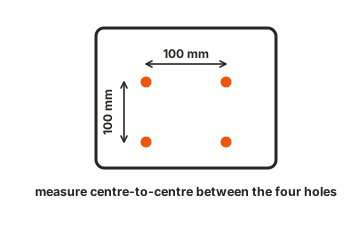
Finding your pattern takes a minute. Look at the back of the monitor for four screw holes arranged in a square; on many monitors they hide behind the factory stand or under a plastic cover, so unclip the stand if nothing is visible. Then measure hole-center to hole-center, or skip the ruler and read the spec sheet, which lists something like “VESA 100 x 100 mm.” One subtle catch: on a few monitors the holes sit in a deep recess, and an arm with a bulky plate may not seat flush without spacer screws, which good arms include in the box.
Check 2: Monitors with no mounting holes at all
This is where “not all monitors” mostly lives. Some ultra-slim and budget monitors skip the mounting holes entirely to save cost or thickness, and several popular curved consumer models have shipped without them. All-in-one computers are a category of their own: an iMac or Apple Studio Display can only go on an arm if it was bought as the VESA-mount version, because the standard built-in-stand models cannot be converted afterward.
For regular monitors without holes, the situation is rarely hopeless. Third-party VESA adapter kits clamp around the screen’s edges or attach to the stand’s mounting point and present a standard 100x100 plate to the arm. They work well on many specific models, and poorly on others, so search for an adapter tested with your exact monitor rather than a generic one. Some gaming monitors take the opposite approach: they have mounting points, but in a proprietary layout that needs the maker’s own adapter plate before a standard arm fits.
Check 3: Weight, in both directions
Every arm publishes a supported weight range per screen, and both ends of it matter. The maximum is obvious: hang a monitor heavier than the rating and the arm sags, drifts downward, or fails outright. The minimum trips people up more often. Most quality dual arms use gas springs, and a monitor lighter than the spring’s floor gets pushed upward instead of floating in place, so an ultralight screen can be just as incompatible as a heavy one.
Compare the right numbers. Monitor spec sheets list weight two ways, and the one that matters is “weight without stand,” since the stand comes off before mounting. Check each screen against the arm’s per-arm rating, not the combined figure, and if your two monitors differ, both must individually sit inside the range. Big 32-inch 4K screens and heavy ultrawides are the usual offenders at the top end; small 24-inch office panels occasionally undercut cheap gas arms at the bottom.
Check 4: Size, curves, and two-screens geometry
Arms also publish a maximum screen size, commonly 27, 32, or 34 inches per arm on dual models. Treat it as a real limit rather than a suggestion, because it reflects the twisting force the arm was engineered to resist, not just the panel’s weight. Two 27-inch monitors side by side span roughly 120 cm of desk, so the arm’s pole position and each arm’s reach have to cover that spread; a dual arm with short arms can hold two big screens up but cannot place them edge to edge.
Curved and ultrawide screens add two wrinkles. A pair of curved monitors angles inward, which demands more rotation and reach from the arms than flat panels do, and some arm designs exclude tightly curved screens outright, so check the listing for a curvature note. And a single large ultrawide plus a second screen is often better served by two independent single arms than by one dual unit, since the dual’s shared pole fixes the screens closer together than a 49-inch panel wants to sit.
If you plan to rotate one screen to portrait, add that to the geometry check: a 27-inch monitor in portrait needs about 61 cm of clearance above the desk, and the arm must reach that height with the screen’s bottom edge clearing the desktop.
Check 5: The desk it all clamps to
The last compatibility surface is the desk itself. Desk-clamp mounts specify a thickness range (a common one is roughly 1 to 6 cm), and desks outside it, or with a raised lip, a curved rear edge, or a crossbar right where the clamp lands, will not take the arm without a workaround. Grommet mounting, which bolts through a hole in the desktop, is the standard alternative and comes in the box with most quality arms.
Two more desk realities: a dual arm carrying two large screens concentrates real force on a few square centimeters of desk edge, which flimsy or glass desks handle badly (reinforcement plates help), and the arms need 10 to 15 cm of clearance behind the desk for their elbows unless the desk sits away from the wall.
A worked example
Here is the whole check run on the most common real-world pairing: two 27-inch 1440p office or gaming monitors on a typical mid-range dual arm. The monitors list VESA 100x100 in their specs and weigh about 4 to 6 kg each without their stands. The arm’s listing shows plates for 75x75 and 100x100, a supported range of roughly 2 to 9 kg per arm, screens up to 32 inches, and a clamp for desks 1 to 6 cm thick. Every number brackets comfortably: this pairing simply works, which is why 27-inch pairs are what dual arms are largely designed around.
Now swap one screen for a 49-inch super-ultrawide at 11 to 13 kg. The same arm fails twice, on per-arm weight and on rated size, and no amount of tightening fixes an under-specced gas spring. The right build for that desk is a heavy-duty single arm for the ultrawide plus a standard single arm for the second screen, which is a cheaper and sturdier outcome than forcing a dual unit to do a job it was not rated for.
What to do when a monitor fails a check
- Wrong VESA pattern. A flat adapter bracket converts 200x100 or larger patterns down to a standard arm plate for a few dollars. This is the easiest failure to fix.
- No holes at all. Look for a model-specific VESA adapter kit; if reviews for your exact monitor are good, this solves it. If nothing reliable exists, that monitor keeps its stand, and a single arm for the other screen still cleans up most of the desk.
- Too heavy or too light. Change the arm, not the monitor. Heavy-duty arms carry large ultrawides comfortably, and mechanically sprung or fixed-height arms sidestep the gas-spring minimum for very light screens.
- Desk mismatch. Switch the same arm to its grommet mount, add a reinforcement bracket for thin desktops, or move to a wall-mount version of the arm if the desk cannot host a clamp at all.
Conclusion
Not all monitors are compatible with dual monitor arms, but most are, and the exceptions are predictable. A compatible pairing needs a 75x75 or 100x100 mm VESA pattern (or an adapter), a per-screen weight inside the arm’s range in both directions, screen sizes the arm is rated and long enough to position, and a desk the clamp can actually grip. Check those five things against your exact monitors’ spec sheets before ordering, and the arm that arrives will fit the first time.
Mounting more than two screens? See our quadruple monitor setup guide, or browse all our monitor setup guides.
Frequently asked questions
How do I know if my monitor is VESA compatible?
Look at the back for four screw holes in a square, removing the stand or any cover if needed, and measure between hole centers: 75 or 100 mm means standard compatibility. Faster still, the monitor's spec sheet lists its VESA pattern outright, or states that mounting is not supported.
Can I put two different monitors on one dual arm?
Yes, as long as each monitor individually meets the arm's VESA, weight, and size limits. Mismatched sizes look fine in practice since each arm adjusts independently. Spec the arm to the heavier, larger screen, and check that the lighter one still clears any gas-spring minimum.
Do curved monitors work on dual monitor arms?
Usually, if they have VESA holes and fit the weight range, and dual arms actually suit curved pairs well because each screen can angle inward. A minority of arms exclude tightly curved screens, so check the arm's listing for a curvature note before buying.
What if my monitor has no VESA holes?
Search for a VESA adapter kit made or reviewed for your exact model; these clamp around the screen and add a standard 100x100 plate. All-in-one machines are the hard case: an iMac without the factory VESA option cannot be converted, so verify before assuming.
Why won't my arm stay down with a light monitor on it?
Gas-spring arms have a minimum supported weight as well as a maximum, and a screen below the floor gets pushed upward by the spring. Reduce the arm's tension screw to its minimum, and if it still rises, that monitor needs a lighter-rated or mechanical arm.