How to Connect a Phone to a Monitor: Wired and Wireless Setup
Table of contents
The quickest route is a single USB-C cable from the phone to the monitor, and on a recent flagship it works the moment you plug it in. The catch that stops most people is upstream of the cable: a USB-C port does not automatically carry video. Plenty of phones charge and transfer files over that port and output nothing at all. So check that first, then pick your method.
First, check whether your phone can output video
Video over USB-C uses DisplayPort Alt Mode, which routes a DisplayPort signal down some of the USB-C pins. It is an optional part of the USB-C standard, so manufacturers choose whether to include it.
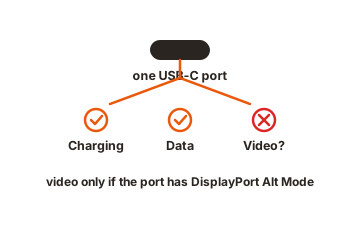
Phones that have it include iPhone 15 and later, with the exception of the 16e and 17e, along with Samsung’s Galaxy S, Fold and Note flagships, Pixel 8 and newer, and most current flagship Androids. Phones that often do not include it are budget and many mid-range Android models, where the port is wired for charging and data only.
| Phone | Video out over USB-C | Desktop mode |
|---|---|---|
| iPhone 15 and later (not 16e, 17e) | Yes, up to 4K 60Hz | No, mirroring only |
| iPhone 14 and earlier | No, AirPlay instead | No |
| Samsung Galaxy S, Fold, Note | Yes | Yes, Samsung DeX |
| Pixel 8 and later | Yes | Yes, Android desktop mode |
| Pixel 7 and earlier | No | No |
| Budget and mid-range Android | Often not, check the spec sheet | Varies |
To check yours, search the manufacturer’s spec sheet for “DisplayPort Alt Mode”, “video output”, “HDMI out” or, on Samsung, “DeX support”. If none of those appear, no cable or adapter will create the capability, and wireless becomes your only route.
The wired method, step by step
-
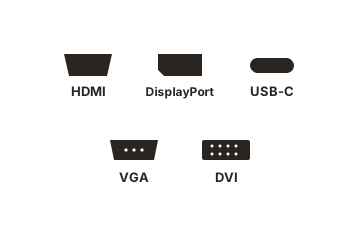
Match the cable to the monitor's input
A monitor with a USB-C video input takes a straight USB-C to USB-C cable. An HDMI monitor needs a USB-C to HDMI cable or adapter. A DisplayPort monitor needs USB-C to DisplayPort. -
Use a cable that carries video
The charging cable in the phone’s box usually does not. Look for one rated for USB 3.1 or higher, or one sold specifically as a video cable. Apple’s guidance on the USB-C connector notes that iPhone drives displays over DisplayPort at up to 4K and 60Hz, and recommends a USB 3.1 or better cable to get there. -
Select the right input on the monitor
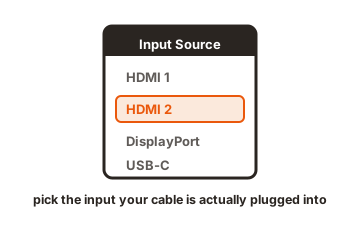
Nothing appears until the monitor is switched to the port you used, which catches people out more often than any cable problem. -
Select the right input on the monitor
Nothing appears until the monitor is switched to the port you used, which catches people out more often than any cable problem. -
Add a keyboard and mouse if you want to work
Bluetooth is simplest. A USB-C hub with USB-A ports also works and lets you use wired peripherals. -
Deal with power
Driving a display drains a phone quickly. A hub or dock with pass-through charging keeps it topped up on the same cable, and it is worth having for any session longer than a video.
What you will actually see
By default the monitor mirrors the phone. That means the phone’s tall, narrow screen shown in the middle of a wide monitor with black bars either side, and if you are holding the phone in portrait, the image stays portrait.
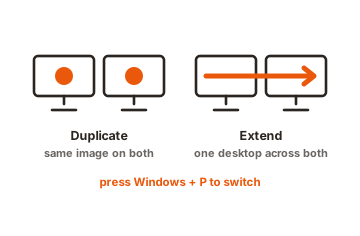
Two things change that picture. Apps built with a second-screen experience, mostly video players, put the content full-screen on the monitor and leave the controls on the phone. And audio follows the video, so sound comes out of the monitor rather than the handset, which matters if your monitor has no speakers.
Resolution is more modest than a laptop would give you. iPhone tops out at 4K and 60Hz over USB-C. Android phones negotiate whatever the phone, the cable and the monitor agree on, and in practice many currently offer 1080p or 1440p rather than 4K, particularly in desktop mode. That is a software limit rather than a fault in your cable, so there is often nothing to fix. For text and video at a normal desk distance it is perfectly usable.
Desktop modes turn it into a computer
Mirroring is fine for watching something. For actual work, several phones now offer a proper desktop.
Samsung DeX has done this for years on Galaxy flagships: connect a display and you get a windowed desktop with a taskbar, independent of what the phone screen is doing.
Android now has its own version. Google’s developer preview of connected display support describes what shipped: connect a supported phone over DisplayPort and a separate desktop session starts on the monitor, with a taskbar, pinned apps and freely resizable windows, while the phone carries on independently. It needs a phone with DisplayPort Alt Mode, which in the Pixel line means the Pixel 8 and later.
One hardware note for Android desktop mode: it works over DisplayPort Alt Mode only. Docks built on DisplayLink, which send video as compressed USB data, are not supported.
iPhone has no equivalent. It mirrors, and that is the whole feature set outside of apps with their own second-screen behaviour.
Wireless options
If your phone cannot output video, or you simply want no cable, you have three routes.
- A monitor with casting built in. Smart monitors accept Miracast, Google Cast or AirPlay directly, so the phone sees the monitor in its screen mirroring menu.
- A dongle on the monitor’s HDMI port. A Chromecast or a Miracast receiver plugged into HDMI does the same job on an ordinary monitor. It needs USB power, which many monitors can supply from their own USB port.
- AirPlay for iPhone. iPhones that cannot output over USB-C, and those that can, will mirror to an AirPlay-capable display or through an Apple TV.
Wireless comes with a cost. The image is compressed and there is a lag of some tens of milliseconds, which is invisible for video and slides and unpleasant for anything you are controlling in real time. It also leans on your Wi-Fi, so a congested network shows up as stuttering.
When it does not work
Almost every failed connection comes down to one of these.
- The cable is charge-only. By far the most common cause. Try a cable you know carries video.
- The monitor is on the wrong input. Cycle through the inputs manually rather than trusting auto-detection.
- The monitor’s USB-C port is not a video port. Some carry power and data only. Look for a DisplayPort logo or the letters DP next to the socket.
- You are going the wrong way through an adapter. USB-C to HDMI works. HDMI output into a DisplayPort input does not, without an active adapter.
- The hub is unpowered. A bus-powered hub running a display and peripherals from a phone will brown out. Plug in its power supply.
- The phone does not support video output. If you have worked through the list above with known-good parts, this is the answer, and wireless is the way forward.
Conclusion
Check the spec sheet for DisplayPort Alt Mode before you buy anything. If your phone has it, one USB-C cable to a USB-C monitor is the whole job, with an adapter if the monitor only takes HDMI, plus a powered hub if you want charging and peripherals at the same time. If it does not, cast to a smart monitor or add a dongle and accept a little lag. Either way, expect mirroring unless your phone offers DeX or Android’s desktop mode, which is what turns the setup into something you can genuinely work on.
For more, see our monitor setup guides and our guide to monitor arm compatibility.
Frequently asked questions
Can any phone connect to a monitor with a cable?
No. The phone's USB-C port must support DisplayPort Alt Mode, which many budget and mid-range models leave out. Check the spec sheet before buying a cable, because no adapter can add the capability.
Why is nothing showing on my monitor?
Usually the cable. The one supplied with a phone typically carries power and data only. After that, check the monitor is switched to the correct input and that its USB-C port handles video rather than just power.
Can I use my phone like a computer on a monitor?
On Samsung flagships through DeX, and on Pixel 8 and later through Android's desktop mode, yes. Both give you a windowed desktop with a taskbar. iPhone mirrors the phone screen instead.
Do I need a hub or will a cable do?
A cable is enough for watching something. A powered hub is better for working, since it charges the phone while it drives the display and gives you USB ports for a keyboard and mouse.
Is wireless mirroring as good as a cable?
For video and presentations it is fine. For anything interactive it is not, because the image is compressed and arrives a fraction of a second late. A cable also avoids depending on your Wi-Fi.