Acer Monitor Cable Not Connected? Here's How to Fix It
Table of contents
When an Acer monitor shows “Cable Not Connected” (or “No Signal”), the monitor itself is working: it is powered, its electronics are alive, and it is telling you that no video signal is arriving on the input it is currently watching. The cause is almost always one of three things: the monitor is set to the wrong input, the cable or a port is loose or bad, or the computer is not sending a picture, often because the cable sits in the wrong port on the PC.
The fastest path is to work through the fixes in order of likelihood, which is exactly how this guide is arranged. Most people are back to a working screen within the first three steps, and the later ones tell you how to prove which part is broken when nothing else works.
What the message actually means
The message is generated by the monitor, not the computer. That single fact does half the diagnosis for you: a monitor that can draw “Cable Not Connected” on screen has working power, a working panel, and working logic. What it does not have is an incoming video signal on the input it is listening to.
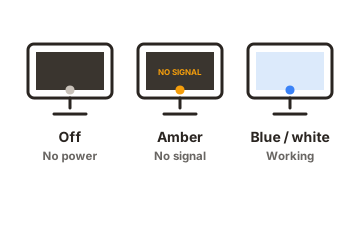
So there are only three places the problem can live. The source (your PC, laptop, or console) is not outputting video. The path (the cable and the two ports it connects) is not carrying it. Or the monitor is listening to the wrong input while the signal arrives on another one. Every fix below targets one of those three.
If your situation matches one of these patterns, you can jump straight to the right fix:
| What you're seeing | Most likely cause | Go to |
|---|---|---|
| Error appeared after adding or changing hardware | Cable in a disabled motherboard port | Fix 3 |
| Error only when waking from sleep | Sleep-wake handshake, usually DisplayPort | Fix 4 |
| Only a second monitor shows it | Windows display mode, not hardware | Fix 5 |
| Error on one input, picture on another | That cable or that port | Fix 2 |
| Error on every input and every cable | Source device not outputting video | Fix 6 |
Fix 1: Check the input source
Wrong input selection is the most common cause on monitors with more than one connector, and it takes a minute to rule out:
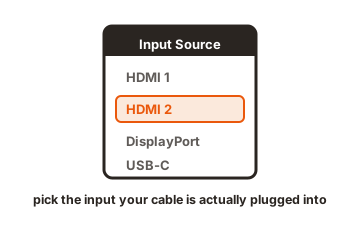
- Press the menu button or joystick on the monitor (usually on the bottom edge or the back right corner).
- Find Input, Input Source, or the icon showing connector types.
- Select the input your cable actually uses: HDMI 1, HDMI 2, DP, or VGA. If you are unsure, step through each one, waiting a few seconds per input.
- If the menu offers an Auto Source option, turn it on so the monitor scans inputs by itself in the future.
This one bites hardest after any change to the setup: a new console on HDMI 2, a cable moved to another connector, or a monitor that reverted to a default input after a power cut.
Fix 2: Reseat, inspect, and swap the cable
-
Reseat both ends
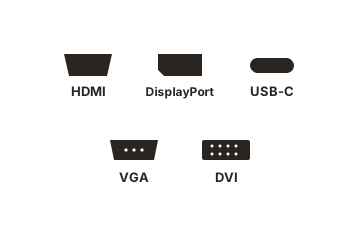
Unplug the cable at the monitor and at the computer, then push each end back in firmly. DisplayPort plugs have a locking tab, so press the release button rather than yanking, and make sure the plug clicks fully home. VGA and DVI plugs should have their thumbscrews snugged down. -
Inspect the cable and connectors
Look for bent pins (VGA and DVI), kinks, crushed sections, and frayed ends. A cable that has been pinched behind a desk for years can fail while looking mostly fine. -
Swap the cable
This is the single most conclusive test in this whole guide. Video cables fail far more often than ports do, and a known-good spare answers the question instantly. -
Try another port
If your graphics card or monitor has a second HDMI or DisplayPort connector, move the cable over. A dead individual port is rarer than a dead cable, but it happens, especially on ports that see frequent plugging. -
Be suspicious of adapters
HDMI-to-VGA converters, DisplayPort adapters, and dock passthroughs fail more often than plain cables and add their own handshake step. If an adapter sits anywhere in the chain, test without it, or with a different one, before blaming the monitor or the PC.
Fix 3: Make sure you’re plugged into the right port on the PC
Desktop PCs can have two sets of video outputs: the ones on the motherboard (up near the USB ports, vertical on most towers) and the ones on a graphics card (lower down, horizontal, next to the card’s fans). If a graphics card is installed, the motherboard’s own outputs are usually disabled, so a cable plugged into them produces exactly this error while everything looks correctly connected.
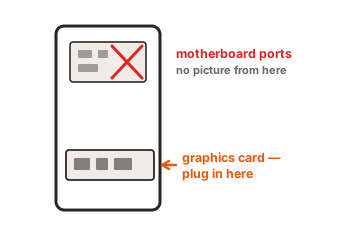
Move the cable to the graphics card’s ports and the picture typically appears immediately. The reverse situation exists too: on a PC with no graphics card, or one whose processor has no integrated graphics, only one set of ports can ever output video. If you deliberately want the motherboard output active alongside a graphics card, that is a BIOS setting, usually named something like IGD, iGPU, or Integrated Graphics, but for most people the fix is simply using the card’s port.
A quick way to tell the two apart on a tower: the motherboard’s video outputs sit in the vertical block of connectors alongside the USB and audio ports, while a graphics card’s outputs sit lower down and horizontal, next to the card itself. On many prebuilt gaming PCs the motherboard’s HDMI port even ships capped with a plastic plug from the factory, which is the builder’s way of saying it is not the one to use.
Fix 4: Power-cycle the monitor and the computer
Signal-detection glitches are real, particularly after sleep, and a proper power cycle clears them:
- Shut down the computer.
- Unplug the monitor’s power cable and its video cable.
- Hold the monitor’s power button for about 30 seconds to drain residual power.
- Wait a few minutes, reconnect everything, power the monitor on first, then the computer.
If the error appears specifically when the PC wakes from sleep, and a full restart always cures it, you are looking at a sleep-wake handshake problem rather than a cabling one. It is most common over DisplayPort. Updating the graphics driver and the monitor’s firmware (where your model offers one) are the two fixes worth trying, and disabling deep-sleep or DP power-saving options in the monitor’s OSD helps on some models.
Fix 5: Rule out resolution, refresh rate, and drivers
A computer can send a signal the monitor refuses to accept. Setting a resolution or refresh rate beyond what the monitor supports usually produces “Input Not Supported,” but some combinations simply result in no picture. If the error began right after you changed display settings, boot Windows into Safe Mode, which forces a basic resolution, then set a mode the monitor supports and restart normally.
For a second monitor that shows the error while the first works, press Win+P and choose Extend or Duplicate; Windows sometimes has the extra display disabled rather than the hardware having any fault. And if the setup only misbehaves after a driver update, roll the graphics driver back or clean-install the current one from Nvidia, AMD, or Intel.
If the source is a laptop or a console
Laptops add one extra switch to check. Press Win+P and pick Duplicate or Extend, because a laptop set to “PC screen only” sends nothing to the external monitor no matter how healthy the cable is. Some laptops also route a display toggle through a function key (an Fn key with a monitor icon), and USB-C connections only carry video from ports that support DisplayPort Alt Mode, which is usually marked with a small DP or lightning-style logo.
Consoles are simpler: they output over HDMI and negotiate the format automatically. If a console triggers the error, confirm the monitor input matches the HDMI port in use, try the console on a TV to prove it still outputs video, and check the console’s display settings from that TV, since a console set to a mode the monitor cannot accept can produce a blank input.
Fix 6: Prove which part is broken
When nothing above works, stop guessing and isolate:
- Test the monitor on another device. A laptop, console, or streaming stick over the same cable type works fine. If the monitor shows a picture there, your monitor and cable are healthy and the original computer is the problem.
- Test the computer on another display. Any TV with HDMI will do. If the PC shows a picture elsewhere, the original monitor’s input is the suspect.
- Check the OSD. If the monitor’s own menu appears when you press the menu button, the monitor’s brain and panel work, which points the blame at the input board, the cable, or the source. If no menu appears at all, the monitor itself has failed.
Acer’s own knowledge base covers the same no-signal checks in its support article, and if the monitor turns out to be the failed part, the drivers and manuals page is where model-specific firmware and warranty service both start. Acer monitors commonly carry a multi-year limited warranty, so a genuinely dead input board on a recent monitor is a service case, not a bin case.
Conclusion
“Cable Not Connected” on an Acer monitor means no video signal is reaching the selected input, and the cure is nearly always cheap: pick the correct input source in the OSD, reseat or replace the cable, and make sure a desktop’s cable sits in the graphics card’s port rather than the motherboard’s. A 30-second power cycle clears the glitch cases, and cross-testing the monitor and PC against other devices identifies the faulty part when hardware really has died.
Seeing the same problem on another brand? Our ViewSonic no-signal guide walks the same path, or browse all our monitor troubleshooting guides.
Frequently asked questions
Why does my Acer monitor say cable not connected when the cable is plugged in?
Because plugged in is not the same as carrying a signal. The monitor may be watching the wrong input, the cable may have failed internally, or the cable may sit in a disabled port, most often a motherboard output on a PC that has a graphics card.
Why does the error appear when my PC wakes from sleep?
That is a sleep-wake handshake problem, most common on DisplayPort connections, where the monitor and graphics card fail to renegotiate the link. Update the graphics driver, install any firmware Acer offers for your model, and try disabling deep-sleep options in the monitor's menu.
Should I plug my monitor into the motherboard or the graphics card?
Into the graphics card, whenever one is installed. Most systems disable the motherboard's video outputs when a dedicated card is present, so cables in those upper vertical ports produce a no-signal error even though everything is physically connected.
Can a bad cable really cause this even if it looks fine?
Yes, and it is one of the most common causes. Video cables fail internally from bending, pinching, and connector wear without visible damage. Swapping in a known-good cable is the quickest conclusive test you can run.
How do I factory reset an Acer monitor?
Open the on-screen menu with the monitor's buttons or joystick, find the System or Settings section, and choose Reset, Reset All Settings, or Factory Reset. This restores default inputs and picture settings and is worth trying when settings-related causes are suspected.