ViewSonic Monitor Repair: Fix Common Problems and When to Send It In
Table of contents
A dead ViewSonic monitor is fixable more often than not. Many faults come down to a loose cable, the wrong input, or a setting, and you can clear those in a couple of minutes for free. The real hardware failures, like a dead backlight or a bad power board, usually need service, and if your monitor is under three years old that service is often free through ViewSonic’s warranty.
This guide walks you from the quick checks that fix most cases, through the official repair route, to an honest call on whether the fix is worth it at all. Work through it in order and you will either have a working screen or a clear next step.
Can a ViewSonic monitor be repaired?
Yes, most ViewSonic monitor problems can be repaired. If the screen itself is not cracked or leaking, the fault is usually in the electronics or the connection, and both are fixable. The parts that fail most often, power boards, capacitors, and LED backlight strips, are replaceable components, not the whole display.
The main exception is physical panel damage. A cracked screen, deep scratches, or dark ink-like spreading across the glass means the panel itself is gone. A replacement panel for a 24 to 27 inch monitor often costs as much as a new monitor, so that repair rarely makes sense.
First checks before anything else
Before you assume anything is broken, run these checks. They fix a large share of “dead” monitors, and they cost nothing. Do them in order.
-
Confirm the monitor has power
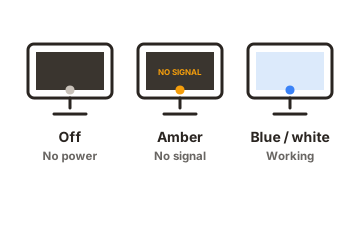
Look for the small LED near the power button. Blue or white means it is on and awake. Amber or blinking means it has power but sees no signal. No light at all points to a power problem. -
Reseat the video cable
Unplug the HDMI, DisplayPort, or USB-C cable at both ends, then plug it back in firmly. A cable that looks connected can still be loose enough to drop the signal. -
Pick the right input
Use the buttons on the monitor to open the Input Select menu, then choose the port your cable is actually plugged into. A monitor set to HDMI while your cable is in DisplayPort shows a blank screen even though everything works. -
Remove adapters and docks
Docking stations and cable converters cause a lot of no-signal cases. Connect the monitor straight to your computer with one cable to test. -
Cross-test
Plug the monitor into a different computer, or try a different cable. If it works on another device, the monitor is fine and the problem is your first computer or cable. -
Reset the monitor
If you can reach the on-screen menu, find Memory Recall or All Recall and reset to defaults. This clears bad settings that can blank or distort the picture.
If none of that helps, the next section covers the most common single symptom: a screen that stays black.
Fixing a black screen or no image
A black screen has two very different causes, and one simple test tells them apart. The question is whether the backlight is dead or the monitor is just getting no signal.
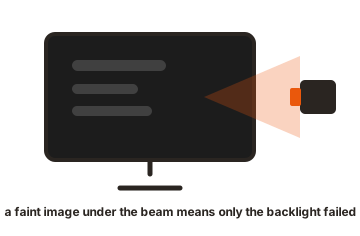
The flashlight test: Turn the monitor on, then shine a bright flashlight at the screen from a few inches away, at a slight angle. If you can faintly see the desktop or icons under the light, the picture is being drawn but the backlight has failed. If there is nothing at all, the fault is more likely power or signal.
If the flashlight shows a faint image, the LED backlight or its driver has failed. That is an internal repair, not a settings fix, and it is a good candidate for warranty service or a professional shop.
If the flashlight shows nothing and the power light is amber or blinking, the monitor has power but no signal. Recheck the cable, the input source, and your computer’s graphics output. If the light is off entirely, suspect the power supply, the outlet, or the power cable itself. Test the outlet with another device and try a known-good power cable before doing anything more.
Common problems and what causes them
Different symptoms point to different parts. This table maps the faults ViewSonic owners see most often to their usual cause and the realistic fix.
| Symptom | Usual cause | Realistic fix |
|---|---|---|
| No power, no LED | Power cable, outlet, or internal power board | Test outlet and cable; if dead, service the power board |
| Amber light, black screen | No signal: cable, input, or graphics | Reseat cable, set correct input, cross-test |
| Faint image under flashlight | Failed LED backlight or driver | Backlight or driver replacement (service) |
| Screen flickers or cuts out | Loose cable, bad capacitor, or inverter | Swap cable first; if not, capacitor/board repair |
| High-pitched whine, then blank | Failing power-supply capacitors | Capacitor replacement on power board |
| Lines, blur, or wrong colors | Cable, resolution, or refresh setting | New cable; set native resolution and 60 Hz+ |
| Power button is locked | Stuck or jammed physical button | Free the button; unlock via on-screen menu |
| Cracked or bleeding panel | Physical panel damage | Panel is not economical to repair; replace |
Notice how many rows resolve with a cable, an input change, or a setting. Those are the cases you finish yourself. The backlight, capacitor, and power-board rows are the ones worth sending in, especially while the warranty is live.
Is it under warranty? How ViewSonic repair works
Check the warranty before you pay anyone or open anything. ViewSonic monitors sold in the United States carry a three-year limited warranty that covers parts, labor, and the LCD backlight from the date of first purchase. In some countries the term runs one to three years, so it depends where you bought it.
You can confirm your exact coverage with the serial number, a 12-digit code printed on the monitor, using the official ViewSonic warranty lookup. If it is in date and the fault is a defect rather than accidental damage, the repair should not cost you anything.
The service route is the RMA, short for Return Merchandise Authorization. You cannot just ship a monitor in; ViewSonic will not accept a return without an assigned RMA number. Here is how the process runs:
-
Contact ViewSonic support and describe the fault
For US monitors the line is 800-688-6688, open Monday to Friday, 6am to 6pm Pacific. -
Have your details ready
The serial number, a copy of the dated sales receipt, your name, email, phone, and ship-to address. -
Get your RMA number
Support issues it once they agree the unit needs service. -
Ship the monitor prepaid in its original box if you can
With the RMA number on the package. Insuring the shipment is a good idea, since transit damage is on you, not ViewSonic. -
Wait for turnaround
The standard repair cycle is about 10 business days from when they receive the unit, and up to three weeks if it is waiting on parts.
If your monitor cannot be repaired in good time, ViewSonic replaces it with a comparable or better unit, and the time left on your original warranty carries over to the replacement.
For the exact coverage and exclusions, see the ViewSonic monitor warranty page. It also lists what is not covered, such as damage from accidents, misuse, or unauthorized repairs.
DIY repair: what’s realistic and what to avoid
If the monitor is out of warranty and the glass is fine, a home repair can be worth it, but only within limits. Be honest about your skills before you open anything.
The realistic DIY jobs are failed capacitors on the power board and, for some, a backlight LED strip swap. Bulging or leaking capacitors are a classic cause of a monitor that whines then goes dark, or clicks on and off. The parts cost only a few dollars, and replacing them can add years of life to the display.
But this work needs real soldering skill and care. You desolder the failed parts and solder in matched replacements, matching the capacitance in microfarads and using an equal or higher voltage rating, never lower. If you have never soldered a circuit board, practice on scrap electronics first.
The safety point is not optional. Monitors store dangerous voltage inside, and capacitors can hold a charge even after the unit is unplugged. Always disconnect power before opening the case, and if you are not comfortable around live electronics, stop and use a repair shop.
Two more habits save a lot of grief. Photograph every cable and connector before you disconnect it, so reassembly is not a guessing game. And treat the plastic clips gently, since ViewSonic cases use many short internal wires and fragile tabs that break easily.
A community wiki like iFixit’s ViewSonic display section has model teardowns and guides that are worth reading before you pick up a screwdriver.
Repair or replace? Making the call
The decision comes down to one number: repair cost against the price of a comparable new monitor. The widely used rule is simple. If the repair costs less than about half the price of a new equivalent, repair it. If it costs more than that, replace it.
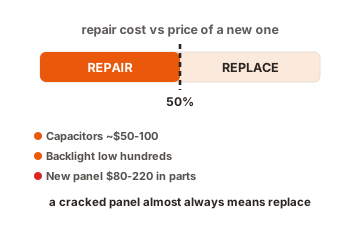
Work it through with your own case. A capacitor fix runs roughly 50 to 100 dollars at a shop, or a few dollars in parts if you do it yourself. A backlight repair typically lands somewhere in the low hundreds. A replacement panel for a 24 to 27 inch monitor often runs 80 to 220 dollars in parts alone, which frequently tops 70 percent of a new monitor’s price. That last one is why cracked panels almost always mean replacement.
Age and value matter too. A good monitor lasts around five to eight years. If yours is only two or three years old, was a higher-end or larger display, and has a small board-level fault, repair makes sense. If it is an older, cheaper model with a major failure, the money is better spent on a new one, especially if you would gain a better panel, higher refresh rate, or USB-C in the bargain.
Conclusion
Start with the free checks: confirm power, reseat the cable, set the right input, drop the adapters, and cross-test. Those clear most ViewSonic monitor problems in minutes. If the fault is real, check your warranty first, because a monitor under three years old likely qualifies for a free RMA repair with about a 10-business-day turnaround. Out of warranty, a cheap board fix on a newer screen is worth it, while a cracked panel or a costly repair on an old monitor means it is time to replace.
Still stuck on a no-signal message? See our ViewSonic no-signal guide, or browse all our monitor troubleshooting guides.
Frequently asked questions
How long is a ViewSonic monitor warranty?
Monitors sold in the US carry a three-year limited warranty covering parts, labor, and the LCD backlight from the first purchase date. Coverage runs one to three years in some other countries, so it depends where you bought it.
Why is my ViewSonic monitor screen black but still powered on?
If the power light is amber, it has power but no signal, so check the cable and input source. Shine a flashlight at the screen; a faint visible image means the backlight has failed and needs service.
How do I get a ViewSonic monitor repaired under warranty?
Contact ViewSonic support (US: 800-688-6688) with your serial number and dated receipt to get an RMA number, then ship the monitor in with that number on the box. Turnaround is about 10 business days.
Is it worth repairing a ViewSonic monitor myself?
Only if it is out of warranty, the glass is intact, and you can solder. A capacitor fix costs a few dollars in parts. Never open a monitor still under warranty, and mind the stored voltage inside.
Should I repair or replace my monitor?
Compare the repair cost to a new equivalent. Under about half the price of new, repair it. Over that, replace it. Cracked panels almost always cost more to fix than the monitor is worth.