Monitor Screen Issues: How to Diagnose and Fix Common Problems
Table of contents
Most monitor screen issues come down to three things: a loose or failing cable, a display driver, or the wrong settings. The good news is that you can fix the majority of them in a few minutes, with no tools and no repair bill. The trick is to work out what is broken before you start changing things, so you fix the real cause instead of guessing.
This guide walks through the problems people hit most, from a black screen to flickering, blur, dead pixels, and odd lines or colors. Each section starts with the fix and then explains it. Start with the quick diagnosis below, then jump to the symptom that matches yours.
Start with a 60-second diagnosis
Before you touch any setting, find out where the fault lives. Almost every screen problem sits in one of three places: the monitor itself, the PC (usually the graphics card or its driver), or a software setting in Windows. One quick test sorts most of them.
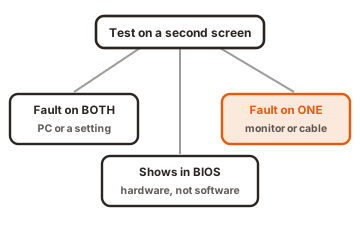
Plug your PC into a second screen, such as another monitor or a TV, using a different cable if you have one. Then watch what happens.
- Problem shows on both screens: the cause is your PC or a Windows setting, not the monitor.
- Problem shows on the first screen only: the monitor or the original cable is the likely culprit.
- Problem appears even in the BIOS or startup logo, before Windows loads: this points to hardware or the cable, not software.
There is a second clue worth using: timing. Note when the trouble started. A problem that appeared right after a Windows update points at a driver. One that started after you moved the desk or bumped the cable points at the connection. One that shows up only when you open a certain app or a game points at software. Matching the symptom to the moment it began saves you from testing fixes that were never going to help.
Keep a couple of spare parts handy for testing: a different video cable and, if you can, a spare monitor or a TV with an HDMI port. Most of the diagnosis below rests on being able to swap one thing at a time and see what changes.
No display or a black screen
A monitor that shows nothing is usually a power, cable, or input problem, and the fix is often seconds away. First, work out whether the monitor is even getting power. Look for a lit power light. If pressing the power button does nothing and no light comes on, the issue is power to the monitor, not your PC.
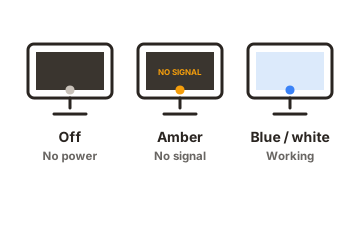
Work through these in order
-
Check the power
Make sure the monitor is switched on at the button and at the wall. Try a different outlet or a known-good power cable. -
Reseat the video cable
Unplug the HDMI, DisplayPort, or USB-C cable at both ends and push it back in until it is firm. A slightly loose cable is the most common reason for no signal. -
Select the right input
Open the monitor’s on-screen menu and choose the input you are actually using, such as HDMI 1 or DisplayPort. Many monitors do not switch input automatically. -
Test the other end
Swap in a different cable, and if you can, a different port on the PC. Cables fail more often than people expect. -
Restart the graphics driver
If Windows is running behind a black screen, press Windows + Ctrl + Shift + B. The screen blinks and the driver resets. You should hear a short beep.
One thing people miss: a bright room can hide a working screen. If the monitor is on but looks blank, the brightness may simply be turned all the way down. Open the monitor’s menu and raise brightness and contrast before you assume it is dead. It is a two-second check that saves a lot of worry.
If nothing displays even during startup, before the Windows logo, the monitor is showing you it has no signal at all. That usually means the cable, the port, or the graphics card, so keep testing hardware rather than digging through Windows settings. It also helps to do a hard reset of the PC: hold the power button for about 30 seconds with everything unplugged, then reconnect and try again. This clears a stuck power state that sometimes leaves the screen blank.
Screen flickering or flashing
Screen flicker almost always comes from one of four places: the display driver, an app that does not play nicely with your setup, an unstable refresh rate, or the cable and connection. A single check tells you which side to start on.
Find out if it is software or hardware
Open Task Manager with Ctrl + Shift + Esc and watch the screen. If Task Manager flickers along with everything else, a display driver is the likely cause. If everything flickers except Task Manager, an app is to blame. This test comes straight from Microsoft’s screen flickering guide, and it saves you from changing settings at random.
Fixes to try, in order
-
Reseat and swap the cable
A worn or loose cable is a common flicker source. Reconnect both ends, then try another cable. -
Set the correct refresh rate
Go to Settings > System > Display > Advanced display and pick your monitor’s native rate, such as 60, 120, or 144 Hz. A leftover odd value like 48 Hz can cause flicker. -
Update or roll back the display driver
If flicker started after a Windows update, roll the driver back in Device Manager. Otherwise, install the latest driver from your graphics card maker. -
Turn off variable refresh features for a test
Disable G-SYNC, FreeSync, or a dynamic refresh toggle briefly to see if the flicker stops. -
Close overlay apps
RGB software, screen recorders, and browser hardware acceleration can all flicker on some setups. Close them one at a time to find the offender.
Two extra causes catch people out. HDR settings can make some panels flash, so if flicker started after turning HDR on, switch it off in Display settings and test again. And if you run more than one monitor, a flicker on just one screen often means that screen’s own cable or port, not the whole system, so focus your testing there.
If the flicker appears in the BIOS or on the lock screen, before any app loads, treat it as a cable, monitor, or graphics card problem rather than software.
Blurry, fuzzy, or stretched image
A blurry screen usually means the resolution or scaling is wrong, not that the panel is failing. Your monitor looks sharpest at its native resolution, the exact pixel count it was built for. Run it at anything lower and text turns soft.
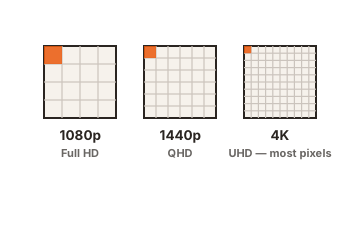
How to sharpen it up
-
Set the native resolution
Right-click the desktop, choose Display settings, and pick the resolution marked “Recommended.” That is your panel’s native setting. -
Check scaling
On the same screen, set scaling to 100% first, then raise it if text is too small. Odd scaling values can blur edges. -
Try a different cable or port
A failing cable can soften the image. HDMI and DisplayPort both carry sharp signals when they are in good shape. -
Update the graphics driver
A bad or outdated driver can force the wrong resolution. Install a fresh one from your GPU maker.
There is one more setting worth a look if text still seems soft. Windows has a tool called ClearType that tunes how text is smoothed on your panel. Search for “Adjust ClearType text” in the Start menu and run through the short wizard. It makes a real difference on some screens, especially at higher resolutions.
If only part of the screen looks smeared, or fast motion leaves trails, that is a different issue tied to the panel’s response time rather than your settings, and it is normal to some degree on slower panels. It is most noticeable in games and fast video, and no software setting removes it fully. A monitor’s overdrive setting, found in its menu, can reduce trailing a little if your panel offers one.
Dead pixels and stuck pixels
A dot that never changes is either a stuck pixel or a dead pixel, and the difference decides whether you can fix it. Get this right before you spend time on it or start a warranty claim.
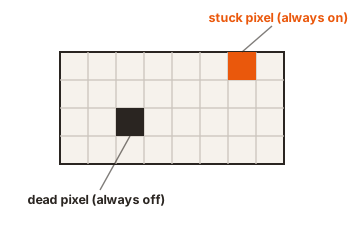
Every pixel is made of three tiny sub-pixels: red, green, and blue. A stuck pixel still gets power, so one or more sub-pixels are frozen on, and it shows as a constant colored dot, often red, green, or blue. A dead pixel gets no power at all, so it stays black on a white background and never lights up.
How to tell them apart
| Feature | Stuck pixel | Dead pixel |
|---|---|---|
| Color | Constant red, green, or blue | Black, no light |
| Power | Still receiving power | No power reaching it |
| Best seen on | A black background | A white background |
| Fixable? | Sometimes, with pixel tools | No, replacement only |
To test, fill the screen with solid white, then black, then red, green, and blue, and scan slowly after cleaning the surface. A black dot on white points to a dead pixel. A colored dot on black points to a stuck one.
Pixel faults usually come from a manufacturing flaw, physical pressure on the screen, or heat and cold stress over time. Overclocking a monitor’s refresh rate too far can add strain as well. Cleaning first matters, because dust and fingerprints can look exactly like a defect until you wipe them away.
Stuck pixels sometimes clear on their own or respond to a pixel-cycling tool that flashes colors over the spot for 15 to 30 minutes. Some people also try gentle pressure with a soft cloth, but that carries a real risk of making things worse, so weigh it carefully. Dead pixels cannot be revived in software. If a new monitor has them, check the maker’s warranty and defect policy quickly, since return windows are short. Many brands allow only a set number of pixel defects before they count a panel as faulty, so one or two dots may not qualify for a free replacement.
Lines, color problems, and other artifacts
Colored lines, wrong colors, or patchy areas usually trace back to the cable, the driver, or, in the worst case, the panel itself. Work from the cheapest fix to the most serious.
- Vertical or horizontal lines: reseat and swap the cable first. If lines survive on a second computer or appear in the BIOS, the panel is likely damaged.
- Washed-out or wrong colors: reset the driver with Windows + Ctrl + Shift + B, then check color depth is set to True Color (32-bit) in the display adapter properties.
- Dark patches or uneven brightness: some backlight bleed is normal near the edges. Large dark blotches suggest a failing backlight or panel damage.
- A visible crack or spreading discolored blob: this is physical damage. No setting fixes it, and standard warranties rarely cover it.
A quick way to confirm a panel fault is to connect the monitor to a different computer. If the problem follows the monitor, the fault is inside it. If it disappears, your PC or its driver was the cause.
When to repair, replace, or claim warranty
Once you know the fault is inside the monitor, the decision is mostly about cost. The LCD panel is the priciest part, so a cracked or physically damaged screen is usually not worth repairing on a mid-range monitor. Replacing it often costs close to a new display.
A simple rule helps here. If the fix is a cable, a driver, or a setting, do it yourself, because it costs nothing and takes minutes. If the fix means opening the monitor or swapping the panel, and the display is not high-end, replacing the whole unit is usually the smarter spend. Repair makes sense mainly for premium or large monitors where a new one would cost far more.
If the monitor is still under warranty and the fault is not physical damage, start a claim before trying anything risky. For driver and cable problems, the fix is free and takes minutes, so always rule those out first. When you do shop for a replacement, checking the maker’s own specs page helps; for example, Samsung’s display support pages list refresh rates and panel details that matter for a good match.
Conclusion
Most monitor screen issues are cheaper and simpler to fix than they look. Start by finding the cause: test on a second screen to learn whether the monitor, the PC, or a setting is at fault, then apply the matching fix. Reseat cables, set the native resolution and refresh rate, and update or roll back the display driver before assuming hardware failure. A good result is a stable, sharp screen restored in minutes, with a repair or replacement reserved only for real physical damage.
For brand-specific fixes and more faults, browse our monitor troubleshooting guides.
Frequently asked questions
Why does my monitor say no signal when everything is plugged in?
Usually the wrong input is selected or the cable is loose. Open the monitor's menu and pick the input you are using, then reseat the cable at both ends and try a different one.
Can a dead pixel be fixed?
No. A dead pixel gets no power and stays black permanently, so software cannot revive it. A stuck pixel, which shows a constant color, can sometimes be cleared with a pixel-cycling tool. Check your warranty for a new monitor.
How do I stop my monitor from flickering?
Reseat and swap the cable, set the native refresh rate in Display settings, and update or roll back the display driver. Use Task Manager to tell whether a driver or an app is causing it.
Why is my screen blurry after changing something?
The resolution or scaling is likely wrong. Set the resolution marked Recommended in Display settings, which is your monitor's native value, then adjust scaling from 100% until text looks right.
Is the problem my monitor or my computer?
Connect your PC to a second screen. If the fault appears on both, it is your PC or a Windows setting. If it shows on the original screen only, the monitor or its cable is the cause.