What Is Overdrive on a Monitor? A Plain-English Guide
Table of contents
Overdrive is a monitor setting that makes the screen’s pixels change color faster. The payoff is cleaner motion: it cuts down the blurry trail, called ghosting, that follows fast-moving objects in games and sports. You will usually find it in the monitor menu under Overdrive, Response Time, OD, or a brand name like Trace Free.
That covers the core of it. The rest of this guide explains what overdrive does in practice, why turning it all the way up can backfire, and the part most people actually want answered: which setting to pick.
What is overdrive on a monitor?
Overdrive is a pixel-speed control built into most LCD monitors. Its job is to push pixels to switch from one color to the next more quickly than they would on their own, which shortens the smeared trail behind anything moving fast on screen. The formal name for the technology is Response Time Compensation, or RTC, but on your monitor it will be labeled something simpler.
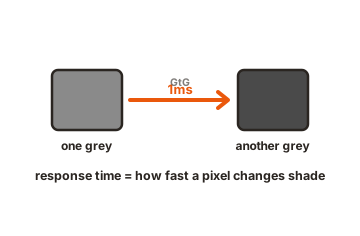
To see why it exists, it helps to know what response time means. A monitor’s response time is how long a single pixel takes to change from one color to another. On a 60Hz monitor the screen redraws every 16.7 milliseconds, and on a 144Hz monitor it redraws every 6.9 milliseconds. If pixels are slower than that window, they cannot finish changing before the next frame arrives, and you get blur. Overdrive is the monitor’s way of hurrying those pixels along so they keep up.
One detail worth knowing: this is mainly an LCD feature. OLED screens change pixels almost instantly on their own, so many OLED monitors do not have a traditional overdrive control at all. If yours does not show one, that is normal.
What does overdrive do on a monitor?
In plain terms, overdrive trades a little extra effort at the pixel level for sharper motion. Here is what that gets you when it is set well.
- Less ghosting. Ghosting is the faint trail left when a pixel cannot change fast enough to keep up. Overdrive shortens that trail.
- Clearer motion. Fast camera pans, scrolling, and quick movement look crisper instead of smeared.
- A more responsive feel in games. In fast titles, cleaner motion makes it easier to track targets and react.
This matters most in fast games, quick pans, and scrolling. It matters far less for static desktop work like documents or spreadsheets, where almost nothing is moving fast enough for blur to show up.
How overdrive works
LCD pixels are made of liquid crystals that physically rotate to let more or less light through, and that rotation takes time. Overdrive speeds it up by feeding the pixel more voltage than the target color strictly needs, which forces the crystal to swing toward the new position faster. Once it arrives, the monitor eases the voltage back to the correct level.
To time this, the monitor looks slightly ahead at the next frame or two, works out which pixels need to change and by how much, and applies the extra push accordingly. The stronger the overdrive setting, the harder that push.
It also helps to know that not every color change is equally hard for a pixel. Switching between two similar shades of gray is one of the slowest transitions an LCD pixel has to make, which is why response time is often quoted as a “gray-to-gray” or GtG figure. Overdrive targets exactly these in-between transitions, since the subtle mid-tone shifts that make up most real images are where a pixel lags behind and where the extra voltage push does the most good.
There is a catch built into this approach, and it leads straight to the next section: if the push is too strong, the pixel does not just reach the target color, it shoots past it.
Overshoot: when overdrive goes too far
Push a pixel too hard and it overshoots the color it was aiming for, then has to snap back. The visible result is overshoot, also called inverse ghosting: instead of a dark smear behind a moving object, you get a bright halo or a light-colored trail in front of it or around its edges. For many people this looks worse than the mild blur they were trying to fix.
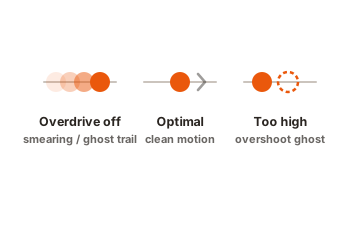
Quality matters here as much as the level you choose. A well-tuned monitor reaches clean motion at a sensible setting, while a poorly tuned one can overshoot even on its middle option. That is why a monitor’s response-time number on the box does not tell the whole story; how well the overdrive is implemented is just as important.
Why the response time number on the box can mislead you
Monitors are often sold on a single headline figure, something like “1ms response time.” It sounds precise, but it usually describes the best-case result the panel can hit on its fastest, most aggressive overdrive mode, measured on the single easiest transition. In everyday use, across the full mix of color changes a real image demands, the true response time is often slower than that headline.
There are two things worth separating in your mind. The first is the panel’s raw speed. The second is how cleanly the overdrive is tuned to reach that speed without overshooting. A monitor can have an impressive number on paper and still produce ugly motion if its overdrive is poorly implemented, and a monitor with a more modest number can look superb if its overdrive is well judged. The headline figure tells you almost nothing about that second part.
The takeaway: treat a “1ms” claim as marketing shorthand, not a guarantee. What actually decides motion quality is how well the overdrive is tuned, which you can only judge by testing it or by reading a detailed review that measures it.
This is also why independent reviews are so useful for gaming monitors. A good review measures each overdrive mode and tells you which one is too slow, which is too aggressive, and which hits the balance.
Which overdrive setting should you use?
The levels go by different names depending on the brand. You might see Off, Low, Medium, High, or Slow, Normal, Fast, Faster, or simply a set of numbers. Whatever the labels, the logic is the same: start in the middle and adjust from there.
A sensible starting point by use case
- Fast competitive games at high refresh rates. Aim for the middle or slightly above. You want short pixel trails, but back off the moment you see halos.
- Slower games or 60Hz output. Lean toward a lower setting. Aggressive overdrive tends to overshoot more at lower refresh rates, so a gentler level often looks cleaner.
- General desktop work. A low setting or Off is usually fine. There is little fast motion to blur, and overshoot is easier to notice on static content.
Treat these as starting points, not final answers. The right level depends on your specific monitor and the refresh rate you actually run, which is why testing it yourself beats trusting any default.
Overdrive and G-Sync / FreeSync
If you use a variable refresh rate feature like NVIDIA G-Sync or AMD FreeSync, overdrive gets more complicated. These features constantly change your refresh rate to match your frame rate, and the ideal amount of overdrive is different at different refresh rates. A level that looks perfect at 144Hz can overshoot badly when your frame rate drops to 60.
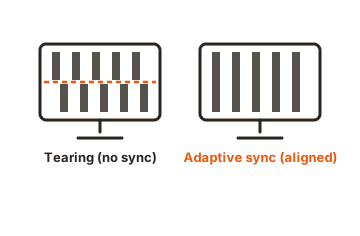
There are two ways monitors handle this:
- Fixed overdrive. One level applies no matter the refresh rate. This is the common case, and it means a setting tuned for high frame rates may overshoot when frame rates fall.
- Variable overdrive. The monitor adjusts the overdrive automatically as the refresh rate changes, keeping motion clean across the whole range. This is the better experience when a monitor offers it.
If your monitor has variable overdrive, use it. If it only has fixed levels, choose a setting that holds up across the frame rates you usually play at, which often means staying a touch conservative rather than maxing it out. Some monitors also lock the overdrive control while variable refresh rate is on; if the only available level overshoots badly, turning the feature off so you can pick a better overdrive setting is a reasonable trade depending on whether tearing or ghosting bothers you more.
How panel type affects overdrive
Not all LCD monitors respond to overdrive the same way, because the three common panel types have different natural pixel speeds. Knowing which one you have sets your expectations for how much overdrive you will need and how prone it is to overshoot.
TN panels
TN panels are the fastest of the three by nature, so they often reach clean motion with only light overdrive. The trade-off is weaker colors and narrower viewing angles, which is why TN has become less common, but for pure speed it still does the job with little pushing.
IPS panels
IPS panels offer the best color and viewing angles and have become the default for most gaming monitors. Modern fast IPS panels are quick enough that a moderate overdrive setting usually produces clean motion. They can still show a faint pale overshoot if pushed to the maximum, so the middle ground tends to serve them best.
VA panels
VA panels have the deepest blacks and strongest contrast, but they are the slowest on dark-to-dark transitions, which can produce a noticeable smear in shadowy scenes. Overdrive helps, but VA is the panel type where a poorly tuned implementation shows its weaknesses most, so testing the setting matters even more here.
And as covered earlier, OLED sits outside this entirely. Its pixels switch almost instantly, so traditional overdrive is usually not part of the picture, and motion clarity on OLED comes down to refresh rate and frame rate rather than a pixel-push setting.
Common overdrive mistakes to avoid
A few habits trip people up again and again. Steering clear of them gets you to clean motion faster.
- Maxing it out by default. The highest setting feels like it should be best, but it is the most likely to introduce overshoot. Higher is not automatically better.
- Turning it fully off. Off is not “safe.” On most LCD monitors it simply leaves more blur than you need, since the pixels run at their slow native speed.
- Setting it once and forgetting the refresh rate. A level tuned at high frame rates can overshoot when your frame rate drops, especially with fixed overdrive. Match the setting to where your frame rate actually lives.
- Judging it on static screens. You cannot evaluate overdrive on a still desktop. The differences only appear in motion, so always test with moving content.
- Trusting the spec instead of your eyes. The headline response time will not tell you which mode looks best on your unit. A quick motion test will.
How to find and test the overdrive setting
Overdrive lives in your monitor’s on-screen menu, the OSD. You open it with the physical buttons or joystick, usually on the bottom edge, side, or back of the monitor.
- Open the OSD with the Menu button or by pressing the joystick.
- Find the setting under Overdrive, Response Time, OD, Trace Free, AMA, or a similar name.
- Set it to a middle level to start.
Then test it, because the right level is something you judge with your eyes, not from a spec. The standard tool is the Blur Busters UFO Test, a free motion test that shows moving objects so you can spot trailing and overshoot easily.
- Run the UFO motion test and watch the moving objects closely.
- If you see a smeared trail behind them, raise the overdrive a level.
- If you see a bright halo or a light trail in front of them, that is overshoot, so lower it a level.
- Settle on the highest level that stays clean, then double-check it in a fast game or video at the refresh rate you normally use.
If you cannot find the setting on your model, the exact menu name and path are listed in your monitor’s user manual.
Conclusion
Overdrive is a free, built-in setting that speeds up pixel transitions to cut ghosting and sharpen motion. The trade-off is simple: too little leaves blur, too much creates bright halos. For most LCD monitors the answer is a middle preset rather than Off or the maximum, and the surest way to land on the right one is to run a quick motion test and trust what you see. Tune it once, and fast games and video both look noticeably cleaner.
Want to make sense of another setting in the same menu? See what DCR (Dynamic Contrast Ratio) does, or browse all our monitor specs guides.
Frequently asked questions
What does overdrive do on a monitor?
It makes pixels change color faster, which shortens the blurry trail (ghosting) behind fast-moving objects. The result is clearer motion in games, sports, and anything with quick movement on screen.
Should overdrive be on or off?
For most LCD monitors, on is better, but not maxed out. A middle preset usually gives clean motion, while Off tends to leave blur and the highest setting tends to add bright halos. OLED monitors often do not need it.
What is the best overdrive setting for gaming?
Usually the middle level, then adjusted by eye. Start in the middle, use a motion test to check for trailing or halos, and pick the highest level that stays clean at the refresh rate you actually play at.
Does overdrive cause input lag?
It can add a very small delay, since the monitor looks slightly ahead to time the pixel push. For most players this is minor compared to the benefit of clearer motion, but it is one reason not to push the setting higher than you need.
Does overdrive damage your monitor?
No. Overdrive has a negligible effect on a monitor's lifespan and does not physically strain the screen in any meaningful way. The only real downside of too much overdrive is visual overshoot, not hardware wear.