Monitor MPRT: What It Means and Should It Be On?
Table of contents
MPRT stands for Moving Picture Response Time. It measures how long a single frame stays visible on your screen, in milliseconds, and that is what decides how blurry things look when you follow them with your eyes. Lower is better. The surprise is that MPRT has little to do with how fast your pixels change colour. It is set by how long each frame is held in front of you, which puts your frame rate in charge of it.
MPRT vs GtG: what each number measures
Gaming monitors list two response time numbers, and they describe different things.
| GtG | MPRT | |
|---|---|---|
| What it measures | How fast a pixel changes shade | How long a pixel stays visible |
| What you notice | Ghosting, trails, bright halos | Overall blur when you track motion |
| Set mainly by | Panel type and overdrive | Frame rate, refresh rate, strobing |
| Typical figures | 0.03ms to 5ms | 1ms to 16.7ms |
GtG (grey to grey) is how long a pixel takes to shift from one shade to another. MPRT is how long that pixel then stays lit before the next frame arrives. A pixel can finish its colour change in a fraction of a millisecond and then sit there, unchanged, for the rest of the frame. Your eyes keep moving while it sits still, and that smear across your retina is the blur you see.
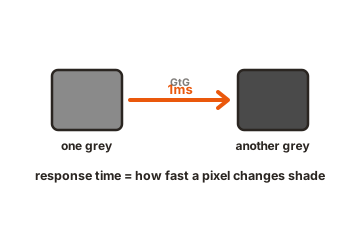
This is why a screen with almost instant pixels can still look soft in motion. OLED is the clearest case. Its pixels switch in roughly 0.03ms, but on a 60Hz OLED every frame still hangs on screen for 16.7ms, so fast motion still smears. The GtG versus MPRT page at Blur Busters has a moving bar animation that separates the two effects on your own display.
Why your frame rate sets the MPRT floor
Most displays work by sample and hold. Each frame appears, then stays put until the next one replaces it. So the shortest MPRT you can get is the length of one frame. Divide 1000 by your frames per second and you have the floor.
One millisecond of persistence works out to one pixel of blur for every 1000 pixels per second of motion. Swing your view across a shooter at 2000 pixels per second on a 240fps screen and objects smear across about eight pixels. The same swing at 60fps smears across 33.
| Frames per second | Shortest possible MPRT | Blur at 1000 pixels per second |
|---|---|---|
| 60 | 16.7ms | About 17 pixels |
| 120 | 8.3ms | About 8 pixels |
| 144 | 6.9ms | About 7 pixels |
| 240 | 4.2ms | About 4 pixels |
| 360 | 2.8ms | About 3 pixels |
| 480 | 2.1ms | About 2 pixels |
| 1000 | 1.0ms | About 1 pixel |
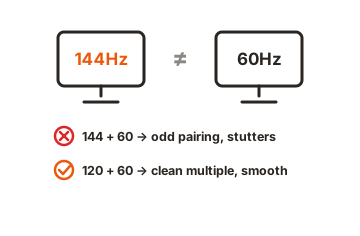
Read that first column as frames per second, not as the number on the box. A 240Hz monitor showing a game at 60fps blurs exactly like a 60Hz one, because each frame is still visible for 16.7ms. Refresh rate only pays off when your graphics card can fill it.
Where a 1ms MPRT rating comes from
There are only two ways to hold a frame for a single millisecond. One is to run 1000 frames per second on a 1000Hz display. The other is to show the frame for 1ms and keep the screen dark for the rest of the refresh cycle. Almost every 1ms MPRT rating you can buy today is the second one.
That method is backlight strobing, and it goes by many names: ULMB, ULMB 2, ELMB, DyAc, MBR, black frame insertion, or simply MPRT in the monitor menu. The backlight flashes once per frame instead of staying on, so each frame is visible for a short pulse rather than a whole cycle, and blur falls in proportion. NVIDIA’s ULMB 2 flashes for roughly a quarter of each cycle, which gives a 360Hz panel about the motion clarity of a 1440Hz one.
So what does 1ms MPRT mean on a spec sheet? It means that with the monitor’s strobe mode switched on, each frame is lit for about a millisecond. Turn the strobe off and the same screen goes back to holding each frame for a whole refresh cycle, roughly 4.2ms at 240Hz or 6.9ms at 144Hz.
Those four letters do two jobs. MPRT is a measurement that applies to every display, including ones with no strobing at all, and on some monitors it is also the name of the strobe toggle in the menu. MSI’s version has levels from 0 to 20.
Should you turn the MPRT setting on?
Switch it on, play something you know well, and then weigh three costs.
- Brightness. The screen sits dark for most of each frame, so peak brightness drops. Older strobe modes often fell to somewhere near 100 to 150 nits. Newer ones hold up better, and the G-Sync Pulsar monitors that reached shops in January 2026 keep around 300 nits with strobing running.
- Flicker. Strobing is flicker, on purpose. Most people never see it at high refresh rates, but if you get eye strain or headaches after a long session, this is a likely cause.
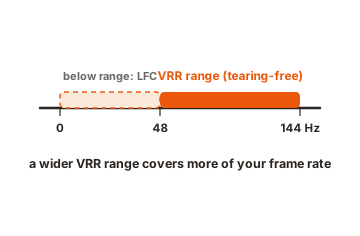
- Variable refresh rate. On most monitors, strobing and FreeSync or G-Sync cannot run at once, because strobing wants a fixed refresh rate and VRR keeps changing it. A few features get past that, including MSI MPRT-Sync, Gigabyte Aim Stabilizer Sync, ASUS ELMB-Sync, and NVIDIA G-Sync Pulsar, which pairs a rolling backlight pulse with VRR on four 1440p 360Hz screens from Acer, AOC, ASUS and MSI.
Strobing earns its keep in competitive shooters, where you hold a steady high frame rate and want the sharpest possible target tracking. It earns much less in slower single player games, in HDR, and on the desktop. If the setting is greyed out, check whether HDR or a dynamic contrast mode is switched on, because those usually block it.
MSI MPRT and MPRT Sync
MSI is the brand most people mean when they search for MPRT, because it names its strobe mode after the measurement. On most MSI gaming monitors you will find it in the on-screen menu: press the joystick on the back of the screen, open the Gaming section, and look for MPRT. Many models also let you change it from MSI’s desktop app instead of the joystick.
Turning MSI MPRT on usually changes three things at once:
- Adaptive-Sync goes off. On most models, MPRT is greyed out until you disable Adaptive-Sync (FreeSync) in the same menu, or switching MPRT on turns Adaptive-Sync off for you.
- The picture gets dimmer. The backlight is dark for part of every frame, so brightness drops noticeably, and on some models the brightness control is limited while strobing runs.
- Some modes stop working. HDR and certain picture presets block it on many models, and strobing looks best at the monitor’s top refresh rate, where flicker is least visible.
Where your model offers MPRT levels rather than a plain on and off switch, start in the middle and step up or down while watching a fast moving test pattern. You are looking for the sharpest motion you can live with at the brightness that remains.
Newer MSI models add a separate MPRT Sync option. It keeps the strobe running while Adaptive-Sync stays on, so the backlight pulse follows the changing refresh rate instead of needing a fixed one. You keep tear-free variable refresh and gain clearer motion, but the dimmer image and the flicker still come with it, and it works best when your frame rate stays high. It is a model-specific feature, so check your monitor’s manual or spec page rather than hunting for it in the menu of an older screen.
| What you are doing | MPRT | FreeSync / Adaptive-Sync |
|---|---|---|
| Competitive shooter at a steady high frame rate | On | Off (or use MPRT Sync) |
| Demanding game with a frame rate that swings | Off | On |
| HDR games and films | Off | On |
| Desktop work and browsing | Off | Either |
What counts as a good MPRT number
Start from the frame rate you actually hold. Under about 5ms means 240fps or better, and that is where blur stops being the first flaw you notice. Around 8ms, or 120fps, is comfortable for most games. At 16.7ms, or 60fps, blur is the biggest thing standing between you and a clear picture.
Compare like with like. A strobed 1ms figure and a non-strobed 4ms figure often describe the same monitor in two modes, and the strobed one only counts while you accept a dimmer image and no VRR.
For a comparison that does not rest on a single number, look for VESA’s ClearMR badge. It grades motion clarity in tiers from 3000 up to 21000 with a high speed camera, and strobing is switched off during testing, so the tier reflects what the panel does on its own.
The floor keeps dropping. 480Hz and 720Hz OLED panels are already on sale, and Samsung showed a 1,040Hz monitor at CES 2026. Feed a display like that 1000 frames per second and you get 1ms MPRT with no strobing, no flicker and no loss of brightness.
Conclusion
MPRT tells you how long each frame lingers, and that is what your eyes read as motion blur. Treat it as a frame rate figure rather than a panel figure: the higher the frame rate you actually hold, the lower it goes. Use a strobing mode if you want a shortcut to sharper motion in fast games, and go in knowing you are trading brightness and variable refresh rate for it.
For more, see our monitor specs guides.
Frequently asked questions
Is MPRT or GtG more important?
MPRT, for how blurry motion looks. GtG matters for ghosting, trails and bright halos around moving objects. A good monitor keeps both low, because slow GtG piles extra smearing on top of the blur MPRT describes.
Does a 1ms MPRT monitor remove motion blur?
Only while its strobing mode is on. With strobing off, that monitor's MPRT is about one frame long, so roughly 4ms at 240fps. Blur drops a long way, but it never fully disappears.
Can I use MPRT and FreeSync at the same time?
On most monitors, no. Strobing needs a steady refresh rate, and FreeSync keeps changing it. MSI MPRT-Sync, Gigabyte Aim Stabilizer Sync, ASUS ELMB-Sync and NVIDIA G-Sync Pulsar are the main exceptions.
How do I test my monitor's motion clarity?
Open a moving test pattern such as the TestUFO animations, set the speed near 1000 pixels per second, and track the object with your eyes. Run it twice, once with your strobe mode on and once off.
Does the MPRT setting add input lag?
Backlight strobing adds a small delay, usually a millisecond or two, because the flash waits for the panel to finish its refresh. Players who chase the lowest possible latency often leave it off.
Should MPRT be on or off?
Turn it on for fast competitive games where you hold a steady frame rate at or near your refresh rate. Leave it off for everyday use, HDR, slower games, or whenever your frame rate swings around, because FreeSync or G-Sync will do more for you there.