Adaptive Sync Monitor: How It Works and How to Turn It On
Table of contents
An adaptive sync monitor changes its refresh rate on the fly to match the frame rate coming from your graphics card. When the two are in step, you get smooth motion with no torn frames and far less stutter. It is one of the most useful features on a modern gaming monitor, and on most displays it is either on by default or a single switch away.
The catch is the names. The same basic feature shows up on spec sheets as Adaptive Sync, FreeSync, G-Sync, VRR, and VESA AdaptiveSync, and the labels overlap in ways that make them look like different things when they mostly are not. This guide explains what the feature does, what to look for when you buy, and exactly how to switch it on.
What is an adaptive sync monitor?
An adaptive sync monitor is a display that can vary its refresh rate in real time instead of holding one fixed rate. Refresh rate is how many times per second the screen draws a new image, measured in hertz (Hz). A plain 60Hz monitor redraws 60 times a second, every second, no matter what. An adaptive sync monitor can run at any rate inside a supported range, say anywhere from 48Hz up to 144Hz, and it shifts moment to moment to match how fast your graphics card (GPU) is sending finished frames.
This matters because a game does not produce a steady stream of frames. A quiet room might render at 140 frames per second (FPS), then a busy scene full of smoke and explosions drops to 70. On a fixed 60Hz screen, that mismatch causes visible problems. An adaptive sync monitor keeps the screen and the GPU in step, so the picture stays clean as the frame rate moves around.
What problem does it actually fix?
Adaptive sync fixes two annoyances at once: screen tearing and stutter. Both come from the screen and the GPU being out of step.
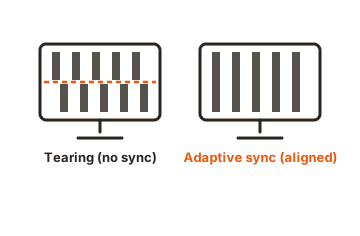
Screen tearing
Screen tearing is when the top of one frame and the bottom of the next frame show on screen at the same time, split by a ragged horizontal line. It happens because a fixed-rate screen redraws on a strict clock, and if the GPU hands over a new frame partway through that cycle, the display shows part of the old frame and part of the new one together. The faster you turn or move in a game, the more obvious the tear.
Stutter and the V-Sync trade-off
The old fix for tearing was V-Sync. V-Sync forces the GPU to wait and only show a full frame on the screen’s refresh beat, which removes the tear. The downside is that when your frame rate falls below the refresh rate, V-Sync makes the GPU hold frames back, and that adds input lag and can cut the frame rate further. So you trade a torn image for a laggy, stuttery one.
Adaptive sync removes that trade-off. Each frame appears the instant it is ready, and the screen simply adjusts its refresh to suit. You get no tearing and no added lag, which is why it has become standard on gaming displays.
How adaptive sync works
The idea is simple: instead of making the GPU keep pace with a fixed screen, the screen keeps pace with the GPU. The two talk to each other continuously.
- The GPU finishes rendering a frame and sends it to the monitor right away.
- The monitor displays that frame immediately rather than waiting for a fixed beat.
- The monitor times its next refresh to land when the next frame arrives, matching its refresh rate to the current frame rate.
If your GPU is putting out 95 FPS, the screen runs at 95Hz. If a heavy scene drops you to 62 FPS, the screen drops to 62Hz to suit. Because every frame is shown once, as soon as it is ready, there is nothing to tear and nothing to stutter. Many people also say motion just looks more fluid this way, and that a game at 45 FPS with adaptive sync on feels smoother than the same 45 FPS without it.
This works over both DisplayPort and HDMI on modern monitors. The underlying technology started as a feature added to the DisplayPort standard back in 2014, and later versions of HDMI gained their own version of it too.
Adaptive Sync vs FreeSync vs G-Sync vs VESA AdaptiveSync
These names cause more confusion than anything else in monitor shopping, so here is the plain version. They almost all describe the same feature, just branded by different companies. The umbrella term for any technology that varies the refresh rate is variable refresh rate, or VRR. Adaptive sync is one form of VRR, and the rest are flavors of it.
| Name | What it is | Works with |
|---|---|---|
| VESA Adaptive-Sync | The open, royalty-free standard built into DisplayPort that makes variable refresh possible. FreeSync and G-Sync Compatible are both built on it. | Any GPU brand that supports it |
| AMD FreeSync | AMD's brand of adaptive sync. Needs no special hardware in the monitor, which keeps prices down. Comes in three tiers (see below). | AMD cards; also most NVIDIA cards |
| NVIDIA G-Sync Compatible | NVIDIA's stamp on FreeSync and Adaptive-Sync monitors it has tested and approved. Same open standard, no extra hardware. | NVIDIA cards; usually AMD too |
| NVIDIA G-Sync / G-Sync Ultimate | The original premium version with a dedicated NVIDIA chip inside the monitor. Wider refresh range and tight quality control, but costs more. | NVIDIA cards only |
| VESA Certified AdaptiveSync | A certification badge (no hyphen) that proves a monitor passed VESA's lab tests for refresh range, response time, and flicker. | Any GPU brand that supports it |
One naming trap is worth calling out: “Adaptive-Sync” with a hyphen is the technology that delivers variable refresh, while “AdaptiveSync” without a hyphen is VESA’s certification scheme. A monitor can use Adaptive-Sync to deliver VRR without carrying the AdaptiveSync certification. The certification is the stricter bar, because it tests over 50 criteria and demands an average gray-to-gray response time of 5ms or under, so manufacturers can no longer lean on a flattering “1ms” figure. You can check the full list of certified models on VESA’s AdaptiveSync site.
The practical takeaway: the brand on the box matters far less than it used to. Since 2019, NVIDIA cards have worked with most FreeSync monitors, and AMD cards work with most G-Sync Compatible ones. By 2026 this cross-compatibility is mature. A true G-Sync monitor with the built-in chip still has an edge in a few niche cases, like a wider refresh range and slightly better control over motion blur, but for most people a good FreeSync or AdaptiveSync monitor gives the same result on either GPU brand.
The spec that matters most: the VRR range and LFC
If you remember one thing when buying, make it this. The single most useful number is the monitor’s VRR range, written as something like 48-144Hz. That range is the window where adaptive sync actually works. The top number is the screen’s maximum refresh rate. The bottom number, called the floor, is where things get interesting.
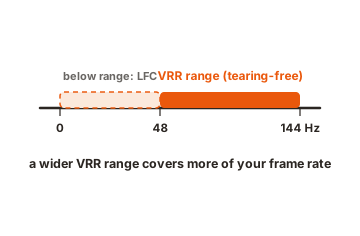
Below the floor, adaptive sync would normally switch off, and tearing or stutter returns. This is where Low Framerate Compensation, or LFC, comes in. LFC keeps sync working when your frame rate drops under the floor by showing each frame more than once. If a game runs at 22 FPS on a screen with a 44Hz floor, LFC draws each frame twice to hit 44Hz, so the picture stays smooth. A lower floor and working LFC together mean adaptive sync covers almost your entire range of frame rates, including the rough patches where you need it most.
Two monitors can both say “FreeSync Premium” and behave differently because their floors differ. A 48Hz floor triggers LFC sooner than a 40Hz floor. A true G-Sync module can sync as low as 1Hz, which is part of what you pay extra for. So read the actual range in the spec sheet, not just the tier badge.
What the FreeSync tiers require
- FreeSync: the base tier. Tear-free, low-latency variable refresh. No HDR requirement and LFC is not guaranteed.
- FreeSync Premium: adds two hard requirements, at least 120Hz at 1080p and mandatory LFC. This is the sensible minimum for serious gaming.
- FreeSync Premium Pro: everything in Premium plus a validated HDR mode, so adaptive sync and HDR run at the same time without one switching the other off.
What the VESA AdaptiveSync tiers mean
VESA’s gaming badge, AdaptiveSync Display, requires a refresh range of at least 60-144Hz and carries a number that shows the certified maximum, such as AdaptiveSync Display 144, 240, or 360. Its sister badge, MediaSync Display, targets smooth video playback rather than gaming, with a 48-60Hz range that plays film and broadcast frame rates without judder.
Do you need an adaptive sync monitor?
For gaming, yes, it is one of the best value features you can get, and at this point nearly every gaming monitor includes it. If your frame rate ever dips or swings around, which it does in almost every game, adaptive sync makes the experience visibly smoother for no real downside. The feature itself adds little or nothing to the price on FreeSync and AdaptiveSync models, since they use an open standard.
A few cases call for a closer look. Competitive players chasing the lowest possible latency sometimes run with adaptive sync off and a very high, capped frame rate instead, on the logic that if your FPS always sits above the refresh rate, tearing barely shows. For most players, though, leaving it on is the smoother choice. It also helps outside gaming, smoothing video playback at the various frame rates that movies and streamed content use.
It is worth knowing the feature needs matching parts. Your GPU has to support adaptive sync, which nearly all cards from the last several years do across AMD, NVIDIA, and Intel, and you usually want a DisplayPort cable, since some HDMI versions are more limited. The good news in 2026 is that compatible hardware is now the norm rather than the exception.
How to turn on adaptive sync
On many monitors adaptive sync is already on, but it pays to check, because some displays ship with it off. Setup is a two-part job: switch it on in the monitor’s own menu first, then confirm it in your GPU software.
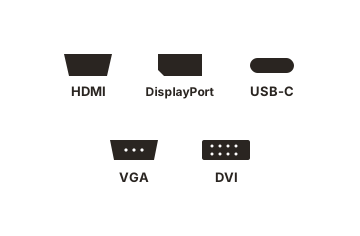
Step 1: Turn it on in the monitor menu
- Open the on-screen display (OSD) using the buttons or stick on the monitor itself.
- Find the Game or Display settings section. The wording varies by brand.
- Switch on the option named Adaptive Sync, FreeSync, or Variable Refresh Rate. If your monitor lists a tier like FreeSync Premium, pick that.
- If your monitor has a motion-blur or strobing feature switched on, turn it off, since it usually cannot run at the same time as adaptive sync.
Step 2: Confirm it in your GPU software
On an NVIDIA card: open the NVIDIA Control Panel or the NVIDIA app, go to Set up G-Sync, and tick Enable G-Sync, G-Sync Compatible. Choose whether to use it in full-screen only or windowed mode too, and make sure your monitor is selected. NVIDIA’s own step-by-step page covers this, see NVIDIA’s G-Sync setup guide. On an AMD card: open AMD Software: Adrenalin Edition, go to the Display tab, and toggle AMD FreeSync on. On an Intel card: open the Intel Graphics Command Center, go to Display, and enable Variable Refresh Rate.
Step 3: Check that it is working
Turn on the refresh-rate readout in your monitor’s menu if it has one, then launch a game. If the number on screen rises and falls roughly in line with your frame rate, adaptive sync is active. You should also set Windows to the monitor’s top refresh rate under Display settings, and in most cases leave in-game V-Sync off to avoid it fighting with adaptive sync.
Conclusion
An adaptive sync monitor matches its refresh rate to your GPU’s frame rate, which clears up screen tearing and stutter with no added lag. For gaming it is close to essential, and most modern displays include it for little or no extra cost. When you buy, look past the FreeSync or G-Sync badge and check the VRR range and LFC support instead. Then switch it on in both the monitor menu and your GPU software, and confirm the refresh rate is tracking your frame rate.
For the cleanest motion, pair adaptive sync with the right overdrive setting. For more display settings explained, see what DCR does or browse all our monitor specs guides.
Frequently asked questions
Should I turn adaptive sync on or off?
Leave it on for almost all gaming and video. It smooths out tearing and stutter with no real downside. The only common exception is competitive players who keep it off and run a very high, capped frame rate to shave latency.
Does adaptive sync work with an NVIDIA card on a FreeSync monitor?
Yes. Since 2019, NVIDIA cards have worked with most FreeSync monitors through the G-Sync Compatible setting. Enable adaptive sync in the monitor menu, then tick Enable G-Sync, G-Sync Compatible in the NVIDIA Control Panel.
Is adaptive sync the same as FreeSync and G-Sync?
Effectively yes. FreeSync (AMD) and G-Sync Compatible (NVIDIA) are both built on the open VESA Adaptive-Sync standard. They all vary the refresh rate to match the GPU. True G-Sync with a hardware chip is the one real exception, with a wider range at a higher price.
Do I need a special cable for adaptive sync?
A DisplayPort cable is the safest choice and works on virtually every adaptive sync monitor. HDMI can work too, but support depends on the HDMI version, so some older HDMI ports are more limited. When in doubt, use DisplayPort.
What VRR range should I look for?
A wide range with a low floor is best, for example 40-144Hz or lower at the bottom. Pair that with LFC support so sync keeps working when your frame rate drops below the floor. The range matters more than the tier name on the box.