Twitch Freezing Second Monitor Chrome? How to Fix It
Table of contents
Twitch freezes on your second monitor in Chrome because your two screens run at different refresh rates, or because your graphics card is busy feeding the game on your main screen and the stream loses its turn to draw frames. Both problems have quick fixes. Below is the fastest path to a smooth stream, starting with the changes that take two minutes.
Why does Twitch freeze on my second monitor in Chrome?
Windows draws every screen through one shared layer called the desktop compositor. When your main monitor runs at, say, 144Hz and your side monitor runs at 60Hz, those two screens update on different clocks. Windows has to juggle both rhythms at once, and that juggling is where video on the slower screen starts to hitch, stall, or freeze.
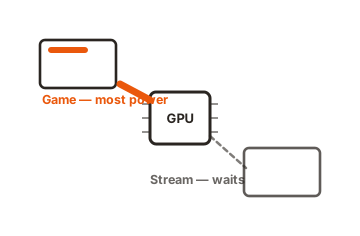
The second cause is timing. Chrome has only a few milliseconds to decode and show each video frame. When you launch a game, the graphics card pours most of its attention into that game, and the Twitch tab gets pushed to the back of the line. Miss the deadline and the picture stalls, even though your PC is barely breaking a sweat. This is why the stream can freeze the instant you click back into the game, then run fine again the moment you focus the browser.
First, the two-minute fixes
Run through these before changing anything deeper. One of them clears the problem for most people.
-
Restart Chrome fully
Close every window, then reopen. A stale graphics process is a common and boring cause. -
Update your graphics driver
Fresh drivers fix a lot of dual-screen video bugs on their own. Get them from AMD, Nvidia, or Intel directly, not from Windows Update. -
Update Windows
Newer builds handle mixed refresh rates better than older ones. -
Lower the Twitch quality one step
Drop from Source to 1080p60 or 720p60. If the freeze goes away, the stream was asking for more than your setup could hand it while gaming.
Turn Chrome’s hardware acceleration on or off
Hardware acceleration lets Chrome hand video work to your graphics card instead of your processor. It usually helps, but in a dual-screen setup it sometimes causes the exact freezing you’re seeing. The fix is to flip it to the opposite of whatever it’s set to now and test.
Open Chrome’s settings, go to System, and toggle Use graphics acceleration when available. Click relaunch, then watch a stream while the game runs. If it’s already on, turn it off and test. If it’s off, turn it on and test. There is no universal right answer here, so try both.
Match your monitors’ refresh rates
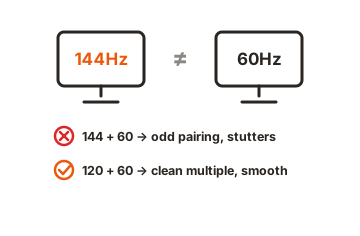
This is the real fix for most people, because the mismatch is the root cause. You have two options: set both screens to the same rate, or set the faster screen to a clean multiple of the slower one.
| Setup | What tends to happen | Best move |
|---|---|---|
| Same refresh rate on both (60/60 or 144/144) | Usually smooth; if it stutters, the cause is elsewhere | Start with the Chrome and Windows fixes below |
| Clean multiple (144 + 72, or 120 + 60) | Windows syncs the two screens more easily | Set the fast screen to a multiple of the slow one |
| Odd mismatch (144 + 60, 165 + 60) | The most common trigger for freezing and stutter | Match them, or drop the fast screen to a clean multiple |
In Windows, open Settings, then System, then Display, then Advanced display. Pick each monitor and check its refresh rate. A 144Hz screen paired with a 60Hz screen is the classic troublemaker. Setting the fast screen to 120Hz next to a 60Hz screen often fixes it, because 120 is a clean multiple of 60 and Windows can sync them without a fight.
Not sure what each screen is actually running? The TestUFO refresh-rate detector reads out your real refresh rate on whichever screen the window sits on, so you can confirm the numbers instead of guessing.
Change how Windows shares the GPU
Windows has a setting called Hardware-Accelerated GPU Scheduling. It changes how the graphics card decides what to draw first. For some dual-screen setups it helps; for others it’s the cause of the freezing. Like the Chrome toggle, the move is to switch it and test.
Go to Settings, then System, then Display, then Graphics, then Change default graphics settings. Flip Hardware-Accelerated GPU Scheduling to the opposite of its current state, restart your PC, and test again. Also turn Game Mode off and on the same way, since it changes how Windows hands out resources while a game is running.
Play the game in borderless windowed mode
Exclusive fullscreen gives your game the cleanest, most direct path to the graphics card. That sounds good, but it can starve your second screen, because the stream has to wait for whatever time is left over. Borderless windowed mode keeps both screens under the same shared layer, so video on the side monitor gets treated more fairly.
Open your game’s video or display settings and switch from Fullscreen to Borderless Windowed (sometimes called Windowed Fullscreen). You usually lose nothing visually, and the stream often stops freezing right away. If your game only offers true fullscreen, this fix won’t be available, so lean on the refresh-rate match instead.
Fixes for Twitch specifically
Twitch is more prone to this than YouTube for one reason: it plays live with only a second or two of buffer, so it has almost no cushion to recover from a hiccup. A few Twitch-side changes buy back some breathing room.
-
Turn off Low Latency mode
Click the gear on the Twitch player and disable it. This widens the buffer, which gives the stream more slack when the GPU is busy. You trade a couple of seconds of delay for a stream that doesn’t stall. -
Close spare tabs
Every background tab competes for the same resources. Shutting the ones you don’t need frees up room for the stream. -
Disable heavy extensions
Chat add-ons and ad blockers add work on top of the video. Turn them off briefly to see if the freezing eases. -
Try the popout player
Open the stream in its own small Chrome window instead of the full Twitch page. It’s lighter, which can be enough on its own.
When it’s your cables or connection
If nothing above sticks, look at how your second monitor is plugged in. A cheap USB display adapter or a budget docking station adds processing overhead that a gaming plus streaming workload handles poorly. Plug both monitors straight into your graphics card with HDMI or DisplayPort where you can.
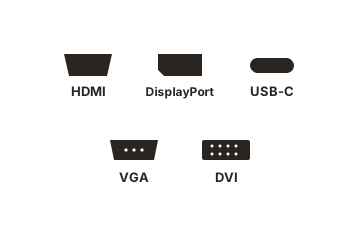
Old or damaged cables cause dropouts too. Swap the cable on the second monitor, or try a different port on your graphics card. And if this only started after a specific Chrome update, you may be hitting a browser-level bug rather than a setting on your machine.
You can check whether others have reported the same behavior on the Chromium issue tracker, which sometimes points to a fix in an upcoming Chrome version.
Conclusion
Twitch freezing on a second monitor in Chrome comes down to two things: a refresh-rate mismatch between your screens, or your GPU being too busy with the game to feed the stream. Start by dragging the window to your main screen to confirm the cause, then match your refresh rates and flip Chrome’s hardware acceleration. A good result is a stream that plays smoothly on the side screen while your game runs full speed on the main one, with no stalls when you click between them.
For more on running more than one screen, see our monitor setup guides.
Frequently asked questions
Why does Twitch only freeze when I'm gaming?
Because the game takes most of your graphics card's attention, leaving the stream waiting for its turn to draw frames. When you focus the browser instead, the stream gets priority and plays fine again.
Should I turn Chrome hardware acceleration on or off?
Try both. On a standard screen, turning it off often stops the freeze. On a 4K screen, leaving it on is usually smoother. Flip the setting, relaunch Chrome, and keep whichever plays better.
Do my two monitors need the exact same refresh rate?
Not exactly the same, but they should line up cleanly. A fast screen set to a clean multiple of the slow one, like 120Hz next to 60Hz, syncs far better than an odd pairing like 144Hz next to 60Hz.
Why is Twitch worse than YouTube for this?
Twitch plays live with only a second or two of buffer, so any hiccup shows up as a freeze. YouTube pre-loads much more video, giving it a bigger cushion to ride out the same interruption.
Will a more powerful graphics card fix it?
Not usually. The freeze is a timing and refresh-rate problem, not a raw power one, which is why it happens even on high-end PCs. Matching your refresh rates fixes it far more reliably than new hardware.