Quadruple Monitor Setup: Layouts, Hardware, and How to Build One
Table of contents
A quadruple monitor setup connects four displays to a single computer, giving you a wide, glanceable workspace where everything you need stays visible at once. Two things decide whether it works well: choosing a screen layout that matches how you actually work, and making sure your graphics hardware can drive four monitors at the same time. This guide covers both, along with mounting, setup, and the comfort details that separate a great four-screen desk from a cluttered one.
The single most common mistake is assuming four video ports on your PC means you can run four screens. That is not always true, and we will get to exactly why. First, the layouts.
Why use a quadruple monitor setup?
Four screens is the natural step up for people who juggle a lot at once. Instead of constantly switching between windows on one or two displays, you spread your tools across four and keep them all in view. The payoff is less time hunting for the right window and more time actually working.
It suits a few groups especially well. Traders watch order flow, charts, market indexes, and news side by side. Analysts and developers keep data, reference material, a main work window, and communication tools each on their own screen. Streamers run the game on one display while chat, alerts, and capture software live on the others. In all of these, the value comes from seeing related information together rather than flipping between it.
Four is also a practical ceiling for many desks. It gives a large amount of screen space without the cost, cabling, and width of five or six displays, which is why it has become a sweet spot for serious multitaskers.
Best layouts for four monitors
How you arrange the four screens matters as much as having them. The right layout depends on your desk width, your chair position, and what you do across the displays. Here are the arrangements that work best.
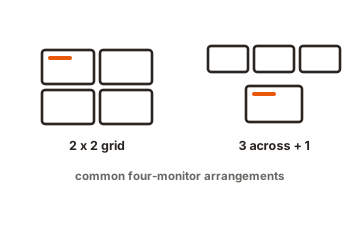
2x2 grid
Four monitors in a two-by-two square, two on top and two below. This is the most balanced and space-efficient option, giving symmetrical access to all four with minimal head movement. It is a favorite for trading and general multitasking. The one thing to watch is the height of the seam between the rows, which is why a sturdy stand that positions the lower pair at a comfortable level helps a lot.
Horizontal row
All four side by side in a single line. This gives one wide, uninterrupted strip of screen and suits wide content and immersive layouts, but it demands a very wide desk, and the outer screens sit far enough to the side that you turn your head to use them. Often the outer displays end up holding secondary tasks while the inner two do the main work.
Three across, one on top (or surround)
Three monitors in a row with a fourth mounted above the center, or a central screen flanked and topped by the others. This puts a main display front and center with supporting information in your peripheral vision and overhead, which works nicely for simulators, design, and immersive gaming. It needs careful positioning to avoid neck strain.
One main, three auxiliary
A primary screen for your core task, with three smaller or secondary displays around it for reference, chat, and monitoring. This mirrors how many people actually work: one screen gets most of your attention while the others hold things you glance at. It is flexible and forgiving of mismatched monitor sizes.
L-shape
Three monitors in your main viewing area and a fourth turned to one side, often into portrait orientation, creating a separate work zone. This is ideal for corner desks and for keeping a distinct reference or communications area apart from your primary screens. A vertical fourth monitor is great for long documents, code, or chat feeds.
The hardware you actually need
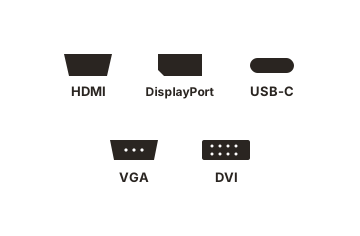
This is where most quad setups succeed or fail, and where the thin guides leave you stuck. The core rule: the number of video ports on your computer does not determine how many monitors it can run. Your graphics processor does.
GPU display limits come first
Every graphics card and integrated graphics chip has a built-in limit on how many displays it can drive at once, set by its number of display pipelines. Many GPUs support four displays, some support only three, and some support six or more. If your card tops out at three displays but has four ports, the fourth port simply stays inactive once three screens are connected. So before anything else, check your specific GPU’s maximum supported display count, not its port count.
Integrated graphics, the kind built into many laptops and budget desktops, such as Intel or AMD integrated chips, typically drive only two or three total displays. If you are relying on integrated graphics, four screens often means adding a dedicated graphics card or external hardware.
Connecting four screens directly
If your GPU supports four displays and has four outputs, the simplest path is to plug each monitor into its own port with the right cable, often a mix of DisplayPort and HDMI. Windows usually detects them automatically; if a screen does not appear, pressing the Windows key plus P and choosing Extend, or updating your graphics drivers, normally sorts it out.
Multi-Stream Transport (MST) and daisy-chaining
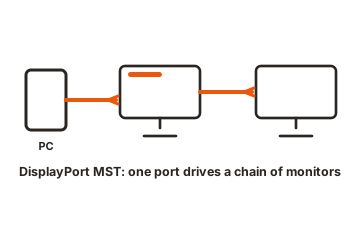
DisplayPort has a feature called Multi-Stream Transport, or MST, that lets a single DisplayPort output feed more than one monitor, either through an MST hub or by daisy-chaining monitors that have DisplayPort output ports. A single DisplayPort 1.2 connection can drive up to four 1080p monitors, with the available bandwidth shared across them, so higher resolutions reduce how many screens one port can support. HDMI does not offer MST, which is one reason DisplayPort is preferred for multi-monitor builds. Importantly, MST still counts against your GPU’s total display limit; it changes how screens are connected, not how many the GPU can ultimately drive.
DisplayLink for going beyond the GPU
When you hit your GPU’s hard display limit, DisplayLink hardware offers a way around it. A DisplayLink dock uses software to process video on the computer’s processor and send it over a standard USB data connection, which lets you add screens beyond the GPU’s native ceiling, even on ports that do not carry video on their own. The trade-off is higher processor usage, so DisplayLink is excellent for productivity, office work, and trading screens, but not the best choice for gaming or video editing on those particular displays.
A note for Mac and laptop users
Two caveats catch people out. First, macOS does not support MST, so plugging two monitors into one standard USB-C hub on a Mac usually mirrors them rather than extending; Mac users who need many screens typically rely on DisplayLink instead. Second, on a laptop the built-in screen counts toward the display limit, so a laptop rated for three displays generally means the internal panel plus two external ones. Closing the lid, or using a DisplayLink dock, is often how laptop users reach four total screens.
How to mount four monitors
Four monitors are a lot of weight and desk real estate, so how you hold them up matters for both stability and comfort.
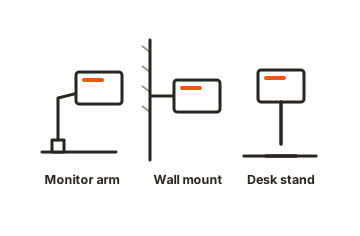
- Quad monitor stands and arms. A dedicated four-monitor stand or set of arms is the cleanest solution. It lifts the screens off the desk, frees up surface space, and lets you tilt, swivel, rotate, and height-adjust each display independently for an ergonomic position.
- Mounting type. Most stands attach with a desk clamp, a grommet through a hole in the desk, or a weighted freestanding base. Freestanding bases avoid drilling and are easy to reposition; clamps and grommets are the most stable for heavy screens.
- VESA compatibility. Check that your monitors have VESA mounting holes and that the stand matches their size and weight rating. Most modern monitors are VESA-compatible, but confirm before buying.
- The desk itself. You need a desk wide and deep enough to hold four screens at a comfortable viewing distance, plus your peripherals. For tight rooms, an L-shaped or corner desk uses the space far better than a straight one.
Whatever you choose, route the cables through the stand’s cable management if it has any. Four monitors plus a PC means a lot of wires, and tidy routing keeps the setup looking clean and makes future changes easier. For more on mounts, arms, and VESA patterns, see our complete VESA mounting guide.
How to set it up, step by step
Once your hardware and mounts are sorted, the actual setup is straightforward.
-
Confirm your GPU supports four displays
Check the maximum supported display count for your graphics card or chip before connecting anything. -
Mount the monitors
Attach each screen to the stand or arms using its VESA plate, then set rough height and angle. -
Connect each monitor
Plug every display into a port using a quality cable, favoring DisplayPort where available. If you are using an MST hub or DisplayLink dock, connect that first, then the monitors to it. -
Power on and let the system detect the displays
Windows usually finds them automatically. If one is missing, press the Windows key plus P and choose Extend, and update your graphics drivers from the GPU maker’s site. -
Arrange the displays in settings
In your display settings, drag the on-screen arrangement to match the physical layout so your cursor moves between screens correctly. Set each monitor’s resolution and refresh rate, and pick your primary display. -
Fine-tune
Adjust height, tilt, and angle for comfort, and align the tops of adjacent screens so your eyes travel smoothly across them.
Ergonomics: making four screens comfortable
With four monitors, comfort is not automatic, because not every screen can sit directly in front of you. A few habits keep long sessions easy on your neck and eyes.
- Put your most-used screen front and center. Whichever display gets the most attention should be directly ahead at eye level, with the others angled around it.
- Angle the outer screens inward. Slightly curving the side monitors toward you reduces how far you turn your head and keeps viewing distance more even.
- Match the heights. Align the tops or centers of adjacent monitors so you are not constantly looking up and down, which is a common source of neck strain in grid and stacked layouts.
- Mind the viewing distance. Sit far enough back that you can take in the whole array without large head movements, and use an adjustable chair and desk to maintain good posture.
Use cases: who benefits most
Trading
Four screens has become something of an entry point for active traders. One screen tracks order flow, another shows the technical chart, a third displays market indexes, and a fourth holds news or your trade journal, all visible at once so nothing is missed during fast markets. A 2x2 grid is the classic trading arrangement.
Productivity and analysis
For developers, analysts, designers, and writers, four monitors let you lay out your tools to match your workflow: data on one, reference on another, your main work window on a third, and communication apps on a fourth. A vertical screen in the mix is especially good for long documents or code. The result is a workspace that mirrors how you think, with fewer interruptions to find a window.
Gaming and streaming
Gamers and streamers use four screens to keep the game immersive while everything else stays accessible. Run the game on the main display (or across three for a surround effect), and dedicate the others to chat, stream alerts, capture software, and viewer comments. For gaming specifically, prioritize monitors with higher refresh rates on the screens you actually play on, and remember that driving demanding games across multiple high-resolution screens asks a lot of your GPU.
Conclusion
A quadruple monitor setup gives you a workspace where everything stays in view, and building one well comes down to two decisions: a layout that fits how you work, and graphics hardware that can genuinely drive four displays at once. Sort out the GPU question first, since four ports do not guarantee four screens, then choose between connecting directly, using DisplayPort MST, or adding a DisplayLink dock to go further. Pair that with a solid mount and a sensible, ergonomic arrangement, and four screens stop feeling like a setup challenge and start feeling like the most natural way to work.
For more ways to connect and arrange your displays, browse our monitor setup guides.
Frequently asked questions
Can my PC run four monitors?
Only if your graphics card or chip supports four displays. Having four video ports is not enough on its own, since the GPU sets the real limit. Check your specific GPU's maximum supported display count first; if it tops out below four, you will need a better card or a DisplayLink dock.
Do I need four ports for four monitors?
Not necessarily. With DisplayPort Multi-Stream Transport you can drive several monitors from one DisplayPort output through a hub or by daisy-chaining, and a DisplayLink dock can add screens over USB. Both still depend on your overall hardware, but neither requires one physical port per screen.
What is the best layout for four monitors?
For balanced multitasking and trading, a 2x2 grid is the most popular and space-efficient. For a main task with supporting information, a one-main-plus-three arrangement or an L-shape works well. The best choice depends on your desk width and how you split work across screens.
Can I use four monitors with a laptop?
Often yes, but the built-in screen counts toward the laptop's display limit, so you may need to close the lid or use a DisplayLink dock to reach four external displays. Check your laptop's supported display count, and note that Macs need DisplayLink because macOS does not support MST.
Will four monitors slow down my computer?
Running multiple displays uses some graphics resources, but for everyday productivity the impact is minor. The demand rises sharply with gaming or video work across several high-resolution screens, which is where a more powerful GPU matters. DisplayLink screens also use some processor power, so they suit office tasks better than gaming.