6 Screen Monitor Setup: How to Build and Run Six Monitors
Table of contents
A 6 screen monitor setup runs six displays off a single computer, and the piece that decides whether it works is your graphics card. Most consumer NVIDIA cards top out at four screens. Many AMD Radeon cards can drive six. Get the GPU right and the rest, cables, mounts, and Windows settings, is straightforward.
This guide walks through exactly what you need, how to wire six monitors together, how to hold them all up, and what the whole thing costs. It is written for traders, coders, and anyone who has run out of room on four screens and wants two more.
What you need for a 6 screen monitor setup
Six monitors is not just “buy six monitors.” You need parts that can feed and hold that many screens. Here is the short list:
- A graphics card that supports six displays (this is the make-or-break part).
- Six monitors, ideally the same model so the height and bezels line up.
- Enough video ports, or an MST hub, to reach all six screens.
- A mount or stand rated for six panels.
- A desk deep and wide enough, plus the power outlets to match.
The monitors and desk are the easy part. The graphics card is where builds usually go wrong, so start there before you buy anything else.
Can one graphics card run six monitors?
Sometimes, but not always, and this is the single most important thing to check. A graphics card can only send a picture to a set number of screens at once, no matter how many ports it has. That number is the display limit, and it is baked into the card.
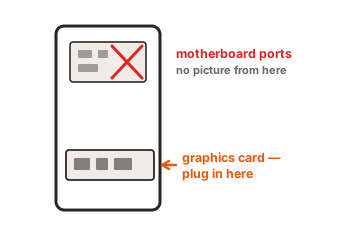
Most consumer NVIDIA GeForce cards, including the RTX 40-series, are capped at four displays at once. The RTX 4090, for example, ships with three DisplayPort 1.4a outputs and one HDMI 2.1 port, and its multi-monitor support tops out at four screens. So a single NVIDIA gaming card cannot drive six monitors on its own, full stop.
Many AMD Radeon cards handle six displays, which is why six-screen trading rigs so often run AMD. AMD’s Eyefinity feature was built around exactly this kind of multi-screen layout. Some AMD professional cards, like the Radeon Pro W-series, push six screens at 4K.
Your two ways around the NVIDIA limit
If you already own or want an NVIDIA card, you have two clean options. The first is to add a second graphics card. Three screens on the main card and three on a cheaper second card gets you to six, and Windows treats them as one big desktop. You just need a motherboard with a spare PCIe slot and a power supply with headroom.
The second is a professional or multi-display card built for this, though those cost more than a gaming card of similar power. Either way, the point stands: check the display limit, not the port count, before you spend a cent.
GPU options at a glance
| Approach | Screens it drives | Best for |
|---|---|---|
| Single AMD Radeon card | Up to 6 | The simplest six-screen build |
| Two NVIDIA cards | 3 + 3 = 6 | Keeping an NVIDIA card you own |
| AMD Radeon Pro (workstation) | 6 at 4K | Trading and control-room work |
| Single NVIDIA GeForce card | 4 max | Not enough on its own |
You can check any card’s exact display limit before buying. AMD’s own Radeon graphics product pages list the display and Eyefinity support for each card, so confirm the number there rather than trusting the port count on the box.
How to connect six monitors, step by step
Once the graphics card is sorted, wiring six screens is mostly plugging in cables and dragging boxes around in Windows. Here is the order that avoids headaches.
-
Count your ports
Look at the back of your card. A typical layout is three DisplayPort and one HDMI, which is four outputs. To reach six screens you’ll either add a second card or use an MST hub (more on that next). -
Use an MST hub if you're short on ports
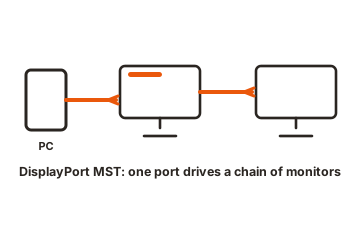
An MST (Multi-Stream Transport) hub splits one DisplayPort output into two or three screens. Plug the hub into a DisplayPort on your card, then plug monitors into the hub. It’s a tidy way to add screens without a second card. -
Match cables to your ports
Use DisplayPort where you can; it carries more screens and higher refresh rates than HDMI. If a monitor only has HDMI and your card is out of HDMI ports, use an active DisplayPort-to-HDMI adapter, not a cheap passive one. -
Plug in and power up
Connect all six monitors, turn everything on, and give Windows a minute to detect the screens. -
Arrange them in Windows
Open Settings, then System, then Display. You’ll see numbered boxes for each screen. Drag them so the on-screen layout matches how the monitors sit on your desk. Microsoft’s guide to setting up multiple monitors in Windows walks through the same screen. -
Set orientation and choose Extend
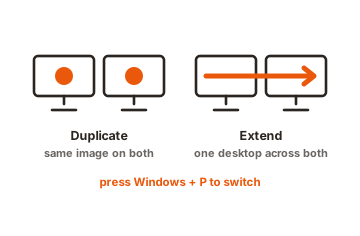
Flip any vertical monitors to portrait in the orientation setting, then pick “Extend these displays” so each screen shows something different instead of mirroring.
That’s it. Windows 11 usually detects a multi-screen layout on its own, and the drag-to-arrange step is the only fiddly part. AMD users can also group screens into one large surface using Eyefinity if they want a single seamless display for a flight sim or a wide chart.
A word on resolution and refresh rate
Six screens share your card’s total video bandwidth. Six 1080p monitors at 60Hz is easy for almost any six-display card. Six 4K screens at high refresh rates is a much bigger ask, and cheaper cards or MST hubs may drop the refresh rate to fit. If you run high-resolution panels, check that your card and any hub can sustain them before you buy six of the same monitor.
Choosing a way to mount six monitors
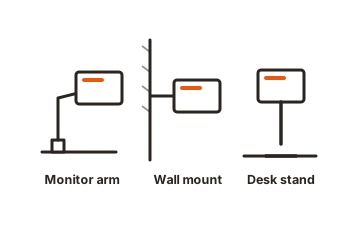
Six monitors on their factory stands eat a huge amount of desk and never line up cleanly. A proper mount fixes both problems and is worth budgeting for. You have three main choices.
A single six-monitor desk mount
This is the most popular option. A dual-column stand clamps to your desk and holds all six screens in a 3-over-3 grid (three on top, three on the bottom). Good ones support monitors up to 32 inches, hold around 17 to 18 pounds per arm, and let you tilt, swivel, and rotate each screen on its own. The clamp or grommet base means no drilling.
Separate stands in pairs
Some six-screen kits use three vertical stands, each holding a stacked pair. This spreads the weight across the desk and makes it easy to angle the left and right pairs inward toward you, which many traders prefer for a curved wall of screens.
A wall mount
If your desk can’t take the clamp load or you want the screens further back, a wall mount frees the desk entirely. It’s less flexible once installed, so measure carefully and make sure you’re anchoring into studs.
Before you buy any mount, check the VESA pattern on the back of your monitors (usually 75x75mm or 100x100mm) and confirm the mount’s weight rating covers your screens.
Whatever you pick, use the built-in cable clips or a few velcro ties. Six monitors mean at least six video cables plus six power cables, and unmanaged, that’s a genuine mess behind the desk.
What a 6 monitor setup costs
The price swings a lot with screen size and resolution, but here’s a realistic picture for a solid build in 2026.
| Part | Rough cost | Notes |
|---|---|---|
| Six monitors | $600 to $2,400 | 1080p 24-inch panels are cheap; 4K 32-inch pushes it up |
| Six-monitor mount | $150 to $350 | Single stand or three paired stands |
| Graphics card | $250 to $1,000+ | AMD six-display card, or a second card |
| MST hub (if needed) | $60 to $150 | Splits one port into two or three screens |
| Cables and adapters | $40 to $120 | DisplayPort cables, active adapters |
A budget six-screen build around 1080p monitors and an AMD card can come in near $1,200 to $1,600. A prebuilt six-monitor trading package with 32-inch 4K screens and stands runs well into the thousands. Pre-assembled six-monitor kits with a stand tend to start around $1,400, which can be worth it if you’d rather not source parts one by one.
Is a six monitor setup worth it?
For the right work, yes. If your day means watching several things at once, live charts, order flow, dashboards, chat, docs, and reference material, six screens let you keep every window open and glance between them instead of alt-tabbing all day. Traders, developers, video editors, and security or control-room staff get real value from it.
For general browsing, email, and the odd spreadsheet, six screens is overkill. Two or three monitors cover most people fine, and you’ll spend less and use far less desk. The honest test is simple: count how often you’re switching between more than four windows. If it’s constant, the sixth and seventh screen pay for themselves in saved time. If it’s not, save the money.
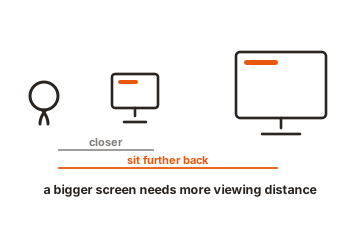
One more thing to weigh is neck strain. A wall of six screens is wide and tall, so set the row you look at most at eye level, keep the outer screens angled toward you, and treat the top row as glance-at space rather than where you stare all day.
Conclusion
A 6 screen monitor setup comes down to one decision: pick a graphics card that actually supports six displays, which usually means AMD Radeon, or plan on two NVIDIA cards. After that, connect the screens with DisplayPort (adding an MST hub if you’re short on ports), extend the desktop in Windows, and hang everything on a mount rated for six panels. Get the GPU right first, and a clean, productive six-screen wall is very doable.
Building up from fewer screens? See our quadruple monitor setup guide, or browse all our monitor setup guides.
Frequently asked questions
Can an RTX 4090 run six monitors?
No, not on its own. The RTX 4090, like other consumer NVIDIA cards, supports a maximum of four displays at once. To reach six you'd add a second graphics card or switch to an AMD card that supports six displays.
Do I need a special graphics card for six monitors?
You need one that supports six displays, not one that's especially powerful. Many AMD Radeon cards do this out of the box. Check the card's display limit on the maker's spec page, since port count alone doesn't tell you the maximum.
What is an MST hub and do I need one?
An MST hub splits a single DisplayPort output into two or three screens. You need one only if your card supports six displays but doesn't have enough physical ports to reach them all. Both the card and hub must support MST.
How do I set up six monitors in Windows 11?
Plug in all six screens, then open Settings, System, Display. Drag the numbered boxes to match your desk layout, set any vertical screens to portrait, and choose Extend these displays so each shows separate content.
Is six monitors too many?
For general use, yes; two or three are plenty. Six makes sense when you constantly watch multiple live windows, like trading, coding, or monitoring dashboards. If you rarely juggle more than four windows at once, you won't get much from a sixth screen.