16:9 Gaming on Ultrawide: How to Play 16:9 Games on an Ultrawide Monitor
Table of contents
To play 16:9 games on an ultrawide monitor, keep the image at its true shape and accept black bars on the sides. Set your graphics driver to Aspect ratio or No scaling (NVIDIA) or Preserve aspect ratio or Center (AMD), and run the game at a 16:9 resolution with the same height as your screen, such as 2560x1440 on a 3440x1440 monitor. The picture stays sharp and undistorted. If the game supports 21:9 natively, use that instead and the bars disappear.
Why 16:9 games show black bars on an ultrawide
Black bars appear because the game’s picture is narrower than the screen. A standard 16:9 image at 1440p is 2560 pixels wide. A typical 21:9 ultrawide at the same height is 3440 pixels wide. That leaves 880 pixels with nothing to show, so the monitor fills them with black, 440 on each side.
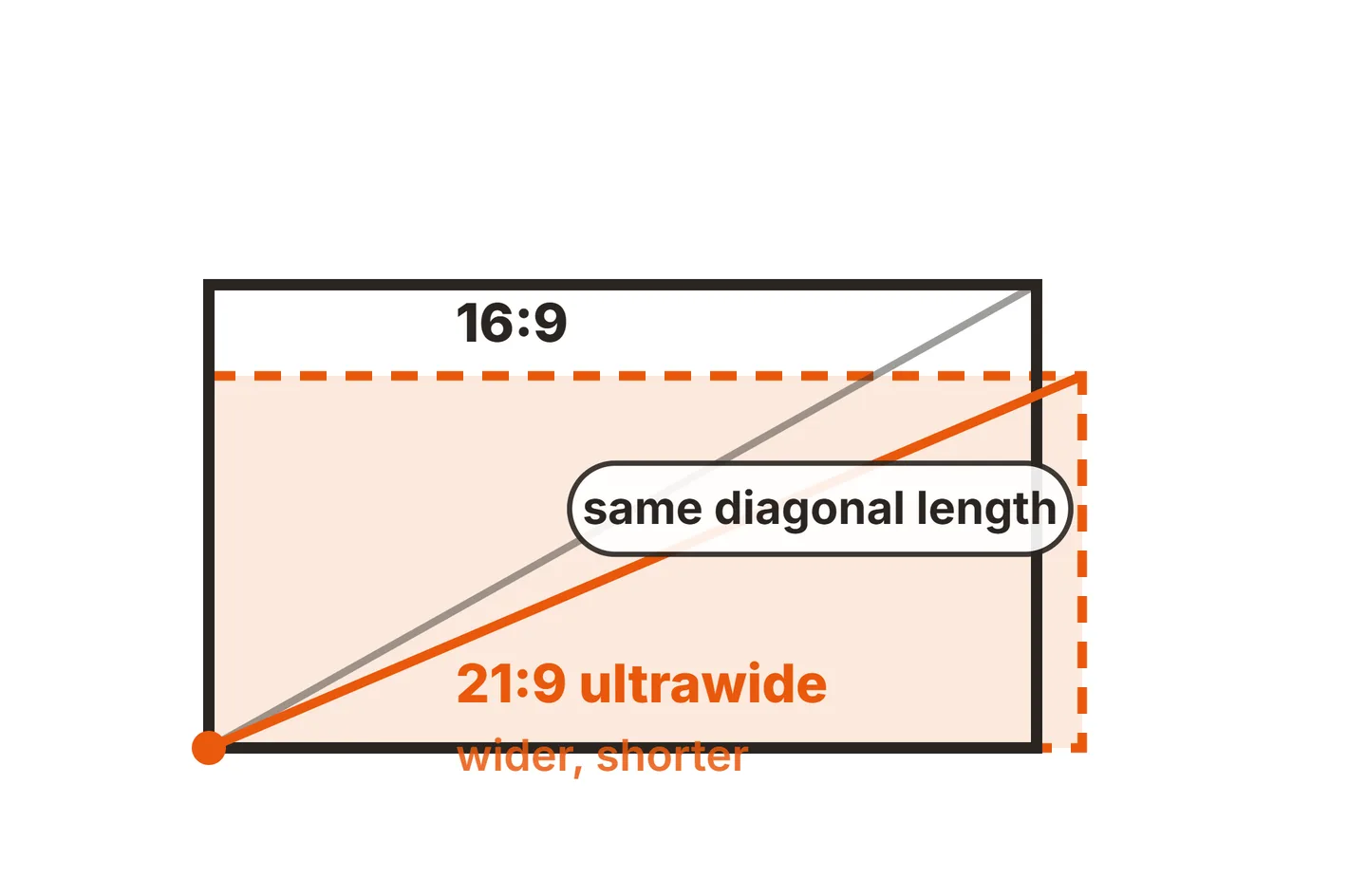
The same math works at other sizes. A 2560x1080 ultrawide shows a 1920x1080 game with 320 pixel bars on each side. A 5120x1440 super-ultrawide shows a 2560x1440 game across exactly half its width.
The bars are not wasted quality. Because the height matches, every game pixel maps to one screen pixel, so the image is as sharp as on a regular 1440p monitor. On a 34 inch 3440x1440 panel, the 16:9 area works out to about 27 inches diagonally, close to a standard 27 inch monitor.
The term “21:9” is a marketing label, by the way. A 3440x1440 screen is closer to 2.39:1, and 2560x1080 is about 2.37:1, but both get sold as 21:9.
Stretch, bars or native ultrawide: which to pick
You have three ways to fill an ultrawide with a 16:9 game, and only two of them look right.
| Option | What you see | Image quality | Best for |
|---|---|---|---|
| Native ultrawide (game supports 21:9) | Full screen, wider field of view | Sharp, correct shape | Any game that offers it |
| Pillarbox (Aspect ratio / Preserve aspect ratio) | 16:9 image centered, black bars | Sharp, correct shape | 16:9-locked games, consoles, esports |
| No scaling / Center | Image at its exact pixel size, centered | Sharpest, but small if resolution is low | Running a game at a lower 16:9 resolution |
| Stretched (Full-screen / Full panel) | Fills the screen | Wide, flattened shapes and HUD | Rarely worth it |
Stretching a 2560 pixel image to 3440 pixels makes it about a third wider. Circles turn into ovals, characters look squat, and text in the HUD (the on-screen health bars and maps) loses sharpness. Most players switch it off within minutes. Pillarboxing or native 21:9 is almost always the better pick.
Step 1: Check the game’s own display settings
Start in the game, because the fix may already be there. Open the video or display menu and look for a resolution or aspect ratio option.
- If 3440x1440 (or your native resolution) is listed, select it. The game supports ultrawide, and you get the wider view with no bars.
- If only 16:9 resolutions are listed, pick the one that matches your screen height: 2560x1440 for a 3440x1440 monitor, or 1920x1080 for a 2560x1080 monitor.
- Choose exclusive fullscreen if offered. In borderless or windowed mode, the game runs inside your Windows desktop, so the driver’s scaling setting may not apply. Exclusive fullscreen lets the GPU scaling mode take over.
Some games run gameplay at 21:9 but keep cutscenes and menus at 16:9. That is a design choice in the game, not a setting you have wrong. Others, such as Elden Ring on PC, are locked to 16:9 for everything.
If you are also using a second screen (see the pros and cons of two monitors side by side) at a different resolution, set each one up separately first. Our guide to dual monitors with different resolutions covers that.
Step 2: Set GPU scaling on NVIDIA
If the game image stretches when you pick 2560x1440, the graphics driver is filling the panel. NVIDIA retired the classic Control Panel in May 2026, so on current drivers these settings live in the NVIDIA app under System > Display. The modes keep their names, and NVIDIA’s older help page on scaling the desktop explains what each one does.
Open the display settings
Open the NVIDIA app, go to the System tab and choose Display. Select your ultrawide if you have more than one screen. If the classic NVIDIA Control Panel is still installed on your PC, the same options sit under Display > Adjust desktop size and position.Pick a scaling mode
In the scaling settings, choose Aspect ratio or No scaling. Avoid Full-screen, which NVIDIA notes stretches the image to fill the display.Scale on the GPU
If you can choose where scaling is performed, pick GPU. This makes the driver handle the scaling, so your choice applies no matter what the monitor would do on its own. If you see an option to override the scaling mode set by games and programs, turn it on.Apply and test
Apply the change, launch the game in fullscreen at 2560x1440, and check that the image has bars instead of stretching.
What is the difference between the two good modes? Aspect ratio enlarges the image as far as it can without changing its shape. No scaling shows it at its exact pixel size, centered. At 2560x1440 on a 3440x1440 screen they look the same, since the height already matches. At 1920x1080 on that screen, Aspect ratio blows the image up to 2560x1440 (a little soft), while No scaling leaves a small, very sharp 1920x1080 box with black on all four sides.
NVIDIA lists one more mode, Integer scaling, which doubles pixels by a whole number. It only helps with resolutions that divide evenly into your panel, like 1720x720 on 3440x1440, so most players can skip it.
Step 3: Set GPU scaling on AMD
AMD puts the same controls in AMD Software: Adrenalin Edition, under the Display tab.
Open the Display tab
Open AMD Software, click the gear icon for Settings, then choose Display and select your ultrawide.Turn on GPU Scaling
Set GPU Scaling to Enabled. AMD’s Scaling Mode only applies while this is on.Choose a Scaling Mode
Pick Preserve aspect ratio (enlarge without changing shape) or Center (no enlargement, image centered). Avoid Full panel, which stretches non-native resolutions to fill the screen.Restart the game
Close and reopen the game in fullscreen so it picks up the new mode.
If a game still stretches with Preserve aspect ratio on, try switching it from borderless to exclusive fullscreen, or set the monitor’s own aspect setting as a backup (next step).
A note for mixed setups: GPU scaling is separate from adaptive sync. If you are running a FreeSync screen on a GeForce card, our guide on FreeSync with an NVIDIA GPU covers that side.
Step 4: Use the monitor’s aspect ratio setting
Most ultrawides have their own scaling control in the on-screen menu (OSD), and it matters when the GPU sends a 16:9 signal and lets the display scale it. It is also the only control you have for a console, since a PlayStation or Xbox always sends a 16:9 picture.

The name varies by brand. Look for Aspect Ratio, Image Ratio or Picture Size, usually under a Display or Picture menu. Common choices are:
- Full or Wide: stretches the signal to the full width. Avoid for 16:9 games.
- Aspect, Auto or Original: keeps the shape and adds bars. This is the one you want.
- 1:1: shows the signal pixel for pixel, centered.
If a game still stretches after you fix the driver, the monitor is probably set to Full. Change it here and the bars return. For consoles, set the console to output 1440p if the console and monitor both support it, so the 16:9 image fills the full height.
Games locked to 16:9 and ultrawide fixes
Many PC games now support 21:9 out of the box, but some stay locked to 16:9. Older titles were built before ultrawides were common. Some competitive games, such as Valorant, cap the view on purpose, because a wider screen shows more of the map than a 16:9 player can see.
For locked single-player games, community fixes can force a true ultrawide view. Flawless Widescreen is a free Windows tool that patches supported games while they run, and many popular games also have dedicated mods or config-file edits.
These fixes come with real caveats:
- Anti-cheat risk. Tools that change a game’s memory or files can be flagged by anti-cheat systems. Never use them in online or ranked games. In those, keep the black bars.
- Broken HUD and cutscenes. Forced ultrawide can stretch menus, cut off the map or show unfinished edges of the scene in cutscenes.
- Updates break fixes. A game patch can undo or crash a mod. Note the game version and back up any file you edit.
Treat black bars as the safe default and fixes as an option for offline play only.
32:9 super-ultrawide monitors
A 32:9 screen, such as a 49 inch 5120x1440 model, is as wide as two 27 inch 1440p monitors side by side. A 2560x1440 game fills exactly the middle half, with a quarter of the screen black on each side. The settings above work the same way.
The 16:9 area on a 49 inch 5120x1440 panel is about 27 inches diagonally, so it plays like a normal 27 inch monitor in the middle of a very wide desk. Many 32:9 models also offer picture-by-picture, which splits the screen into two 16:9 halves with separate inputs. That can be a neat way to game on one half and keep a browser on the other.
At this width, how far you sit and how curved the screen is affect comfort a lot. Our guides to monitor curvature and a good size monitor for gaming help with that choice.
OLED ultrawides and black bars
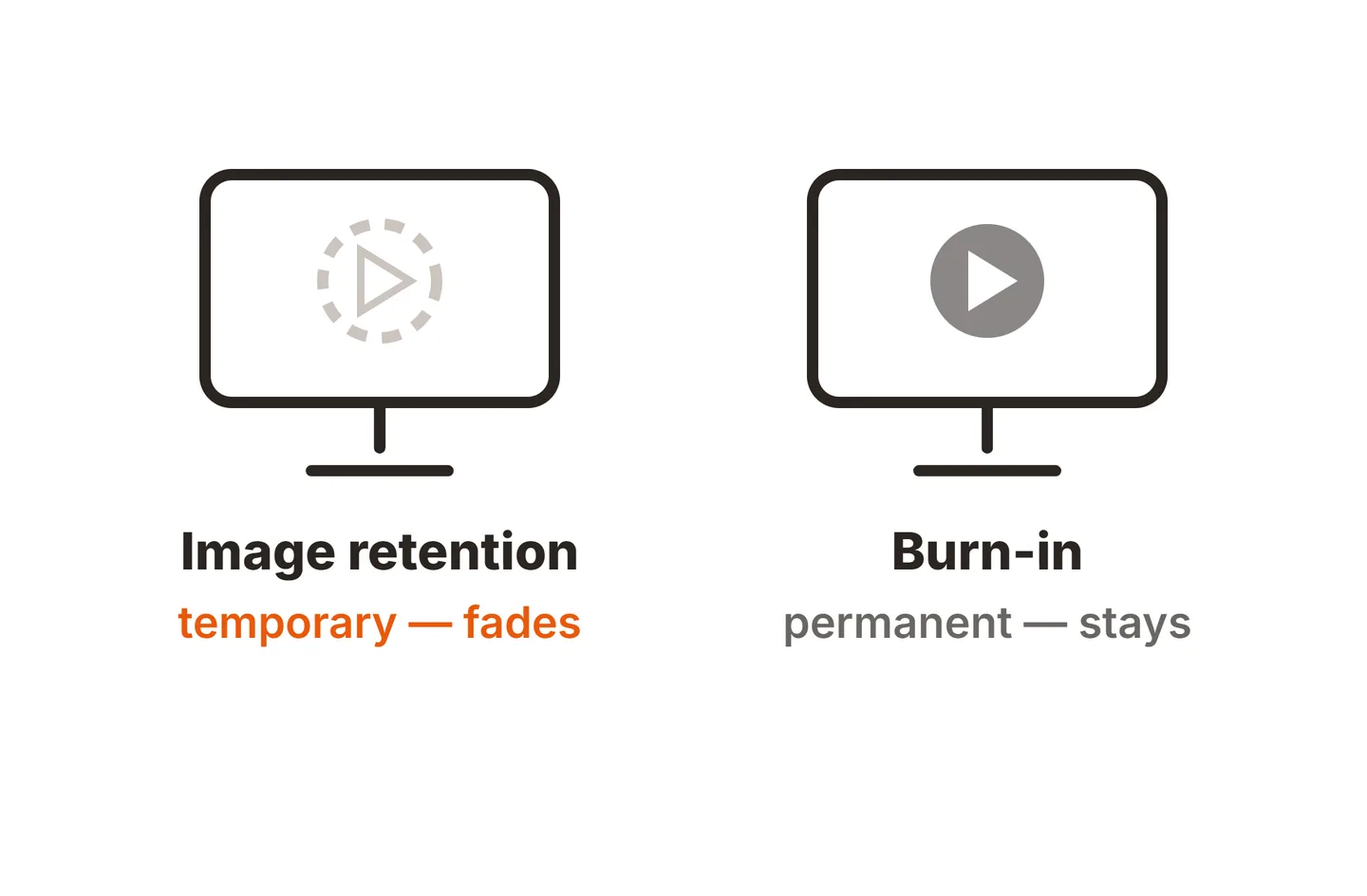
On an OLED, black pixels are switched off, so the bars themselves do not wear. The concern is the opposite: the center of the screen works for hours while the sides rest. Over a very long time, that can leave the middle aged a little more than the edges, which may show as a faint outline on full-width content.
Simple habits keep the wear even:
- Mix 16:9 sessions with full-width use, such as native 21:9 games, video or desktop work.
- Let the monitor run its built-in panel care or pixel refresh cycles, usually when it goes to standby.
- Lower brightness for long 16:9 sessions, and hide static HUD elements where the game allows.
LCD ultrawides have no such wear, though they can hold short-term ghost images. Our guide to LCD monitor screen burn explains the difference.
When 16:9 looks soft or blurry
A soft image usually means the game resolution does not match your screen height, so the GPU or monitor has to scale it. Running 1920x1080 on a 3440x1440 ultrawide forces a 1.33x scale, which blurs fine detail.
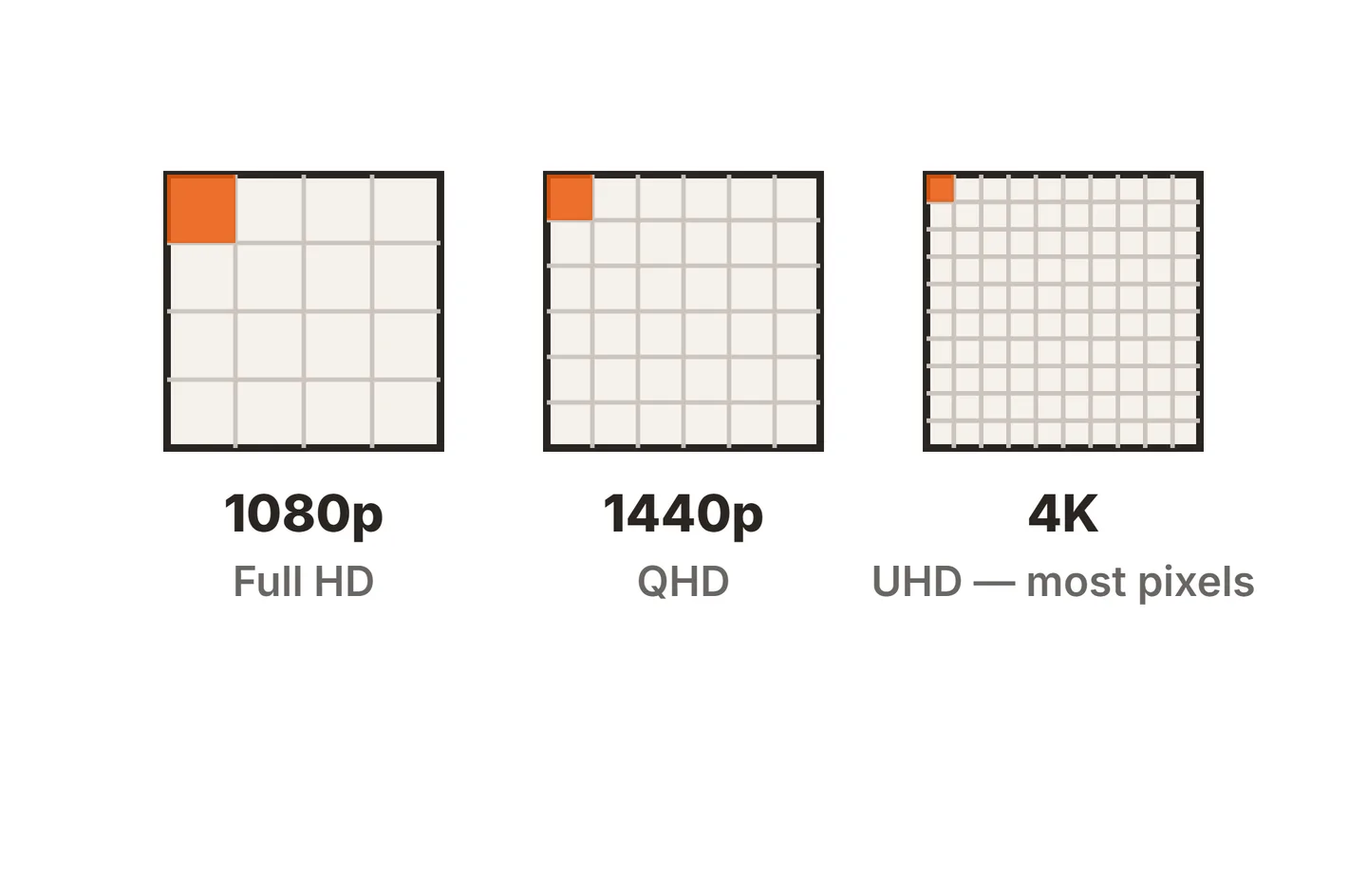
Pick the 16:9 resolution that matches your panel’s height whenever your GPU can run it. If it cannot, Aspect ratio scaling with a sharpening filter is the next best option. The same scaling rules apply to running lower resolutions on any screen, as covered in playing 1440p on a 4K monitor.
Conclusion
For 16:9 gaming on an ultrawide, keep the image at its true shape. Use native 21:9 when the game offers it. Otherwise run the game at a 16:9 resolution that matches your screen height, set NVIDIA to Aspect ratio or No scaling, or AMD to Preserve aspect ratio or Center, and set the monitor’s own ratio to Aspect or 1:1. A good result is a sharp, centered picture with even bars on both sides. Find more guides in our setup section or the full SubInsider monitor knowledge base.
Frequently asked questions
Is it bad to play 16:9 games on an ultrawide monitor?
No. A 16:9 game shown with black side bars looks just as sharp as it would on a 16:9 monitor of the same height, because the pixels map one to one. On a 34 inch 3440x1440 screen, the 16:9 area is about the size of a 27 inch 1440p monitor. The only real downside is unused screen space.
Why does my 16:9 game look stretched on my ultrawide?
Your graphics driver or monitor is set to fill the whole panel. In NVIDIA's driver settings that mode is called Full-screen, and in AMD Software it is Full panel. Switch to Aspect ratio or No scaling on NVIDIA, or Preserve aspect ratio or Center on AMD, and also check the monitor's own aspect ratio setting.
Can I get banned for using ultrawide fixes?
In online games, yes, it is a real risk. Tools that patch a game's memory or files can look like cheats to anti-cheat software. Use tools like Flawless Widescreen only in single-player games played offline, and in multiplayer games stick to the black bars or the game's own aspect ratio settings.
Do black bars cause burn-in on an OLED ultrawide?
The bars themselves do not wear, because black OLED pixels are switched off. The risk is uneven wear over many hours, since the center ages while the sides rest. Mixing in full-width content, running the monitor's care cycles and avoiding static HUDs at high brightness all keep wear even.
How do I play 16:9 games on a 32:9 monitor?
Use the same scaling settings. A 16:9 image at 2560x1440 fills exactly half the width of a 5120x1440 super-ultrawide, with a quarter of the screen black on each side. Many 32:9 monitors also have a picture-by-picture mode that splits the screen into two 16:9 halves, which can be a cleaner fit.