Pros and Cons of Having Monitors Next to Each Other, and the Best Layout
Table of contents
Putting two monitors next to each other gives you more screen space for less money than one big display, and it makes multitasking much easier: your work on one screen, reference material, chat or a stream on the other. The costs are real too. You get a bezel gap down the middle, more head turning, a wider desk footprint, extra cables and ports, and two panels that may not match. For most office, coding, study and streaming setups the pros win, as long as you center the screen you use most and angle the second one toward you.
The real pros of monitors side by side
The biggest benefit is simple: you stop flipping between windows. Every time you press Alt + Tab to check a spec sheet, copy a number or answer a message, you lose your place. With two screens, both things stay in view.

Reference on one screen, work on the other
This is where a second monitor pays for itself. Common pairs that work well:
- A document you are writing next to the research, email or source file it is based on.
- Code in an editor next to the browser preview, documentation or a terminal.
- A spreadsheet next to the report or invoice the numbers come from.
- A video call on the side screen while your notes or shared files stay on the main one.
A 2008 University of Utah study funded by monitor maker NEC tested this kind of work. Against a single 18 inch monitor, two 20 inch screens made people 44 percent faster at a text editing task and 29 percent faster at a spreadsheet task. A single 24 inch widescreen did about as well, at 52 and 26 percent. The lesson is that more usable screen area helps, and a second monitor is one cheap way to get it. It is not magic, and the study was sponsored by a company that sells screens.
More space for the money
Two mid-size monitors usually cost less than one very large or very wide screen with the same total area. Two 27 inch 1440p monitors give you 5120 x 1440 pixels in total, about 7.4 million. A 34 inch 3440 x 1440 ultrawide has about 5 million. If you already own one monitor, adding a second is often the cheapest upgrade you can make to your desk.
Gaming, streaming and chat
For gaming, the usual layout is the game full screen on the main monitor and everything else on the second: Discord, a guide, a browser, system monitoring or music. Streamers put their streaming software, chat and alerts on the side screen so they can check them without leaving the game. That also means you can Alt + Tab less, which matters in games that minimize or stutter when you leave full screen.
Flexible layouts
Two separate screens can do things one screen cannot. You can rotate one to portrait for long documents or code, set the screens to different heights or angles, or split them across two machines with a switch. When you upgrade, you can replace one screen at a time.
The real cons to weigh first
None of these are deal breakers, but each one is worth thinking about before you buy a second screen.
The bezel gap in the middle
Two monitors always leave a strip of plastic between them, even with thin bezels. That is a non-issue when each screen holds its own app. It is a real problem when you stretch one image across both, such as a game or a wide video timeline, because the gap lands in the center, right where your eyes want to look. This is why gamers who span one game across screens use three monitors, so the middle screen has no seam. Our guide to the graphics card for a triple monitor setup covers that route.
Neck turning
If you split your time 50/50 and sit facing one screen, you spend half the day with your head turned. Small turns are fine. A long day held at an angle is where neck and shoulder aches start. The fix is mostly layout, covered below.
Desk space
Two 27 inch 16:9 screens are each about 23.5 inches wide, so the pair needs roughly 48 to 49 inches of desk once you add bezels. Our 27 inch monitor width chart has the numbers for other sizes. Two stands also take up more depth and footprint than one, which is why many people move to a dual arm. Before you buy one, check whether all monitors are compatible with dual monitor arms, since VESA holes and weight limits decide it.
Cables, ports and laptops
Each monitor needs its own video output, or a DisplayPort chain that supports more than one screen. On a desktop PC, plug both into the graphics card, not the motherboard, if you have a separate card. Our guide on how to connect a monitor explains which cable to use.

Laptops are trickier. Some thin models support only one external display, and a single USB-C port may not carry two screens. Check the maker’s spec page for the number of external displays, then pick a dock that matches. Our guide to a docking station for dual monitors walks through MST, DisplayLink and Thunderbolt.
GPU load and power draw
A second screen that shows a desktop or a chat window costs the graphics card very little. It adds up when the side screen plays video or a stream while you game, since the card and CPU now handle both. Idle power can rise too. AMD listed high idle power on some multi-display setups with mixed high resolutions and refresh rates as a known issue for its Radeon RX 7000 cards in 2022 and 2023 drivers, and improved it over several releases. The monitor itself also adds its own draw, which our page on how much power a monitor uses breaks down by size.
Mismatched panels
Pair a new monitor with an old one and you will likely see a different white point, brightness, size and sharpness. Windows also jump in size as you drag them across if the pixel density differs. You can fix most of this with per-display scaling and color settings, explained in our guide to dual monitors with different resolutions. For two screens you look at equally, buying the same model is the easier path.
| Factor | Pro | Con |
|---|---|---|
| Workspace | Lots of extra screen area for the money | Center bezel splits anything stretched across both |
| Workflow | Work and reference stay in view at once | Easy to fill the side screen with distractions |
| Comfort | Each screen can be set up separately | More head turning if the layout is wrong |
| Desk | Works with stands or a dual arm | Needs about 48 inches for two 27 inch screens |
| Hardware | Any modern GPU drives two screens | Two ports needed, harder on some laptops |
| Look | Mix sizes or rotate one to portrait | Colors and sizes may not match |
The best layouts for two monitors
The right layout depends on one question: do you use both screens about equally, or one much more than the other? The Canadian Centre for Occupational Health and Safety gives a clear rule for both cases in its monitor positioning guide, and the layouts below follow it.
Primary centered, secondary angled
Best for most people. If one screen gets most of your time, put it directly in front of you as if it were your only monitor, centered on your keyboard. Place the second screen to one side, touching the first, and angle it toward you so its face points at your eyes. You only turn your head for quick checks, and your neutral posture belongs to the screen that matters.
Symmetric V
Best when you use both screens equally, such as two documents side by side or code next to a preview. Push the inner edges together directly in front of you, so the seam lines up with your nose and keyboard. Then angle both screens inward to make a shallow V, like part of a circle around you. Neither screen is ever far from center.
One landscape, one portrait
Best for coders, writers and anyone who reads long feeds. Keep the main screen in landscape and rotate the second to portrait. A 27 inch 1440p screen in portrait shows 1440 pixels across and 2560 down, which fits a full page or many more lines of code. In Windows, set it under Settings, System, Display, Display orientation. Microsoft’s guide to using multiple monitors in Windows also shows how to drag the screens in Display settings so the cursor moves across at the right point. Use a flat panel for this, since turning a curved monitor vertical bows straight lines. Keep the top of a portrait screen no higher than your eyes.
Stacked
Best for narrow desks. One screen sits on top of the other on a tall stand or arm. It saves width, but it pushes the top screen above eye level, which means tilting your head back to read it. Use the top screen only for things you glance at, like chat, monitoring or a stream, and keep your main work on the lower one at normal height. If you later grow past two screens, our quadruple monitor setup guide covers stacked grids.
Ergonomics: angle, height and distance
Most of the comfort problems with dual monitors come from screens that sit too far apart, too high or at different heights. These checks fix most of them.
Set the distance
Sit back and stretch your arm out. The screens should be about there, roughly arm’s length. If text looks small, raise scaling instead of pulling the screens closer.Match the heights
Set both screens to the same height, with the top edge at or slightly below eye level. People who wear bifocals or progressive lenses are usually more comfortable a little lower.Angle them toward you
Turn the side screen, or both screens in a V, so you look at each one square on. You should not see one screen at a steep sideways angle.Close the gap
Push the screens together so the bezels touch. Every inch of gap adds head turning and makes windows jump across a wider break.Line them up in software
In Display settings, drag the screens so their tops or centers match your desk, and mark your main screen as the main display.

CCOHS also gives a typical eye-to-screen range of about 40 to 74 cm (16 to 29 inches) and suggests the screen sit around 15 degrees below a straight-ahead gaze. Treat those as starting points. If you feel yourself leaning in or tipping your head back, adjust until you do not.
Dual monitors vs an ultrawide vs one large 4K screen
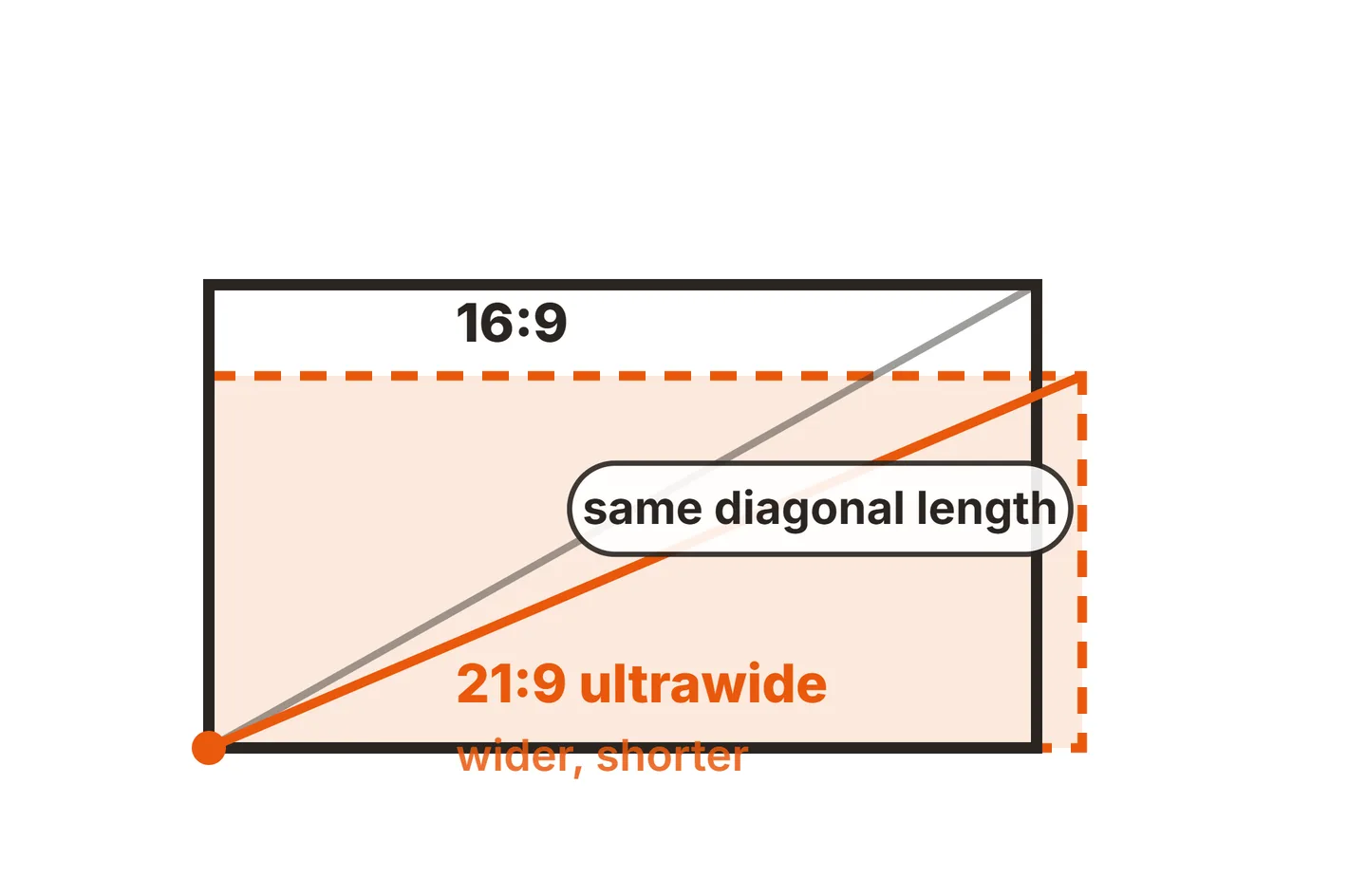
Two monitors are not the only way to get more space. An ultrawide or a single 32 inch 4K screen solves the same problem in a different way, though older games on an ultrawide need some 16:9 setup.
| Factor | Two 27 inch 1440p | 34 inch ultrawide | 32 inch 4K |
|---|---|---|---|
| Total pixels | 5120 x 1440, about 7.4 million | 3440 x 1440, about 5 million | 3840 x 2160, about 8.3 million |
| Center bezel | Yes | No | No |
| Screen width | About 47 in plus bezels | About 31 in | About 28 in |
| Portrait option | Yes, rotate one screen | No | Possible but tall |
| Cables | Two video cables, two power | One video, one power | One video, one power |
| Best for | Split work, streaming, mixed tasks | Wide games, video timelines | Sharp text, one big canvas, small desks |
Pick two monitors if your work naturally splits into two apps, you want a portrait screen, or you already own one good monitor. Pick an ultrawide if you play games that support it or edit long timelines, and you hate the seam. Pick a 32 inch 4K screen if your desk is narrow and you want a lot of sharp workspace on one panel. There is also a middle option: a 49 inch 32:9 screen at 5120 x 1440 has the same pixels and about the same size as two 27 inch 1440p monitors, without the bezel, but it costs more and gives up the portrait option.
Conclusion
Monitors next to each other are worth it for most desk work: more space for less money, less window switching, and an easy home for chat, a stream or reference material. The trade-offs are the center bezel, a wide footprint, extra ports and some head turning. Center the screen you use most, angle the second toward you, keep both at arm’s length and the same height, and buy matching models if you use both equally. For more desk guides, see our setup guides or the full SubInsider monitor knowledge base.
Frequently asked questions
Is a dual monitor setup worth it?
For most desk work, yes. If you often switch between two windows, such as a document and a browser, or a game and a chat app, a second screen removes that switching and costs less than one big monitor. If you mostly use one full-screen app at a time, a single larger screen is simpler and just as useful.
Should both monitors be the same model?
It helps a lot. Matching models share size, height, bezel width, color and pixel density, so windows move across without jumping in size and both screens look alike. Mixing works fine for a side screen you only glance at, but you will spend more time on scaling, alignment and color settings.
Which side should the second monitor go on?
Put it on the side that matches how you work. If you use the mouse with your right hand and the side screen holds things you click often, the right side keeps your reach and gaze short. If it mostly holds reference you read, either side works. Keep your main screen centered in front of you either way.
Do two monitors slow down gaming?
Not much if the second screen only shows a desktop, chat or a static page. The graphics card renders the game on one display. It costs more when the second screen plays video or a live stream at the same time, and some cards draw more idle power with two screens attached, especially mixed refresh rates.
Is an ultrawide better than two monitors?
It depends on the task. An ultrawide has no center bezel, so it suits wide games, video timelines and one large canvas. Two monitors give more total pixels for the money, let you rotate one screen to portrait, and make it easy to snap one app per screen. For split work, two screens usually win.