Should You Put a Curved Monitor Vertical? What Actually Happens
Table of contents
For most people, no. Turning a curved monitor to portrait mode puts the curve on the wrong axis. Instead of gently wrapping around your view from left to right, the screen now bows toward you at the top and bottom, so straight lines look slightly bent and the whole thing feels off after a while. It can still work as a second screen for chat windows or a long feed of text. As your main display for real work, it is a poor fit. If you mainly want a tall screen, a flat monitor is the better buy.
That is the short version. The longer version is worth reading before you rotate an expensive screen, because a couple of things change at once, and one of them is physical, not just visual.
What the curve is actually for
The curve does two jobs, and both of them assume the screen is sitting the normal way, wide side across. The first job is the one you already know: it pulls the far edges of a wide screen a little closer to your eyes, so the distance from you to the middle and to the edges is more even. That is easier on your eyes and cuts down on how much you swing your head on a big display.
The second job is quieter but just as real. The curve gives the panel some stiffness. Hold a sheet of paper up by its side edges and the top flops over. Give the bottom edge a slight curl and it stands up on its own. A curved panel works the same way, which lets makers build it thin without extra bracing. That rigidity is designed to hold when the curve runs side to side.
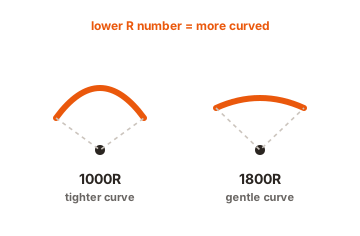
Curvature is measured with a number and an “R,” like 1800R or 1000R. The number is the radius in millimetres of the full circle the screen would form if you kept bending it around. A lower number means a tighter curve, so a 1000R screen is more curved than an 1800R one. Most 24 and 27 inch curved monitors sit around 1500R or 1800R, which is a gentle bend. Big ultrawides often go steeper. You can read more on how these ratings work on ViewSonic’s guide to monitor curvature. The steeper the curve, the more obvious the problem becomes when you turn the screen upright.
What changes when you turn it sideways
Rotate the screen 90 degrees and the curve does not go away. It just points in a new direction, and none of its benefits come with it.
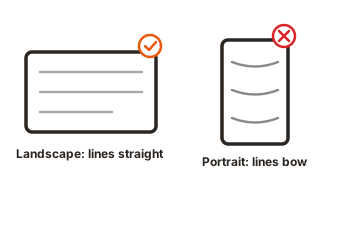
- Lines start to look bent. The curve now runs top to bottom, so the top and bottom edges lean toward you. Straight horizontal lines near the edges, the kind you see in a spreadsheet, a table, or a website layout, pick up a faint bow. Your eye notices it even when you cannot quite name it.
- The comfort benefit disappears. The whole point of the curve was to even out the distance across a wide screen. A tall screen is not wide, so there is nothing for the curve to fix. You keep the downside and lose the reason it was there.
- The panel is now weaker, not stronger. This is the part people miss. Upright, the curve runs the wrong way to hold the screen against gravity, so a rotated curved panel is actually less stiff than a flat one the same size, and a bit more prone to flex or stress over time. It will not snap the moment you turn it, but it is working against its own design.
- Some content gets letterboxed. Video and games built for a wide frame do not fill a tall screen. You get thick black bars above and below, which wastes the space you rotated the screen to gain.
Put together, you are staring at a screen that curves toward you at both ends all day, for no upside. It is the kind of low-level tiring that you only really feel once you switch back to a flat screen and your shoulders drop.
So how does it stack up?
Here is the difference at a glance, flat versus curved, in each orientation.
| Screen type | Vertical (portrait) | Horizontal (landscape) |
|---|---|---|
| Flat panel | Works well. Lines stay straight. | Works well. |
| Curved panel | Edges bow toward you, lines look bent. | What the curve is built for. |
| Best for reading code, docs | Flat vertical is the clear winner. | Fine, but more scrolling. |
| Structural strength | Curve fights gravity the wrong way. | Curve adds rigidity. |
When a vertical curved monitor is fine
It is not banned. There are a few cases where rotating a curved screen you already own is perfectly reasonable.
- As a second screen for glanceable stuff. If it is off to the side holding a chat app, a music player, or a live feed you only glance at, the slight bow does not matter. You are not reading it closely for hours.
- For a wall of plain text. A long document, a log file, or a chat history is forgiving. There are few straight horizontal lines to look wrong, so the distortion barely registers.
- On a gentle curve. A mild 1800R screen bends far less than a steep 1000R one, so an 1800R monitor in portrait looks much closer to normal. The gentler the curve, the more you can get away with it.
- When you already own it and just want to try. Rotating a screen you have costs nothing. Give it a day and keep it if you like it.
When to skip it and buy flat instead
If any of these sound like you, do not rotate a curved screen, and do not buy one to rotate.
- You do design or any visual work. Website layouts, UI mockups, photo editing, CAD. If you are judging whether a line is straight, a screen that bends straight lines is the wrong tool, full stop.
- It will be your main screen. A full workday looking at a bowing display is tiring in a way that is easy to dismiss until you feel it. For a primary vertical screen, flat is worth it.
- The curve is steep. A 1000R or 1500R screen, or a big ultrawide, curves too hard to look right upright. Steeper curve, worse in portrait.
If you are shopping for a vertical screen from scratch, buy a flat monitor that rotates, ideally one with a stand that pivots and a taller shape. Panels made in a 16:10 or 3:2 shape give you more height than a standard 16:9, which is exactly what you want for reading. For tested picks, RTINGS keeps a current list of the best vertical monitors. Almost every good vertical screen on it is flat, and that is not a coincidence.
How to try portrait mode without wrecking your monitor
Already own a curved screen and still want to test it? Do it in this order so you do not force anything or crane your neck.
-
Check that your monitor can rotate
Look up your exact model and find “pivot” or “rotation” in the stand specs. Many curved stands only tilt and raise. If pivot is not listed, the stand cannot do it safely, so do not force it. -
Get a VESA arm if the stand cannot pivot
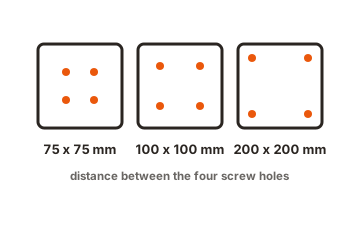
Most monitors use a 75x75mm or 100x100mm VESA hole pattern on the back. Some curved and ultrawide models use an odd pattern or have no VESA holes at all, so confirm yours before buying an arm. -
Rotate the picture in software first
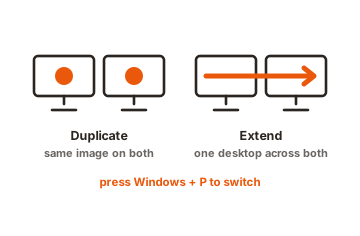
On Windows, right-click the desktop, open Display settings, pick the monitor, and set Orientation to Portrait. On a Mac, open System Settings, then Displays, and choose the rotation option. Doing this before you physically turn the screen means you are not reading sideways. -
Turn the screen and set the height
Rotate the panel gently, then raise it so the top third sits near eye level. A tall screen sitting too low is a fast route to neck strain, and a curved one that is not centred looks worse than a flat one. -
Live with it for a day
Give your eyes a full working day to judge it. If the bow at the edges keeps pulling your attention, that is your answer, and flat is the fix.
Conclusion
For everyday work, keep a curved monitor horizontal, the way it was built to sit. Turned upright it bows straight lines, drops the comfort benefit that justified the curve, and even flexes against its own structure, all for no real gain. Use it vertically only as a side screen for chat or plain text, and lean toward a gentle curve if you do. Want a tall screen you will stare at all day? Buy a flat one that rotates. It is the cleaner, more comfortable choice.
For more on arranging your screens, see our monitor setup guides.
Frequently asked questions
Can you even put a curved monitor in portrait mode?
Yes, if the stand pivots or you use a VESA arm and rotate the display in your OS settings. It physically works. The catch is how it looks and feels, not whether it is possible.
Will a curved monitor look distorted vertically?
Somewhat. The curve now runs top to bottom, so straight horizontal lines near the edges pick up a slight bow. It is mild on a gentle 1800R screen and clearly noticeable on a steep 1000R one.
Is a vertical curved monitor bad for coding?
It is usable, since code is mostly plain text with few straight horizontal lines. It is still not ideal. A flat vertical screen shows the same code with none of the edge bow, so it is the more comfortable pick for long sessions.
Does rotating a curved monitor damage it?
Not right away. But upright, the curve no longer braces the panel against gravity, so it is slightly weaker than a flat screen and a bit more prone to flex over time. Rotate gently and support it on a proper pivot or arm.
Should I buy a curved or flat monitor for vertical use?
Flat. Almost every screen built and reviewed for vertical use is flat, and a taller 16:10 or 3:2 shape beats a rotated widescreen for reading. Buy curved only if you want it wide and immersive in landscape.