VESA Mount Monitor: The Complete Setup Guide
Table of contents
If you have shopped for a monitor arm or wall mount, you have run into the word “VESA” over and over. It sounds technical, but the idea is simple: VESA is a shared standard for the screw holes on the back of a monitor, so that arms, stands, and wall mounts from any brand can attach to screens from any other brand. Mounting your monitor successfully comes down to matching three things: your monitor’s VESA pattern, its weight, and a mount that fits both. This guide explains each one in plain language and walks you through the whole process, including what to do if your monitor seems to have no VESA holes at all.
What is a VESA mount?
VESA stands for the Video Electronics Standards Association, the group that created the mounting standard. When people say “VESA mount,” they mean a mount that follows that standard, and when they say a monitor is “VESA compatible,” they mean it has the standardized pattern of threaded holes on the back.
The standard itself is formally called the Flat Display Mounting Interface, or FDMI. Its whole purpose is compatibility: because the hole patterns and screw sizes are defined in advance, any VESA-compatible monitor will physically attach to any VESA-compatible mount with the same pattern. Without it, every monitor would need its own special bracket, and swapping a stand for an arm would be a guessing game.
In practice, a VESA mount lets you take a monitor off its bundled desk stand and instead attach it to a monitor arm, a wall mount, or a multi-monitor stand. That opens up height and angle adjustment, frees up desk space, and lets you build cleaner, more ergonomic setups.
VESA patterns explained
A VESA pattern is just the distance, in millimeters, between the four mounting holes on the back of your monitor, measured horizontally and vertically. A pattern written as 100x100 means the holes are 100 mm apart in both directions, forming a square. When both numbers are the same, you will often see it shortened to a single figure, such as “VESA 100.”
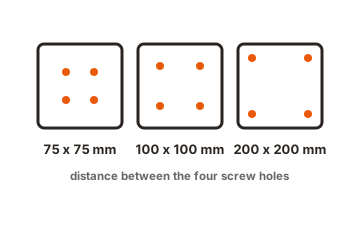
For monitors, two patterns cover the vast majority of screens:
- 75x75 mm. Common on smaller and lighter monitors, often in the 24-inch range and below.
- 100x100 mm. The most common pattern for typical desktop monitors, frequently found on screens around 27 to 32 inches.
These small-monitor patterns belong to the VESA standard often labeled MIS-D, which uses M4 screws and generally covers displays up to around 30 lbs (14 kg). Larger displays step up to bigger patterns: a 200x100 mm rectangular pattern (sometimes called MIS-E) appears on some larger monitors, and 200x200 mm and beyond (MIS-F) show up on big screens and TVs, using thicker M6 or M8 screws to carry the extra weight. For most monitor buyers, though, you are almost always dealing with 75x75 or 100x100.
| Pattern | Typical use | Screw size | Rough weight range |
|---|---|---|---|
| 75x75 mm | Small, light monitors | M4 | Lighter screens |
| 100x100 mm | Most desktop monitors | M4 | Up to ~30 lbs (14 kg) |
| 200x100 mm | Larger monitors | M4 | Mid-weight displays |
| 200x200 mm+ | Big screens and TVs | M6 or M8 | Heavier displays |
Always treat these as typical ranges rather than guarantees, and confirm your own monitor’s pattern before buying, which is what the next section covers.
How to find your monitor’s VESA pattern
Before buying any mount, you need to know your monitor’s pattern and that it actually has VESA holes. There are a few reliable ways to check, from easiest to most hands-on.
- Check the spec sheet or manual. The fastest method. Search your monitor’s model number along with “VESA,” or look in the user manual’s specifications or wall-mount section. Most manufacturers list the VESA pattern directly.
- Look at the back of the monitor. Find the four threaded holes, usually in a square or rectangle near the center. Some monitors print the pattern next to the holes.
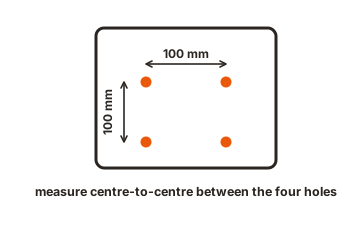
- Measure it yourself. With the monitor face-down on a soft surface, measure the distance in millimeters from the center of one hole to the center of the next, both horizontally and vertically. Those two numbers are your pattern, for example 100 mm by 100 mm.
While you are back there, note two more things: whether the holes sit flat or are recessed into a dip in the housing, and whether the monitor has the holes at all. Some all-in-one designs and slim monitors hide or omit them, which we will deal with later. If the holes are recessed, you may need spacers during installation, covered in the troubleshooting section.
Types of VESA monitor mounts
Once you know your pattern and weight, you can choose the kind of mount that suits your space and how you work. They all attach to the same VESA holes; they differ in where they anchor and how much they move.
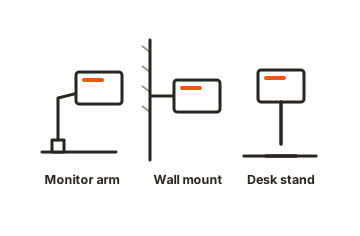
Desk-mounted monitor arms
The most popular choice for a home or office desk. An arm clamps to the desk edge or fits through a grommet hole, and it usually offers full motion: height, tilt, swivel, and rotation. Arms free up the desk surface beneath the screen and make it easy to dial in an ergonomic position. Many use a gas-spring or spring mechanism so you can reposition the screen with one hand.
Wall mounts
A wall mount fixes the monitor to a wall rather than the desk, which is great for saving desk space entirely or for setups where the screen sits away from a desk. They range from fixed flat mounts to full-motion arms that extend and angle from the wall. Wall mounting requires anchoring into something solid, ideally a stud, especially for a moving arm.
Multi-monitor stands and mounts
Built to hold two, three, or four screens on a single stand or arm system, either on the desk or the wall. These are the backbone of dual and quad setups, keeping multiple displays aligned and adjustable without a forest of separate stands.
Freestanding stands
A weighted base that sits on the desk and holds one or more monitors without clamping or drilling. This is the most flexible option if you cannot or do not want to attach anything to the desk or wall, and it is easy to reposition.
What to check before you buy
Three checks prevent almost every mounting mistake. Run through all of them before ordering hardware.
- VESA pattern match. Confirm the mount supports your monitor’s exact pattern. Many mounts list a range like “75x75 and 100x100,” which covers most monitors, but always verify.
- Weight capacity. Find your monitor’s weight without its stand (the spec sheet lists this) and make sure it falls within the mount’s rated range. Mounts have both a minimum and a maximum: too heavy and it sags or fails, too light and a gas-spring arm may not stay down.
- Screws and hardware. Most monitor mounts include the M4 screws and basic hardware you need. Check that the right screws are included, and note whether spacers are provided in case your monitor has recessed holes.
How to mount your monitor, step by step
With the right mount in hand, installation is straightforward. The exact steps vary by product, so follow the included instructions, but the general flow looks like this.
-
Assemble and anchor the mount
Put the arm or stand together per the instructions, then secure its base: clamp it to the desk, fit it through a grommet hole, or anchor it to the wall (into a stud for full-motion wall arms). -
Remove the monitor's existing stand
Lay the screen face-down on a soft surface like a towel, and detach the factory stand. This usually exposes the four VESA holes, sometimes hidden behind a small cover or the stand itself. -
Attach the VESA plate to the monitor
Most mounts have a removable plate or bracket. Screw it to the monitor’s VESA holes using the correct screws, adding spacers first if the holes are recessed. Tighten firmly but do not overtighten. -
Connect the monitor to the mount
Hook or click the plate onto the arm or stand. Many mounts use a quick-release design so the screen snaps into place. Support the monitor’s weight until it is securely engaged. -
Route the cables
Run the power and video cables through the mount’s cable channels if it has them, leaving a little slack so the screen can still move freely. -
Adjust and test
Set the height, tilt, and angle for comfort, with the top of the screen near eye level. For arms with adjustable tension, set the resistance so the screen holds its position. Give everything a gentle check, and on a wall arm, recheck the fittings after a day of use.
What if your monitor has no VESA holes?
Some monitors, particularly slim designs and all-in-one styles, do not have VESA holes, or use a non-standard layout. This does not always rule out mounting; it usually means you need an adapter.
A VESA adapter bracket bridges the gap between a non-standard monitor and a standard mount. Some adapters clip into the slot where the factory stand attaches and present a standard VESA pattern on the other side. Others are plates designed to grip a monitor that lacks holes. Manufacturers make model-specific adapters for many popular monitors that ship without VESA holes, so searching your monitor model plus “VESA adapter” is the place to start.
Adapters also help when patterns do not match. An adapter plate can let a mount with a smaller pattern hold a monitor with a larger one. Importantly, adapters are designed to upsize, taking a smaller mount pattern to a larger screen pattern, not the reverse, and you must always respect the weight limit of the smaller mount underneath. A large, heavy screen on an adapter built for a light arm is a recipe for sag or failure.
Before buying an adapter: confirm three things, that the adapter fits your specific monitor, that it presents a pattern your mount supports, and that the whole combination stays within the mount’s weight rating. An adapter does not raise the weight a mount can safely hold.
Common problems and fixes
A few issues come up again and again. Knowing them in advance saves a return or a wobbly setup.
Recessed VESA holes
Many monitors, especially gaming models, have VESA holes set into a recess. A flat mounting plate may not reach them, or the curve of the back gets in the way. The fix is spacers, also called standoffs: small cylinders that go between the plate and the monitor, plus slightly longer screws. Many mounts include these; if yours did not and the plate will not sit flush, a spacer kit solves it.
Screws too long or too short
Screw length matters. Too short and the screw does not grip enough threads to hold securely; too long and it can bottom out or press against internal components. Use the length the mount provides for your monitor, and if you are unsure, the shortest screw that fully engages the threads is the safe choice.
Sagging or drooping on an arm
If a monitor on a gas-spring arm slowly droops or drifts up, the tension is not matched to the screen’s weight. Most arms have a tension adjustment screw; tightening or loosening it to suit your monitor usually fixes the drift. If the screen is simply too heavy for the arm’s rating, no adjustment will hold it reliably, which loops back to checking weight capacity before buying.
Wall mount pulling loose
A wall mount that loosens over time was likely anchored into drywall alone rather than a stud, or under-rated for the extra force a moving arm puts on it when extended. Full-motion wall arms should anchor into a wood stud where possible, and heavy or unusual wall types may warrant professional installation. Recheck wall fittings after the first day and periodically after that.
Conclusion
A VESA mount is simply the standardized link between your monitor and an arm, stand, or wall, and once you understand it, choosing one stops being intimidating. The whole job comes down to three matches: know your monitor’s VESA pattern (usually 75x75 or 100x100 for monitors), know its weight without the stand, and pick a mount that comfortably handles both. Verify those before you buy, follow the installation steps carefully, and keep the edge cases in mind, adapters for monitors without holes, and spacers for recessed ones. Get those right, and you end up with a cleaner desk, a more comfortable viewing position, and a screen that stays exactly where you put it.
For more on stands, arms, and wall mounting, browse our monitor mounting guides.
Frequently asked questions
How do I know if my monitor is VESA compatible?
Check the back for four threaded holes in a square or rectangle, or look up your model's spec sheet, which lists the VESA pattern if it has one. If there are no holes, the monitor may need a model-specific VESA adapter to be mountable.
What is the most common VESA size for monitors?
For desktop monitors, 100x100 mm is the most common, with 75x75 mm typical on smaller, lighter screens. Both use M4 screws. Larger patterns like 200x200 mm are mainly for big displays and TVs.
Can I VESA mount a monitor that has no VESA holes?
Often yes, using a VESA adapter. Some adapters clip into the factory stand's slot and provide a standard pattern; others grip a monitor without holes. Confirm the adapter fits your specific model and that the mount can handle the combined weight.
What screws does a VESA monitor mount use?
Most monitors use M4 screws for 75x75 and 100x100 patterns, and these usually come with the mount. Larger displays with 200x200 patterns or bigger typically use thicker M6 or M8 screws. If your holes are recessed, you may also need spacers and slightly longer screws.
Do all monitor arms fit all monitors?
Not automatically. An arm fits if it supports your monitor's VESA pattern and its weight falls within the arm's rated range. Most arms cover the common 75x75 and 100x100 patterns, but always check both the pattern and the weight capacity before buying.