FreeSync Monitor With Nvidia GPU: Yes, and Here's How
Table of contents
Yes, a FreeSync monitor works with an Nvidia GPU. Nvidia has supported FreeSync displays since early 2019 through a feature called G-Sync Compatible. You need three things: a GeForce GTX 10-series or newer graphics card, a DisplayPort connection, and a reasonably recent driver. Turn FreeSync on in the monitor’s menu, flip one switch in the Nvidia Control Panel, and the monitor’s variable refresh rate works much as it would on an AMD card.
That is the short answer. The longer story includes a certification list, a DisplayPort catch that trips up plenty of buyers, and a few settings that decide whether games actually feel smooth. Here is everything worth knowing before you buy the monitor or plug it in.
Why this works at all
FreeSync is AMD’s brand name for an open standard called VESA Adaptive-Sync. With it, the monitor changes its refresh rate on the fly to match the frames your graphics card produces, which removes screen tearing and the stutter that V-Sync causes. The standard itself is not AMD-only technology.
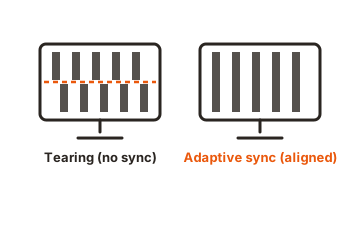
For years, Nvidia cards supported only Nvidia’s own G-Sync, which requires a dedicated hardware module inside the monitor and adds real cost. That changed in January 2019, when driver 417.71 added support for Adaptive-Sync displays under the name G-Sync Compatible. No module is involved: the GeForce card simply drives the same open standard that FreeSync monitors already speak.
Nvidia validated 12 monitors at launch. The list has since grown to hundreds of monitors and TVs, and because nearly every gaming monitor sold today is a FreeSync or Adaptive-Sync design, this feature is now the normal way most GeForce owners get variable refresh.
The payoff is the same one G-Sync owners get. No tearing lines across the image, no V-Sync input lag, and no stutter when the frame rate dips, because the monitor simply follows the card instead of fighting it.
What you need
The requirements are short:
- A GeForce GTX 10-series card or newer. That covers the GTX 10 and 16 series and every RTX generation. Anything older than Pascal cannot do it.
- A DisplayPort cable, version 1.2 or higher. This is the part that catches people out, and the next section explains why.
- A recent GeForce driver. Any driver from the last several years qualifies; 417.71 from January 2019 was the first.
- FreeSync switched on in the monitor’s own menu. Some monitors ship with adaptive sync disabled, so check the OSD before assuming anything is broken.
The DisplayPort catch
Nvidia’s FreeSync support runs over DisplayPort. A monitor that offers FreeSync only through HDMI uses AMD’s own HDMI protocol, and a GeForce card will not run variable refresh through it. Plenty of budget monitors, especially older 60 to 75 Hz models with a single HDMI input, fall into exactly this trap. Before buying, check the spec sheet for which input carries FreeSync, and once the monitor is on your desk, use DisplayPort. If the manual lists the FreeSync range separately per input, the DisplayPort column is the one that applies to a GeForce card.
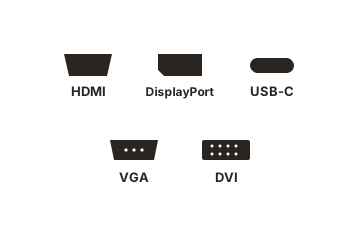
There is one exception: HDMI 2.1 VRR. Newer monitors and TVs that support variable refresh through the HDMI 2.1 standard work with recent GeForce cards over HDMI, which is how G-Sync Compatible gaming works on modern LG and Samsung TVs. The rule of thumb is simple. For a PC monitor, use DisplayPort. For a TV or an HDMI 2.1 VRR display, HDMI is fine.
Buying checklist for GeForce owners
Shopping rather than troubleshooting? Four spec-sheet checks cover it:
- G-Sync Compatible certification. The badge on the box, or the model’s presence on Nvidia’s list, guarantees the pairing works with no experimentation.
- FreeSync over DisplayPort. The spec sheet should show adaptive sync on a DisplayPort 1.2 or newer input. FreeSync listed against HDMI alone is the red flag from the previous section.
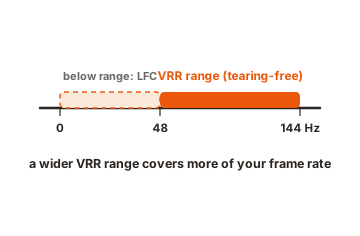
- A wide refresh range. Look for something like 48 to 144 Hz or better. A wide range keeps sync active when frame rates fall and gives frame doubling room to work.
- FreeSync Premium tiers. AMD’s Premium and Premium Pro badges require at least 120 Hz at 1080p plus low framerate compensation, so they loosely signal a stronger variable-refresh implementation even when the card driving it is a GeForce.
How to turn it on
Setup takes about two minutes:
- Turn on FreeSync (sometimes labeled Adaptive-Sync) in the monitor’s on-screen menu.
- Connect the monitor over DisplayPort and install the latest GeForce driver.
- Right-click the desktop and open the Nvidia Control Panel, then go to Display and choose Set up G-SYNC.
- Tick “Enable G-SYNC, G-SYNC Compatible,” select your display, and click Apply. If your monitor is not certified, also tick “Enable settings for the selected display model.”
- Open Manage 3D Settings and confirm that Monitor Technology reads G-SYNC Compatible.
Your screen may blink once or twice while the mode switches on, which is normal. If any step looks different on your system, Nvidia documents the exact panel in its Control Panel help pages.
Certified vs not certified: does the list matter?
Nvidia maintains an official list of every validated display on its G-Sync monitor specs page, with certified FreeSync models labeled “G-SYNC Compatible.” Validation means Nvidia tested the monitor and found no flicker, blanking, or artifacts, plus a refresh range wide enough for real gaming. Certified monitors switch the feature on automatically once the driver detects them.
An unlisted FreeSync monitor is not blocked. You can force the feature on manually with the extra checkbox from the setup steps, and a large share of uncertified monitors run flawlessly. The risk is that you are the tester: some uncertified screens flicker, briefly blank, or only sync across a narrow refresh range, which is usually the reason they failed or never entered testing.
So treat certification as a guarantee rather than a gate. If you are shopping for a new monitor to pair with a GeForce card, picking a certified model removes the gamble. If you already own the monitor, just enable the feature and watch a game for a few minutes; problems show up quickly when they exist. Retailers print the badge on product boxes too, and most monitor makers keep their own compatibility pages, so a two-minute check before checkout is easy.
What you give up compared with a full G-Sync module
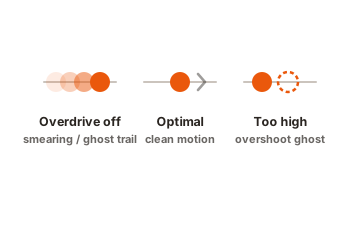
G-Sync Compatible is the trimmed version of G-Sync, and the differences are real but small for most people. Monitors with the hardware module sync from 1 Hz all the way to their maximum refresh and include variable overdrive, which retunes pixel response as the refresh rate changes. Module-based and G-Sync Ultimate displays also carry extras like factory-tuned HDR handling and motion-blur reduction features.
A typical G-Sync Compatible monitor syncs across a narrower window, commonly from around 48 Hz up to its maximum. Below that floor the driver compensates by doubling frames, so a 40 fps scene displays at 80 Hz and stays inside the sync range. In practice the on-screen result is close enough that the module alone is rarely worth paying a premium for. Buy the better panel, not the badge.
Three settings that make it feel right
Once G-Sync Compatible is on, three adjustments give the smoothest result:
-
Turn V-Sync on in the Nvidia Control Panel
Globally, under Manage 3D Settings. This sounds backwards, but driver-level V-Sync only steps in at the edges of the sync range and prevents tearing there without the usual lag. -
Turn V-Sync off inside your games
In-game V-Sync stacks a frame queue on top of variable refresh and adds input delay at high frame rates. -
Cap your frame rate a few fps below the monitor's maximum
For example 141 on a 144 Hz screen or 237 on a 240 Hz one, using Max Frame Rate in the Nvidia Control Panel. Staying under the ceiling keeps variable refresh active instead of handing control to V-Sync.
If you see flicker, blanking, or nothing at all
- Brightness flicker in menus and loading screens. Frame rates swing wildly there, and VA panels show it most. A frame rate cap tames it, and some monitors include an anti-flicker or VRR range option in the OSD.
- Occasional black screens. Try a better DisplayPort cable and re-seat both ends. Cheap or overlong cables cause more VRR faults than the monitors do.
- The G-SYNC page is missing from the control panel. The monitor’s own FreeSync toggle is off, the cable is HDMI on a DisplayPort-only monitor, or the GPU is older than the GTX 10 series.
- Constant problems on an uncertified screen. Update the monitor’s firmware if the maker offers one. If the flicker never stops, that monitor is one of the minority that genuinely does not cooperate, and running it at a fixed refresh rate is the fallback.
To confirm the feature is really working, turn on the monitor’s refresh-rate readout in its OSD, then run a game with an fps counter. When the two numbers move together, variable refresh is active. Nvidia’s free G-SYNC Pendulum demo makes the same check easy to see.
Conclusion
A FreeSync monitor and an Nvidia GPU are a normal, fully supported pairing. Use a GTX 10-series or newer card, connect over DisplayPort, enable FreeSync in the monitor menu, and switch on G-Sync Compatible in the Nvidia Control Panel. Prefer a certified model when buying new, then finish the job with driver-level V-Sync and a frame cap just under the maximum refresh. Done that way, the experience is smooth enough that the old FreeSync-versus-G-Sync divide barely matters.
For more on refresh rates and the settings behind smooth motion, browse our monitor specs guides.
Frequently asked questions
Do all FreeSync monitors work with Nvidia cards?
Most do, but not all. The monitor must support adaptive sync over DisplayPort (or HDMI 2.1 VRR). Certified G-Sync Compatible models are guaranteed to behave; uncertified ones can be enabled manually and usually work, though a minority flicker or sync across a narrow range.
Does FreeSync over HDMI work with an Nvidia GPU?
Not on the older monitors that use AMD's HDMI protocol, which is the only FreeSync path many budget screens have. It does work on displays with HDMI 2.1 VRR, such as recent TVs and higher-end monitors, when paired with a recent GeForce card.
Is G-Sync Compatible as good as real G-Sync?
It is close. The hardware module adds a wider sync range down to 1 Hz and variable overdrive, which sharpens motion at changing refresh rates. G-Sync Compatible covers a narrower range and relies on frame doubling below it. Most players cannot tell the difference in a blind test.
How do I know FreeSync is actually working on my Nvidia card?
Enable the refresh-rate counter in the monitor's OSD and run a game with an fps readout. If the refresh number tracks your frame rate as it changes, variable refresh is active. Nvidia's G-SYNC Pendulum demo shows the effect clearly if you want a purpose-built test.
Which Nvidia graphics cards support FreeSync monitors?
Every GeForce card from the GTX 10 series onward: GTX 10 and 16, and all RTX generations. You also need driver 417.71 or newer, which any driver from recent years satisfies. Cards older than the GTX 10 series cannot use adaptive sync at all.