No Signal on ViewSonic Monitor? Here's How to Fix It
Table of contents
A ViewSonic monitor shows No Signal when it has power but isn’t getting a picture from your computer. In plain terms, the screen is awake and waiting, but nothing is coming down the cable. Most of the time the cause is simple: a loose or bad cable, the wrong input selected on the monitor, or a PC that isn’t sending video to that port. You can usually fix it in a few minutes by working through the checks below in order.
Start from the top and stop the moment your picture comes back. The steps go from the most common fix to the rare hardware failure, so you’re not pulling your setup apart before you need to.
What “No Signal” actually means
No Signal is the monitor telling you it can’t detect any video on the input it’s currently watching. The monitor is fine on power. It just has nothing to show. A ViewSonic display watches one input at a time, for example HDMI 1, HDMI 2, DisplayPort, or USB-C, and many models try to detect an active source on their own. When auto-detect is off, or the source it’s watching has gone quiet, you get the No Signal message and the screen drops into a low-power sleep state.
That single fact points you at three things to check: the cable carrying the signal, the input the monitor is set to, and the computer that’s supposed to be sending the picture. Nearly every fix lives in one of those three places.
Read the power light first
Before touching a cable, look at the small light on the power button. Its color tells you where the problem is and saves you a lot of guessing.
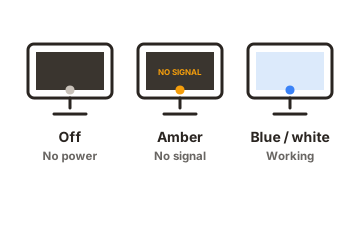
| Light color | What it means | Where to look next |
|---|---|---|
| Off / dark | No power reaching the monitor | Power cable and wall outlet |
| Amber or blinking | Powered on, but no video signal found | Cable, input source, and the PC |
| Blue or white | Monitor is awake and getting a signal | PC display settings or brightness |
An amber or blinking light is the classic No Signal state: the monitor has power and is simply waiting for a picture. That’s the case the rest of this guide fixes. If the light is completely off, your problem is power, not signal, so check the power cable and try a different wall outlet first.
Fix the cable and the connection
A loose or failing cable is the single most common reason for No Signal, so this is where most fixes happen. Work through these in order:
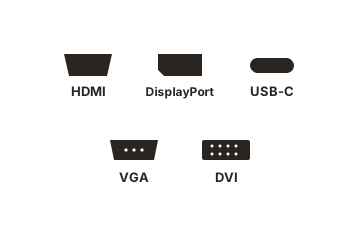
- Unplug the video cable at both ends, the monitor and the computer, then push each end back in firmly until it seats. HDMI and DisplayPort plugs can look connected while sitting slightly loose.
- Swap the cable for a different one if you have a spare. Cables fail more often than people expect, and a bad cable looks exactly like a dead monitor.
- Plug straight into the computer. Remove any docking station, hub, or adapter and connect the monitor directly, just for testing. These middle devices are a frequent cause of dropped signals.
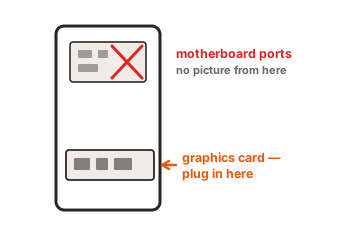
- On a desktop with a separate graphics card, make sure the cable goes into the card’s ports (usually lower on the back), not the ports built into the motherboard. Connecting to the wrong set is a very common miss.
Select the right input source
If the cable is solid, the monitor may just be watching the wrong port. ViewSonic monitors don’t always switch inputs on their own, so you often have to point it at the right one by hand. Press the Input or Source button on the monitor and cycle through the options until you land on the port your cable is actually plugged into, for example HDMI 2 rather than HDMI 1.
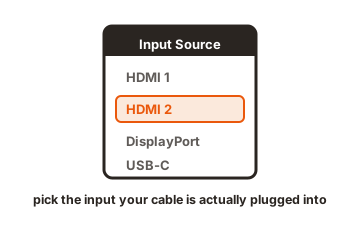
On many ViewSonic models the physical buttons are labeled with numbers. Pressing the 2 button steps through the inputs, and pressing the 1 button opens the On-Screen Display menu, where you can pick the input source directly. Button layouts vary by model, so if yours differs, the labels printed near the buttons or your user guide will show which one opens the menu. ViewSonic’s own No Signal support page lists the input steps for current models.
Match the input name to the physical port and give it five to ten seconds to catch the signal. This one step fixes a surprising number of No Signal cases on its own.
Check the computer side
If the monitor is on the right input and still sees nothing, the computer may not be sending a picture. A few quick checks on the PC clear most of these:
- Confirm the computer is actually on and awake. A sleeping PC sends no video, and the monitor reads that as No Signal. Move the mouse or tap the spacebar to wake it.
- On a laptop or a second monitor, press Windows + P and choose Duplicate or Extend. If it’s set to PC screen only, nothing reaches the external monitor.
- Restart the computer with the monitor already plugged in and powered on. A fresh start often re-establishes the video handshake between the two.
- Update your graphics drivers if the monitor recently stopped working after a system update. Out-of-date or mismatched drivers can quietly break the output to one port.
Order matters here too: turn the monitor on first, then the computer. Powering up in that order gives the PC a display to detect as it boots, which avoids some handshake problems.
USB-C has an extra catch
If you’re connecting over USB-C, one detail trips people up. A USB-C connector doesn’t guarantee the port can carry video. USB-C is only the shape of the plug, not a promise of what runs through it, and some laptop USB-C ports handle only data and charging, with no display output at all.
So if USB-C gives you No Signal, check that your computer’s USB-C port actually supports video output (your laptop maker’s specs will say). When in doubt, connect over HDMI or DisplayPort instead to confirm the monitor works, then sort out USB-C separately. If you’re on DisplayPort, also make sure the cable is in the DisplayPort IN socket on the monitor, not an out port.
Reset the monitor to defaults
Still stuck with an amber light? A quick reset can clear a setting that’s blocking the signal. First, do a power cycle: unplug the monitor from the wall, wait about 30 seconds, then plug it back in and turn it on. That alone often kick-starts a monitor that got stuck looking for a source.
If you can open the On-Screen Display menu, go to Memory Recall (called All Recall on some models) and select it to reset the monitor to factory defaults. This wipes any odd input or display setting that might be causing the blank screen. ViewSonic’s monitor troubleshooting guide has the reset path for different series if the menu on yours looks different.
When it’s the monitor itself
If you’ve tried another cable, another input, and another computer and the screen still says No Signal, the monitor itself may be failing. A monitor that only shows No Signal on a cold start, or one whose buttons stop responding so you can’t change the input, is often showing its age in the power board. Failed capacitors inside older monitors are a well-known cause of this exact behavior, and that’s a repair rather than a settings fix.
At that point, check whether the monitor is still under warranty and contact ViewSonic support with your model number and how you’re connecting. If it’s out of warranty and several years old, weigh the cost of repair against a replacement, since a new panel is often the more sensible spend.
Conclusion
No Signal almost always means power is fine but the picture isn’t arriving. Read the power light first, then work outward: reseat or swap the cable, select the correct input on the monitor, and confirm the computer is awake and sending video, remembering that USB-C doesn’t always carry a picture. A good result is your desktop back on screen within a few minutes. If a second computer still shows nothing, the monitor likely needs service.
For more fixes when a screen misbehaves, browse our monitor troubleshooting guides.
Frequently asked questions
Why does my ViewSonic monitor say No Signal when my computer is on?
The monitor is watching an input that isn't receiving video. Usually the cable is loose or bad, or the monitor is set to the wrong input. Reseat the cable, then press the Input button to select the port you're actually plugged into.
What does the amber light on my ViewSonic monitor mean?
An amber or blinking light means the monitor has power but detects no signal. It's the normal No Signal or sleep state. Wake the computer, check the cable, and confirm the correct input is selected to bring the picture back.
How do I change the input source on a ViewSonic monitor?
Press the Input or Source button on the monitor to cycle through HDMI, DisplayPort, and USB-C, or press the menu button to open the On-Screen Display and pick the input there. Choose the port your cable is plugged into and wait a few seconds.
My ViewSonic monitor shows No Signal over HDMI. What should I try?
Reseat the HDMI cable at both ends, then test a different HDMI cable or port. Make sure HDMI is the selected input, and on a desktop plug into the graphics card, not the motherboard. High-resolution monitors also need an HDMI 2.0 or newer cable to work reliably.
How do I reset a ViewSonic monitor?
Unplug it from power for about 30 seconds, then plug it back in. For a full reset, open the On-Screen Display menu and select Memory Recall (or All Recall) to return the monitor to factory settings, which clears any display setting causing the blank screen.