LED Monitor Burn In: What Actually Happens and How to Fix It
Table of contents
An LED monitor is an LCD panel with an LED backlight, and LCDs do not burn in the way an OLED screen does. What they get is image retention: a faint ghost of whatever sat on screen for hours, which fades on its own once the panel gets a rest and some varied content. Permanent marks are rare and take sustained abuse. If your screen is OLED or QD-OLED, the situation is different, and the second half of this covers that.
What “LED monitor” means
The LED part refers to the backlight, not the pixels. Behind the LCD layer sits a panel of white LEDs that shine through it, and the liquid crystal decides how much of that light reaches your eyes. Whether the panel is IPS, VA or TN, it is still an LCD, and so is a mini-LED monitor, which just uses many more, smaller backlight zones.
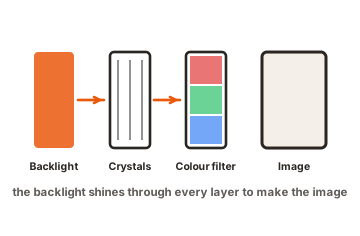
OLED and QD-OLED work the other way round. Each pixel makes its own light from an organic layer, with no backlight at all. That is the technology where wear is permanent, because the material that produces the light gets used up.
If you are unsure which you have, check the spec sheet for the panel type. Anything listing a contrast ratio like 1000:1 or 3000:1 is an LCD. OLED panels quote contrast in the millions or as infinite.
What LCDs actually get: image retention
Liquid crystal contains a small number of electrically charged particles. Hold a static image on screen long enough and those ions drift and collect at the panel electrodes, where they create a small stray electric field. When the picture changes, that field keeps nudging the affected pixels toward their old state, and you see a faint outline of what used to be there.
It is easiest to spot on a dim, full-screen solid colour, which is why people usually notice it after closing a window rather than while working. Heat makes it more likely, so a monitor running hot in a warm room is a worse case than the same panel in a cool one.
The honest caveat is that retention left untreated for a very long time can stop clearing. CTOUCH’s application note on LCD image retention sets out the mechanism and the point at which temporary becomes permanent. That takes months of neglect, not one long work session.
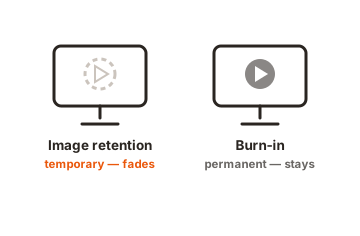
| Image retention (LCD) | Burn-in (OLED) | |
|---|---|---|
| Cause | Ions gathering at the electrodes | Uneven wear of the light-emitting layer |
| Looks like | Faint ghost of the previous image | Permanent shadow of static elements |
| Permanent | No, in almost all cases | Yes, once it appears |
| Fix | Rest and varied content | Nothing reverses it |
How to clear a ghost image on an LED monitor
Work through these in order. Most cases resolve at step one or two.
-
Turn the monitor off.
Not sleep with a signal still arriving, but properly off, for a few hours. For displays that run static content around the clock, the usual guidance is four hours off after twelve hours on, and eight hours off after twenty-four. -
Run varied full-screen content.
A cycling colour pattern or a moving video for fifteen to thirty minutes gives every pixel a workout and helps the charge redistribute. -
Drop the brightness.
Lower brightness means less electrical stress on the liquid crystal, and recovery goes faster. -
Check it cool.
Let the monitor sit at normal room temperature. Heat both causes and hides the problem.
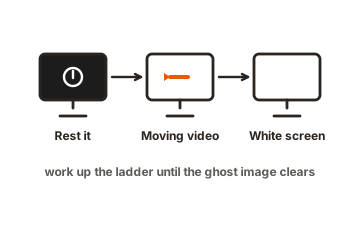
There is no fixed timetable. A mild ghost can go in an hour, a stubborn one can take a couple of days of ordinary mixed use. If it has not moved at all after several days, the panel has a physical fault rather than retention, and that is a warranty conversation.
Things that look like burn-in but are not
Three other faults get mistaken for it, and each has a different answer.
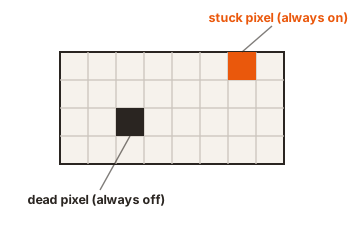
- Stuck or dead pixels. A single dot that stays one colour no matter what is on screen. It has no relationship to anything you displayed earlier, and it will not fade.
- Backlight bleed and clouding. Pale patches near the edges or corners, visible on dark scenes. This is light escaping around the panel, so the shape never matches a window or a taskbar.
- Black smearing and response trails. Dark trails that follow moving objects on VA panels, most obvious in dark game scenes. They vanish the moment the picture stops moving.
- The test that separates them is simple. Retention and burn-in reproduce the shape of something you actually had on screen, sit in the same place, and show up most clearly on a plain full-screen colour.
The test that separates them is simple. Retention and burn-in reproduce the shape of something you actually had on screen, sit in the same place, and show up most clearly on a plain full-screen colour.
When it is OLED, it is a different problem
OLED pixels dim slightly every hour they run. Show the same taskbar, HUD or news ticker in the same spot for hundreds of hours and those pixels fall behind their neighbours permanently. Blue wears fastest, so early wear often reads as a colour shift before it reads as a visible shape: a faint pink or green band across a grey screen where a bright bar used to sit, rather than a legible outline.
Modern panels take this seriously. Monitors ship with pixel refresh routines that run in standby after roughly four hours of use and take ten to fifteen minutes, pixel shift that nudges the whole image by a pixel or two at intervals, and detection that dims static taskbars, letterbox bars and logos automatically. Leaving those features on is the single most useful thing you can do. Samsung’s guide to preventing burn-in on an OLED monitor walks through where those settings live.
The risk is also smaller than it was. Long-run testing under deliberately harsh conditions, meaning static productivity work at high brightness with no special care, shows most of the degradation happening in the first six months and then slowing considerably. Manufacturers now back OLED monitors with three-year warranties that name burn-in explicitly, and in 2026 a four-year burn-in warranty appeared on a tandem WOLED model, which stacks two emitting layers so each one runs cooler.
Habits that matter on any panel
The same handful of habits protect both technologies, and they cost nothing.
- Turn the brightness down. Most desktop monitors are far brighter than a normal room needs, and brightness drives both problems.
- Blank the screen rather than saving it. Set the display to switch off after ten or fifteen minutes of idle time instead of showing a static screensaver.
- Use dark mode and hide the taskbar. Both remove bright, permanently static elements from the same pixels.
- Move your windows around. Swapping which side an app lives on from time to time spreads the load.
- Do not park static content for hours. A paused video, a menu screen or a spreadsheet left open overnight is the classic cause on either panel type.
- Keep it ventilated. Heat accelerates wear on OLED and retention on LCD.
Conclusion
If you have an LED-backlit monitor and a ghost image has appeared, it is image retention, and it will almost certainly clear once you switch the screen off for a few hours and follow it with varied content. Permanent burn-in belongs to OLED, where the fix is prevention rather than recovery: leave the built-in care features running, keep brightness sensible, and avoid parking static elements in one place for hundreds of hours.
For more, see our monitor troubleshooting guides.
Frequently asked questions
Can an LED monitor get permanent burn-in?
Rarely. LED-backlit LCDs get temporary image retention that clears with rest. It only becomes permanent after months of the same static image with no breaks, which is a signage scenario rather than a desktop one.
How long does image retention take to go away?
Anywhere from an hour to a couple of days, depending on how long the static image was up and how bright the screen was. Powering the monitor off completely speeds it up more than anything else.
Does mini-LED get burn-in?
No. Mini-LED changes the backlight, not the panel, so it behaves like any other LCD. It can show temporary retention and is not at risk of the permanent wear that affects OLED.
Is OLED burn-in covered by warranty?
On monitors, usually yes. Three-year cover that names burn-in is now standard across the major brands, and a four-year option appeared in 2026. Coverage generally assumes the built-in panel care features were left enabled.
Do screensavers still help?
A moving one is better than a static image, but switching the display off entirely is better than both. Set a short blank-screen timeout in your power settings and let the monitor rest.