LED Monitor Dead Pixel: How to Test It and What You Can Claim
Table of contents
A dead pixel is one whose transistor has failed, so it stays black whatever is on screen, and nothing you do will bring it back. A stuck pixel is a different fault: one subpixel locked on, showing as a coloured dot, and that one sometimes clears. Working out which you have takes about five minutes and decides everything that follows, because one is worth attempting to fix and the other is a return or a warranty claim.
Dead, stuck, bright, or just dirt
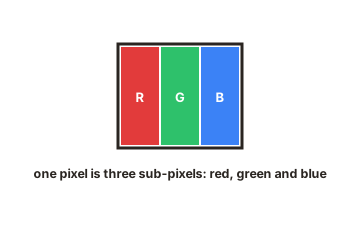
Every pixel on an LED-backlit monitor is made of three subpixels, red, green and blue, and each one has its own transistor. A 4K panel therefore carries close to 25 million of them. Faults come in a few recognisable shapes.
| What you see | On a white screen | On a black screen | Fixable |
|---|---|---|---|
| Dead pixel | Black dot | Invisible | No |
| Stuck subpixel | Slightly tinted dot | Coloured dot | Sometimes |
| Bright pixel | Invisible | White dot | No |
| Dirt or dust | Dark speck | Usually invisible | Wipes off |
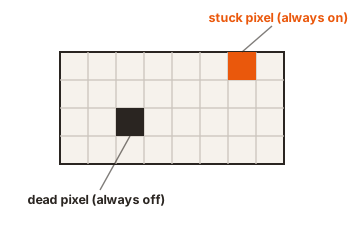
Dirt is the first thing to rule out and the most common false alarm. A speck of dust catching the light looks exactly like a defect until you clean the panel with a dry microfibre cloth. Do that before anything else, because it costs nothing and it settles a surprising number of cases.
The other useful tell is behaviour. A real defect sits in exactly the same place on every screen, in every application, and at every resolution. Anything that moves, changes position with the image, or disappears in another program is not a pixel fault.
How to test in five minutes
Give the monitor about half an hour to warm up first, and clean the screen. Then work through full-screen solid colours: white, black, red, green and blue. A dark room helps, since it makes dark areas easier to judge.
EIZO’s monitor test runs this sequence in the browser along with a dozen other checks, and it is the quickest way to do it properly. Any full-screen colour tool works the same way.
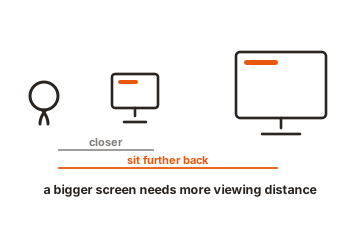
Scan slowly, section by section, from a normal viewing distance of roughly 35 to 50 centimetres. Pressing your nose to the glass will find things nobody looks at a screen closely enough to see. When you find something, note its position and photograph it against the solid colour that shows it best. That photo is what a support agent will ask for.
Run the monitor at its native resolution while you do this. Scaling can hide a single-pixel fault entirely.
One more check is worth thirty seconds. Take a screenshot of the test colour and open it on another device. If the dot appears in the screenshot, the fault is in the image or the graphics card, not the panel. If the screenshot is clean but the dot is still on screen, it is the monitor. Plugging into a second input, or a different computer, settles the same question.
Can a dead pixel be fixed?
Not in any meaningful sense. The transistor driving it has failed, so the pixel receives no signal, and no software can send one to a circuit that is broken.
Stuck pixels are the ones with a chance. A subpixel jammed in one state occasionally comes free when the panel rapidly cycles colours over the affected area, which is what pixel-fixing utilities do. Give it twenty or thirty minutes and stop if nothing changes. There is no benefit to leaving one running overnight.
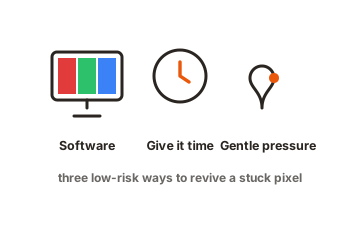
The pressure and massage methods circulating online are worth avoiding. Pushing on an LCD can damage the layers underneath permanently, turning a one-pixel annoyance into a visible patch, and under some manufacturers’ terms, including Dell’s, attempting it can void the warranty. If the panel is under warranty, that route costs you more than it can win.
What actually causes them
Most dead pixels are born in the factory. Panels are built from millions of microscopic transistors laid down in layers, and a speck of contamination or a flaw in one of those layers leaves a single transistor unable to switch. The rate is low enough that the industry treats a small number as unavoidable rather than as a fault, which is exactly what the tolerance classes below describe.
The rest appear later. Transistors age, and heat accelerates that, so a monitor that runs hot in a warm room or sits with its vents against a wall is working harder than one with air around it. Physical stress is the other cause you control. Pressing on the panel, gripping a monitor by the screen while moving it, or packing it face-down against something hard can all break the layers locally.
None of this makes a defect predictable. A panel that arrives perfect can develop a fault in year three, and nothing you did caused it.
How many defects a monitor is allowed
This is where most claims are decided. ISO 9241-307, which replaced ISO 13406-2 in 2008, sorts panels into classes by how many faults of each type they may carry per million pixels.
| Class | Bright (type 1) | Dark (type 2) | Stuck subpixel (type 3) |
|---|---|---|---|
| I | 0 | 0 | 0 |
| II | 2 | 2 | 5 |
| III | 5 | 15 | 50 |
| IV | 50 | 150 | 500 |
Most consumer monitors are sold as Class II. Run the numbers and the tolerance is wider than it sounds. A 1080p panel holds 2.07 million pixels, so Class II permits about four bright and four dark pixels, plus ten defective subpixels. A 4K panel holds 8.29 million, which stretches that to roughly sixteen of each and forty-one subpixels.
That is why a single dead pixel rarely qualifies on its own under the standard alone, and why the answer changes completely once you look at the individual manufacturer’s policy.
Where policies beat the standard
Several brands commit to something stricter than ISO, and the details are worth checking before you buy rather than after.
Dell is the clearest example. Its display pixel guidelines set out a Premium Panel Exchange covering eligible Consumer, Professional, UltraSharp and Alienware monitors, under which a single bright pixel gets the panel replaced free during the warranty period. The catch is worth reading carefully: that guarantee covers bright subpixels only, not dark or dead ones. On models without it, the threshold is more than five stuck pixels or subpixels.
Two other details matter. Partial subpixel anomalies, smaller than half a subpixel, are not counted as defects at all. And the assessment is made at normal viewing distance, around 35 to 50 centimetres for a desktop monitor, so a fault only findable with your face against the screen will not qualify.
The route that actually works
Warranty policy is the slow path. The retailer’s return window is the fast one, and it usually has no pixel threshold at all.
Test a new monitor the day it arrives. Inside the return period you can simply send it back and order another, no argument about counts or classes. Once that window closes, you are negotiating against a published tolerance, and one dead pixel on a Class II panel will not clear it.
Conclusion
Clean the screen, run full-screen white, black, red, green and blue, and identify what you are looking at. A black dot on white is a dead pixel and it will not be fixed, so the only question is whether the return window is still open or the count clears your manufacturer’s policy. A coloured dot on black is a stuck subpixel, worth half an hour of colour cycling before you give up on it.
For more, see our monitor troubleshooting guides.
Frequently asked questions
Can a dead pixel be repaired?
No. The transistor controlling it has failed, so there is nothing to reactivate. Pixel-fixing software only ever works on stuck subpixels, which are locked in a state rather than dead.
Is one dead pixel covered by warranty?
Usually not on its own. Most consumer monitors are ISO Class II, which permits a handful of dark pixels per million. Some brands are stricter about bright pixels specifically, so check the policy for your exact model.
Does rubbing the screen fix a dead pixel?
No, and it can make things worse. Pressure can permanently damage the layers of an LCD, and some manufacturers treat an attempt at it as grounds to refuse a warranty claim.
How do I tell a dead pixel from dust?
Wipe the screen with a dry microfibre cloth. Dust moves or disappears. A dead pixel stays in exactly the same place across every application and every resolution.
Can dead pixels appear over time?
Yes. Transistors fail with age, heat and physical stress. A monitor that arrives perfect can develop a fault years later, which is when your warranty terms rather than the return window decide the outcome.