Faint White Line on Monitor: What It Means and How to Fix It
Table of contents
A faint white line on a monitor is almost always one row or one column of pixels that is not being driven properly. The most common cause is a weak connection between the panel and the small driver chips along its edge, but image retention, pressure on the screen, a bad cable or the graphics card can also produce a thin, light line. One quick test sorts it out: if the line still shows on the monitor’s own menu or self-test screen, the fault is inside the monitor. If it does not, look at the cable, the computer and its settings.
What a faint white line on a monitor usually is
An LCD panel is a grid. Each pixel sits where one row wire crosses one column wire, and tiny driver chips bonded along the edges of the glass send the signal down each wire. When one wire, or its contact with the driver chip, starts to fail, every pixel on that line gets slightly the wrong voltage. The result is a stripe 1 or 2 pixels wide that runs edge to edge and looks a little brighter than its neighbors.
That is why these lines are so often faint. The column is not dead, just a few shades off, so it hides on black and stands out on a gray or white page. The main causes, from most to least common:
- Row or column driver fault. A weak bond between the panel and a driver chip, or a cracked trace on the thin flex strip that connects them. The line stays fixed in one spot.
- Image retention. A faint ghost of a sharp edge that sat on screen for hours, such as a window border, a taskbar or a spreadsheet grid. It fades with time.
- Pressure or impact damage. A knock, a tight squeeze during a move or something pressing on the screen can damage the connection along one edge.
- Cable or signal problem. More common with VGA and loose HDMI or DisplayPort plugs. Signal faults tend to flicker, sparkle or move rather than sit perfectly still.
- Graphics card or driver. A driver bug, a bad overclock or a failing GPU can draw lines into the image itself.
Our guide to lines on a monitor covers every type of line, including colored and flickering ones.
Vertical or horizontal: does it matter?
Direction tells you which part of the panel is involved, but both are treated the same way.
A faint vertical line comes from a column, so the source driver chips along the top or bottom edge are the likely spot. Vertical lines are the more common of the two, and our article on vertical lines on a monitor goes deeper into them.
A faint horizontal line comes from a row, driven from the left or right edge. On many modern panels the row drivers are built into the glass itself, so a horizontal line can also point to damage along one side of the panel.
A line that sits in the exact same spot at every resolution is a hardware fault. One that moves or shifts when you change resolution is more likely a signal or software issue.
On a laptop, the display cable that runs through the hinge adds another suspect, which we cover in our guide to vertical lines on a laptop screen.
Quick tests to find the cause
These four checks take about ten minutes and cost nothing.
1. Open the monitor’s menu or self-test
Open the monitor’s on-screen menu over the line. The monitor draws that menu itself, so if the line cuts through it, the computer is not the cause. Many monitors also have a built-in self-test that runs with the video cable unplugged and cycles through solid colors. Dell’s guide on how to run a diagnostic test on a Dell monitor explains that if an abnormality such as lines still appears during the self-test, the monitor itself has a fault. Other brands list a similar test in the troubleshooting section of the user manual.

2. Take a screenshot
Capture the screen and open the image on a phone or another computer. A screenshot records what the graphics card is sending, not what the panel shows. If the line is in the screenshot, it is part of the image, which points to the driver, an app or the GPU. If the screenshot is clean, the fault is in the cable or the monitor.
3. Swap the cable and input
Try a different cable, graphics card port and monitor input. If you use VGA or a cheap adapter, test a direct HDMI or DisplayPort cable first.
4. Try another device
Connect a laptop or console to the monitor, and your computer to another screen or TV. If the line follows the monitor, the monitor is at fault. If it follows the computer, start with the graphics driver. Our monitor screen issues guide uses the same split for other faults.

How to fix a faint white line, in order
Start with the free fixes and stop as soon as the line is gone.
- Power cycle the monitor. Turn it off, unplug the power cord for one minute and turn it back on.
- Reseat or replace the cable. Push both ends firmly in, or swap to a known good cable.
- Reset the graphics driver. On Windows, press Windows key + Ctrl + Shift + B. Microsoft’s external monitor troubleshooting guide lists this shortcut and the next steps if it does not help.
- Use the native resolution and a standard refresh rate. Undo any custom resolution, overclocked refresh rate or GPU overclock.
- Update or roll back the graphics driver. If the line appeared right after a driver update, roll it back.
- Reset the monitor’s picture settings. A factory reset from the menu undoes extreme sharpness or overdrive settings that can exaggerate edges.
- Treat it as retention if it looks like an outline. Show moving or varied content for a few hours, or leave the monitor off overnight. On an OLED monitor, run the panel care or pixel refresh routine from the menu. Our guide to LCD monitor screen burn explains the difference between retention and permanent burn.
- Try a pixel fixer as a long shot. Flashing-color tools can help a stuck pixel, as covered in our LED monitor dead pixel guide, but they seldom fix a full line. Ten to twenty minutes is plenty. Skip this step if flashing light bothers you.
If the line survived all of that and shows in the self-test, the panel or its connections have failed. That is not a home repair.
Image retention or a panel fault?
| What you see | Likely cause | What to do |
|---|---|---|
| Thin line, same spot, edge to edge | Row or column driver fault | Run self-test, then warranty |
| Faint outline of a window or taskbar | Image retention | Varied content, rest the screen |
| Line flickers, moves or crawls | Cable, port or signal | Swap cable, port and input |
| Line is visible in a screenshot | GPU, driver or app | Reset or roll back the driver |
| Line after a knock or a move | Pressure or impact damage | Repair quote, usually not covered |
| Line changes when the frame is touched | Loose internal connection | Stop touching it, get it serviced |
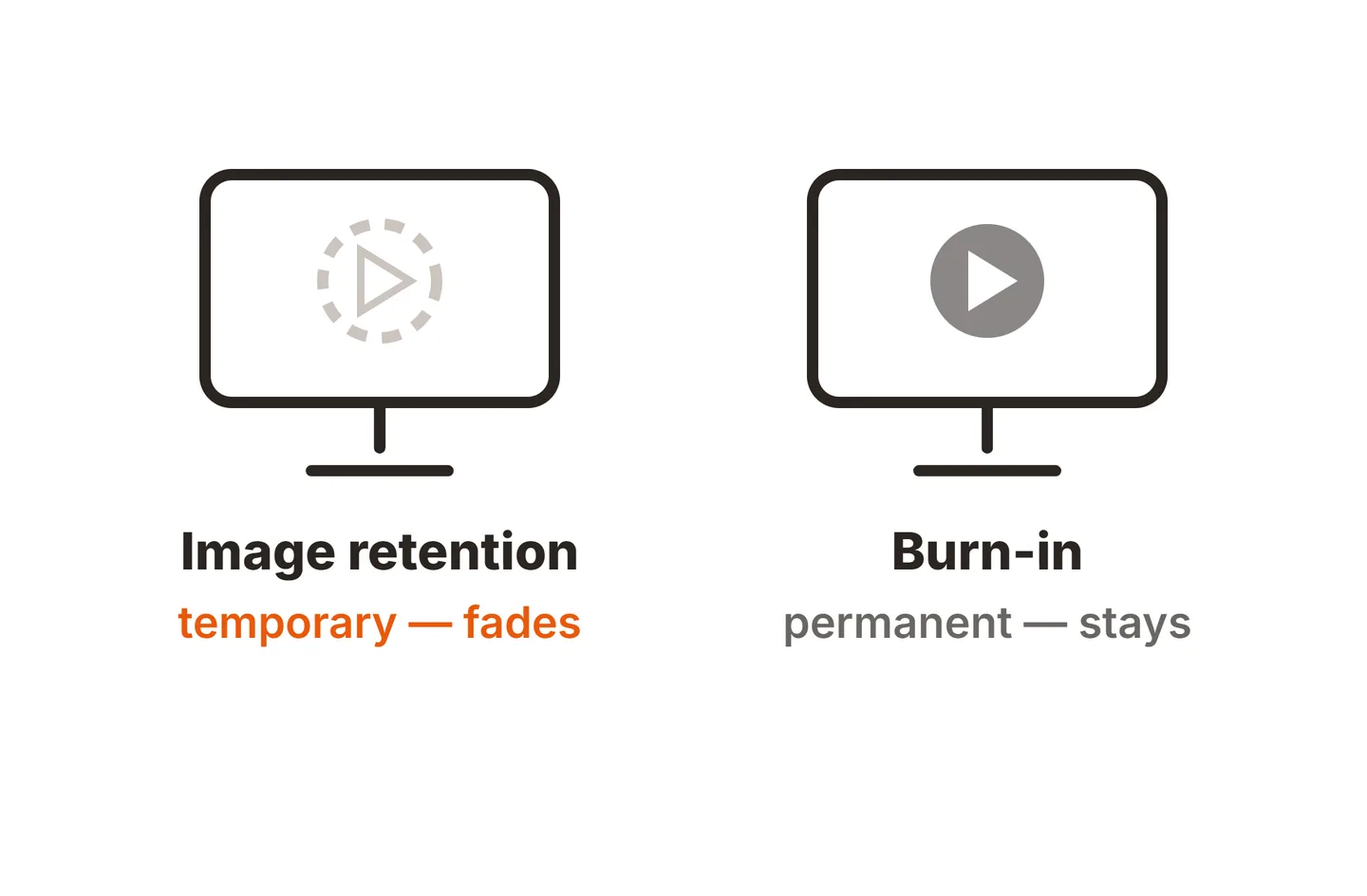
Retention matches the shape of something that was on screen and gets weaker over time. A driver fault is a perfectly straight line that ignores the content and never fades.
When the line spreads or gets worse
A faint line that stays the same for months may never change. If a second line appears, the line turns solid or colored, or it comes and goes as the monitor warms up, the connection is getting worse. Heat makes parts expand, so a weak bond can make contact when cold and lose it when warm. Expect more lines over time, and take a dated photo on a white background now.
Pressure is a common trigger. Monitors moved without a box, or laid flat with something on top, often develop edge faults later. Our guide on how to transport computer monitors shows how to avoid it next time.
Warranty, repair or replace?
If the monitor is under warranty and has no physical damage, contact the manufacturer. Send the photo, the model and serial number, and the result of the self-test. A line is a panel fault, not a single dead pixel, so it is normally handled as a repair or replacement rather than judged by a dead pixel count. Physical damage, such as cracks or pressure marks, is usually excluded.
Out of warranty, a line almost always means a new panel, which for most desktop monitors costs close to a new monitor. If the line is faint, stable and does not bother you, it is fine to keep using the screen.
Conclusion
A faint white line on a monitor is usually one row or column of pixels with a weak connection. Open the monitor’s menu or self-test first: if the line shows there, the panel is at fault and warranty is the right next step. If it does not, swap the cable, take a screenshot and reset the graphics driver. For other kinds of screen lines, see the troubleshooting hub or browse the full SubInsider monitor knowledge base.
Frequently asked questions
Can a faint white line on a monitor go away on its own?
Sometimes. A line caused by image retention fades after a few hours of varied content or a rest with the screen off. A line from a loose cable or a driver glitch disappears once that is fixed. A line from a failing panel connection rarely goes away and often gets worse over time.
Is a faint white line covered by warranty?
Usually, if there is no physical damage. A line is a panel fault, not a single dead pixel, so it is normally handled as a repair or replacement rather than judged by a dead pixel count. Cracks, pressure marks and drops are typically excluded. Check your model's warranty terms before you open a claim.
Why can I only see the line on white or gray backgrounds?
A partly failing row or column often shows the wrong brightness at certain shades only. On black it may look normal, while on mid gray or white it shows as a slightly lighter stripe. Testing with full-screen black, white, gray and color fills makes the line much easier to spot and photograph.
Can a pixel fixer tool remove a faint white line?
Rarely. Pixel fixer tools flash colors to free a stuck pixel, and they can sometimes help with retention. A line comes from the row or column wiring and its driver chips, which flashing colors cannot repair. Running one for 10 to 20 minutes does no harm, but do not expect much.
Is it safe to keep using a monitor with a faint white line?
Yes. A thin line is a display fault, not a safety risk, and it will not damage your computer. The only concern is that it may spread or multiply. Take a photo now so you can compare later, and file a warranty claim early if the monitor is still covered.