Monitor Blinking Black Screen: 9 Fixes That Work
Table of contents
When a monitor keeps blinking black for one to five seconds and then comes back, it is almost always losing its video signal for a moment and locking back on. The most common causes are a loose or underrated cable, adaptive sync (G-SYNC or FreeSync), and a graphics driver that crashes and resets itself. Start with the cable, drop the refresh rate as a test, and turn off adaptive sync. Only blame the monitor once the blackouts follow it to another computer.
This guide covers intermittent blanking, where the picture cuts out and returns, sometimes over and over. If your screen stays black or shows No Signal all the time, start with our guide to common monitor screen issues instead.
What the blackout tells you
The few seconds the screen is black hold the best clue, so watch closely the next time it happens. Look at three things: the power light, whether a message pops up, and what you were doing when it started.

If the power light turns amber or a No Signal box flashes up, the monitor is fine and the signal from your PC stopped. That sends you to the cable, the port, the driver or the graphics card. If the light stays blue or white and the screen just goes dark with no message, the monitor may be resyncing to a new display mode, or its backlight may be cutting out. If the light goes off completely, the monitor lost power.
When it happens matters just as much. Blackouts that only come in games point to the graphics card, adaptive sync or HDR. Blackouts at random times on the desktop point to the cable or the power to the monitor.
| Symptom | Likely cause | First thing to try |
|---|---|---|
| No Signal box flashes during the blink | Cable, port or graphics card dropping the signal | Reseat and swap the cable, try another port |
| Only at high refresh rate, 4K or with HDR on | Cable or port short on bandwidth | Drop to 60 Hz as a test, then use a certified cable |
| Only in games, often when frame rate dips | Adaptive sync or a driver reset | Turn off G-SYNC or FreeSync, check Event Viewer |
| When a game or video starts or closes | Display mode or HDR switching | Use borderless windowed mode, match refresh rates |
| Power light stays on, menu goes dark too | Backlight or power board in the monitor | Flashlight test, then warranty |
| Power light goes off | Power to the monitor | Wall outlet, power cable or adapter |
Fix 1: Reseat and swap the video cable
A cable that has worked slightly loose is the single most common reason a screen blinks black. Unplug the HDMI, DisplayPort or USB-C cable at both ends, check the pins for dust or bends, and push it back in until it sits firmly. If you use DisplayPort, the plug should click into its latch.

Then swap in a different cable you know works, and try a different port on both the PC and the monitor. Move one thing at a time so you know which change fixed it. Gently wiggle the cable near each plug while watching the screen. If the picture cuts out when you touch it, you have found your fault.
Adapters and docks add more failure points. An HDMI to DisplayPort adapter, a long extension or a USB-C dock can each drop the signal on its own. Connect the monitor directly to the graphics card for a test. If you need a dock, our guide to docking stations for dual monitors covers what to check.
On a desktop PC, make sure the cable goes into the graphics card’s ports, not the motherboard’s. Our guide on how to connect a monitor shows where each one sits.
Fix 2: Check the cable can carry your refresh rate
A cable that looks fine can still blink black if it cannot carry enough data for your resolution and refresh rate. This often shows up after an upgrade to a 144 Hz, 240 Hz or 4K monitor, or after turning on HDR, which adds more data to the signal.
The quick test is to lower the refresh rate. In Windows 11, go to Settings > System > Display > Advanced display and set the refresh rate to 60 Hz. Use the monitor for a while. If the blackouts stop, the cable or port is running out of bandwidth at the higher rate.
The fix is a cable rated for your setup. HDMI 2.0 tops out at 18 Gbps, while HDMI 2.1 supports up to 48 Gbps. The HDMI Licensing Administrator says an Ultra High Speed HDMI cable is the one built for 48 Gbps setups, and certified ones carry a label on the box you can scan with a phone. For DisplayPort, use a short VESA-certified cable. Shorter cables are more reliable at high refresh rates, so skip long runs if you can.
Your graphics card port and monitor port matter too. If either end only supports an older HDMI version, a better cable will not lift that limit. Check both in their spec sheets.
Fix 3: Turn off adaptive sync for a test
Adaptive sync makes the monitor change its refresh rate to match the game’s frame rate. It removes tearing, but on some monitors it causes brief blackouts, flicker or the screen cutting out, often when the frame rate drops low or swings fast.

This is a known issue. When NVIDIA tested adaptive sync monitors for its G-SYNC Compatible program, it failed 202 of them for image quality problems such as flickering and blanking, including the monitor cutting out during gameplay. Monitors that are not on NVIDIA’s validated list can still work fine, but NVIDIA has not checked them for these problems.
To test, turn adaptive sync off in one place at a time:
- NVIDIA: open the NVIDIA app, go to System > Display, and turn G-SYNC off. If you still use the classic NVIDIA Control Panel, it is under Display > Set up G-SYNC.
- AMD: open AMD Software: Adrenalin Edition, go to the Display tab, and turn AMD FreeSync off.
- Monitor menu: many monitors have their own Adaptive-Sync or FreeSync switch in the on-screen menu.
If the blackouts stop, you can leave it off, or try a frame rate cap a few frames below your refresh rate so the game stays inside the VRR range. Our guide to adaptive sync monitors explains the range and how to set it up properly. If you run a FreeSync monitor on an NVIDIA card, see our guide to FreeSync with an NVIDIA GPU for the right settings.
Fix 4: Check for graphics driver resets
If the screen goes black for about two seconds and comes back, often with an app or game closing, your graphics driver may have crashed and restarted. Windows has a feature called Timeout Detection and Recovery (TDR) for this. According to Microsoft’s TDR documentation, Windows resets the graphics card when it takes longer than the default two seconds to respond. The visible sign is a screen flicker or blackout, and Windows may show the message “Display driver stopped responding and has recovered.”
You can confirm it in a minute:
Open Event Viewer
Right-click the Start button and choose Event Viewer.Open the System log
In the left pane, go to Windows Logs > System.Look for Display warnings
Look for warnings with Display as the source and Event ID 4101. Check whether their times match your blackouts.Note the driver name
The message names the driver, which tells you the maker: nvlddmkm is NVIDIA, amdkmdap is AMD, and igfx is Intel.
Matching 4101 warnings mean the problem is the graphics card or its driver, not the monitor or cable. Microsoft notes that by default, if five or more of these resets happen within one minute, Windows stops recovering and crashes with a blue screen on the next one. Frequent resets are worth fixing, not ignoring.
Fix 5: Update, roll back or clean-install the driver
Driver resets and random blackouts often start right after a driver update or a Windows update. Fix the driver before you touch hardware.
If the blinking began after an update, roll back. Open Device Manager, expand Display adapters, right-click your graphics card, choose Properties, and on the Driver tab select Roll Back Driver. If you have not updated in a while, install the newest driver straight from NVIDIA, AMD or Intel rather than relying on Windows Update.
If neither helps, do a clean install. NVIDIA’s and AMD’s installers both offer a clean or factory reset install option that removes old settings first. A stuck driver can sometimes be restarted without a reboot by pressing Windows + Ctrl + Shift + B, which Microsoft lists as a way to reset the graphics driver. Expect one short blink when you press it. That is the reset doing its job.
Also undo any GPU overclock or undervolt, including overclocks set in tools like MSI Afterburner. An unstable clock is a classic trigger for driver resets under load.
Fix 6: Stop HDR and display mode switching
Every time your PC changes the resolution, refresh rate or HDR state, the monitor has to resync, and many monitors go black for a second or two while they do. If the blink happens when a game opens or closes, when a video starts, or when you lock the PC, mode switching is the likely cause.
A few changes cut it down:
- Run games in borderless windowed mode instead of exclusive fullscreen, so the game uses your desktop’s mode and does not switch it.
- Set your desktop to the refresh rate you game at. If Windows sits at 60 Hz and the game asks for 144 Hz, the monitor switches modes every time.
- Leave HDR in one state. In Windows 11, the Use HDR switch is under Settings > System > Display. If apps keep turning HDR on and off, set it the way you want and turn off auto-switching features you do not need. Our guide on when to use HDR can help you decide.
With two monitors, check that both run at their own native refresh rates in Advanced display. If only one screen blinks, focus on that screen’s own cable, adapter and port.
Fix 7: Check Windows and monitor power settings
If the screen goes black after a short idle period and wakes when you move the mouse, that is a sleep timer, not a fault. In Windows 11, go to Settings > System > Power & battery (or Power on some desktops) and open the screen and sleep timeouts. Set the screen to turn off after a longer time, or Never as a test.
Monitors have their own power features too. Eco modes, auto power-off timers and some “smart” sensors can dim or blank the screen. Open the on-screen menu and turn these off one by one.
Fix 8: Fix auto input detection and reset the monitor
Many monitors scan their inputs when the signal drops for a moment. The scan can turn a split-second drop into a several-second blackout while the monitor checks HDMI 2, DisplayPort and USB-C before coming back. Open the input menu, turn off auto input select or auto source if your model has it, and pick the port you actually use.
If that does not help, run a factory reset from the monitor’s on-screen menu. It clears odd overdrive, sync and power settings in one go. Check your maker’s support page for a firmware update as well, since firmware updates can fix compatibility bugs.
Fix 9: Rule out heat and power problems
A graphics card that overheats or runs short on power can reset under load and blank the screen. If the blackouts get worse the longer you game, clean the dust from your PC’s fans and filters and check that air can flow freely. Watch GPU temperatures with your card maker’s software.
On a gaming PC, make sure the graphics card’s power cables are fully seated and that the power supply is rated well above what the system draws. A power supply that is weak or aging can dip under load and make the card reset.
On the monitor side, plug it straight into a wall outlet instead of a power strip, and reseat the power cable or external power brick. Vents that are blocked by a wall or a shelf can also let the monitor run hot.
When the monitor itself is the problem
Once you have tried a good cable, a different port and a fresh driver, one swap test settles whether the monitor is at fault.

Connect the monitor to a different computer, such as a laptop, with a different cable. Then connect your PC to a different screen, such as a TV. If the blackouts follow the monitor, the fault is inside it. If they follow the PC, go back to the driver, power and graphics card fixes.
A monitor that blinks black on its own usually has a failing backlight or power board. Signs include blackouts that start once the monitor warms up, a power light that stays on while even the on-screen menu goes dark, and blinking that gets more frequent over weeks. A flashlight shows which part failed.
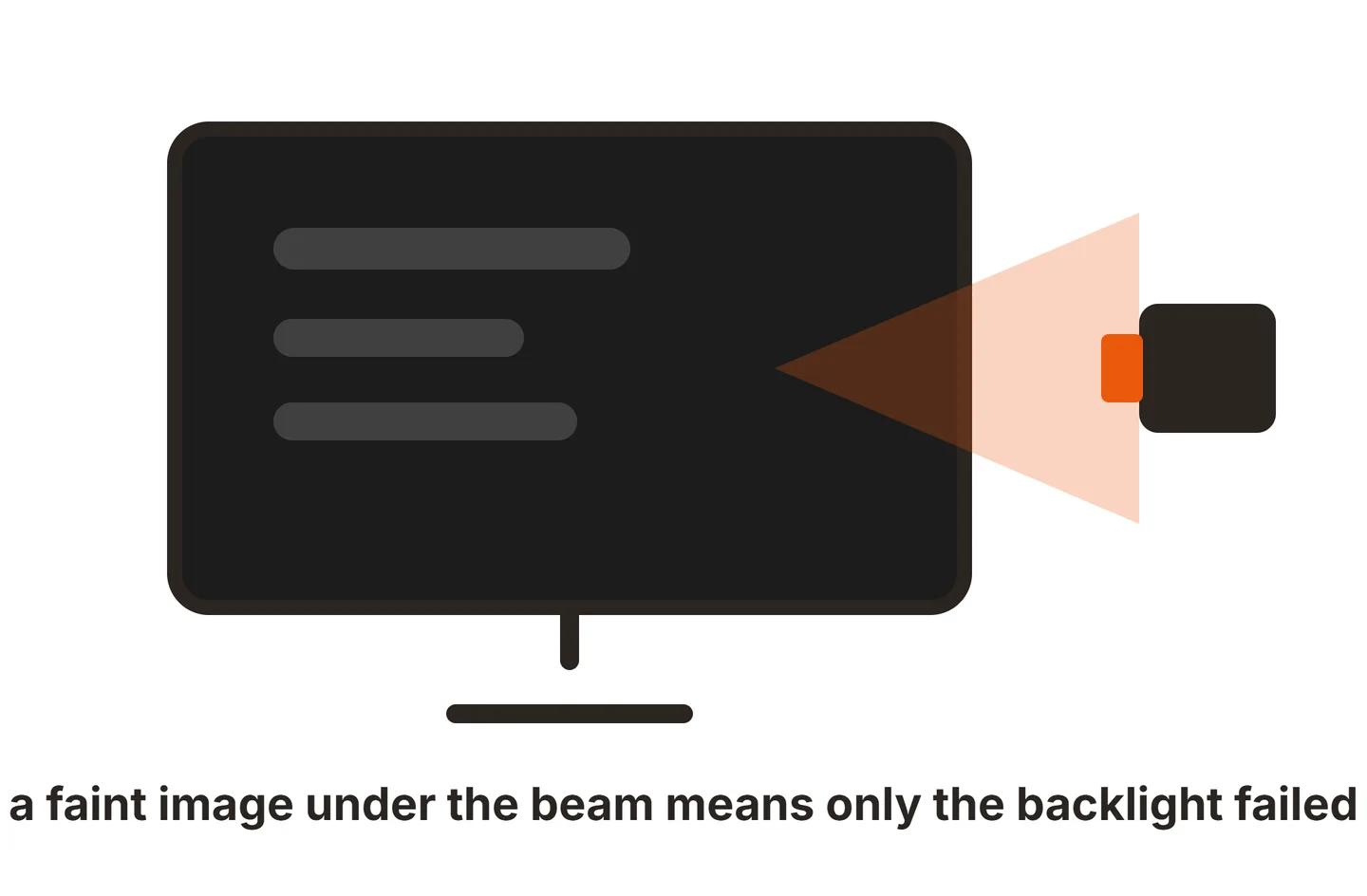
During a blackout, shine a flashlight close to the screen at an angle. If you can make out a faint image, the panel is still working and the backlight has cut out. Our guide to an LCD without a backlight explains why the picture is still there but too dark to see. Backlight and power board faults are repairable, but on most mid-range monitors the cost comes close to a new screen.
If the monitor is under warranty, contact the maker before opening it. Do not open the case yourself: the power board holds capacitors that can stay charged after you unplug it. If your monitor shows No Signal all the time rather than in short blinks, our ViewSonic no signal fix walks through the steps for a monitor that never picks up a signal.
Conclusion
A monitor blinking black for a few seconds is losing its signal, and the fix is usually free. Reseat and swap the cable first, drop to 60 Hz to test for bandwidth, then turn off adaptive sync and check Event Viewer for driver resets. Clean up HDR and mode switching, then rule out power and heat. Only when the blackouts follow the monitor to another computer is the monitor at fault. A good result is a screen that stays on through a full gaming session. For more fixes, browse our monitor troubleshooting guides or the full SubInsider knowledge base.
Frequently asked questions
Why does my monitor go black for a second and then come back?
The monitor lost its video signal for a moment and had to lock back on to it. A loose or worn cable, a cable that cannot carry your refresh rate, adaptive sync, or a graphics driver reset are the usual reasons. If the monitor shows a No Signal box during the blink, the signal dropped before it reached the screen.
Can a bad HDMI cable make my screen go black randomly?
Yes. A cable that is damaged, loose or not rated for your resolution and refresh rate can drop the signal for a second at a time, often more under heavy load or HDR. Try a certified cable that matches your setup, such as an Ultra High Speed HDMI cable for 4K at 120 Hz or higher.
Why does my screen only go black when I play games?
Games push the graphics card hardest and often switch refresh rate, resolution or HDR mode. That makes driver resets, adaptive sync problems and cable bandwidth limits show up. Turn off G-SYNC or FreeSync as a test, check Event Viewer for display driver warnings, and run the game in borderless windowed mode to stop mode changes.
Is my monitor dying if it keeps going black?
Not usually. Most blinking comes from the cable, settings or the graphics driver. Suspect the monitor when the blackouts follow it to a different computer and cable, when the power light stays on but the menu goes dark too, or when a flashlight shows a faint image during the blackout. That points to the backlight or power board.
Can a power supply cause a monitor to go black?
Yes, on both sides. A PC power supply that cannot keep up with the graphics card under load can make the card reset, which blanks the screen. A failing power brick or internal power board in the monitor can cut the backlight. Plug the monitor straight into the wall to rule out a bad power strip.