Should I Use HDR on OLED Monitors? When It Helps and When to Skip It
Table of contents
Yes, you should use HDR on an OLED monitor for games and films that are genuinely mastered in HDR, because that is where per-pixel black and bright highlights make the biggest difference. For the Windows desktop, office work and ordinary SDR video, HDR often looks dimmer or flatter, so it is perfectly reasonable to leave it off and switch it on only when you need it.
Why OLED and HDR work so well together
HDR, or high dynamic range, is about the gap between the darkest and brightest parts of the image. A good HDR picture shows deep shadows, bright specular highlights and plenty of detail in between.
On an LCD, the backlight sets the limit. Even with local dimming zones, light spills from a bright object into the dark area around it, which shows up as a halo or “blooming”.
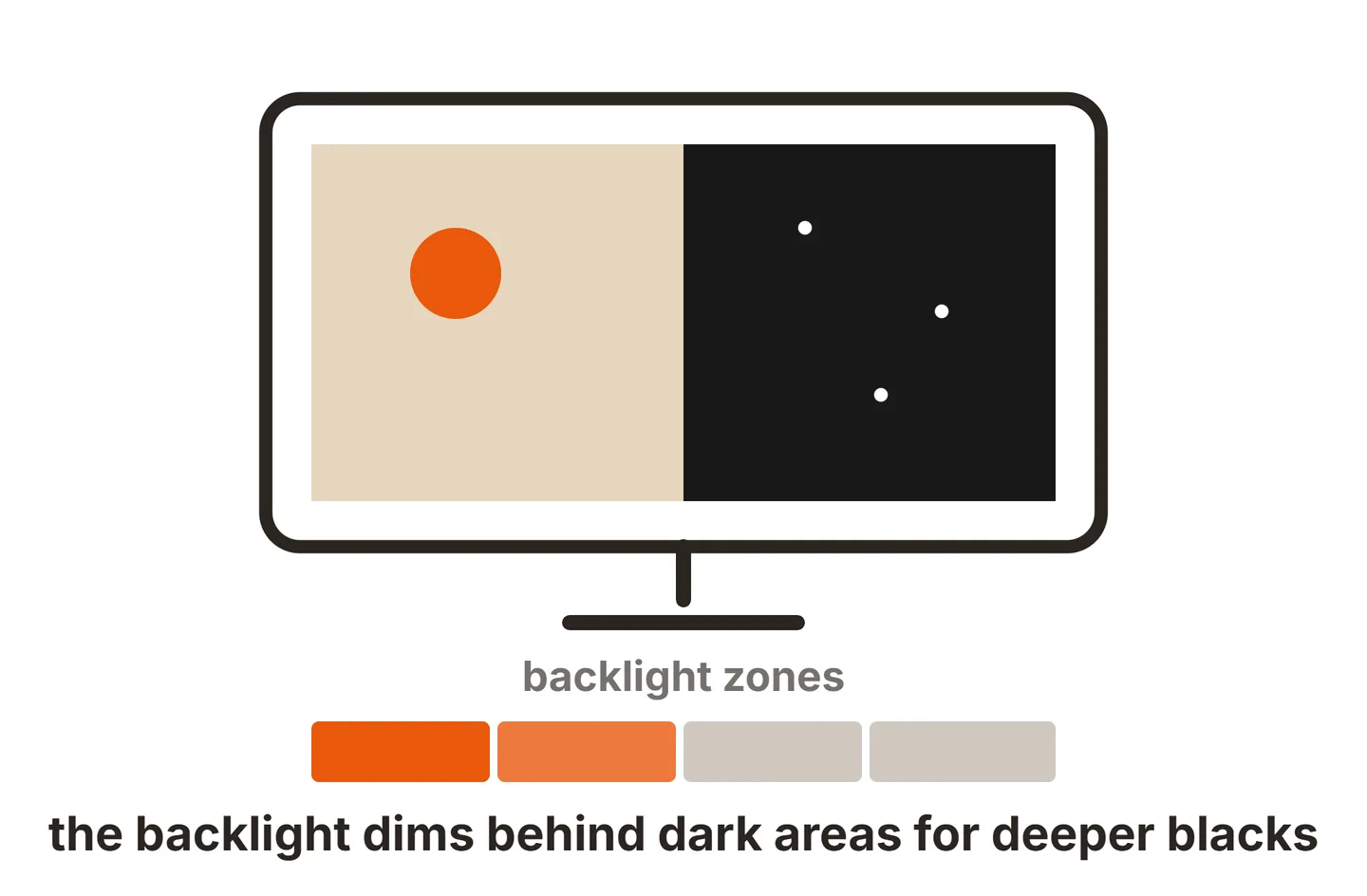
Our explainer on DCR and dynamic contrast shows why backlight tricks can only go so far. Acer’s version, ACM, works the same way and is best left off in HDR mode.

OLED has no backlight. Each pixel emits its own light and can switch off completely, so black really is black and a bright star in a night sky stays a sharp point. That per-pixel control is a big part of why OLED monitors are expensive, and it is exactly what HDR content is written to exploit.
When HDR is worth turning on
HDR only helps when the source contains HDR information. The display cannot invent a wider range that was never recorded.
Turn HDR on for:
- Games with native HDR output, especially ones that offer a peak brightness or HDR calibration option in their own menus.
- Films and series streamed or played in HDR10, HDR10+ or Dolby Vision, where the app reports HDR playback.
- HDR photos and videos you have shot or edited in an HDR workflow.
For these, the difference on an OLED is usually obvious: brighter highlights, cleaner shadows and more saturated color in bright areas. The same holds for an OLED TV as a computer monitor, though a TV brings its own trade-offs at a desk.
Why the Windows desktop looks dim or washed out in HDR
This is the most common complaint, and it usually has a simple cause. When HDR is on, Windows has to place standard SDR content, including the desktop, browser and most apps, somewhere inside the much larger HDR range.
Microsoft’s HDR settings guide explains that you use the SDR content brightness slider to balance brightness between HDR and SDR content. If it is set low, the desktop looks dull and gray compared with HDR off.
To fix it:
- Open Settings, then System, then Display, then HDR.
- Make sure Use HDR is on for the OLED monitor.
- Raise the SDR content brightness slider until white windows look comfortable.
Colors in SDR apps can still look slightly different in HDR mode, because Windows converts them on the fly. If that bothers you, the simplest answer is to keep HDR off for desktop work. On Windows 11, Win + Alt + B toggles HDR on and off.
OLED brightness limits and ABL
OLED panels have a power and heat budget. To stay within it, they use automatic brightness limiting, or ABL, which lowers brightness when a large part of the screen is bright.
That is why OLED brightness depends on how much of the screen is lit. A small highlight, such as a sun reflection or a muzzle flash, can be very bright. A full white screen, such as a spreadsheet or a snowy landscape, is noticeably dimmer.
| Content | Bright area | Typical OLED behavior | HDR verdict |
|---|---|---|---|
| Night scene with small highlights | Small window | Brightest highlights, perfect black | Excellent |
| Mixed game or film scene | Medium | Strong contrast, some limiting | Very good |
| Bright daylight or snow scene | Large | ABL dims the whole frame | Good, less punch |
| White desktop, documents, web | Full screen | Lowest brightness, may shift as windows move | HDR adds little |
VESA’s DisplayHDR performance criteria reflect this. The tests measure peak white on small patches as well as full-screen brightness, both as a brief flash and over a longer duration, so a rating tells you more than a single nits figure.
VESA DisplayHDR True Black tiers
OLED monitors are usually certified under the True Black family rather than the regular DisplayHDR tiers. VESA currently lists True Black 400, 500, 600, 1000 and 1400. The number is roughly the peak brightness tier the screen reaches on highlights, and every True Black level also requires very deep black.
A higher tier means brighter highlights, but even True Black 400 can look more striking than an LCD with a higher regular rating, because the black level is so much lower. Treat the tier as a guide to highlight brightness, not a ranking of overall picture quality.
Use the Windows HDR Calibration app
Games need to know how bright your panel can actually get. If they assume too much, highlights clip to flat white. If they assume too little, the image looks flat. SDR games work differently, and our guide to gamma in games covers how shadow detail is set there.
Microsoft’s free Windows HDR Calibration app for Windows 11 walks you through three test patterns, recommended by the HDR Gaming Interest Group, for the darkest visible details, the brightest visible details and your display’s maximum brightness. It then saves a color profile that Windows uses for HDR content on that screen. Run it once with your monitor in the HDR mode you plan to use.
Your monitor may also offer HDR modes in its own menu, such as a peak brightness mode and a more accurate mode. Our MSI MAG 321URX color settings guide shows how one OLED’s menu handles these options.
Burn-in: what HDR changes and what it does not
OLED pixels age with use, and brighter output ages them faster. HDR raises peak brightness, so in principle it can add to wear. In practice the risk comes mainly from bright, static elements shown for long periods, such as taskbars, HUDs and channel logos, rather than from HDR itself.
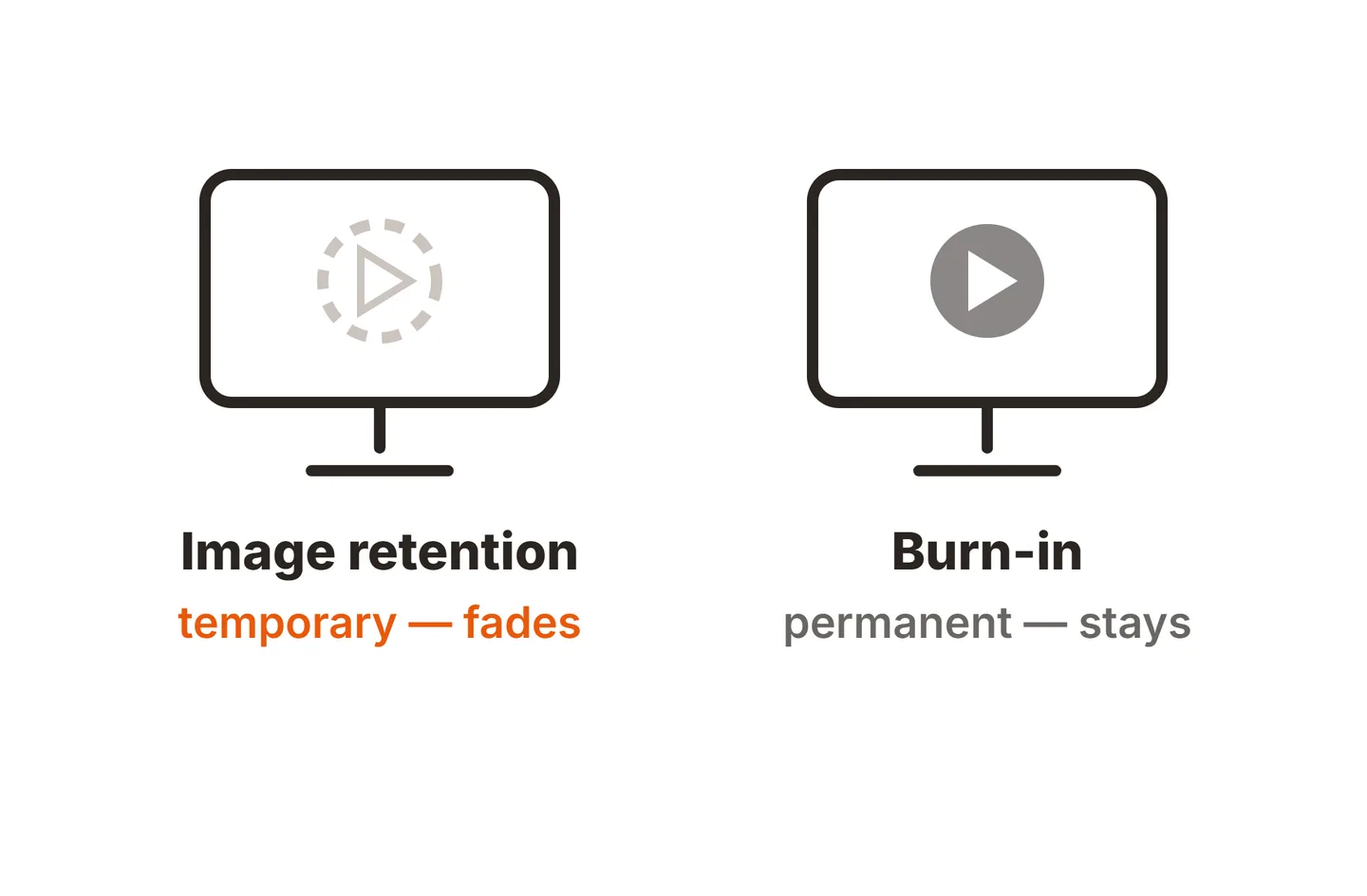
Sensible habits keep the risk low. Leave the monitor’s pixel refresh and panel care features on, hide the taskbar or use a dark theme, and do not run HDR on a static desktop all day if you are not watching HDR content. For more on the difference between short-term ghosting and permanent marks, see our guide to LCD monitor screen burn.
When to leave HDR off
HDR is a tool, not a default. Keep it off when:
- You are working in SDR apps such as documents, spreadsheets, coding or browsing.
- You edit photos for the web, where sRGB at a stable brightness is the target.
- A game’s HDR implementation looks worse than its SDR mode, which does happen, for example with visible banding in skies and smoke.
- The room is very bright and the desktop’s dimmer HDR presentation is hard to read.
Conclusion
So, should you use HDR on an OLED monitor? Yes, for real HDR games, films and photos, where per-pixel black and bright highlights give OLED a clear edge. Raise the SDR content brightness slider if the desktop looks dim, accept ABL as normal OLED behavior, and run the Windows HDR Calibration app once. For everyday SDR work, leaving HDR off is a perfectly good choice.
For more explainers, browse our monitor specs guides, read our monitor buying guides before choosing a panel, or return to the SubInsider monitor knowledge base homepage.
Frequently asked questions
Is HDR worth it on an OLED monitor?
Yes, for content that is mastered in HDR. OLED pixels switch off completely, so a bright highlight can sit next to true black without the halo a backlight would add. Games and films with proper HDR grading show the biggest gain. Ordinary SDR content and the desktop gain little and can look worse.
Why does my OLED look dim in HDR?
Two reasons. Windows maps SDR content, including the desktop, to a fixed level controlled by the SDR content brightness slider, which can be set low. And OLED panels limit brightness when much of the screen is bright, through automatic brightness limiting. Raising the slider fixes the first, while the second is normal behavior.
Does HDR cause burn-in on OLED?
HDR raises peak brightness, and higher brightness on static elements adds to wear over time, so it can contribute. Varied HDR games and films are low risk. The bigger factor is long hours of bright, unchanging content such as taskbars and HUDs. Using the panel's care features and varying content keeps risk low.
Should I leave HDR on all the time in Windows?
You can, but most people do not need to. If the desktop looks dim or colors look off, turn HDR off for everyday work and switch it on for HDR games and films. In Windows 11 the Win + Alt + B shortcut toggles HDR quickly, so switching only takes a moment.