DCI-P3 vs sRGB: Which Color Gamut Do You Need?
Table of contents
DCI-P3 is a wider color gamut than sRGB. It covers about 25 percent more area, mostly as deeper reds and richer greens, and it is the target for HDR movies and streaming video. sRGB is the smaller standard that the web, Windows, office apps and nearly all SDR games use. For most people the right buy is a monitor with full sRGB coverage and an accurate sRGB mode. Wide DCI-P3 coverage pays off when you watch or make HDR content.
What is a color gamut?
A color gamut is the range of colors a screen or a standard can show. Every color on a monitor is a mix of its red, green and blue sub-pixels. The purest red, green and blue the panel can make are its primaries, and the gamut is everything you can mix from them.

On a standard chart of human color vision, a gamut looks like a triangle with a primary at each corner. A bigger triangle means more saturated colors are possible. A color space, such as sRGB or DCI-P3, adds two more rules on top of the triangle: the exact white point and the tone curve (gamma) that maps signal values to brightness.
Those rules matter as much as the triangle. Two screens with the same gamut but different white points or gamma will still show the same file differently.
sRGB vs DCI-P3 vs Display P3 vs Adobe RGB vs Rec.2020
There are five color spaces you will see on monitor spec sheets. They differ in size, white point, tone curve and purpose.
| Trait | sRGB | DCI-P3 | Display P3 | Adobe RGB | Rec.2020 |
|---|---|---|---|---|---|
| Made for | Web, PCs, SDR video | Cinema projection | Wide-gamut screens | Photo and print | UHD and HDR video |
| Size vs sRGB | Baseline | About 25% larger | Same as DCI-P3 | Similar to P3, shifted to green | Far larger |
| White point | D65 | About 6300K | D65 | D65 | D65 |
| Tone curve | sRGB curve, near 2.2 | Gamma 2.6 | sRGB curve | About 2.2 | PQ or HLG for HDR |
sRGB was created by HP and Microsoft in 1996 and became the IEC 61966-2-1 standard in 1999. It uses the same primaries as Rec.709, the HD television standard. That is why SDR video, websites and the Windows desktop all assume sRGB.
DCI-P3 comes from Digital Cinema Initiatives, the group the major film studios formed, and SMPTE defined it for digital cinema projectors. Its red sits much deeper than sRGB’s red, and its green is more saturated. The cinema version uses a slightly greenish white near 6300K and gamma 2.6, tuned for a projector in a dark theater.
Display P3 is Apple’s version for screens. It keeps the P3 primaries but swaps in the D65 white point (the same 6500K white used by sRGB) and the sRGB tone curve. When a monitor box says “98% DCI-P3”, it almost always means the P3 gamut with a D65 white, which is Display P3 in practice. Nobody wants a 6300K, gamma 2.6 desktop. Our guides to monitor color temperature and PC monitor gamma explain why D65 and 2.2 are the desktop targets.

Adobe RGB dates from 1998 and stretches sRGB mainly toward green and cyan. Those are colors that commercial printing can reproduce, which is why print photographers use it. DCI-P3 and Adobe RGB are close in total size but point in different directions: P3 goes further into red, Adobe RGB further into green-cyan. A monitor can be strong in one and weaker in the other.
Rec.2020, formally ITU-R BT.2020, is the color space for UHD television. Its primaries sit near the edge of human vision, so it is far wider than P3. No consumer monitor covers all of it. HDR movies are delivered in a Rec.2020 container, but they are mostly graded within the P3 range. That is why P3 coverage is the number that predicts real HDR color today.
How to read gamut percentages on a spec sheet
A gamut percentage is only useful if you know whether it is coverage or area. They sound alike but measure different things.
Coverage is the share of a standard’s triangle that the monitor actually reaches. It cannot go above 100 percent. “95% DCI-P3 coverage” means 5 percent of P3 colors are out of reach.
Area or volume (often written as a plain “125% sRGB”) compares the size of the monitor’s triangle to the standard’s triangle. It can go well above 100 percent, and it hides gaps. A panel with a huge green but a weak blue can score over 100 percent by area and still miss some sRGB blues.
Some practical rules for reading a box or a review:
- If a number is over 100 percent, it is area, not coverage. Look for the coverage figure instead.
- Check which chart the number uses. The same panel can score differently on the CIE 1931 xy chart and the newer CIE 1976 u’v’ chart, so compare like with like.
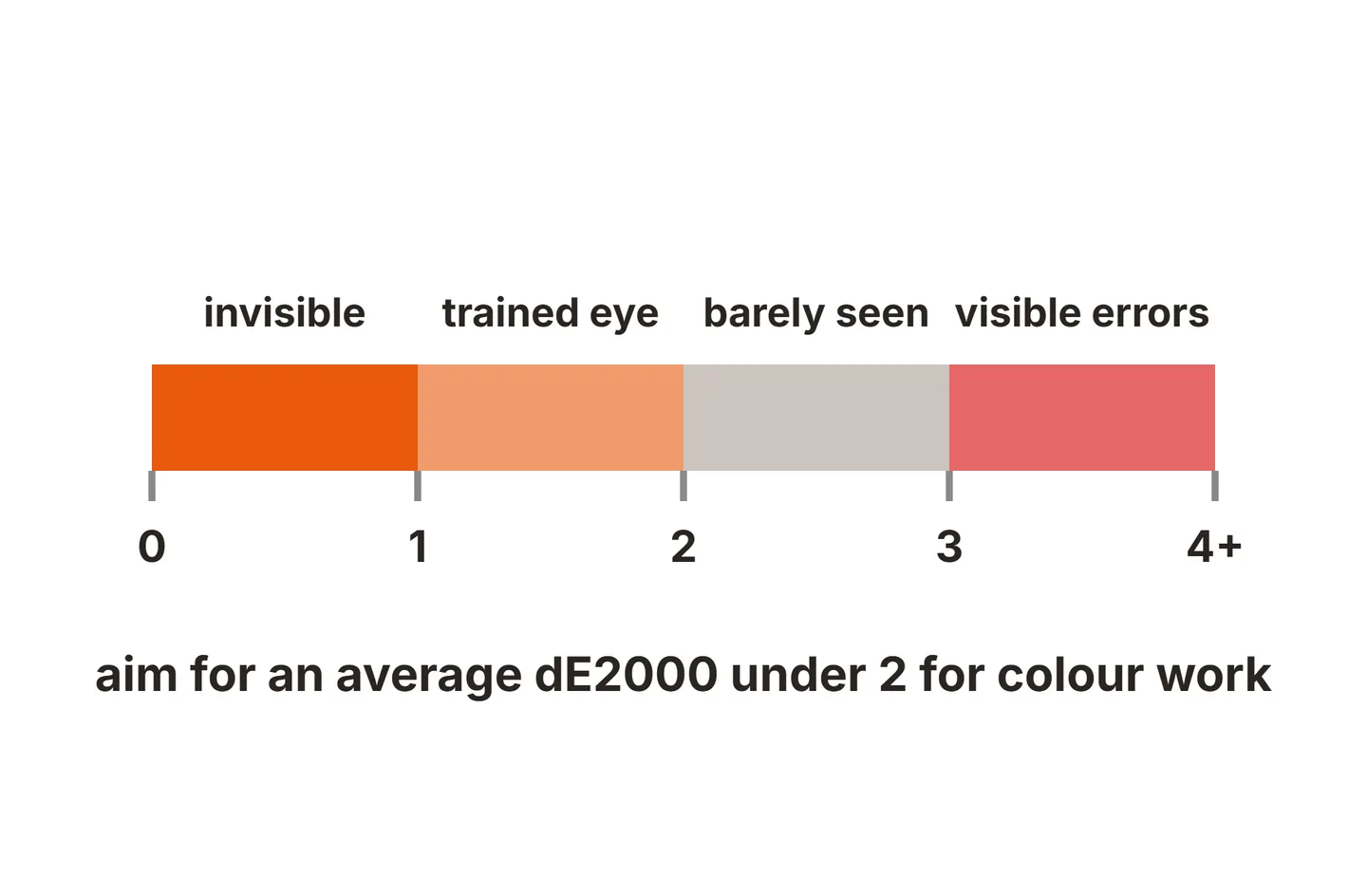
- Gamut is not accuracy. A monitor can cover 100 percent of sRGB and still show colors off by a wide margin. Accuracy is measured as Delta E, covered in our monitor color accuracy test.
- HDR “color volume” adds brightness to the picture. It asks whether the monitor can keep colors saturated at high brightness, not just at mid gray. That is a separate HDR measure, not a gamut figure.
Why a wide gamut makes SDR look oversaturated
A wide-gamut monitor shows sRGB content too vivid unless something converts it. The cause is simple. An sRGB file says “full red” as a number, and a P3 panel lights its own red, which is deeper than the red the file meant. Every color gets stretched outward the same way.
The result is easy to spot: skin turns orange or sunburned, grass glows, and brand colors on websites look wrong. Some people like the extra punch in games. But it is a color error, not more detail.
There are three fixes, and you only want one active at a time:
- The monitor’s sRGB mode. This clamps the panel to sRGB in hardware and works on every input, including consoles. On good monitors it is accurate. On weaker ones it locks brightness or color controls, so check reviews for a usable sRGB mode before you buy.
- Color-managed apps. Photoshop, Lightroom, and browsers such as Chrome and Edge read the monitor’s ICC profile and convert sRGB images properly. Most games and many Windows apps do not.
- System color management. macOS manages color for the whole desktop. Windows 11 added Auto Color Management, described in Microsoft’s DirectX blog, which maps apps that do not ask for a wide gamut into sRGB. It needs supported hardware, so it is not available on every PC.
Stacking two of these, for example an sRGB clamp plus system color management, converts the image twice and leaves it flat. Our MSI MAG 321URX color settings guide shows the choice on a real P3 OLED monitor.
Windows color management and HDR
On Windows, what you see depends on whether HDR is on. In SDR mode without color management, Windows passes sRGB values straight to the panel. That is where oversaturation comes from on wide-gamut monitors.
When you turn HDR on, Windows treats regular desktop apps as sRGB and maps them into the HDR signal. The desktop stops looking oversaturated, while HDR games and video get the full wide gamut, which is where wide-gamut QD-OLED and QHD OLED screens stand out. The trade is that SDR content can look dimmer or flatter in HDR mode until you adjust the SDR content brightness slider. Our guide to HDR on an OLED monitor covers that slider and the Windows HDR Calibration app.
For photo and video work, a measured ICC profile beats any preset. A colorimeter reads what the panel actually shows, and the profile lets color-managed apps convert correctly. Our guide on how to calibrate a monitor walks through that process.

A wide gamut also spreads the same 8-bit steps over a bigger range of colors. On cheaper panels this can show as visible steps in smooth gradients, a problem covered in our monitor banding guide. A 10-bit signal path helps.
Which color gamut do you need?
Match the gamut to what you actually make or watch. Buying more gamut than you use only adds the oversaturation problem.
Web, office and general use. Get 100 percent sRGB coverage, or close to it, with a decent factory calibration. Everything you see on these tasks is sRGB, so P3 adds nothing. If the monitor is wide gamut anyway, use its sRGB mode.
Photo editing for print. Look for 95 percent or more Adobe RGB coverage, an accurate sRGB mode for web exports, and hardware calibration support. Our guide to a 27-inch 5K monitor for graphic design covers the rest of a design setup.
Photo editing for screens and the web. Accurate sRGB matters most. P3 coverage is a bonus if you also deliver for phones and Macs, which use Display P3.
Video editing and HDR. Aim for 95 percent or more DCI-P3 coverage, real HDR brightness and a reliable sRGB or Rec.709 mode for SDR deliveries. P3 is the working gamut for most HDR grading.
Gaming. SDR games are made for sRGB, so a P3 panel without an sRGB mode makes them oversaturated. HDR games do use the wider gamut. If you play mostly in HDR, high P3 coverage is worth it. If you play mostly SDR esports titles, accurate sRGB and refresh rate matter more.
Conclusion
sRGB and DCI-P3 are not rivals so much as tools for different content. sRGB is the standard for the web, Windows and SDR games, and full sRGB coverage with an accurate sRGB mode is what most buyers need. DCI-P3, in its Display P3 form, adds about 25 percent more area and is the right target for HDR video and games. Read coverage figures rather than area, and make sure SDR content gets mapped back to sRGB. For more on panel specs, see our specs guides or the full SubInsider monitor knowledge base.
Frequently asked questions
Is DCI-P3 better than sRGB?
Not by itself. DCI-P3 is a larger gamut, so a P3 monitor can show more saturated reds and greens. But almost everything on the web and in SDR games is made in sRGB. A wide gamut only helps if the content uses it and the monitor or operating system maps everything else back to sRGB correctly.
Is 100% sRGB good enough?
Yes, for web browsing, office work, SDR gaming and photos shared online. Those are all made in sRGB, so a well-calibrated 100 percent sRGB monitor shows them as intended. It falls short for HDR video and for editing work meant for wide-gamut screens, where P3 coverage of 90 percent or more is the better target.
Is Display P3 the same as DCI-P3?
They share the same red, green and blue primaries, so the gamut size is the same. Display P3, defined by Apple, uses the D65 white point and the sRGB tone curve. DCI-P3 for cinema uses a greener white near 6300K and gamma 2.6. Monitor spec sheets that say DCI-P3 usually mean the P3 gamut with a D65 white.
Is Adobe RGB or DCI-P3 better for photo editing?
Adobe RGB is the better match for photos headed to print, because it reaches further into greens and cyans that many printers can reproduce. DCI-P3 reaches further into reds and suits images and video shown on screens. For photos posted online, an accurate sRGB mode matters more than either wide gamut.
Why do colors look oversaturated on my new monitor?
Your monitor likely has a wide P3 gamut and is showing sRGB content without conversion. Windows sends the sRGB values straight to the panel, which stretches them over its larger gamut. Switch the monitor to its sRGB mode, or turn on automatic color management in Windows if your system supports it.