Do All Monitors Have Speakers? How to Check and Get Sound
Table of contents
No, not all monitors have speakers. Plenty of office, gaming and professional models skip them entirely, and the ones that include them usually treat audio as a convenience rather than a feature. The quickest way to know is the spec sheet: look for “built-in speakers” or an audio section. If your monitor has speakers, it needs an HDMI or DisplayPort connection and has to be selected as the sound output on your computer.
This guide shows how to check any monitor, how to get sound out of it, and what to do when it stays silent.
Why many monitors have no speakers
A monitor’s main job is the picture, and every part added to the chassis costs space, weight and money. Manufacturers often leave speakers out for a few practical reasons:
- Thin designs. Slim bezels and shallow cabinets leave little room for drivers that need air to move.
- Users already own audio. Gamers tend to use headsets, and many office desks already have a laptop, a headset or desktop speakers.
- Professional focus. Color-critical and high refresh rate models usually spend their budget on the panel, not on audio.
Older monitors are an even safer bet for silence. Our HP 1740 monitor manual covers a classic example: the L1740 has no built-in speakers at all, and HP sold an optional clip-on speaker bar instead. Budget brands lean the other way: most Sceptre monitors include small built-in speakers.
How to tell from the spec sheet
The model number on the label at the back of the monitor is your starting point. Search it on the manufacturer’s site and check these lines.
Built-in speakers
Look for “speakers”, “built-in speakers” or an “Audio” heading. When speakers are present, the sheet usually lists the number of speakers and their rated output in watts per channel. If the audio section is missing or says “none”, the monitor is silent.
Audio out or headphone jack
A 3.5 mm “audio out”, “line out” or “headphone” jack is a separate feature. It lets the monitor pass sound to headphones or powered speakers, and plenty of monitors have the jack without having speakers.
Audio over the video input
The monitor can only play or pass on sound that reaches it through a digital input. HDMI and DisplayPort carry audio alongside video, which is part of why the HDMI specification describes HDMI as a combined video, audio and data interface. USB-C inputs that use DisplayPort Alt Mode carry audio too, which is how sound reaches the screen when you connect a phone to a monitor.
| Connection | Carries audio? | What it means for you |
|---|---|---|
| HDMI | Yes | Sound plays on the monitor's speakers or comes out of its audio jack. |
| DisplayPort | Yes | Same as HDMI, as long as the monitor has speakers or a jack. |
| USB-C (DisplayPort Alt Mode) | Yes | Works like DisplayPort when the port supports video output. |
| DVI | No | Video only. Use a separate audio cable to your speakers. |
| VGA | No | Analog video only. Audio must go to speakers or headphones directly. |

How to get sound from a monitor with speakers
If the monitor has speakers, three things need to line up: the right cable, the right output device and a volume level that is not muted. Our guide on how to connect a monitor covers choosing the cable in more detail.
Use HDMI or DisplayPort
Connect the computer to the monitor with an HDMI, DisplayPort or video-capable USB-C cable. If you use an adapter, make sure it is a digital one that keeps audio, not a converter to VGA or DVI.Select the monitor as the output in Windows
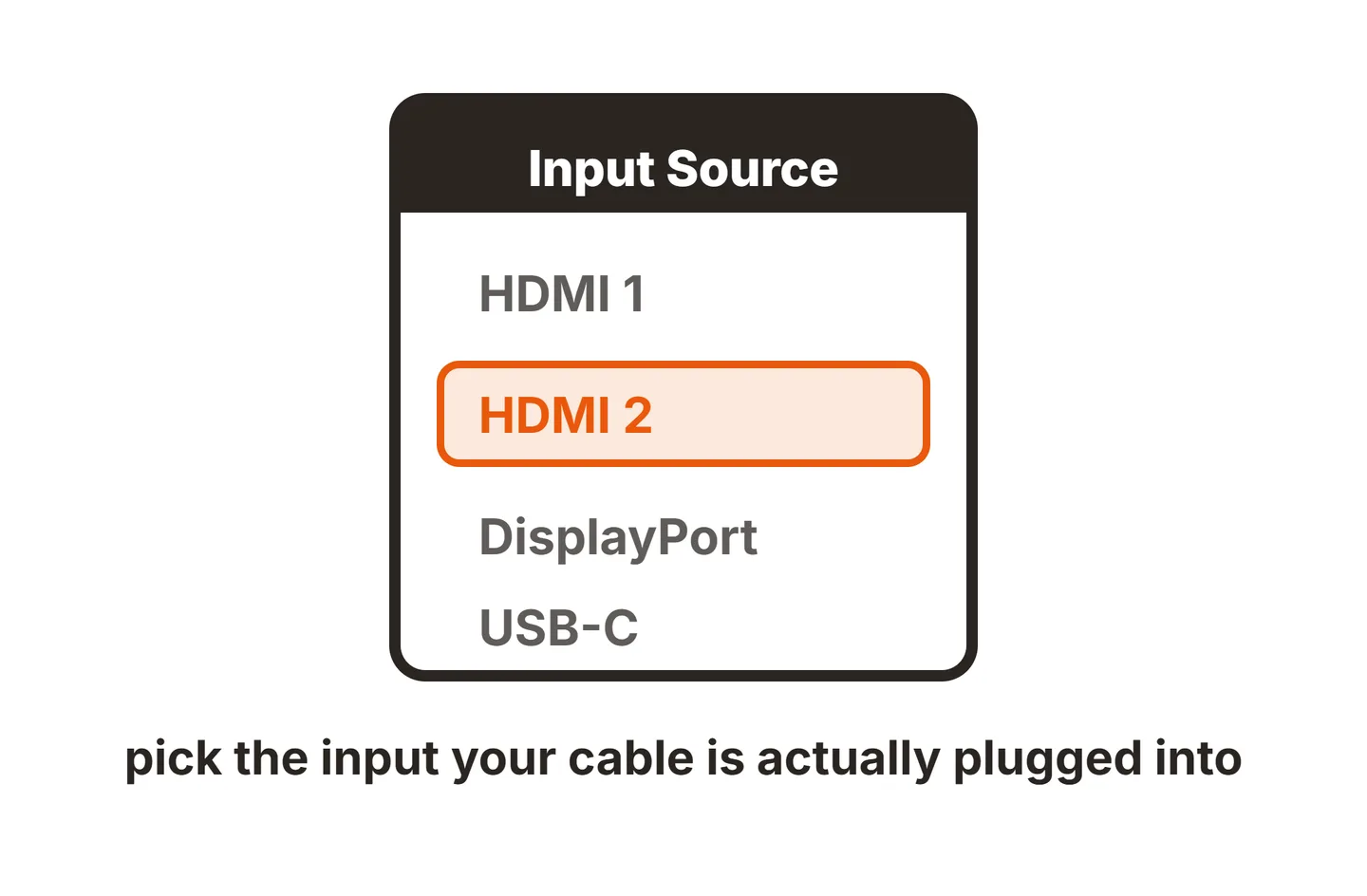
Click the speaker icon in the taskbar, open the output list and choose the entry named after your monitor. You can also go to Settings, System, Sound and pick it under Output.Select the monitor as the output on a Mac
Open System Settings, choose Sound, then Output, and select the monitor. Apple’s guide to changing sound output settings on Mac shows the same menu.Turn up the monitor's own volume
Open the on-screen menu with the buttons on the monitor and find the Audio or Volume setting. Many monitors keep their own volume level separate from the computer’s.

How to get sound from a monitor without speakers
A silent monitor does not mean a silent desk. Pick whichever of these fits your setup:
- Use the monitor’s headphone jack. If it has one, plug in headphones or powered speakers. Sound still travels over HDMI or DisplayPort, and you still choose the monitor as the output device.
- Plug speakers into the computer. Desktop speakers or headphones connected to the PC’s or laptop’s audio jack skip the monitor completely. If those are studio speakers on the desk, foam pads under studio monitors keep the desk from adding boom.
- Use USB or Bluetooth speakers. These show up as their own output device, so they work no matter which cable runs to the monitor.
- Add a soundbar. A compact soundbar under the screen gives fuller sound than built-in speakers and connects by USB, Bluetooth, optical or a 3.5 mm cable, depending on the model.
- Use a dock with audio. Many laptop docks include a headphone jack, which is handy if you already run screens through a docking station for dual monitors over HDMI.
How good are built-in monitor speakers?
Built-in speakers do their job for video calls, notification sounds and the occasional YouTube clip. They are small drivers in a thin cabinet, often firing down or backward, so they usually sound thin, lack bass and can distort when pushed loud.
That is not a flaw so much as a physical limit. If you listen to music, watch films or play games with important audio cues, treat the built-in speakers as a backup and budget for headphones, desktop speakers or a soundbar. TVs used as monitors nearly always have speakers, but slim models tend to sound thin for the same reason.
Monitor speakers not working? How to fix it
When the monitor has speakers but stays silent, the fault is almost always a setting rather than broken hardware. Work through these fixes in order and test sound after each one, because the first three solve most cases.
Confirm the monitor really has speakers
Check the spec sheet for built-in speakers. Many monitors only have a headphone jack, and Windows still lists them as an audio device over HDMI or DisplayPort, so a silent “speaker” may simply not exist.Unmute the monitor and raise its volume
Open the on-screen menu and check the Audio or Volume setting and any mute option. The monitor keeps its own level, separate from the computer’s.Select the monitor as the output device
In Windows, click the speaker icon in the taskbar, then the arrow next to the volume slider, and pick the entry named after your monitor. On a Mac, choose it under System Settings, Sound, Output.Unplug headphones and disconnect Bluetooth audio
A plug in the monitor’s headphone jack mutes its speakers on many models, and a Bluetooth headset that connects automatically can take over as the default output.Check the cable and adapters
Use HDMI, DisplayPort or video-capable USB-C. VGA, DVI and analog converters drop the sound. If you go through a dock or adapter, connect directly once to rule it out, and reseat the cable at both ends.Restart the monitor and the computer
Turn the monitor off at the power button, restart the computer, then turn the monitor back on. This forces the two to renegotiate the connection, which brings back an audio device that went missing.Make sure the device is enabled
In Windows, go to Settings, System, Sound, open the monitor’s properties and confirm the device is allowed to be used. Also check the Volume mixer, where a single app can be muted on its own.Turn off audio enhancements and try another format
In the monitor’s sound properties, set Audio enhancements to Off. If sound is still missing, open the Sound control panel, choose the monitor, and change the Default Format on the Advanced tab.Run the Windows audio troubleshooter
The Get Help app runs automatic audio diagnostics on Windows 11, or you can find it under Settings, System, Troubleshoot, Other troubleshooters.Update or roll back the graphics driver
Sound over HDMI and DisplayPort runs through the graphics card’s audio driver, not the motherboard’s. Update it from your GPU maker, or roll it back in Device Manager if the sound stopped right after an update.Test with another source
Connect a different laptop, console or streaming stick. If the speakers stay silent with a known-good source and the menu volume up, the speakers or the monitor’s audio board have likely failed, so contact the manufacturer while the monitor is under warranty.
Microsoft’s guide to fixing sound problems in Windows covers the enhancement, format and driver steps in more detail.
Fixes for common symptoms
- Sound stops after the PC wakes from sleep. When the monitor sleeps or powers off, its audio device disappears and Windows switches to another output. Wake the monitor first, then reselect it as the output.
- Sound works on one input but not another. Some monitors let you choose the audio source per input, such as the video input or a separate line-in jack. Set it to match the input you are using.
- Only one app is silent. Check that app’s own output setting and the Windows Volume mixer. Chat and game apps often keep their own output device instead of following the system default.
- The monitor is missing from the output list. The cable, adapter or driver is not passing audio. Try a direct HDMI or DisplayPort cable, then reinstall the graphics driver.
Conclusion
Not all monitors have speakers, and many leave them out on purpose. Check the spec sheet for built-in speakers and a headphone jack, connect with HDMI or DisplayPort, and select the monitor as your output device. If it has no speakers, its headphone jack, PC speakers, USB or Bluetooth speakers, or a soundbar fill the gap easily. For more spec explainers, browse our monitor specs section, the monitor setup guides, or the rest of the SubInsider monitor knowledge base.
Frequently asked questions
How do I know if my monitor has speakers?
Look up the model number on the label at the back, then check the manufacturer's spec sheet for a line such as built-in speakers, audio or speaker output. Small grilles along the bottom or back edge are a clue, and a volume setting in the on-screen menu usually means speakers are present.
Why are my monitor speakers not working?
The most common cause is that your computer is still sending audio to another device. Select the monitor as the output device in Windows or macOS, check that the volume in the monitor's menu is not muted, and confirm you are using HDMI or DisplayPort. VGA and DVI cables carry no sound.
Why did my monitor speakers stop working after an update?
A Windows or graphics driver update can reset the default output device or replace the HDMI audio driver. Reselect the monitor as the output first. If it is missing or still silent, roll back or reinstall the graphics driver in Device Manager, since monitor audio runs through the GPU's driver.
Why does my monitor not show up as a sound output?
The audio is not reaching the monitor. That usually means a VGA or DVI connection, an adapter or dock that drops audio, a monitor that is asleep, or a missing graphics audio driver. Connect directly with HDMI or DisplayPort, wake the monitor, and reinstall the graphics driver if needed.
Can I plug speakers into my monitor?
Yes, if the monitor has a 3.5 mm headphone or audio out jack. It passes along the audio it receives over HDMI or DisplayPort, so you can plug in headphones or powered desktop speakers. Passive speakers without their own amplifier will usually be too quiet from that jack.
Are built-in monitor speakers good enough?
They are fine for video calls, system sounds and casual videos. Because the speakers are small and sit in a thin chassis, they usually lack bass and sound thin at higher volume. For music, movies or games, a pair of desktop speakers, a soundbar or headphones is a clear upgrade.