Disadvantages of Using a TV as a Computer Monitor: What Is Fixable and What Is Not
Table of contents
A TV will work as a computer display, and for video, couch gaming and anything you view from a few feet away it works well. The problems appear at desk distance and in text. Some of them are settings you can fix in ten minutes, and the guides that stop at “enable game mode” are only telling you about those. The rest are built into the size and the panel, and no menu will touch them. Here is both sets, sorted by how much they will bother you.
Pixel density is the one you cannot fix
This is the real difference, and it is arithmetic rather than opinion. Spread 4K across a large panel and the pixels get bigger, so text gets softer at close range.
| Screen | Pixel density |
|---|---|
| 27 inch 4K monitor | 163 PPI |
| 32 inch 4K monitor | 138 PPI |
| 43 inch 4K TV | 102 PPI |
| 50 inch 4K TV | 88 PPI |
| 55 inch 4K TV | 80 PPI |
| 65 inch 4K TV | 68 PPI |
A 24 inch 1080p monitor, the plain office standard, sits at 92 PPI. So a 55 inch 4K TV puts less detail in front of your eyes per inch than the cheapest office display, despite having four times the pixel count. Windows scaling does not help, because scaling makes things bigger, not sharper.
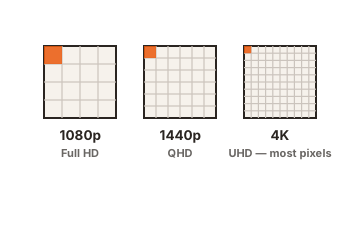
If you are set on a TV, 43 inches is the size that holds up. At 102 PPI it lands close to a 27 inch 1440p monitor, which most people find perfectly readable.
Text can look wrong even at the right resolution
Two separate things blur text on a TV, and only one of them has a fix.
The fixable one is chroma subsampling. TVs commonly reduce colour detail to save bandwidth, using 4:2:0 or 4:2:2, which is invisible in film and ugly on coloured text, where it produces fringing and smearing. You want 4:4:4. On most Samsung and LG sets you get it by renaming the HDMI input to “PC” in the input list, and on Samsung you also need to switch on Input Signal Plus, which Samsung’s own settings guidance puts under Settings, General, External Device Manager, for the specific port you are using.
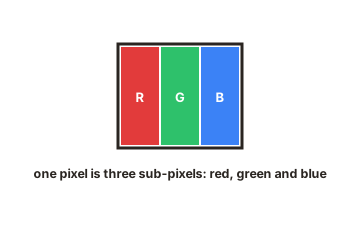
The one you cannot fix is subpixel layout. Monitors are built assuming red, green and blue stripes in that order, which is what Windows ClearType sharpens against. Plenty of TVs use a different arrangement, and OLED TVs add a white subpixel. Text rendering has no way to compensate, so fine type keeps a faint colour fringe no matter what you adjust.
Input lag and picture processing
TVs run heavy processing on everything: motion interpolation, noise reduction, edge enhancement, dynamic contrast. That processing takes time, and without intervention the delay between moving your mouse and seeing the cursor move can run to several tens of milliseconds. Game mode strips most of it out and typically brings lag down to somewhere in the region of 10 to 20 milliseconds on a decent modern set.
The catch on some televisions is that the lowest-lag mode and the full-chroma mode are not the same mode, so you end up choosing between crisp text and responsive input. On current sets you can usually have both, but it is worth testing rather than assuming.
Refresh rate is often lower than you would choose
Most TVs sold below the premium tier are 60Hz panels. That is fine for film, which is made at 24 frames per second, and it is a visible step down from the 144Hz or faster monitor most desks now have. Cursor movement, scrolling and window dragging are exactly the sort of continuous motion where the difference shows, and you will notice it every minute of the day rather than only in games.
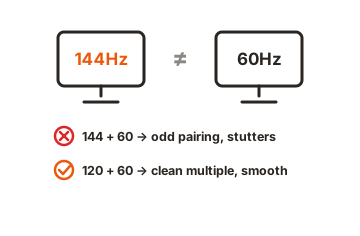
Higher-end sets do run 120Hz or 144Hz, but usually only on the HDMI 2.1 ports rather than all of them, so check which socket you are using. Variable refresh rate support is common now too, though desktop behaviour with it is less predictable than on a monitor built for the job.
Ergonomics get worse as the screen gets bigger
OSHA’s guidance on monitor placement is to sit at least 20 inches from the screen with the top line at or below eye level. A 55 inch panel at that distance does not fit inside a comfortable field of view. You end up turning your head to read the corners, and the top of the picture sits well above eye level, which pushes your neck into extension for hours at a time.
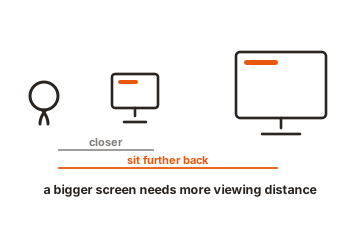
The hardware makes this harder to solve. TVs have no height adjustment, their feet are usually wide enough to eat the whole desk, and while many take VESA mounts, the weight rules out most monitor arms. They are also deeper front to back on a stand than a monitor, so a shallow desk pushes you closer to a screen that already needed more distance.
The set will keep adjusting things behind you
TVs are tuned for a living room, and that tuning fights desk use.
- Minimum brightness is often too high. A TV set for a bright lounge can be uncomfortable in a dim room even at its lowest setting.
- Automatic modes change the picture. Eco and ambient light sensing shift brightness while you work, and motion smoothing on a mouse cursor looks strange.
- Brightness limiting reacts to content. A mostly white document or spreadsheet is a high average brightness image, so panels that dim to protect themselves will visibly drop while you are reading.
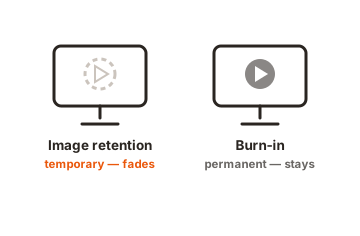
- OLED sets and static elements. A taskbar, dock or spreadsheet grid held in the same place for hours is the classic burn-in scenario, and desktop use is exactly that.
Connection and housekeeping annoyances
TVs have HDMI and nothing else. No DisplayPort, no USB-C, so there is no single-cable laptop docking, no power delivery, and none of the KVM switching or USB hubs that monitors increasingly include.
There is a running cost too. A large TV draws considerably more power than a monitor doing the same desk work, and it puts that difference into the room as heat, which is noticeable in a small home office in summer.
Two smaller irritations show up daily. Some sets still overscan, cropping the edges of the desktop until you find the setting called Just Scan, Screen Fit or 1:1 pixel mapping. And when a TV sleeps or is switched to another input, it can drop off the connection entirely, which makes Windows treat it as removed and pile every open window onto whatever display is left.
When a TV is genuinely fine
None of this rules out the idea. A TV makes a good display for a media PC, for gaming from a sofa, for presenting to a room, and as a large secondary screen holding reference material you glance at rather than read closely. A 43 inch 4K set on a deep desk is a workable primary display for plenty of people.
What it does not do well is close, text-heavy work for eight hours, and no amount of setting adjustment changes the pixel density or the subpixel layout that cause it.
Conclusion
Spend ten minutes on the fixable half: rename the input to PC, enable the full-bandwidth HDMI setting, turn on game mode, kill the overscan and the motion processing. That takes care of chroma, lag and cropped edges. What remains is pixel density, subpixel layout, ergonomics and a panel tuned for a room rather than a desk. If you mostly watch and play, those are easy to live with. If you mostly read and write, a 27 inch monitor at arm’s length will be more comfortable and sharper for a fraction of the size.
For more, see our monitor buying guides.
Frequently asked questions
Why does text look blurry on my TV?
Two reasons. Chroma subsampling, which you fix by renaming the HDMI input to "PC" and enabling the full-bandwidth HDMI option, and low pixel density, which you cannot fix at all on a large screen.
What size TV works best as a monitor?
43 inches in 4K, at around 102 PPI, which is close to a 27 inch 1440p monitor. Anything larger drops the density further and pushes you into head-turning territory at desk distance.
Is input lag a problem for normal desktop work?
Less than people expect. Game mode brings most modern TVs to around 10 to 20 milliseconds, which is fine for browsing and office work. It matters for competitive gaming, where a monitor is still meaningfully quicker.
Can a TV damage your eyes?
No, but it can make you uncomfortable. Sitting closer than the recommended 20 inches, with a screen brighter than the room needs and its top edge above eye level, is a recipe for eye strain and neck ache.
Do OLED TVs get burn-in from desktop use?
They are the most exposed to it, because a taskbar and window borders sit in the same pixels all day. Leave the built-in panel care features on, hide the taskbar, and keep brightness moderate if you use one at a desk.