Monitor Screen Door Effect: Causes, Lookalikes, and Fixes
Table of contents
The screen door effect is a fine grid of dark lines that appears between a display’s pixels, making the image look like it sits behind a mesh, the way a view looks through an actual screen door. On a desktop monitor, it comes down to two things: how tightly the pixels are packed (pixel density, measured in PPI) and how close you sit. It is not a defect, and it has nothing to do with refresh rate or response time.
The fixes follow directly from the causes: sit a little farther back, or use a screen with more pixels per inch. Just as often, though, what people call a screen door effect on a monitor is really something else, like a grainy anti-glare coating or colored text fringing. This guide covers what the effect actually is, when you will see it, how to tell it apart from its lookalikes, and what pixel density to buy if you never want to see it again.
What actually causes it
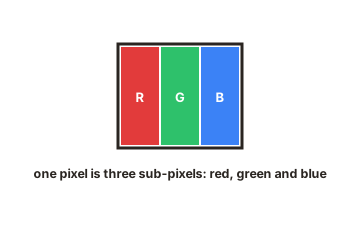
A screen is not a continuous sheet of light. It is a grid of tiny light-emitting pixels, each split into red, green, and blue subpixels, with thin dark borders between them where the driving circuitry lives. The share of each pixel’s area that actually emits light is called the fill factor. Whatever does not emit light stays black, and those black borders are the “mesh” you see. The contrast between a fully lit pixel and its dark border is greatest on white and light content, which is why the grid jumps out on documents and pale skies and hides in dark scenes.
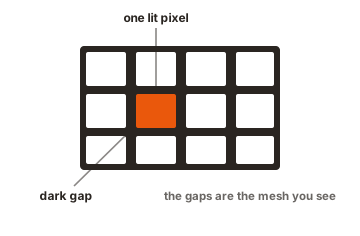
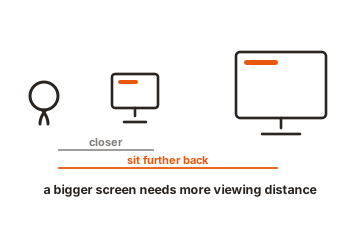
Whether you can see that mesh depends on how large the gaps appear to your eye. Two variables control it: pixel density and viewing distance. Pack more pixels into every inch and the gaps shrink. Move farther away and the gaps shrink in apparent size the same way. Your eye can only separate details down to roughly one arcminute of angle, so once the gaps fall below that threshold, the grid vanishes into a smooth image.
Refresh rate and response time play no part. A 240 Hz panel and a 60 Hz panel with the same size, resolution, and subpixel design have exactly the same pixel structure. The screen door effect is geometry, not speed.
The effect has a long history. It was first noticed on the earliest LCD projectors in the 1980s, where the pixel gaps were blown up to wall size, and it later became the defining image complaint of first-generation VR headsets, which magnify a small display across your whole field of view (the screen-door effect entry traces that history). Desktop monitors sit at the mild end of the same physics.
When you’ll see it on a monitor
At a normal desk distance of roughly 60 to 75 cm, the screen door effect tracks pixel density closely. The table below covers the common size and resolution pairs (PPI is calculated from resolution and diagonal, so these numbers are fixed properties of each combination):
| Size and resolution | PPI | Grid visibility at desk distance |
|---|---|---|
| 32" 1080p | 69 | Clearly visible to most people |
| 27" 1080p | 82 | Visible to many; the most common complaint |
| 24" 1080p / 32" 1440p | 92 | Faint; noticeable if you lean in |
| 27" 1440p | 109 | Clean for most eyes |
| 32" 4K | 138 | Effectively invisible |
| 27" 4K | 163 | Invisible |
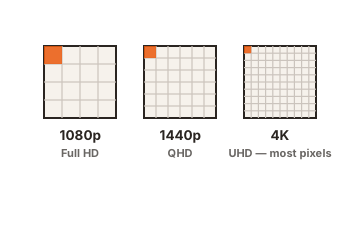
The classic offender is a large 1080p screen. Stretching 1920x1080 across 27 or 32 inches makes each pixel, and each gap, physically big, and at arm’s length many people can pick out the grid on bright, flat areas like white web pages, spreadsheets, and game skies. The same resolution on a 24-inch panel packs the pixels about 12 percent tighter and drops below most people’s threshold at normal distance.
Content matters too. The grid hides in busy, detailed images and stands out on large uniform fields, especially white and light gray. That is why the effect bothers office workers and sim players more than film watchers.
A 60-second self-test
Open a full-screen white page, sit in your normal working position, and look at a flat empty area rather than text. If you cannot pick out any grid, you are done: your combination of density and distance is fine, whatever the spec sheet says. If you can, lean back slowly and note where the grid dissolves. That point is your minimum comfortable distance for this panel.
The same test separates the pixel grid from its most common impostor. Move your head slightly from side to side while watching a white area. A true pixel grid stays perfectly still and regular, because it is the panel’s physical structure. A sparkling, shifting, grainy texture that shimmers as you move is the anti-glare coating scattering light, which is a different issue with a different remedy (a glossy or lightly coated screen).
Make sure it’s really the screen door effect
Several unrelated issues get reported under the same name. Before changing anything, check which one you are actually seeing:
- Anti-glare coating grain. Matte coatings scatter light and can add a sparkly, sandy texture, most visible on white. It looks like noise on top of the image rather than a regular grid of lines. Aggressive coatings on some IPS panels are a frequent cause of “my screen looks like a mesh” complaints.
- Text fringing. Colored edges on letters point to a subpixel layout issue, not pixel gaps. Monitors with BGR-ordered subpixels and OLEDs with triangular or unusual subpixel arrangements show it because operating systems render text expecting standard RGB stripes.
- Moire and photographed grids. A pixel grid that shows up in photos of your screen, or when a camera points at it, is an interference pattern between the camera sensor and the panel. If you cannot see the grid with your own eyes at your normal position, your monitor is fine.
- A faulty panel. A mesh-like texture that appears suddenly, sits only on part of the screen, or comes with color errors is not the screen door effect, which is uniform and constant by nature. That is a warranty conversation.
How to reduce it on the monitor you already own
- Sit farther back. This is the only lever that changes nothing and fixes everything. The apparent size of the pixel gaps shrinks in direct proportion to distance, so moving from 50 cm to 70 cm cuts the grid’s visual size by nearly a third. If you can see the grid, your first question should be whether you are sitting closer than you need to.
- Run the native resolution. A non-native signal gets scaled by the monitor, which blurs edges and can make the pixel structure more obvious around them. Set the resolution to the panel’s native figure and use operating system scaling to make text bigger instead.
- Tune the text, not the grid. If letters specifically look ragged or fringed, run ClearType tuning on Windows (search the Start menu for “Adjust ClearType text”). It cannot shrink pixel gaps, but it fixes the fringing lookalike that often gets blamed on them.
- Accept the limit. No setting can change the physical gaps between pixels. Sharpness, contrast, and scaling adjustments only alter what is drawn inside the pixels. If distance does not solve it, the panel’s density is the ceiling.
- Lean on dark themes. The grid is at its most visible against bright, uniform backgrounds. Dark modes in your operating system, editor, and browser lower the contrast between pixels and gaps, which will not remove the effect but takes it out of your face for text-heavy work.
Buying a monitor you’ll never see the grid on
The rule of thumb for a desk setup is simple: around 90 PPI is the floor for comfort, 110 PPI and up looks clean to most eyes at normal distance, and 140 PPI and up is effectively grid-proof even if you lean in. Pixel density is easy to check before buying: divide the diagonal pixel count by the screen’s diagonal in inches, or drop the resolution and size into a pixels-per-inch calculator and read the number straight off.
In practical terms: at 27 inches choose 1440p or 4K, at 32 inches choose 1440p only if you sit well back and 4K if you sit close, and treat 1080p as a 24-inch-and-under resolution. Laptop and portable monitor panels almost all sit far above these densities already, which is why the effect is essentially extinct there. The one deliberate exception is competitive gaming, where 24.5-inch 1080p panels remain the standard for their very high refresh rates; at that size the density stays around 90 PPI, which is exactly why the pros have not complained.
If you also use VR, the same physics applies with the volume turned up, because headset lenses magnify the panel across your whole field of view. Modern headsets have pushed pixel density high enough that the once-famous VR screen door has largely disappeared, and the desktop version was always the milder case.
Conclusion
The screen door effect on a monitor is the pixel grid becoming visible, and it is governed by exactly two things: pixel density and how close you sit. It shows up mostly on 27-inch and larger 1080p screens at arm’s length, it cannot be fixed by any setting, and it disappears at around 110 PPI and above for typical desk distances. Sit a bit farther back today, and buy 1440p or 4K at 27 inches and up next time, and you will never think about it again.
For more screen quirks and how to tell a fault from normal behavior, browse our monitor troubleshooting guides.
Frequently asked questions
Is the screen door effect a defect I can return a monitor for?
No. It is a normal property of every pixel-based display, fixed by the panel's resolution and size. A retailer will not treat it as a fault. A sudden, partial, or irregular mesh pattern is different; that can indicate a genuinely defective panel.
Do OLED monitors have a screen door effect?
Far less. OLED pixels emit their own light and typically have a higher fill factor, so the gaps are smaller relative to the pixels. Some OLEDs trade that for unusual subpixel layouts that cause text fringing instead, which is a separate issue with a separate fix.
Does 4K eliminate the screen door effect?
At normal desktop sizes, effectively yes. A 27-inch 4K panel packs 163 pixels into every inch, roughly double a 27-inch 1080p screen, which pushes the pixel gaps far below what the eye can separate at desk distance.
Why do I see the grid in VR but not on my monitor?
Distance and magnification. A headset places its display centimeters from your eyes and stretches it across your entire field of view through lenses, enlarging the pixel structure enormously. Your monitor shows the same structure, but from 60-plus centimeters away it stays below your eye's resolving limit.
Can a sharpness or scaling setting remove the screen door effect?
No. Settings only change what is drawn inside each pixel; the dark gaps between pixels are physical. The only real remedies are more distance or a higher pixel density. If a setting seems to help, what you were seeing was probably scaling blur or text fringing instead.