Do You Need a 4K Monitor for 3D Work?
Table of contents
No, you don’t need a 4K monitor for 3D work. You can model, sculpt, texture, and render perfectly well on a 1440p screen, and plenty of working artists do. But 4K does help. It shows finer detail, fits more of your scene and tools on screen, and makes small UI elements easier to read. The catch is that all those extra pixels ask more of your graphics card. So the real question isn’t “is 4K better?” It usually is. The question is whether it’s worth it for your work and your hardware. Here’s how to decide.
What 4K actually gives a 3D artist
A 4K screen packs four times as many pixels as a 1080p one (3840 by 2160 versus 1920 by 1080). That density is the whole point. Edges look crisp, textures look clean, and tiny details in your model stop looking like a staircase of blocky pixels.
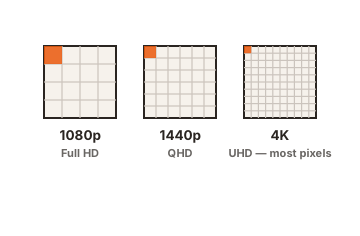
For 3D work, that buys you three real things. You see more detail, so checking a high-resolution texture or a tight piece of geometry is easier. You get more usable space, so your viewport, timeline, outliner, and material panels can all sit open at once without feeling cramped. And small menus and dials become sharper, which matters in dense apps like Blender, Maya, or ZBrush where the interface is packed with controls.
One quick note on screen size, because it changes the math. What matters is pixel density, measured in pixels per inch (PPI). The same 4K resolution looks very different at different sizes. On a 27-inch panel it lands around 163 PPI, which is sharp and comfortable. On a 32-inch panel it drops to about 138 PPI, still good and with more room to work. Below about 27 inches, the jump from 1440p to 4K is hard to notice and often not worth the cost. A useful floor for 3D work is roughly 120 PPI or higher, so individual pixels stop being visible at a normal viewing distance.
There’s a small trade-off that comes with all that density. At 4K, text and icons start out tiny, so you’ll usually turn on display scaling, often around 150 percent, to make everything readable. That’s normal and easy to set. It does mean you don’t get four times the usable space, more like a sharper version of a 1440p workspace with some room to spare. Knowing this up front saves the surprise of icons you can barely click on day one.
The catch: 4K makes your GPU work harder
Here’s the part the spec sheets skip. Your graphics card has to draw every pixel on screen, in real time, as you spin and tumble your model in the viewport. Four times the pixels means roughly four times the work just to keep that viewport smooth.
This shows up in real testing. Hardware site Techgage found that a full-screen 4K viewport in Blender can push even high-end graphics cards to their limit, where the same scene at 1080p stayed smooth on far more hardware. You can read their Blender viewport performance tests for the full numbers. The good news: most artists don’t run the viewport full screen. A normal layout has the 3D view tucked in among panels, so it’s drawing far fewer pixels and performance recovers a lot.
Two things matter more than people expect here. First is VRAM, the memory on your graphics card. A 4K workflow with high-resolution textures eats into it fast, and 8GB is a sensible floor for serious work. Second is that final render times don’t change with your monitor. Your screen resolution and your render output resolution are separate. A 4K monitor won’t slow your renders down. It only affects how smooth things feel while you work.
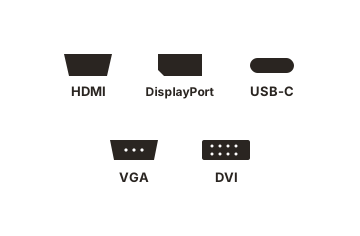
One practical detail people forget: the cable. To run 4K at a usable 60Hz, you need DisplayPort 1.2 or later, or HDMI 2.0 or later. Older HDMI can cap 4K at a sluggish 30Hz, which feels laggy the moment you start moving the viewport. Check the ports on both your graphics card and the monitor before you buy, and use the cable that came in the box rather than an old spare.
When 4K is worth it
A 4K monitor makes clear sense in a few cases. If your work is detail-heavy, like high-poly sculpting, product visualization, or fine hard-surface modeling, the extra sharpness genuinely helps you see what you’re doing. If you already own a capable graphics card with 8GB of VRAM or more, you have the headroom to drive 4K without the viewport crawling.
It also helps if you want a single large screen instead of two smaller ones, since 4K gives you the room to keep many panels open at once. And if color and client delivery matter, 4K panels in the creative range usually pair high resolution with strong color coverage, which you need anyway. In all of these, 4K is a comfort and clarity upgrade that pays off day to day.
When you should skip 4K
Skip 4K, at least for now, if your graphics card is older or has 4GB of VRAM or less. Driving 4K on weak hardware just makes the viewport stutter, which slows you down more than a sharper image speeds you up. Skip it if your screen is 24 inches or smaller, where the density gain is small and your money is better spent elsewhere.
It’s also worth skipping if you’d rather have two screens. Many 3D artists find a dual 1440p setup more useful than a single 4K one, because you can put your viewport on one screen and reference, browser, or render previews on the other. And if you’re on a tight budget, a good 1440p monitor with accurate color beats a cheap 4K panel with poor color every time.
What matters more than resolution
Resolution gets all the attention, but for 3D work a few other specs matter just as much, sometimes more. Here’s how the main ones stack up.
| Spec | Why it matters for 3D work |
|---|---|
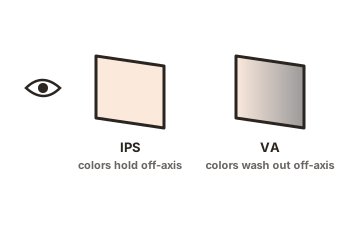
| Panel type (IPS) | IPS gives accurate color and steady viewing angles. Worth more than raw pixels for most artists. |
| Color accuracy | Aim for full sRGB coverage and factory calibration if your work is seen by others or printed. |
| Color depth | A 10-bit panel shows smoother gradients than 8-bit, which helps when judging lighting and shading. |
| Size and density | 27 to 32 inches is the practical range. Pair larger sizes with higher resolution to stay sharp. |
| Resolution | Helpful, but it ranks below color and panel quality once you're at 1440p or above. |
Refresh rate is one spec you can mostly relax about. For 3D modeling, a standard 60Hz panel is fine, because you’re not chasing the fast frame rates that competitive gaming needs. A higher refresh rate makes mouse movement feel a touch smoother, which is pleasant, but it’s a low priority next to color accuracy, panel type, and having enough graphics power. Spend your budget on the things that affect the work first.
What about an ultrawide instead?
Ultrawide monitors come up a lot in this debate, and they’re tempting. One wide, curved screen looks like a clean way to get lots of horizontal space without a gap down the middle. For 3D work, though, most artists end up preferring two standard screens over a single ultrawide.
The reason is window management. On an ultrawide, you spend more time dragging and resizing windows to use the full width, since one maximized app stretches awkwardly across the whole panel. Two separate screens give you a natural split: viewport on one, everything else on the other. Ultrawides are also usually not 4K in the vertical sense, so you don’t get the same pixel density gain. An ultrawide can be a fine choice if you love the format, but it solves a different problem than 4K does.
One screen or two?
This question matters as much as resolution. A second monitor is one of the cheapest ways to speed up 3D work, because you can keep your main viewport clear while reference images, a browser, or render previews live on the other screen. Blender’s own hardware requirements page recommends a 1920 by 1080 display as a baseline and suggests using two displays for smoother multitasking, which tells you how normal a dual setup is for this kind of work.
So if you’re choosing between one 4K screen and two 1440p screens at a similar price, think about how you work. Prefer one big, sharp canvas? Go 4K. Prefer to spread your tools out and keep reference always visible? Two screens will likely serve you better.
Conclusion
You don’t need a 4K monitor for 3D work, but it’s a real upgrade if your graphics card can handle it and your work leans on fine detail. Make sure you have 8GB of VRAM or more, pick 27 inches or larger so the sharpness shows, and put color accuracy ahead of pixel count. If 4K would strain your hardware or your budget, a calibrated 1440p screen, or two of them, is the smarter buy.
Still weighing screen size? See our 16-inch vs 32-inch monitor guide, or browse all our monitor buying guides.
Frequently asked questions
Is 1440p or 4K better for 3D modeling?
Both work well. 4K shows more detail and fits more on screen, but needs a stronger graphics card. 1440p is easier to drive and still plenty sharp, which is why many artists choose it or run two 1440p screens.
Does a 4K monitor slow down rendering?
No. Your monitor resolution and your render output resolution are separate. A 4K screen only affects how smooth the viewport feels while you work, not how long a final render takes.
What graphics card do I need to run 4K for 3D?
Aim for a modern card with at least 8GB of VRAM. That gives you the memory and power to keep a 4K viewport smooth with high-resolution textures. Weaker or older cards will struggle at 4K.
What screen size is best for a 4K monitor?
27 to 32 inches. At 27 inches you get a very sharp, comfortable image. At 32 inches the density is still strong with more workspace. Below 27 inches, 4K is hard to notice and usually not worth it.
Is color accuracy more important than resolution for 3D art?
For most artists, yes. A calibrated IPS screen with full sRGB coverage helps you trust what you see, which matters more than extra pixels. Get the color right first, then think about resolution.