Monitor Color Accuracy Test: Free Checks and Real Measurements
Table of contents
You can test monitor color accuracy in two ways. Free test patterns, like the EIZO online monitor test and the Lagom LCD pages, let you spot obvious problems with your own eyes: color tint, banding, bad gamma, crushed shadows. A hardware colorimeter goes further and puts a real number on the error, called Delta E, which is the only way to know how accurate your screen truly is.
Which route you need depends on the stakes. For gaming, movies, and office work, the free checks are plenty. For photo editing, print work, or video grading, you will eventually want the hardware. This guide walks through both, starting with what to do before any test, because bad test conditions produce bad conclusions.
Set up before you test
Test results are only as good as the conditions around them, so spend a few minutes on setup first.
-
Warm up the monitor for about 30 minutes
LCD backlights shift in brightness and color while they stabilize, so a cold screen tests differently than a warm one. -
Work in a dim, stable room
Bright ambient light and reflections lift blacks and change how white appears. Keep direct sunlight off the screen and away from the area behind it. -
Pick a sensible picture mode
Choose sRGB or Standard in the monitor menu. Vivid, Game, and cinema modes deliberately distort color for extra punch. -
Turn off dynamic settings
Dynamic contrast (menu labels like ACM or DCR), auto-brightness sensors, and eco modes change the image while you test it. -
Run the native resolution and clean the screen
Scaling blurs fine test patterns, and a speck of dust can pass for a stuck pixel.
With that done, the free tests below will tell you something meaningful.
Step 1: Run the free EIZO online test
The quickest full check is the EIZO Monitor Test, a free browser tool from a maker of color-critical displays. It walks you through 13 short tests in sequence, full screen, with a line at each step describing what a good result looks like.
For color accuracy, four of its tests matter most:
- Color distances. You make two color patches more and more similar. The closer they can get while staying distinguishable, the finer the color separation your screen and settings resolve.
- Gradients. Smooth ramps from black to white and through colors. Visible stripes, called banding, mean the monitor or its settings are throwing away tonal steps.
- Uniformity. Full-screen single colors reveal tint shifts and brightness differences between the center and the corners of the panel.
- Defective pixels. Solid black, white, red, green, and blue screens expose stuck or dead subpixels.
A clean pass tells you the panel has no obvious defects and your settings are not damaging the image. It does not certify accuracy, but it rules out the common problems in about ten minutes.
Step 2: Check gamma, black level, and white saturation on Lagom
The Lagom LCD test pages take longer but go deeper, with a detailed explanation under every pattern. Three checks do most of the work:
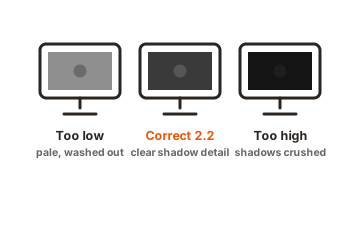
- Gamma. Stand back from the gamma pattern and note where the bands blend. The reading should sit near 2.2, the standard target for Windows and the web. If it lands far off, midtones across everything you view are too dark or washed out.
- Black level. A grid of dark squares sits on a black background, and every square should stay visible. If the first few disappear, the screen is crushing shadows, and dark game scenes and photos are losing detail.
- White saturation. The same idea at the bright end. Checkered patterns close to pure white should stay distinct. If they blend into flat white, highlights are clipping.
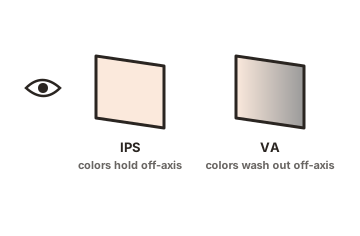
The contrast and viewing-angle pages are worth a look too, especially on cheaper panels where color shifts as you move your head.
One caveat applies to every browser-based pattern: browser color management can alter how some test images display. Use an up-to-date browser at 100 percent zoom, and if a result looks strange, cross-check it in a second browser before blaming the monitor.
How to read what you find
The free tests point at problems fast, but the fix depends on the symptom. The common ones map like this:
- A yellow or blue cast on white. The color temperature is off. Set the monitor’s OSD to 6500K, or pick the Warm or Normal preset that looks closest to clean paper white under your room lighting.
- Banding in gradients. Try a different cable or port, confirm the graphics driver is outputting 8-bit color or higher, and switch off any contrast-enhancement features. Budget panels that simulate colors with dithering will always band a little; heavy, blocky banding points to a settings or signal problem.
- Dark corners or a tinted edge. That is backlight uniformity, a physical limit of the panel, and common on edge-lit designs. No setting cures it. If it is severe on a new monitor, it is a return or warranty case.
- Missing shadow squares. Nudge brightness up a step or lower the black-level or shadow settings until the darkest squares reappear, then recheck that black still looks black.
What free tests can and cannot tell you
The dividing line is simple. Your eyes are excellent at spotting relative problems, like one gray square vanishing next to another, and poor at judging absolutes. A monitor can pass every visual test and still show colors that are measurably wrong, because your brain adapts to whatever white point it stares at within a few minutes. Putting a trustworthy number on accuracy takes a measuring device.
| Question | Free eyeball test | Colorimeter |
|---|---|---|
| Is there a visible color tint? | Yes, if it's strong | Yes, measured precisely |
| Is there banding or crushed detail? | Yes | Yes |
| Is gamma roughly right? | Approximately | Exactly |
| What is my Delta E? | No | Yes |
| Can it fix what it finds? | Only via menu tweaks | Yes, with a calibration profile |
The closest thing to a free absolute check is a real-world reference. Open a photo you have as a good print and hold the print next to the screen, or set the monitor beside a display you know is calibrated. It is crude, but it catches the gross errors that adapted eyes stop noticing.
Delta E: the number that defines color accuracy
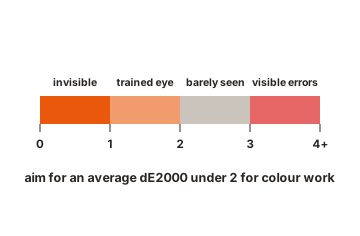
Delta E (dE) measures the gap between the color a monitor was asked to display and the color it actually produced. Zero is a perfect match, and lower is always better. The scale reads like this:
| Delta E (dE2000) | What it means in practice |
|---|---|
| Under 1 | Differences are effectively invisible. Reference-grade accuracy. |
| 1 to 2 | A trained eye can detect errors in ideal conditions. Typical of good factory-calibrated monitors. |
| 2 to 3 | Barely noticeable in normal use. Fine for general work and gaming. |
| Over 3 | Errors most people can see. Calibration or different settings recommended for color work. |
Modern testing uses the dE2000 formula, also written CIEDE2000, because it tracks human perception better than the older math it replaced. That detail matters when you read spec sheets. A claim of “Delta E < 2” is stronger when the maker names the formula and reports both the average and the maximum error, since one badly wrong color can hide inside a flattering average.
For color-critical work, aim for an average dE2000 under 2 across the target color space, and under 1 when you need to match print or another display.
When you need a colorimeter
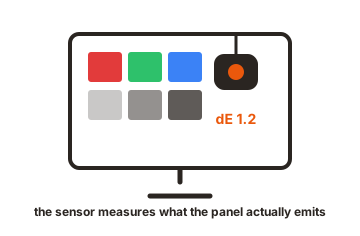
A colorimeter is a small sensor that rests against the screen while software flashes a series of color patches beneath it. The device measures what the panel actually emits, compares each patch to its target, and reports the error. It does two jobs: verification, which produces a report with real Delta E numbers, and calibration, which builds an ICC profile that corrects your monitor’s output.
Popular options are the Calibrite Display series and the Datacolor Spyder range, which mostly sell for around $100 to $300. Each ships with its own software, and the free open-source DisplayCAL works with most of them if you want deeper control. A full run takes 15 to 30 minutes and is largely automatic: you set targets (a common baseline is 120 cd/m2 brightness, a 6500K white point, and gamma 2.2), start the measurement, and let it finish.
Buy one if your work leaves your screen: photo editing headed for print, video grading, brand and product colors, or matching several monitors side by side. Panels also drift as the backlight ages, so a colorimeter is not a one-time tool. Recalibrating every few months keeps the profile honest.
One habit matters on measurement day: switch off night-light and blue-light filter modes in the operating system and the monitor before you start. They tint the whole screen, and the calibration will bake that tint into your profile if they are left running.
The built-in tools in Windows and macOS
Both operating systems include a rough, no-hardware option. On Windows, search the Start menu for “Calibrate display color” to open a wizard that steps through gamma, brightness, contrast, and RGB balance using your eyes as the sensor. On macOS, the Display Calibrator Assistant lives inside the Displays settings and does a similar walkthrough.
Treat these as tune-ups, not tests. They can pull an obviously wrong screen closer to normal, but they measure nothing, and their results depend entirely on your eyes, your room lighting, and your patience. If the built-in wizard visibly improves your display, that is a hint the monitor was far off and worth checking properly.
Conclusion
Testing monitor color accuracy starts free: warm up the screen, switch to sRGB or Standard mode, then run the EIZO online test and the Lagom gamma, black level, and white saturation pages. That catches tint, banding, and crushed detail. For a real accuracy score you need a colorimeter, which measures Delta E and builds a correction profile. Aim for an average dE2000 under 2 for color work, and recalibrate every few months.
For more on the settings behind a good picture, browse our monitor specs guides.
Frequently asked questions
Can I test monitor color accuracy without buying anything?
Yes, up to a point. Free browser tests from EIZO and Lagom reveal tint, banding, gamma problems, crushed shadows, clipped highlights, and dead pixels. What they cannot do is measure true accuracy or produce a Delta E score. That requires a hardware colorimeter.
What is a good Delta E for a monitor?
An average dE2000 under 2 is a solid target for color work, and under 1 is reference grade. Errors above 3 are visible to most people in normal viewing. Check whether a spec quotes the average alone or also the maximum error, which matters just as much.
Why do colors look different on my phone and my monitor?
The two screens differ in panel type, brightness, white point, and color gamut, and each device applies its own processing. Calibrating the monitor removes its share of the error, but a perfect match across devices is rare even then.
How often should I recalibrate a monitor?
Every few months for color-critical work, since backlights drift as they age. Some studios recalibrate monthly. For casual use, a single calibration, or none at all, is fine; just rerun the free visual tests if something starts to look off.
Do online monitor tests work in any browser?
Mostly, but browser color management can change how some patterns render, which affects gamma and gradient tests in particular. View tests full screen at 100 percent zoom in a current browser, and confirm odd results in a second browser before blaming the screen.