What Is ACM on a Monitor? Adaptive Contrast Management Explained
Table of contents
ACM stands for Adaptive Contrast Management. It is a picture setting on Acer and AOpen monitors that automatically adjusts the screen’s contrast and backlight to match what is on screen at that moment. In dark scenes the monitor pulls the backlight down so blacks look deeper, and in bright scenes it pushes the backlight up so highlights pop. You will find it in the on-screen menu next to Brightness and Contrast, and on most models it is off by default.
Turning it on or leaving it off depends entirely on what you do with your screen. This guide explains how ACM works, when it helps, when it gets in the way, how to switch it on or off, and how it differs from HDR and from the unrelated ACM setting inside Windows 11.
What does ACM actually do?
ACM is Acer’s version of a feature the display industry calls dynamic contrast. The monitor measures the average brightness of each frame it receives, then raises or lowers the backlight and contrast to suit that frame. In a dark cave in a game, it dims the backlight so black areas look deeper and less gray. In a bright snow scene, it lifts the backlight so whites look more intense.
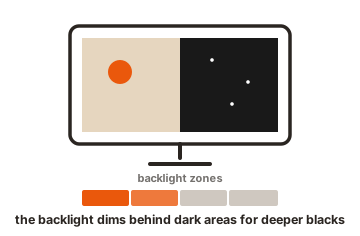
The panel itself never changes. A monitor with a native contrast ratio of 1,000:1 still has a 1,000:1 panel when ACM is on. What changes is the slice of that range the monitor uses at any given moment, which creates the impression of a much bigger gap between dark and bright content over time. That is also where the huge dynamic contrast numbers on spec sheets come from. A figure like 100,000,000:1 describes this backlight trick, not the real panel.
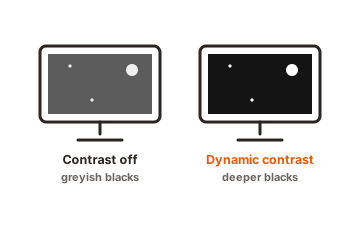
Other brands ship the same idea under different names. Samsung uses Dynamic Contrast Ratio, and many monitors simply label it DCR or Dynamic Contrast in the menu. If you move from an Acer to another brand, look for one of those names to find the equivalent setting.
One more useful detail: on most Acer monitors, ACM is off by default. If you have never dug through the on-screen menu, you are almost certainly not using it right now.
Should ACM be on or off?
It depends on what fills your screen. ACM helps most with full-screen video and hurts most with everyday desktop work. Here is the quick version:
| What you're doing | ACM setting | Why |
|---|---|---|
| Movies and TV shows | On (try it) | Scene-by-scene contrast suits video well |
| Story-driven or atmospheric games | On (try it) | Deeper blacks add mood in dark areas |
| Competitive or fast-paced games | Off | Darker shadows hide enemies, and shifting brightness distracts |
| Office work, browsing, documents | Off | Brightness pumps up and down as content changes |
| Photo, video, or design work | Off | Automatic changes ruin color and brightness consistency |
When ACM helps
Film and TV content is where ACM makes the most sense. Movies swing between dark interiors, night scenes, and bright daylight, and a scene-by-scene contrast boost can make that footage look richer on a standard monitor, especially in a dim room. The same goes for story-driven games with strong lighting moods: horror titles, or anything heavy on caves, forests, and neon. Deeper blacks add atmosphere, and you are rarely staring at one static image long enough to notice the adjustments happening.
Room lighting matters too. The effect is easiest to appreciate in a dim room, where deeper blacks stand out clearly. In a bright office, ambient light washes out the difference, and you may not see much change at all.
If that matches how you use your monitor, turn ACM on for a week and judge it with your own eyes. If the shifting brightness bothers you, switch it back off. The setting costs nothing to test and nothing to undo.
When ACM should stay off
For desktop work, ACM is usually a downgrade. The feature reacts to everything, including your windows and documents. Open a bright white page and the screen jumps up in brightness. Scroll past a dark photo and it dips back down. Over a full workday that constant pumping gets tiring. If your monitor seems to change brightness on its own, ACM or a similar eco setting is very often the reason.
Color and photo work is an even clearer case. You cannot judge exposure, contrast, or color while the monitor keeps adjusting both behind your back. Calibration also assumes the screen holds a fixed brightness and contrast, so ACM makes a calibrated profile meaningless. Keep it off for Photoshop, Lightroom, video editing, and design.
Competitive gaming rounds out the list. In shooters you want dark corners to stay readable at all times, and a feature that darkens shadows in dark scenes works directly against that. Serious players tend to lock in one brightness level and leave it alone, and often raise gamma or shadow-boost settings instead, which is the exact opposite of what ACM does.
Why your brightness slider stops working
Turning ACM on hands control of the backlight to the monitor’s firmware, so manual picture controls stop making sense. On many Acer models the Brightness and Contrast sliders gray out while ACM is active. Other models handle it the opposite way, and moving the brightness slider switches ACM off automatically.
Neither behavior is a fault. The monitor is telling you that only one system can drive the backlight at a time. If your brightness control is locked and you want it back, open the menu and turn ACM off. If the sliders stay locked afterward, check for other automatic modes, such as an eco mode, a light sensor, or HDR, which take over the backlight in the same way.
The same logic explains why ACM sometimes seems to turn itself off. On several models, adjusting Brightness, picking certain picture modes, or enabling HDR switches ACM off, because those functions need direct control of the backlight. If the option keeps flipping back to Off on its own, one of those settings is the trigger.
How to turn ACM on or off on an Acer monitor
The exact menu layout varies by model, but the path is similar across the range:
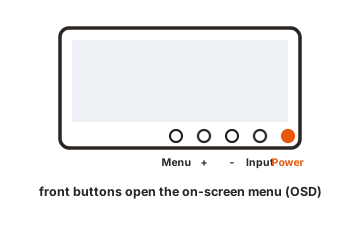
- Press the menu button or joystick on the monitor. It usually sits on the bottom edge or the back right corner.
- Open the Picture menu. On some models it is called Image, or it sits inside a Color section.
- Find ACM in the list. It normally appears near Brightness, Contrast, and Black Boost.
- Toggle it On or Off, then exit. The monitor saves the setting on its own.
ACM lives in the monitor, not in Windows or your graphics driver, so you will not find it in the Nvidia or AMD control panels. If you cannot find the option at all, download the manual for your exact model from Acer’s drivers and manuals page and search it for ACM. A few models also hide the setting while certain picture modes or HDR are active.
ACM vs HDR: not the same thing
ACM and HDR both promise better contrast, but they work at completely different levels.
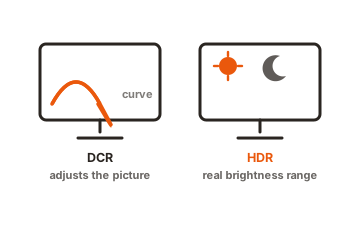
ACM is a guess the monitor makes. It looks at a standard (SDR) image and stretches the backlight up or down to fake a wider range. The content itself carries no extra information.
HDR, short for high dynamic range, changes the content. An HDR video or game carries real brightness information far beyond the standard range, and an HDR monitor needs genuine hardware to show it: higher peak brightness, stronger contrast, and ideally local dimming zones that control the backlight in small regions rather than all at once. Certification tiers like VESA DisplayHDR 400, 600, and 1000 exist to grade exactly that hardware.
So if your monitor supports real HDR and you are watching HDR content, use HDR and leave ACM out of it. ACM is only worth considering for standard content on a standard monitor, where it acts as a lightweight substitute for dynamic range the panel does not truly have.
The other ACM: Auto Color Management in Windows
There is a second, unrelated ACM you might run into. Windows 11 includes a feature called Auto Color Management, which Microsoft also shortens to ACM. It has nothing to do with contrast. It is system-level color management that maps colors correctly across apps, so standard sRGB content does not look oversaturated on a wide-gamut screen. You will find it under Settings > System > Display > Color management, and the details live in Microsoft’s Auto Color Management post.
The two features simply share an acronym. Acer’s ACM adjusts contrast in the monitor’s hardware, while Microsoft’s ACM adjusts color in the operating system. One caution for professionals: on some wide-gamut monitors the Windows feature limits the colors the screen can show to the sRGB range, which gets in the way of hardware calibration workflows. If you calibrate your display for print or video work, test your full workflow before leaving it on.
Does ACM save power?
A little. The backlight is the biggest power draw in an LCD monitor, so dimming it during dark scenes genuinely trims consumption, and Acer groups ACM with its energy-saving display features for that reason. In practice the savings are small. A typical desktop monitor draws roughly 20 to 40 watts, and ACM only reduces that during dark content. Choose the setting based on how the picture looks, not on the electricity bill.
Conclusion
ACM on a monitor means Adaptive Contrast Management, Acer’s automatic contrast feature that deepens blacks and boosts highlights by adjusting the backlight frame by frame. Leave it off for desktop work, color-accurate editing, and competitive gaming, where steady brightness matters more than punch. Try it on for movies and atmospheric single-player games, then keep whichever looks better to you. You can flip it at any time in the Picture section of the on-screen menu, right next to Brightness and Contrast.
For more settings worth understanding before you change them, browse our monitor specs guides.
Frequently asked questions
Is ACM good for gaming?
It depends on the game. ACM can add mood to dark, story-driven titles by deepening blacks. For competitive shooters, keep it off: it darkens shadows exactly when you need to see into them, and the shifting brightness pulls your attention away from the game.
Why is the brightness setting grayed out on my Acer monitor?
An automatic mode is controlling the backlight. ACM is the usual cause, but eco modes, light sensors, and HDR do the same thing. Turn those off in the on-screen menu and the Brightness slider works again.
Does ACM affect refresh rate or input lag?
ACM does not change your refresh rate, and it works by steering the backlight rather than holding frames back. What you actually notice is brightness shifting between scenes. Competitive players still turn it off, mainly to keep shadow visibility consistent.
Is ACM the same as HDR?
No. ACM fakes extra contrast on standard content by moving the backlight up and down. HDR is real: the content carries wider brightness information and the monitor needs stronger hardware to display it. If you have true HDR, use that instead.
Do monitors from other brands have ACM?
Yes, under different names. The generic term is dynamic contrast, and menus often label it DCR or Dynamic Contrast Ratio. Most brands include some version of it, and the advice is the same: worth trying for video, off for desktop work.