Vertical Lines on Monitor: Causes and 7 Fixes
Table of contents
Vertical lines on a monitor are caused by a loose or damaged video cable, a graphics driver or GPU problem, a resolution or refresh rate the screen does not like, or a fault inside the panel. To find out which, open the monitor’s own on-screen menu. If the lines run through the menu, the monitor itself is faulty. If the menu is clean, the problem sits in the cable or the PC, and the seven fixes below solve most of those cases in a few minutes.
What causes vertical lines on a monitor?
Vertical lines come from somewhere along the path between your graphics card and the pixels on the panel. These are the usual causes, from cheapest to fix to most serious:
- Cable or port. A loose, bent or worn HDMI or DisplayPort cable can drop data and leave colored or flickering lines. A dirty or damaged port does the same.
- Graphics driver. A corrupt or freshly updated driver can draw the image wrong, with lines or stripes across parts of the screen.
- GPU overheating or failing. A graphics card that runs too hot, has failing video memory or is overclocked past its limit can show lines, colored blocks or a checkerboard pattern, often during games.
- Resolution or refresh mismatch. A resolution that is not the native one, or a refresh rate pushed above what the monitor or cable supports, can cause lines or a shimmering picture.
- Loose ribbon cable or T-con board. Inside the monitor, a timing controller board (T-con) sorts the signal and sends it to the panel over thin ribbon cables. A loose ribbon or failing board often creates many lines or a band across one area.
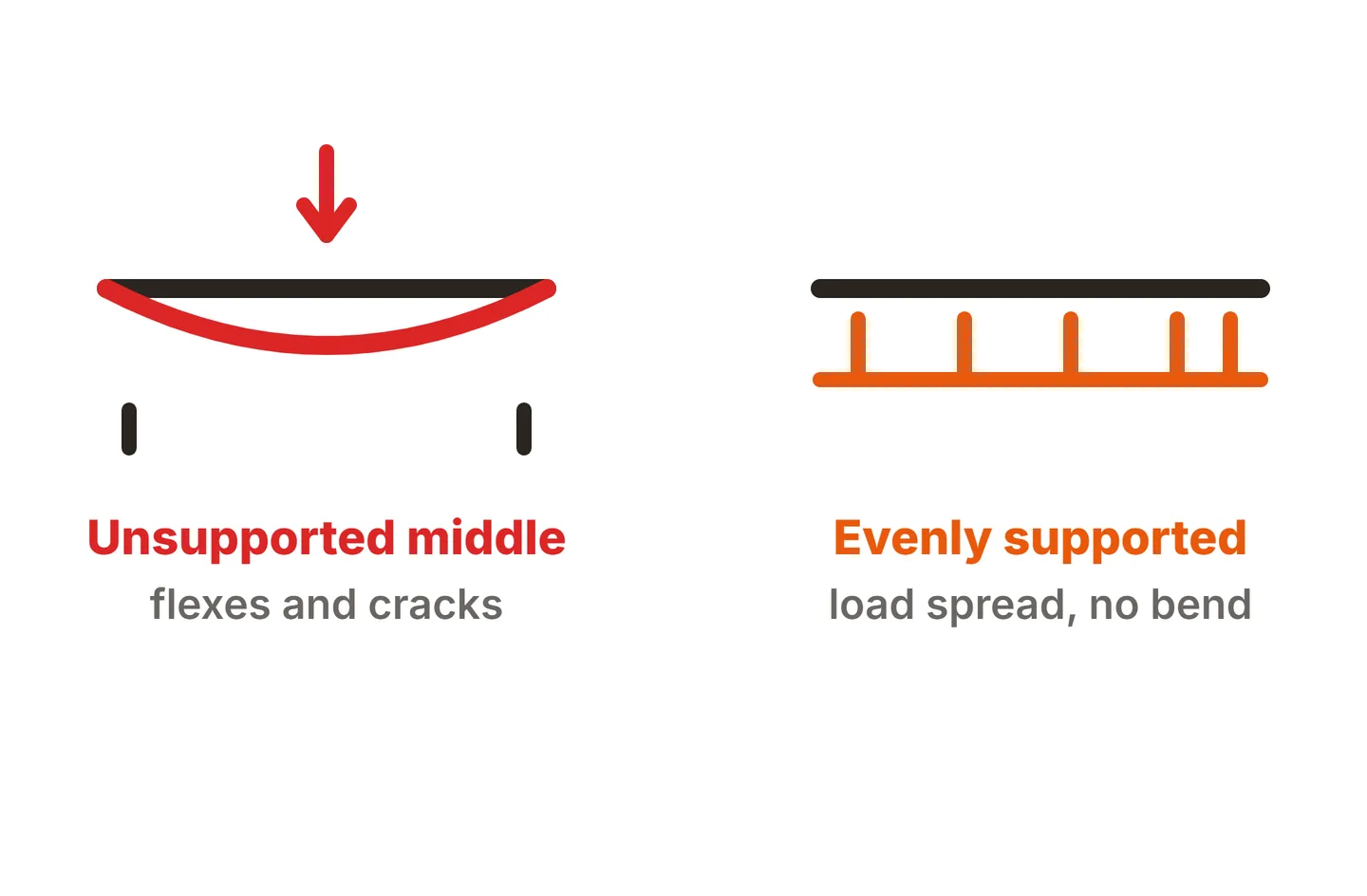
- Pressure damage. Pressing on the screen, carrying the monitor by its panel or a knock to the frame can crack the bonds along the panel’s edge.
- Failing panel. Every column of pixels is fed by small driver chips bonded to the top or bottom edge of the glass. When one of those links breaks, you get a thin, sharp line in a fixed spot, often red, green, blue, white or black.
Some fine, shimmering stripes that only show on certain patterns or test images are a different thing. That is pixel inversion, a normal panel behavior, not a fault.
Software or hardware? Three quick tests
Run these before you change any settings. Together they tell you where the fault lives.
1. The menu (OSD) test. Press the monitor’s menu button so the on-screen display opens, or unplug the video cable so the No Signal box appears. The monitor draws both by itself. If the lines cross the menu or the No Signal box, the fault is inside the monitor. LG’s support page on lines on the screen uses the same check and says a monitor that still shows lines with the cable removed needs a technician.
2. The BIOS test. Restart the PC and open the BIOS or UEFI setup, usually by pressing Delete or F2 at startup. No Windows driver is loaded at that point. Lines in the BIOS screen rule out Windows and the driver and point to the cable, the GPU or the monitor.
3. The screenshot test. Press the Windows key + Print Screen and open the saved image on your phone. If the lines are in the screenshot, the GPU or software drew them. If the image is clean, the lines come from the cable or the monitor.

If you still are not sure, connect the PC to a second monitor or a TV. Lines on both screens mean the PC. Lines on the original monitor only, even with a different cable and a different computer, mean the monitor.
How to fix vertical lines on a monitor
Work through these in order and check the screen after each step. The early ones fix the most cases and cost nothing.
Reseat and swap the video cable
Unplug the cable at both ends, check the connectors for bent pins or dirt, and push them back in firmly. Then try a different, certified cable and a different port on the graphics card. Remove any adapters or switches for the test.Power-cycle and reset the monitor
Turn off the monitor and PC, unplug both from the wall for about a minute, and start them again. Then use the factory reset option in the monitor’s menu to undo any changed settings.Set the native resolution and a standard refresh rate
Open Settings, then System and Display, and pick the resolution marked Recommended. Under Advanced display, choose a standard refresh rate such as 60 Hz to test. If you made custom resolutions or overclocked the monitor’s refresh rate, remove them.Restart, update or roll back the graphics driver
Press Windows + Ctrl + Shift + B to restart the graphics driver. If lines remain, install the latest driver from NVIDIA, AMD or Intel. If the lines started right after an update, roll the driver back in Device Manager instead.Remove GPU overclocks and check temperatures
Return the graphics card to its default clocks in tools such as MSI Afterburner or AMD Software. Open Task Manager, then Performance, and watch the GPU temperature during a game. Clean dust out of the fans if it runs very hot.Test the monitor on another device
Connect a laptop, a game console or another PC. If the lines stay on the monitor with every source, the fault is inside the monitor. If they disappear, go back to the original PC’s graphics card.Check for pressure on the panel
Make sure nothing presses on the screen or the frame, such as a tight mount, a stand bracket or an object leaning on the bezel. If lines change when the frame flexes, the panel bond or ribbon cable is failing. Stop there and contact the maker.
Microsoft’s guide to updating drivers through Device Manager shows how to roll back, update or fully reinstall a driver, which covers step 4.
When the lines come from inside the monitor
If the lines cross the monitor’s menu and survive a new cable and a new source, the fault is in the T-con board, a ribbon cable or the panel itself. The pattern gives a clue. Many lines, or a band of lines over one area, often point to the T-con board or a loose ribbon. A single, sharp, one-pixel line in a fixed spot usually means a broken bond between the glass and a column driver chip, which cannot be repaired at home.
Lines that appear only when the monitor is cold, or that change when you tap the frame, mean a connection is starting to fail. Expect them to spread. Carry and pack the monitor by its stand and frame, never the screen, and our guide on how to transport a computer monitor shows how to avoid adding more pressure damage.
Warranty, repair or replace?
A vertical line on a monitor with no visible damage is a panel defect, and most warranties cover it. Photograph the line in the monitor’s own menu, since that shows support it is not a PC problem. Do not open the case while the monitor is still under warranty.

Out of warranty, a T-con board is a fairly cheap part on many models, so swapping it can make sense if you are handy. A new panel often costs close to a whole new monitor. Our ViewSonic monitor repair guide gives typical repair costs. For laptops, where the hinge cable is a common cause, see our guide to laptop screen vertical lines. A single pale line has its own guide on the faint white line on a monitor.
Conclusion
Vertical lines on a monitor come from the cable, the graphics card and driver, a bad resolution or refresh setting, or the panel itself. Use the menu, BIOS and screenshot tests to find out which, then work through the seven fixes in order. A clean picture on every source means you found it. Lines that stay in the monitor’s menu are a hardware fault, so claim the warranty or weigh up repair costs. For every other type of line, see our lines on monitor guide, the troubleshooting hub or the full SubInsider monitor knowledge base.
Frequently asked questions
Can vertical lines on a monitor be fixed?
Yes, if they come from the cable, port, driver or a refresh setting, which covers many cases. If the lines show in the monitor's own menu, the fault is inside the panel or its control board. That needs a repair or a replacement, and only a loose internal connector is a realistic home fix.
Do vertical lines on a monitor get worse over time?
Lines caused by a failing panel bond or driver chip often spread. One line can turn into several, or widen into a band, as heat and age weaken the connection. Lines from a cable or driver do not spread on their own, but they will keep returning until you replace the cause.
Can a graphics card cause vertical lines?
Yes. A failing or overheating GPU, faulty video memory or an unstable overclock can draw lines, often with colored blocks or checkerboard patterns. The tell is that the lines also appear in screenshots and follow the PC to a second monitor or TV.
Is a vertical line on a new monitor covered by warranty?
Usually, yes. A line that appears without any physical damage is a panel defect, which standard warranties cover. Pressure marks, cracks and drop damage are usually excluded. Take photos of the line in the monitor's menu and contact the maker before the return window closes.
Why do vertical lines disappear when the monitor warms up?
A line that fades after a few minutes of use points to a weak connection inside the monitor, such as a ribbon cable or a bond along the panel edge. Heat makes the parts expand and touch again. It is an early warning, and the fault usually gets worse over time.