Monitor Ghosting: What Causes It and How to Fix It
Table of contents
Monitor ghosting is a faint trail that follows moving objects on screen, because the LCD’s pixels cannot change color fast enough to keep up with each new frame. In most cases you can fix it in a few minutes: set the monitor’s overdrive (often called Response Time) to a middle level, make sure Windows is actually running the monitor at its full refresh rate, and check the result with a free UFO motion test. If the trail survives all of that, you have reached the limit of the panel itself.
What does monitor ghosting look like?
Ghosting looks like a faded copy smeared behind a moving object. Drag a window across a dark desktop, pan the camera in a game, or scroll a page fast, and the edges leave a short tail in the direction they came from. The tail is usually darker or paler than the object, and it vanishes the instant movement stops.
It shows up most on high-contrast edges: white text on black, a crosshair over a sky, a mouse pointer over a dark wallpaper. On computer screens it is often most obvious in dark scenes, which is a clue we come back to in the VA section.
The cause is pixel response time, the time a pixel takes to switch from one shade to another. LCD pixels use liquid crystals that physically turn to let light through, and turning takes time. A 144 Hz monitor draws a new frame about every 6.9 milliseconds, and a 60 Hz monitor about every 16.7. If a pixel needs longer than that window, part of the old image is still visible when the next frame lands, and you see the leftover as a trail.

How to confirm it is ghosting
Before you change settings, make sure what you are seeing comes from the monitor. Three quick checks sort it out.
Run the UFO ghosting test. The TestUFO ghosting test from Blur Busters shows UFOs moving across bands of different background shades. Follow one with your eyes. A smeared trail behind it is ghosting. A bright or oddly colored outline along its edges is overshoot, covered below. Blur Busters suggests closing other browser tabs and apps first and running the test on your main monitor, since background software can add stutter that muddies the result.
Take a screenshot or a recording. A screenshot captures the frame your graphics card drew, before it reaches the panel. Monitor ghosting is not in that frame, so it never shows in a screenshot. If the trail is visible in the saved image, the game or app drew it.
Look at the game’s own settings. Many games add motion blur on purpose, and temporal anti-aliasing (TAA) and upscalers such as DLSS or FSR blend earlier frames into the current one. In some games that leaves faint trails behind fast objects. Turn the in-game motion blur off and compare an older or simpler game. If the trails only appear in one title, the cause is that game’s rendering, not your monitor. Our guide to screen artifacts covers other on-screen glitches that come from the graphics card.
Ghosting vs motion blur, inverse ghosting and other look-alikes
Several different problems get called ghosting. They have different causes, so the fix depends on which one you have.
| Effect | What you see | Main cause | First fix |
|---|---|---|---|
| Ghosting | Dark or faded trail behind moving objects | Slow LCD pixel transitions | Raise overdrive one level |
| Inverse ghosting (overshoot) | Bright, light or colored halo around moving edges | Overdrive set too high | Lower overdrive one level |
| Motion blur | Whole moving object looks soft, with no separate trail | Each frame is held while your eyes track it | Higher frame rate, or backlight strobing |
| Strobe crosstalk | A faint second copy of the object, a little above or below it | Backlight strobing mode switched on | Turn strobing off or change its setting |
| Image retention | A faint still image that stays when the picture changes | Static content left on screen for hours | Power off for a few hours or show moving content |
| VGA cable shadow | Faint copy of text and edges, offset to one side, even on a still screen | Analog signal reflections in a VGA cable | Switch to HDMI or DisplayPort |
| Game-side trails | Trails that show in screenshots or only in one game | In-game motion blur, TAA or upscaling | Change the game's graphics settings |
Inverse ghosting
Inverse ghosting, also called overshoot or coronas, is the opposite problem to plain ghosting. Overdrive works by giving pixels an extra push so they change faster. Push too hard and the pixel shoots past the target shade, then settles back. The overshoot shows as a bright or light-colored outline, often in front of or around a moving object. Many people find it more distracting than the mild trail it replaced. It is also unrelated to pixel inversion, a shimmer some panels show on fine patterns.

Motion blur
Motion blur is softness spread over the whole moving object, and it happens even on a screen with instant pixels. A normal monitor holds each frame still for the whole refresh, while your eyes keep sliding along with the motion, so the image smears across your vision. More frames per second shrink that effect, and backlight strobing removes much of it. Our MPRT and motion blur guide explains that side in detail. Ghosting is the separate, extra trail that slow pixels add on top.
Image retention
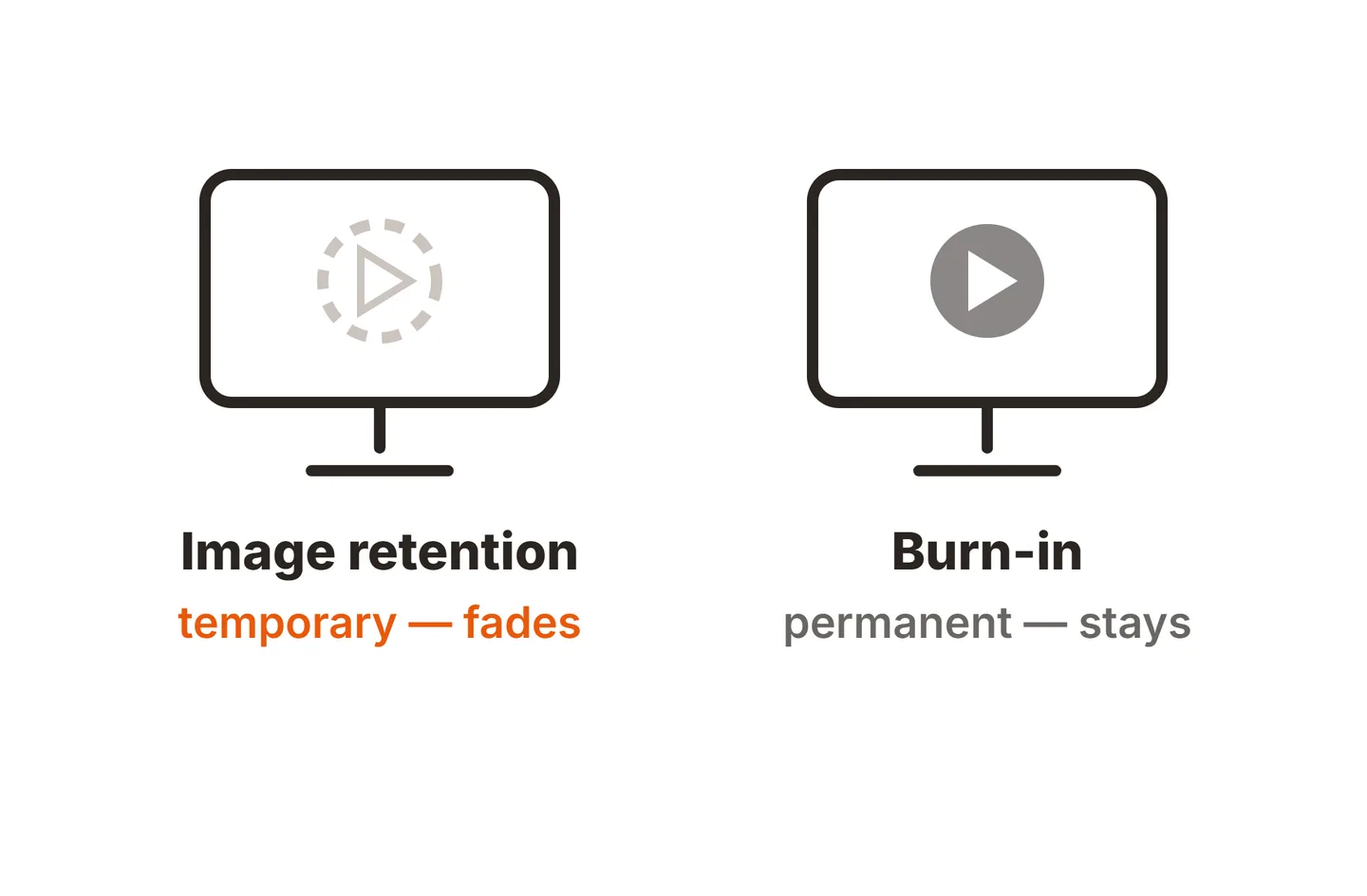
If a faint copy of a window, taskbar or game HUD stays on screen after the content changes, it is not ghosting. That is image retention, a short-term memory effect in the panel after static content sits on it for a long time. It needs different fixes, which our guide to LCD monitor screen burn walks through.
How to fix monitor ghosting, step by step
Work through these in order. The first two fix most cases, and each step is free.
Set overdrive to a middle level
Open the monitor’s on-screen menu and find Overdrive, Response Time, OD, Trace Free or AMA, usually in the Gaming or Picture section. Start in the middle. Raise it one step if trails remain, and lower it one step if bright halos appear. Keep the highest level that stays clean.Check the refresh rate Windows is using
Go to Settings, System, Display, Advanced display, and pick the highest rate your monitor supports, such as 144 Hz or 165 Hz. Many monitors also show the incoming refresh rate in an Information page of their own menu, which confirms the signal really arrived.Look for response time modes that lock overdrive
Low motion blur, strobing, eco or some picture presets can fix the overdrive level or grey it out. Switch to a standard or gaming preset and try overdrive again.Retest with variable refresh on and off
Run the UFO test with FreeSync or G-SYNC enabled, then at a lower frame rate. If halos appear only at low frame rates, lower overdrive a step or use a variable overdrive mode if the monitor offers one.Swap the cable and port
Use DisplayPort or a certified HDMI cable rated for your resolution and refresh rate, plugged straight into the graphics card. Avoid VGA and passive adapters.Update drivers and firmware
Install the latest graphics driver from AMD, Intel or NVIDIA, and check the monitor maker’s support page for a firmware update for your model.
Overdrive: the main fix
Overdrive is the monitor’s built-in ghosting control, and it is the single setting that matters most. Off usually leaves more trail than necessary. The top level often overshoots. A middle setting is the usual sweet spot, but the right one depends on your panel and frame rate, so trust the UFO test over the label. Every brand names and numbers the levels differently, and our guide to what overdrive does on a monitor lists the setting names for each major brand.
Some gaming laptops have no monitor menu, so the overdrive switch, when there is one, lives in the laptop maker’s control app instead.
Make sure the refresh rate is really applied
A monitor sold as 144 Hz can run at 60 Hz out of the box, and nothing on screen tells you. At 60 Hz each frame lasts more than twice as long, so trails are longer and overdrive tuned for high refresh rates may behave differently. Microsoft’s guide to changing the refresh rate in Windows shows where the setting lives in Windows 10 and 11. It also notes that a rate marked with an asterisk does not match your current resolution, and choosing it changes the resolution too.
If the rate you want is missing from the list, the cable, the port or an adapter is usually holding it back. Our guide on how to connect a monitor explains which connection carries high refresh rates. On Windows 11, Dynamic Refresh Rate can also lower the rate on the desktop to save power on supported screens, so turn it off while you test.
Ghosting with FreeSync or G-SYNC
Variable refresh rate (VRR) changes the refresh rate to match your frame rate, which removes tearing. The catch is that the best overdrive strength changes with the refresh rate. Most monitors apply one fixed overdrive level across the whole range. A level that looks clean at 144 fps can overshoot when a game drops to 60 fps, because each frame is held longer and the extra push becomes too strong.

There are three ways to handle it. Pick a slightly gentler overdrive level that stays clean at the frame rates you actually play at. Use a variable overdrive mode if your monitor has one, since it adjusts strength as the refresh rate changes. Or, if the monitor locks overdrive while VRR is on and the locked level looks bad, decide which bothers you more: tearing or trails. Our adaptive sync guide covers how VRR ranges and low framerate compensation work.
Dark smearing on VA monitors
If ghosting is worst in dark scenes, and your monitor has a VA panel, you are seeing a known trait of the panel type. VA pixels are slow at moving between two dark shades, so dark objects on a dark background leave a dark smear. Bright scenes on the same screen can look fairly clean.
A step higher on overdrive can shorten the dark smear. Check bright content afterward, because the extra push shows up as halos there first. Raising the black level or shadow boost slightly in the game or the monitor menu can also help a little, because the pixels no longer start from near black. Neither trick removes it fully. IPS panels are usually faster at dark transitions, which is why they are often picked for fast games.
Cable and signal problems
A modern digital cable does not create ghosting by itself. HDMI and DisplayPort either deliver the picture intact or fail in obvious ways: sparkles, flicker, dropouts or a black screen. Where a cable matters is bandwidth. An older or uncertified cable may not carry your full resolution at high refresh, and the monitor falls back to 60 Hz, which makes trails longer.
Analog VGA is different. A long, thin or poorly shielded VGA cable can reflect part of the signal, which puts a faint copy of text and edges slightly to one side. That shadow sits there even on a still screen, which tells it apart from motion ghosting. Moving to HDMI or DisplayPort removes it.

When ghosting is the panel’s limit
If the trail remains with overdrive tuned, the refresh rate confirmed, VRR tested and a good cable in place, the panel simply cannot switch faster. That is a design limit rather than a fault, so no setting, cable or repair will change it. The response time on the box does not settle it either, since it is usually a best-case figure taken at the strongest overdrive mode. Our guide to whether 5ms response time is good explains what those numbers mean in practice.
The real fix at that point is a faster monitor: a fast IPS panel, or an OLED, whose pixels switch almost instantly. Before you replace anything, rule out other faults too. Our monitor screen issues guide covers flicker, blur and dead pixels that can sit alongside ghosting.
Conclusion
Monitor ghosting is a trail from LCD pixels that change too slowly, and it only appears in motion. Confirm it with the UFO test and a screenshot, then set overdrive to the highest level that stays free of halos, make sure Windows runs the full refresh rate, and retest with variable refresh on. Swap VGA for a digital cable. A good result is a short, faint trail with no bright outline. For other faults, browse the troubleshooting guides or the full SubInsider monitor knowledge base.
Frequently asked questions
Is monitor ghosting permanent?
No. Ghosting happens only while things move, and it stops the moment the motion stops. It does not damage the panel or get worse with age. What you can change is how much of it you see, through overdrive, refresh rate and cable choices. If a faint image stays on screen after the content changes, that is image retention, a separate issue.
Can a bad HDMI cable cause ghosting?
Not directly. A digital HDMI or DisplayPort cable either carries the picture or fails with sparkles, dropouts or a black screen. But a cable that cannot carry enough bandwidth can force a lower refresh rate, such as 60 Hz instead of 144 Hz, and that makes trails longer. Old analog VGA cables can add a real shadow copy of edges.
Is ghosting worse on VA monitors?
Usually, yes, in dark scenes. VA panels are slow when a pixel moves between two dark shades, so dark objects on dark backgrounds can leave a smeared trail. Bright scenes often look fine on the same screen. A slightly higher overdrive level can help, but check bright content afterward, since that is where overshoot halos show first.
Do OLED monitors have ghosting?
Hardly any. OLED pixels switch almost instantly, so they do not leave the slow-pixel trail an LCD can. Fast motion on an OLED can still look soft, but that is motion blur from how your eyes track a held frame, not ghosting. Raising the frame rate is what sharpens it.
How do I test my monitor for ghosting?
Open the TestUFO ghosting test in a browser, close other tabs, and run it on your main monitor. Follow the moving UFO with your eyes. A dark or faded trail behind it is ghosting. A bright or oddly colored outline is overshoot. Change one overdrive level at a time and run the test again after each change.