Portable Monitor No Signal? Why It Happens and How to Fix It
Table of contents
A portable monitor shows “No Signal” when it has power but receives no video, and it then drops into power saving mode after a few seconds. The cause is usually a USB-C port that cannot output video, a charge-only cable, too little power from the laptop, or the wrong input selected in the monitor’s menu. Work through the fixes below in order and most screens come back within minutes.
Why portable monitors show No Signal
“No Signal” followed by “power saving mode” is the same message most monitors show when the input they are watching is silent. The monitor is fine; nothing useful is arriving. Portable monitors trigger it more often than desktop screens because they rely on USB-C, which hides big differences behind the same plug shape. The basics of connecting a monitor still apply, but USB-C adds a few extra checks.
The common causes are:
- A USB-C port without video output. Not every USB-C port carries a picture. Video depends on DisplayPort Alt Mode or Thunderbolt.
- The wrong cable. Many USB-C cables, including those bundled with phones, are charge-only or USB 2.0 and cannot carry video.
- Not enough power. A single cable must power the screen. If the laptop port supplies too little, the monitor may flicker, reboot or lose signal, much like a monitor blinking black on a weak cable.
- Wrong input selected. Many portable monitors have a USB-C port and a mini HDMI port, and some do not switch inputs automatically.
- Mini or micro HDMI adapters. Loose or low-quality adapters are a frequent failure point.
- Phones without desktop or video support. A phone must support video output over USB-C, and some need a desktop mode turned on.
- Graphics drivers or display settings. The computer may detect the screen but not send it a picture.

How to fix a portable monitor with no signal
Start at the top and stop when the picture returns. The order goes from the most common cause to the least.
- Wake the source. Press a key on the laptop or unlock the phone. A sleeping source sends nothing.
- Use the cable that came with the monitor. Portable monitors usually ship with a full-featured USB-C cable. A phone charging cable often cannot carry video.
- Try a different USB-C port. Laptops often have only one or two ports that support video.
- Add external power. Plug a USB-C wall charger into the monitor’s second USB-C port, then reconnect the video cable.
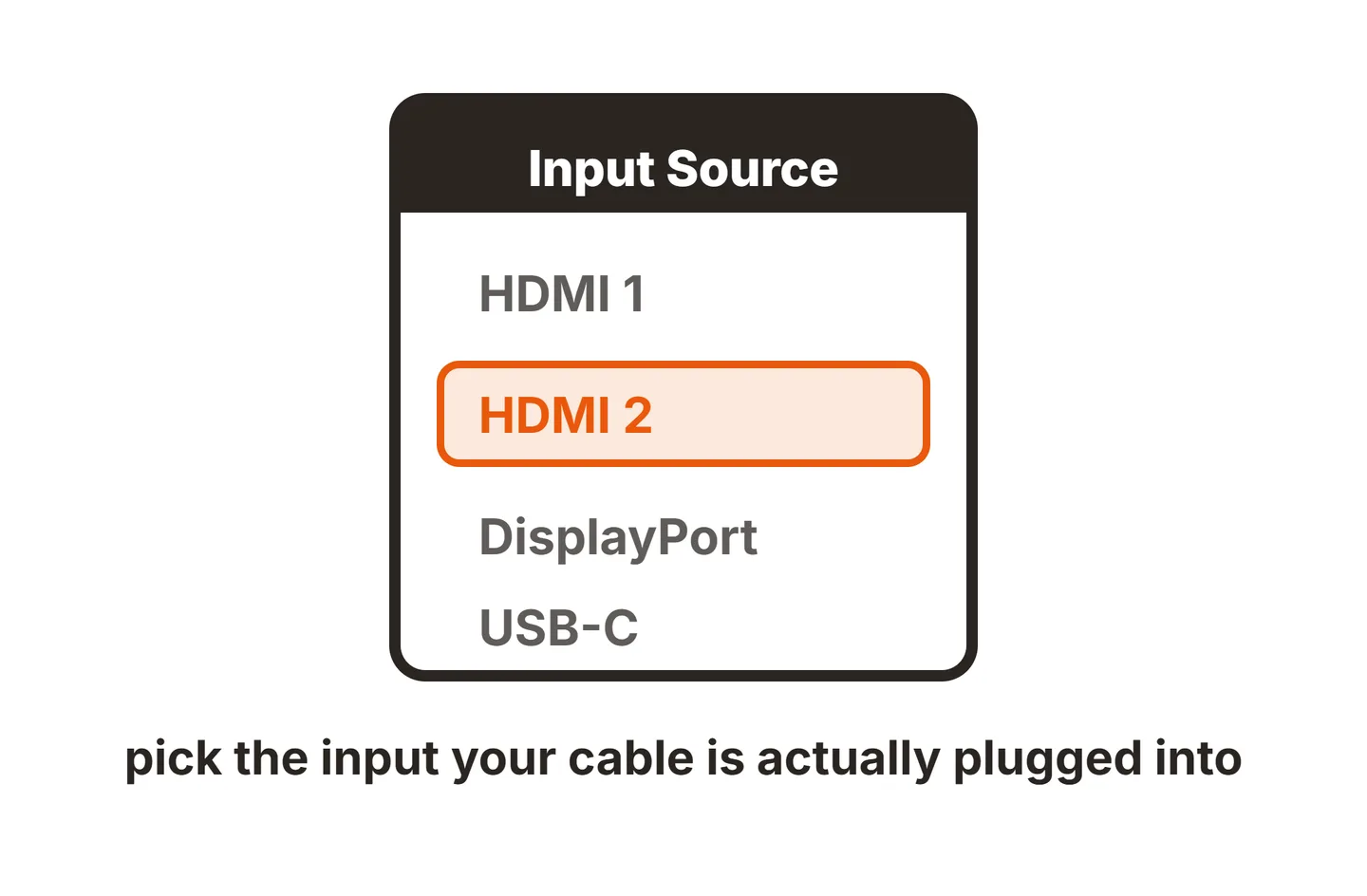
- Select the input manually. Open the on-screen menu and choose USB-C or HDMI to match your cable.
- Test HDMI. If the monitor has mini HDMI, try a direct mini HDMI to HDMI cable rather than a stacked adapter.
- Check display settings. On Windows, press Win+P and choose Extend or Duplicate. On a Mac, open Displays settings to see if the screen is detected. On Linux, a touch-capable portable screen may also need its touch input mapped, which our Ubuntu touch screen monitor guide covers.
- Reset the graphics driver. Microsoft’s external monitor troubleshooting guide suggests pressing Windows key + Ctrl + Shift + B, then restarting or updating the driver if that does not help.
If the monitor works with a different laptop or phone, the problem is on the source side. If it fails everywhere with known-good cables, the monitor itself may need service.
Symptom, cause and fix at a glance
| Symptom | Likely cause | Fix |
|---|---|---|
| No Signal, then power saving mode | No video reaching the monitor | Check port, cable and input source |
| Monitor powers on over USB-C but no picture | Charge-only cable or port without Alt Mode | Use a video-rated cable or a different port |
| Picture flickers or cuts out | Not enough power from the laptop | Add a wall charger, lower brightness |
| Works on HDMI, not USB-C | USB-C port or cable lacks video | Confirm DisplayPort Alt Mode or Thunderbolt |
| Works on one laptop, not another | Source port, driver or settings | Update graphics driver, check Win+P |
| Phone charges the screen but no image | Phone lacks USB-C video output | Check phone spec sheet, use wireless instead |
How to check your laptop’s USB-C port supports video
Before buying another cable, confirm the port can output video at all. A USB-C connector is only the shape of the plug. What runs through it depends on the device.
Look for the icon
Many laptops print a small symbol beside the port:
- DisplayPort logo or “DP”: the port supports video through DisplayPort Alt Mode.
- Lightning bolt: usually Thunderbolt, which includes video output.
- USB trident only: possibly data and charging only. Check the spec sheet.
Check the spec sheet
If there is no icon, search the laptop model’s spec sheet for “DisplayPort Alt Mode”, “video output”, “DisplayPort over USB-C” or “Thunderbolt”. If none appear, use HDMI instead, if your monitor offers a mini HDMI input. A DisplayLink docking station is another route, since it drives screens over ordinary USB.
Power is part of the picture
USB-C power is negotiated through USB Power Delivery, which the USB Implementers Forum describes as letting devices request only the power they need. A laptop port may limit what it supplies, especially on battery. Portable monitors can draw more at high brightness, so dimming the screen or adding a wall charger often stops the dropouts.
Phones and portable monitors
Phones add one extra condition: the phone must support video over USB-C. Many budget and mid-range models do not, even with a perfect cable. Some phones mirror the screen as soon as you connect, while others offer a desktop mode you need to switch on. Our guide on how to connect a phone to a monitor explains how to check your model.
If the phone charges from the monitor or powers it, but no image appears, the phone almost certainly lacks video output. A wireless option is the only workaround.
No-brand and budget portable monitors

Many low-cost portable monitors, including MNN and other no-brand models, share similar hardware and menus. Budget brands sell portable displays too (our Z-Edge brand review covers one of them), and the same habits apply. A few habits help:
- Pick the input in the menu. Some models stay on one input and do not auto-detect. Look for a Source or Input option in the OSD.
- Use the bundled cables first. They are usually the ones the manufacturer tested.
- Check the seller’s support page. Some models receive firmware updates that improve compatibility, but only install firmware from the manufacturer for your exact model.
- Try both USB-C ports. One is often for power only and the other for video and power.
Conclusion
A portable monitor with no signal is almost always a connection problem, not a broken screen. Confirm the source port supports video, use a video-rated USB-C cable, add external power, and select the right input in the menu. Our ViewSonic no signal guide and the cable not connected fixes cover more general checks. For more fixes, see our monitor troubleshooting guides, the setup guides, or the full SubInsider monitor knowledge base.
Frequently asked questions
Why does my portable monitor say no signal then go into power saving mode?
The monitor is powered but receives no video, so after a few seconds it sleeps to save energy. Check that the source port supports video, that the cable carries video, and that the correct input is selected. Waking the laptop or phone also helps, because a sleeping source sends nothing.
Why does my portable monitor work with HDMI but not USB-C?
Usually the USB-C side is the problem. Either the laptop or phone port does not support DisplayPort Alt Mode, or the cable is charge-only or USB 2.0. Try a cable rated for USB 3.1 or higher, or one sold as a video cable, and confirm the port supports video.
How do I know if my laptop USB-C port supports video?
Look for a small DisplayPort logo, the letters DP, or a lightning-bolt Thunderbolt icon next to the port. If there is no icon, check the laptop's spec sheet for DisplayPort Alt Mode, video output or Thunderbolt. A port with only a USB trident logo may be data and charging only.
Do portable monitors need external power?
Many can run from a single USB-C cable, but some laptop ports cannot supply enough power, especially at high brightness. If the screen flickers, cuts out or shows no signal, connect the monitor's second USB-C port to a wall charger and lower the brightness.