What Is HDR400 and Is It Worth It?
Table of contents
HDR400 is the entry tier of VESA’s DisplayHDR certification. A monitor that carries the official DisplayHDR 400 logo has been tested to reach 400 nits (cd/m2) of peak brightness, keep black at or below 0.4 nits, cover most of the DCI-P3 color space and accept a 10-bit HDR10 signal. What it does not need is local dimming, and that is why HDR400 on an LCD usually looks only a little better than SDR, and sometimes worse. True Black 400, the OLED-focused version, is a different story.
What DisplayHDR 400 actually requires
DisplayHDR is a set of test-based tiers run by VESA, the group behind DisplayPort. The number in the name is the peak brightness in nits. To use the logo, a monitor has to pass every test for its tier, not just the brightness one. HDR at high refresh rates also needs a fast link, which our DisplayPort 1.4 vs 2.1 guide covers.
The current rules are CTS 1.2, released in May 2024. VESA’s DisplayHDR performance criteria list these requirements for the 400 tier:
- Peak brightness: at least 400 nits on a small center patch, and 400 nits on a short full-screen flash.
- Sustained brightness: at least 320 nits across the whole screen over a long test.
- Black level: no more than 0.4 nits at the center of the screen while the corners show bright white.
- Static contrast: at least 1,300:1 for a panel with a simple (1D) backlight.
- Color gamut: 99 percent of sRGB (BT.709) and 90 percent of DCI-P3.
- Bit depth: a 10-bit input signal, shown by at least an 8-bit panel with 2-bit dithering (8-bit plus FRC).
- New CTS 1.2 tests: color accuracy, black crush, subtitle flicker and a check that blacks in HDR mode are not worse than in SDR mode.
If the gamut figures mean little to you, our guide to DCI-P3 vs sRGB explains what each color space covers. And the 8-bit plus FRC point matters because low bit depth is one cause of visible steps in smooth gradients, which our article on monitor banding covers.

Does HDR400 need local dimming?
No. Local dimming means the backlight can dim some areas of the screen while others stay bright. VESA requires it from DisplayHDR 500 upward, and it requires a full 2D grid of dimming zones from DisplayHDR 1000 upward. The 400 tier only needs to meet its contrast numbers, which a decent IPS or VA panel can hit with a plain, evenly lit backlight.
That one gap explains most of what you see on screen. A 400-nit highlight next to a 0.4-nit black is a 1,000:1 range, which is about what a normal SDR IPS monitor already does.
Old HDR400 vs new HDR400
Monitors certified before CTS 1.2 were tested under the older 1.1 rules, which asked less of the 400 tier on color gamut and bit depth and had no color accuracy or black crush tests. VESA kept certifying monitors under 1.1 through the end of May 2025. So two monitors with the same DisplayHDR 400 logo can have been held to different bars. The product listing on displayhdr.org shows which version a model passed.
HDR400 vs HDR500, 600, 1000 and 1400
Each step up the ladder raises brightness, but the bigger change is black level and dimming. Here are the main CTS 1.2 numbers for each classic tier.
| Tier | Peak | Sustained full screen | Max black | DCI-P3 | Local dimming |
|---|---|---|---|---|---|
| DisplayHDR 400 | 400 nits | 320 nits | 0.4 nits | 90% | Not required |
| DisplayHDR 500 | 500 nits | 320 nits | 0.1 nits | 95% | Required |
| DisplayHDR 600 | 600 nits | 350 nits | 0.1 nits | 95% | Required |
| DisplayHDR 1000 | 1000 nits | 600 nits | 0.05 nits | 95% | 2D zones required |
| DisplayHDR 1400 | 1400 nits | 900 nits | 0.02 nits | 95% | 2D zones required |
HDR400 vs HDR600
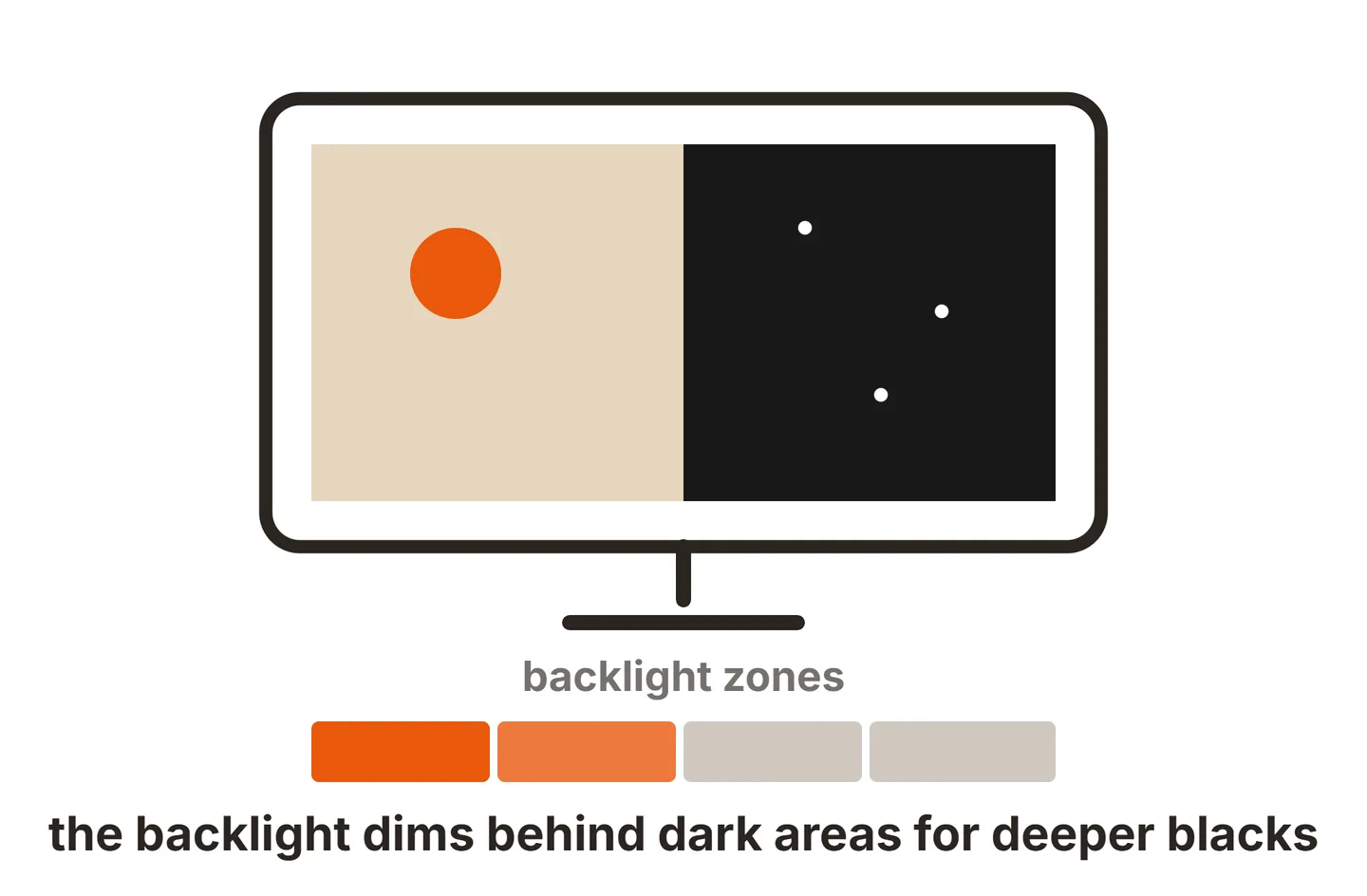
This is the comparison most shoppers face, and the 200-nit gap is not the main difference. HDR600 must keep black at 0.1 nits, four times darker than HDR400, and it must use local dimming to get there. That gives HDR600 a real, if modest, contrast boost in HDR scenes. Many HDR600 monitors are edge-lit, with a small number of wide dimming zones, so expect some glow around bright objects.
HDR1000 and HDR1400
At 1000 and above, VESA requires 2D local dimming, a grid of zones across the whole panel. In practice that means full-array or Mini LED backlights. These are the LCD monitors where HDR starts to look the way it was meant to, with bright highlights against deep shadows.
What is DisplayHDR True Black 400?
True Black is a separate set of tiers for self-emissive screens like OLED, where every pixel makes its own light and can switch off. True Black 400 keeps the 400-nit peak on a small highlight but sets the maximum black level at 0.0005 nits. That is 800 times darker than classic DisplayHDR 400.
The trade is full-screen brightness. VESA’s True Black tiers allow lower full-screen numbers because OLED panels dim when large areas turn bright.
| Tier | Peak (small patch) | Full screen | Max black |
|---|---|---|---|
| True Black 400 | 400 nits | 250 nits | 0.0005 nits |
| True Black 500 | 500 nits | 300 nits | 0.0005 nits |
| True Black 600 | 600 nits | 350 nits | 0.0005 nits |
| True Black 1000 | 1000 nits | 500 nits | 0.0005 nits |
So HDR400 and True Black 400 share a number but not an experience. A True Black 400 OLED shows small highlights against genuinely black surroundings, which is what makes HDR look good. A classic HDR400 LCD shows the same highlight against dark gray. If you are weighing an OLED, our QHD vs OLED comparison covers the panel trade-offs, and our guide to HDR on an OLED monitor explains brightness limiting and when HDR is worth switching on there.
HDR400 vs HDR10: format vs certification
HDR10 and HDR400 are not rivals. HDR10 is the signal format: the way games, films and Windows encode HDR video. It uses 10-bit color, a wide BT.2020 color container and the PQ brightness curve (SMPTE ST 2084), which can describe brightness all the way up to 10,000 nits. It also sends static metadata that tells the display how bright the content was mastered. For what 10-bit really changes, see 8-bit vs 10-bit monitors.
DisplayHDR 400 is a hardware rating. It tells you how much of that HDR10 signal the monitor can actually show. Every DisplayHDR tier requires the monitor to accept a 10-bit HDR signal, which in practice means HDR10, so the useful question is never “HDR10 or HDR400?” It is “how well does this screen display HDR10?” For an HDR400 LCD, the honest answer is partly.

The curve matters because an HDR400 monitor has to squeeze content mastered for 1,000 nits or more into a 400-nit range. That squeezing is called tone mapping, and how well each monitor does it varies by model. Our PC monitor gamma guide explains the SDR side of this.
Why HDR400 can look worse than SDR
Many people switch on HDR on a new HDR400 monitor and find the picture dull, gray or washed out. There are four common reasons.
The contrast does not improve. Without local dimming, black level stays where it was in SDR. A typical 1,000:1 IPS panel running at 400 nits shows black at about 0.4 nits. HDR content expects much deeper shadows, so dark scenes look flat.
The backlight runs at full power. In HDR mode most monitors push the backlight to maximum. Highlights get brighter, but so does every black pixel, because an LCD cannot dim one part of the screen.
The desktop is mapped into HDR. With HDR on, Windows displays normal SDR apps inside the HDR signal at a level set by a slider. If that slider is low, the desktop looks dim and lifeless.
Picture settings may lock. On many monitors, HDR mode greys out brightness, contrast and color controls, so you cannot correct a picture you do not like.

Dynamic contrast and HDR are easy to mix up on a spec sheet. Our explainer on DCR vs HDR shows why a big dynamic contrast number does not add real HDR range.
When to keep HDR off
Keep HDR off for the Windows desktop, browsing, office work and SDR video. Try it on only for games and films mastered in HDR, compare the same scene both ways, and keep whichever looks better. On a classic HDR400 LCD, SDR often wins. On a True Black 400 OLED, HDR content usually looks clearly better.
How to set up HDR in Windows 11
If you want to use HDR, these steps get the most out of an HDR400 monitor.
Connect over DisplayPort or HDMI
Use a cable and port that carry HDR at your resolution and refresh rate. Microsoft suggests trying DisplayPort if HDR is limited over HDMI.Turn on HDR
Open Settings > System > Display, select the HDR monitor at the top if you have more than one, and turn on HDR.Set SDR content brightness
In Settings > System > Display > HDR, drag the SDR content brightness slider until the desktop matches how bright it looked in SDR.Run the Windows HDR Calibration app
Install the free Windows HDR Calibration app from the Microsoft Store and run it full screen with HDR on. It uses three test patterns to set the darkest detail, brightest detail and peak brightness your monitor can show.Pick the right monitor mode
In the monitor’s menu, choose the DisplayHDR or certified HDR mode if it has one. That is the mode VESA tested.
Microsoft’s guide to the Windows HDR Calibration app lists its needs: Windows 11, a WDDM 2.7 or later driver, and a recent GPU (NVIDIA GTX 10 series, AMD RX 400 series, Intel 11th Gen graphics or newer) for the saturation slider to work. On NVIDIA cards, HDR on/off is set in Windows. Color output settings now live in the NVIDIA app under System > Displays, or in the old NVIDIA Control Panel if it is still installed.
For SDR use, a quick calibration still pays off. Our guide on how to calibrate a monitor covers brightness, gamma and white point.
Is HDR400 worth it?
HDR400 is worth having but not worth paying extra for. Most monitors that carry it would be good or bad buys with or without the badge, so judge them on panel type, refresh rate, resolution and size first.
- Buying an LCD on a budget: HDR400 is fine as a bonus. Do not pay more for it over an otherwise identical model.
- Want HDR that looks like HDR on an LCD: aim for DisplayHDR 1000 or higher, which means full-array or Mini LED dimming. DisplayHDR 600 is a small step up from 400.
- Want HDR on OLED: True Black 400 is the common tier, and it looks far better than classic HDR400 thanks to true black.
- See “HDR 400” without the VESA logo: treat it as marketing. Search the model on displayhdr.org to see if it passed testing.
- Work in bright rooms all day: sustained full-screen brightness and an anti-glare finish matter more to you than any HDR badge.
Conclusion
HDR400 is VESA’s entry DisplayHDR tier: a tested 400-nit peak, a 0.4-nit black limit and 90 percent DCI-P3 under CTS 1.2, with no local dimming required. On an LCD it gives a small boost at best, and SDR can look better. True Black 400 on OLED shares the number but delivers real HDR contrast. Buy for the core specs, use HDR only for HDR content, and run the Windows HDR Calibration app if you do. For more spec explainers, see our specs guides or the full SubInsider monitor knowledge base.
Frequently asked questions
Is HDR400 real HDR?
It is real in the sense that the monitor accepts an HDR10 signal and passes VESA's tests. But 400 nits and LCD-level blacks give only a small slice of the range HDR content is mastered for. On an LCD without local dimming, HDR400 looks close to a bright SDR picture. True Black 400 on OLED is a much stronger HDR experience.
Is HDR400 better than SDR?
Not by default. On many HDR400 LCDs, a well-set SDR picture looks cleaner than HDR mode, because the panel cannot show the extra contrast HDR asks for. Try a few HDR games or films with HDR on and off. If HDR looks flat or gray, keep SDR. It costs you nothing to leave it off.
Should I turn HDR on with an HDR400 monitor?
Turn it on only for content made in HDR, and only if it looks better to you. Leave it off for the Windows desktop, web browsing and office work. If you do use it, run the Windows HDR Calibration app once and set the SDR content brightness slider so the desktop is not dim.
Is HDR400 good for gaming?
It is fine but not a selling point. Refresh rate, response time, panel type and resolution matter far more to how a gaming monitor feels. Some games look a little punchier in HDR400 mode, others look washed out. Choose the monitor for its core specs and treat HDR400 as a free extra you may or may not use.
Does an HDR400 label without the VESA logo mean anything?
Not much. VESA owns the DisplayHDR name and logo, and only monitors that pass its tests may use them. A box that just says HDR 400 or HDR Ready may never have been tested. Check the model on VESA's certified products list at displayhdr.org before you count on it.