Black Equalizer: What It Does and Best Setting
Table of contents
Black equalizer is a gaming monitor setting that brightens only the darkest parts of the picture. Shadows, dark corners and night scenes get lifted so you can see what is in them, while skies, lights and other bright areas stay close to normal. BenQ introduced the name with its ZOWIE monitors, and most other brands now have their own version. The best setting for most people is a low to medium level for competitive shooters, and off for everything else.
What does black equalizer do?
Black equalizer changes how the monitor displays the darkest shades of gray. Normally those shades sit very close to black, so an enemy standing in a dark doorway can blend into the wall behind them. The feature pushes those near-black tones up so they become easier to tell apart, and it leaves the midtones and highlights mostly alone.
BenQ ZOWIE describes Black eQualizer as a way to brighten darker areas without overexposing lighter areas, and offers it in 20 levels on its gaming monitors. BenQ’s own example is spotting players hiding in shadows in shooters such as Counter-Strike and Apex Legends. BenQ also says its smart picture features analyze the image as it plays and hold off when a scene does not need correction.
Because the work happens inside the monitor, nothing changes in the game itself. A screenshot will look exactly the same with the feature on or off. Only what you see on the panel changes.
Black equalizer names by brand
Every major gaming monitor brand has a version of this feature, but each one uses its own name. They all aim at the same thing, though the exact method and the number of levels differ.
| Brand | Feature name | Notes from the maker |
|---|---|---|
| BenQ ZOWIE | Black eQualizer | The original name. 20 levels on ZOWIE gaming monitors |
| ASUS ROG | Shadow Boost (AI Shadow Boost) | On models with AI Assistant, found under the AI Assistant menu |
| Gigabyte AORUS | Black Equalizer | Version 1.0 and 2.0 listed, depending on the model |
| MSI | Night Vision | Described as a smart black tuner. Some models add Night Vision AI |
| Acer | Black Boost or Dark Boost | Black Boost on Nitro models, Dark Boost on Predator models such as the X28 |
| LG UltraGear | Black Stabilizer | Spelled Black Stabiliser on some regional sites |
| Samsung Odyssey | Black Equalizer or Dynamic Black Equalizer | The Dynamic version adjusts automatically in Game mode |
A few of these work a little differently from the rest. Gigabyte described its Black Equalizer 2.0, launched on the AORUS CV27Q in 2019, as dividing the screen into 1,296 sub-areas that are adjusted one by one. ASUS describes AI Shadow Boost as automatically enhancing dark areas, and it is an on or off choice on some AI Assistant models rather than a long slider. Samsung’s Dynamic Black Equalizer also runs on its own once Game mode is on.

If you cannot find the setting, check the Gaming, Picture or Image page of the on-screen menu first. On many monitors it only appears in certain picture modes, such as FPS or Game modes, and it can be grayed out in others.
How it differs from brightness and gamma
Raising brightness turns up the backlight, so every part of the screen gets brighter, including the parts that were already bright enough. Shadows get easier to see, but whites get harsh and blacks get grayer at the same rate.
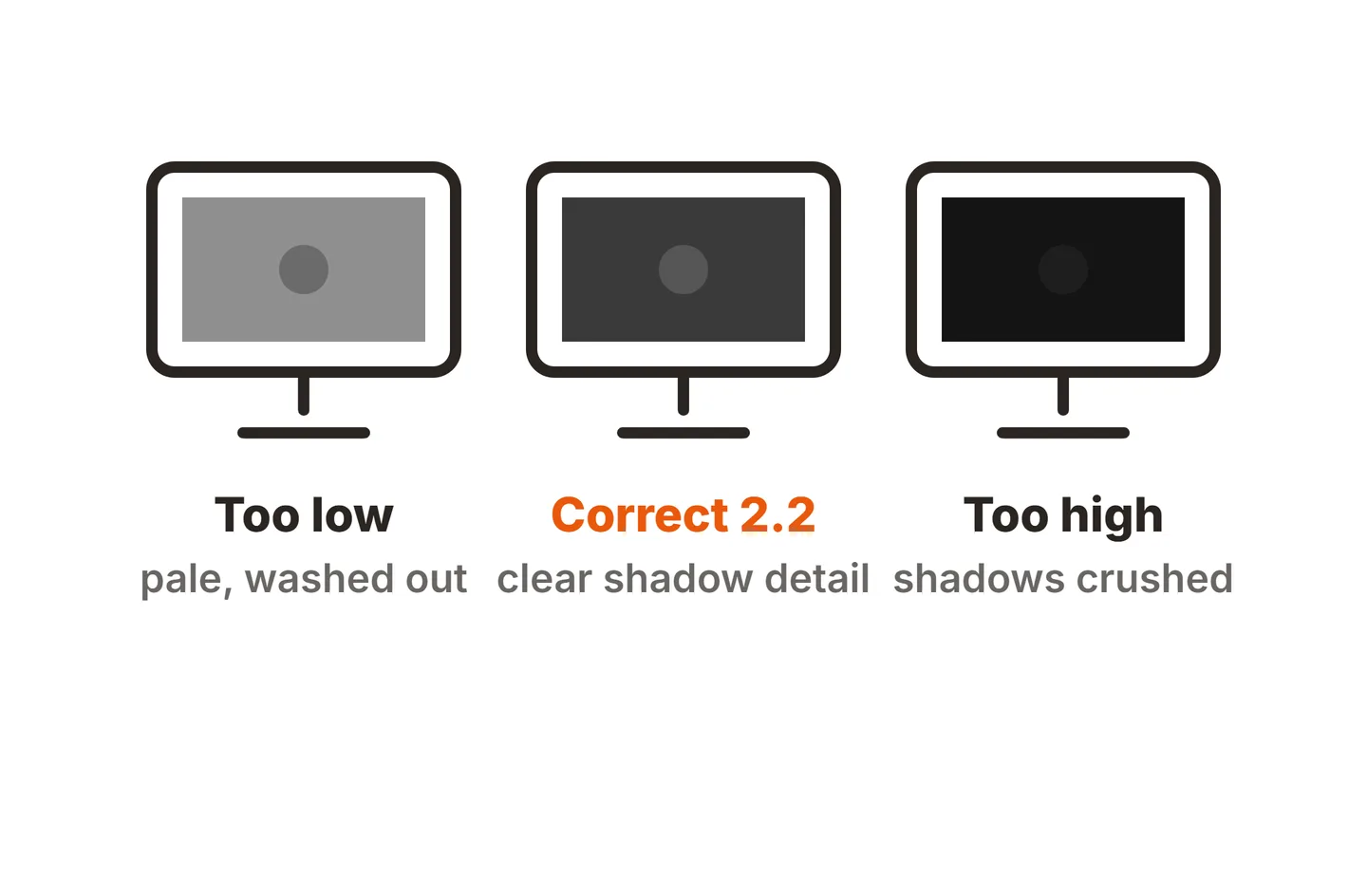
Lowering gamma is closer, but it still bends the whole tone curve. Dark tones lift the most, midtones lift too, and the picture starts to look pale and flat. Our guide to PC monitor gamma explains how the curve works and why 2.2 is the normal target. The short version is that gamma moves every gray step, while black equalizer targets the bottom of the range.

| Control | What it changes | Effect on bright areas | Best use |
|---|---|---|---|
| Brightness | Backlight level for the whole screen | Brighter too | Matching the room light |
| Gamma | The whole tone curve, darks and mids | Midtones lift, image looks paler | Accurate picture at 2.2 |
| Black equalizer | Mostly the darkest tones | Mostly unchanged | Seeing into shadows in games |
| In-game brightness slider | The game's own curve, one game only | Depends on the game | Matching a game to your screen |
It is also the opposite of dynamic contrast. Features like DCR and Acer’s ACM dim the backlight in dark scenes to make blacks look deeper. Black equalizer lifts those same dark areas to show detail. Running both at once mostly cancels out, so pick one.
What is the best black equalizer setting?
The best setting is the lowest level that lets you see what you need in dark areas. Scales differ between brands, so think in terms of how far along the range you are rather than a fixed number. On a 20-step BenQ scale, a third to half of the way up (about 6 to 10) is a sensible starting point for shooters. BenQ ZOWIE noted in 2019 that Counter-Strike players Shroud and n0thing used level 12, which shows how far up a pro might go when spotting matters more than looks.
Best setting by game type
| Type of game | Starting level | Why |
|---|---|---|
| Tactical shooters (CS2, Valorant) | Low to medium | Maps are mostly well lit, but corners and doorways hide players |
| Battle royale and extraction shooters | Medium | Dark interiors, night maps and forests are common |
| Horror and dark story games | Off | The darkness is part of the design, and lifting it ruins the mood |
| Racing, sports and bright open worlds | Off | Little useful detail hides in shadow |
| Strategy and MOBA | Off or lowest | Top-down views rarely need it |
| HDR games | Off | HDR has its own brightness controls, and the two clash |
| Movies, photo and video work | Off | You want the picture as it was made |
How to set it
Get gamma right first
Set the monitor to its standard picture mode with gamma at 2.2, and turn off dynamic contrast. Black equalizer is a fine adjustment on top of a sound picture, not a fix for a bad one.Run the game's calibration screen
Set the in-game brightness so the logo or symbol on the test screen is just visible. This lines the game up with your monitor before you change anything else.Load a dark spot in the game
Pick a map area you know well with a dark corner next to a bright window or sky, so you can judge both ends at once.Raise the level one step at a time
Stop when you can see the detail in the dark corner. If the bright window starts to look washed out or the dark wall turns gray, go back a step.Save it to a gaming profile
Most gaming monitors let you save picture settings to a profile or preset. Keep one for shooters and a normal one for everything else, so you are not playing story games with gray blacks.
Our guide on how to calibrate a monitor covers the first step in more detail if your picture looks off before you start.
Downsides of black equalizer
Black equalizer trades picture quality for visibility. At low levels the cost is small. At high levels it becomes obvious.
Washed-out blacks. Lifting near-black tones means black itself looks dark gray, especially at high levels. On IPS panels, which already show grayish blacks in a dark room, this gets worse quickly. VA and OLED panels start with deeper blacks, so they hide it better at low levels.
Banding. A monitor has only a handful of steps between black and dark gray. Stretching those few steps across a wider brightness range makes the jumps visible, so smooth dark gradients, like a night sky or a smoky room, break into stripes. If you see stripes appear when you raise the level, that is the cause. Our guide to monitor banding explains how to tell it apart from other causes.
Flat, low-contrast look. Contrast is the gap between the darkest and brightest parts of the image. Lifting the bottom shrinks that gap, so scenes lose depth and look dull. This is why black equalizer suits competitive play and very little else.

Conflict with HDR. HDR content sends exact brightness targets for each part of the image, and the monitor maps them to what the panel can show. Lifting shadows on top of that breaks the mapping, which is why many monitors gray out the setting in HDR mode. On Mini LED monitors it can also fight the local dimming zones, causing halos around bright objects on dark backgrounds. For HDR, use the game’s own HDR brightness settings instead. Our guide to HDR on an OLED monitor covers how to set those up.
On VA panels, a light black equalizer setting can also make dark smearing a little less visible, because pixels no longer start from near black. It does not change the panel’s actual response time, though, and our monitor ghosting guide covers the real fixes.
Is black equalizer fair in esports?
Yes. Black equalizer is a built-in picture setting on the monitor. It does not read game memory, change game files or add an overlay, so anti-cheat software has nothing to detect. Anyone with a compatible monitor can turn it on, and similar results are possible on any screen through gamma and in-game brightness.
The gap is mostly about hardware. A player with a monitor that has a good shadow lift can see a little more in dark corners than one without it.
At LAN events, organizers usually supply the monitors, and players may not be allowed to bring their own settings or change every option. If you rely on a specific black equalizer level, check the event’s rulebook before you travel, and practice with the setting the event uses.
What is ELMB, and is it related?
ELMB stands for Extreme Low Motion Blur, ASUS’s name for backlight strobing. The backlight flashes once per frame instead of staying on, which makes fast motion look sharper. ELMB Sync combines it with variable refresh on some models.
ELMB has nothing to do with shadow detail. It sits in the same gaming menus as Shadow Boost, which is why the two get mixed up. Our guide to monitor MPRT explains how strobing reduces motion blur and when it is worth using.
Conclusion
Black equalizer brightens only the darkest tones on your monitor, so you can see into shadows without making the whole screen brighter or paler. Every brand has a version, from BenQ’s Black eQualizer to ASUS Shadow Boost, MSI Night Vision and LG Black Stabilizer. Set gamma to 2.2 first, then raise the level one step at a time in competitive shooters, and stop before blacks turn gray or banding appears. Leave it off for HDR, movies and story games. For more on monitor settings, browse our specs guides or the full SubInsider monitor knowledge base.
Frequently asked questions
What is the best black equalizer setting?
There is no single best number, because scales differ between brands. A good start is about a third to half of the range for competitive shooters, for example 6 to 10 on a 20-step BenQ scale. Raise it one step at a time until dark corners show detail, and stop as soon as blacks start to look gray.
Is black equalizer cheating?
No. It is a picture setting inside the monitor, and it does not read or change any game files, so anti-cheat software never sees it. Anyone with a similar monitor can use the same feature. Tournaments usually supply their own monitors, though, so check the event rules if you rely on a specific setting.
Does black equalizer add input lag?
Not in any amount you would notice. The adjustment is part of the monitor's normal image processing, and BenQ states its smart features add essentially no latency. If you want to rule it out, compare your monitor's input lag with the feature on and off in a review that measures both.
Should I use black equalizer on an OLED monitor?
Usually only at a low level. OLED shows true black, so lifting the darkest tones costs you the deep contrast you paid for, and many OLED monitors limit the setting in HDR. For dark shooters in SDR, one or two steps can help. For movies, story games and HDR, leave it off.
Is black equalizer the same as ELMB?
No. ELMB is ASUS Extreme Low Motion Blur, a backlight strobing mode that makes fast motion look sharper. Black equalizer changes how bright dark tones look. The two often sit near each other in a gaming monitor's menu, but they fix different problems and can be used independently.