Lepow Portable Monitor Setup: Laptop, Phone, Console and Fixes
Table of contents
A Lepow portable monitor sets up in two ways. If your laptop or phone has a USB-C port that outputs video, one full-function USB-C cable carries both picture and power. If your device only has HDMI, such as a PS5, Xbox or older laptop, use the Mini HDMI cable for the picture and plug the monitor’s USB-C power port into a wall charger. Once the screen lights up, tell the source whether to extend or duplicate its desktop.
Which ports and cables does a Lepow monitor use?
Most single-screen Lepow models, such as the 15.6-inch Z1 and C2 series, have the same basic layout: one full-function USB-C port for video and power, a second USB-C port for power only, a Mini HDMI input and a 3.5mm headphone jack. The box usually includes a USB-C to USB-C cable, a Mini HDMI to HDMI cable and a USB-A to USB-C power cable.
The two USB-C ports are not the same. Lepow’s C2 manual lists one for “audio and video signal transmission” and the other for power, with support for USB PD 2.0 at 5 to 20V. If you plug the video cable into the power-only port, you get a lit screen with no picture. Check the small labels next to each port before you start.
Lepow also sells dual-screen and modular multi-screen models. Those follow different rules (some need a driver from Lepow’s site and their own power adapter), so use the guide that came with that model.
How to connect a Lepow monitor to a laptop with USB-C
USB-C is the simplest setup because one cable does everything. It only works if the laptop’s USB-C port can send video, which is a feature called DisplayPort Alt Mode.

Find a video-capable port
Look for a small DisplayPort logo or a lightning-bolt Thunderbolt icon next to the laptop’s USB-C port. If there is no icon, check the laptop’s spec sheet for DisplayPort Alt Mode or video output.Use the included cable
Connect the laptop to the monitor’s full-function USB-C port with the USB-C to USB-C cable from the box. A phone charging cable often carries power but no video.Wait a few seconds
The monitor should wake and show your desktop. Windows and macOS detect it like any other screen, with no driver needed for standard single-screen models.Add power if it flickers
If the screen is dim, flickers or drops out, plug a wall charger into the monitor’s power-only USB-C port. The laptop then sends video while the charger supplies power.
Running the monitor from the laptop drains the laptop’s battery faster. On a long session away from an outlet, lower the monitor’s brightness or run it from a USB-C power bank through the power port.
How to connect with Mini HDMI and separate power
Use Mini HDMI when your device has HDMI but no video-capable USB-C, which covers most game consoles, many desktop PCs and older laptops. HDMI carries picture and sound but no power, so this setup always needs two cables.
Power the monitor first
Connect the USB-A to USB-C cable (or a USB-C charger) to the monitor’s power port. A wall adapter rated 5V/2A or higher is the safe choice.Connect the video cable
Plug the Mini HDMI end into the monitor and the full-size HDMI end into your laptop, PC or console.Check the input
If the screen says No Signal, check which input is active. On C2-style models, a short press of the ESC/Power button shows it in the top corner. If your model has an input option in its menu, select HDMI there.
You can power the monitor from a laptop or console USB-A port, but many of those ports deliver less than 2A. If the picture is dim or unstable, move the power cable to a wall charger.
Setting up with phones: Samsung DeX and iPhone
A phone can drive a Lepow monitor over USB-C if the phone’s port outputs video. Many recent Samsung Galaxy phones do, and so do iPhone 15 and later USB-C models. Many budget Android phones do not, and no cable or app changes that.
On a Samsung Galaxy phone that supports DeX, connect the full-function USB-C cable. DeX either starts on its own or shows a prompt, and you can also start it from the DeX tile in the quick panel. DeX gives you a desktop-style layout with resizable windows on the monitor, which works well with a Bluetooth keyboard and mouse.
On an iPhone, Apple lists iPhone 15 and newer USB-C models as able to drive a USB-C display, except the iPhone 16e and 17e. Apple’s page on connecting iPhone to a display recommends a USB-C cable rated USB 3.1 or higher. The iPhone mirrors its own screen, so most apps show a phone-shaped picture with black bars, while some video apps fill the screen.
Phones are the source most likely to run short on power. Lepow’s C2 manual says that when a phone cannot supply 5V/2A, the monitor enters a power saving mode and holds brightness under 30 percent. Plug a charger into the monitor’s power port to get full brightness. Our guide on how to connect a phone to a monitor covers wireless casting and adapters for phones without video over USB-C.
Nintendo Switch, PS5 and Xbox
Consoles are where most Lepow setups go wrong, because they need separate power.
PS5 and Xbox Series X|S output video over HDMI only. Connect the Mini HDMI to HDMI cable from the console to the monitor, and power the monitor from a wall charger through its USB-C power port. The console sees the monitor as a TV and picks a resolution it supports, usually 1080p on a standard 15.6-inch model.
Nintendo Switch sends video to a TV through its dock, so the dock method is the most reliable: connect the dock’s HDMI output to the monitor’s Mini HDMI port and power the monitor separately. Lepow’s C2 manual lists the Switch among compatible devices, and many portable monitors also accept a direct USB-C link from the console. If you go direct, give the monitor its own power so it does not pull from the Switch’s battery.
Sound from a console comes through the HDMI or USB-C video signal. Lepow speakers are small, so a headset in the monitor’s 3.5mm jack is often the better choice for games.
Extend or duplicate the screen in Windows and macOS
Once a laptop detects the monitor, decide what it shows. Extend turns it into extra desktop space, and Duplicate shows the same image on both screens, which suits presentations.

On Windows, press Windows + P and choose PC screen only, Duplicate, Extend or Second screen only. For more control, open Settings > System > Display. There you can drag the two screen tiles so they match where the monitor sits on your desk, use Identify to see which number belongs to which screen, and set the main display. Microsoft’s guide to using multiple monitors in Windows covers each option.
On a Mac, open System Settings > Displays. Select the Lepow screen and choose whether to use it as an extended display or a mirror, then click Arrange to line it up with your MacBook.
If text looks a different size on each screen, set a scaling value per display. Our guide to dual monitors with different resolutions explains how to match them. For a wider walkthrough of cables and ports on any monitor, see how to connect a monitor.
Rotating to portrait mode
A portrait Lepow screen is great for code, documents and chat windows, but the monitor does not rotate the picture by itself. Stand it on its side, then tell the computer.
On Windows, open Settings > System > Display, select the Lepow screen and change Display orientation to Portrait (or Portrait flipped if the image is upside down). On a Mac, open System Settings > Displays, select the monitor and set Rotation to 90 or 270 degrees.
The folding cover is the catch. On some Lepow models it holds the screen in landscape only, so use a tablet stand or a small monitor holder for portrait. Our guide to turning a monitor vertical covers layout tips that also apply to flat portable screens.
Using the OSD buttons
The OSD (on-screen display) is the monitor’s built-in menu for brightness, contrast, color, HDR, volume and input. Lepow uses two control styles depending on the model.

Newer models such as the C2 use four buttons. Lepow’s C2 manual describes them this way:
- ESC/Power: a short press shows the current input in the top corner or backs out of the menu. Hold it for three seconds to turn the monitor on or off.
- Plus/Volume: opens the volume bar, or moves up in the menu.
- Menu/Confirm: opens the menu, then confirms a choice.
- Minus/Brightness: opens the brightness bar, or moves down in the menu.
Some older models use a power button and a small roll key instead. Press the roll key in to open the menu, roll it up or down to move, and press again to confirm.
Using the cover as a stand
Most single-screen Lepow monitors ship with a magnetic smart cover that protects the glass in a bag and folds into a stand on the desk. The folding steps differ by model and are shown in the manual, but the idea is the same: the back panel folds into a support behind the screen, and the screen rests at one of a few preset tilt angles.
The magnets hold well enough for typing, but a bump can tip the screen over. Set it on a flat, stable surface, keep the cable slack so its weight does not pull the screen, and fold the cover back over the glass before you pack it. For flights or longer trips, our guide on how to transport computer monitors covers padding and packing.
Lepow portable monitor not working: quick fixes
Most Lepow problems come down to one of three causes: no video reaching the screen, too little power or the wrong connection for touch.
| Symptom | Likely cause | First fix |
|---|---|---|
| No Signal, then sleep | Port or cable carries no video | Use the box cable and a DP Alt Mode or Thunderbolt port |
| Lit screen, no picture on USB-C | Cable in the power-only port | Move it to the full-function USB-C port |
| Dim screen, brightness capped | Less than 5V/2A available | Add a wall charger to the power port |
| Flickers or keeps restarting | Power drops under load | Add wall power and lower brightness |
| Touch does nothing | No USB data link, or touch mapped wrong | Connect USB-C, then calibrate touch |
No signal. The monitor has power but no video. Check the port supports video, use the included full-function cable, wake the source device and confirm the input. Our full guide to portable monitor no signal goes through every cause in order.
Flickering or restarting. This is almost always power. The screen draws more at high brightness, and when a laptop or phone cannot keep up, it flickers, dims or reboots. Give the monitor its own wall charger and test again before you suspect the panel.
No touch. Most Lepow monitors are not touchscreens, so check your model first. Lepow’s D15 Pro Touch, for example, has touch and pen support on its lower screen only. On a touch model, the touch data travels over USB, so a Mini HDMI connection needs an extra USB cable to the computer. If touch lands on the wrong screen in Windows, open Control Panel > Tablet PC Settings and select Setup to tell Windows which screen is the touch display.
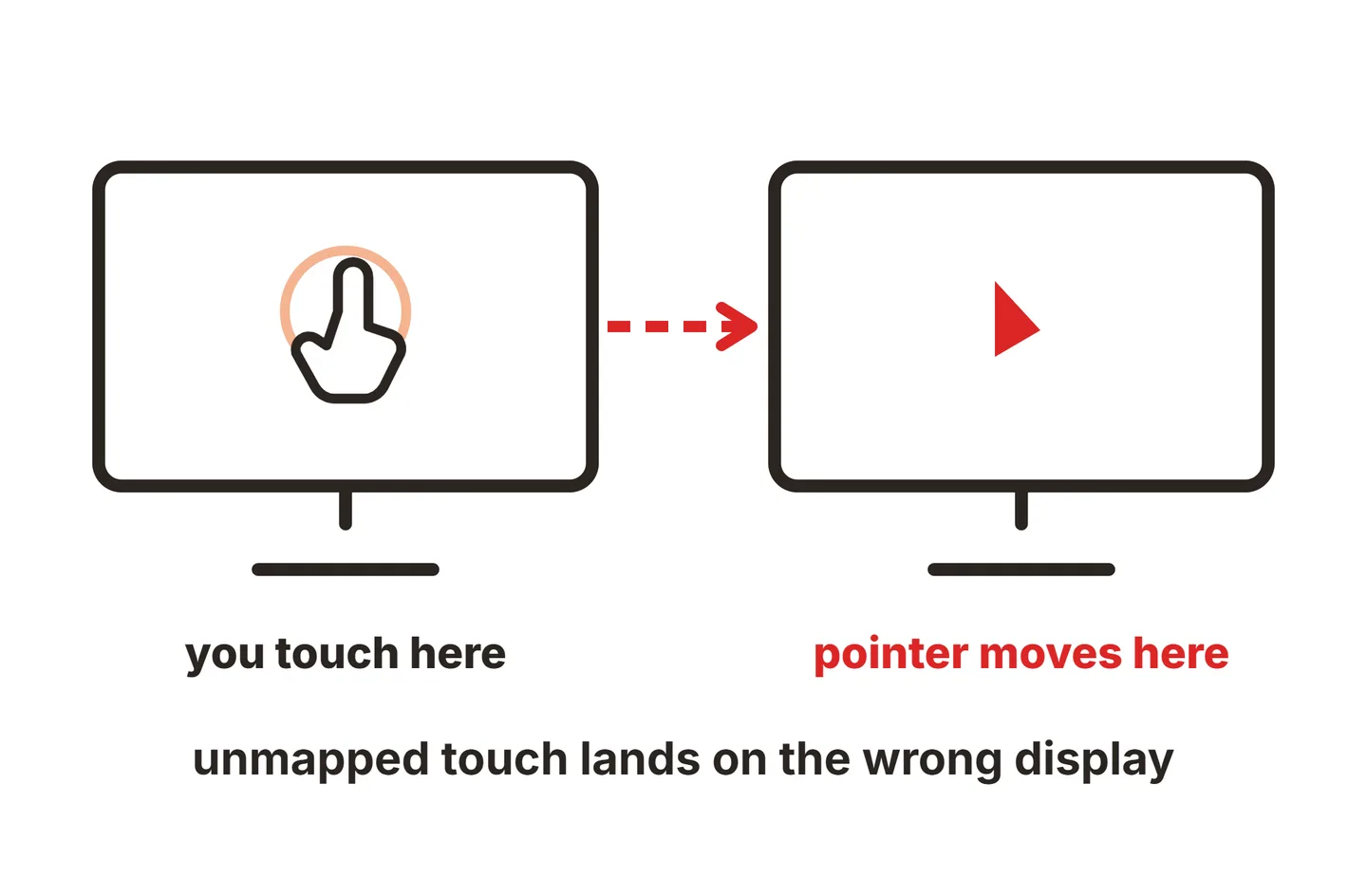
On Linux, the same mapping problem has its own fix, covered in our Ubuntu touch screen monitor guide.
Does a portable monitor have a lithium battery?
Some portable monitors do, but most Lepow models do not. Lepow’s manuals describe them as powered from the connected laptop or phone, or from a 5V/2A or stronger charger. If you open the box and there is no battery capacity on the label and no battery switch, there is no lithium cell inside.
Other portable monitors do include a built-in lithium-ion battery so they can run without a cable. Those spec sheets list the capacity in mAh. To find the watt-hour rating airlines use, multiply mAh by the cell voltage (usually 3.7V) and divide by 1,000. A 10,000 mAh battery at 3.7V works out to 37 Wh.
For flights, the TSA rules on lithium batteries in devices allow devices with lithium-ion batteries of up to 100 Wh in carry-on bags, and in checked bags with special instructions. Spare batteries and power banks must go in your carry-on only. A Lepow monitor without a battery is just an electronic device, but the power bank you use to run it is not, so keep that in your cabin bag.
Conclusion
Lepow portable monitor setup comes down to the right cable for your device. Use one full-function USB-C cable on a laptop or phone that outputs video over USB-C. Use Mini HDMI plus USB-C wall power for consoles and HDMI-only devices. Then pick Extend or Duplicate, rotate it if you want portrait, and tune brightness in the OSD. If the screen is dim or flickers, add a 5V/2A charger before anything else. For more guides, browse our setup guides or the full SubInsider monitor knowledge base.
Frequently asked questions
Does a Lepow portable monitor have a battery?
Most Lepow portable monitors do not. Lepow's manuals describe them as powered by the connected device or by a 5V/2A or stronger USB source, and if power runs short the C2 drops into a power saving mode. You can run one from a USB-C power bank, which acts as the battery the monitor itself does not have.
Does a portable monitor have a lithium battery?
Some do, but many do not. Battery models list a capacity in mAh and an on/off switch for battery use on the spec sheet. Screens without a battery, including most Lepow models, contain no lithium cell at all. If yours has one, it counts as a lithium-ion device for air travel, so pack it in your carry-on.
Why is my Lepow monitor so dim?
It is likely short on power. Lepow's C2 manual says that without a 5V/2A or stronger supply, the monitor enters a power saving mode and limits brightness to under 30 percent. Plug a wall charger into the monitor's USB-C power port, then raise brightness with the minus and plus keys or the OSD menu.
Can I use a Lepow monitor with an iPhone?
Yes, with iPhone 15 or a later USB-C model that supports external displays. Apple excludes the iPhone 16e and 17e. Use a USB-C cable rated USB 3.1 or higher. The iPhone mirrors its screen, apart from apps that offer their own second-screen view, so expect a phone-shaped picture with black bars at the sides.
Why does my Lepow monitor work on HDMI but not USB-C?
The USB-C side cannot carry video. Either the laptop or phone port lacks DisplayPort Alt Mode, or the cable is a charge-only or USB 2.0 type. Use the full-function cable that came in the box and a port marked with a DisplayPort or Thunderbolt icon, then try again.