Can You Use a Gaming Monitor for Work? Yes, With Caveats
Table of contents
Yes, you can use a gaming monitor for work, and for most people it does the job well. A gaming monitor is a normal monitor with a faster panel, so spreadsheets, email, code and video calls all run fine on it. The high refresh rate even makes scrolling smoother. The catches are elsewhere: vivid default picture modes, text fringing and burn-in risk on OLED models, basic stands, glossy screens and missing office features like USB-C charging and a KVM switch. Pick the right panel, change four settings, and a gaming monitor makes a very good work screen.
What a gaming monitor does well for work
Most of what makes a monitor good for games also helps at a desk. Three things stand out.
Smooth scrolling. A 144Hz or 165Hz screen redraws the image more than twice as often as a 60Hz office monitor. When you scroll a long document, a web page or a file of code, the text moves in smaller steps and stays readable while it moves. The cursor and dragged windows feel more direct too. You do not need a top-end graphics card for this, since desktop work is light, so even a basic GPU can drive a high refresh rate on the Windows desktop. Our guide on whether 165Hz is good for gaming explains the refresh rate steps in more detail.
Good IPS color. Many gaming monitors use fast IPS panels. IPS keeps colors and contrast steady when you look at the screen from an angle, which matters when you share the screen with a colleague or sit off-center. Many of these panels also cover a wide color gamut, which helps with photo and design work once you set them up correctly (more on that below).
QHD resolution. The most common gaming monitor is 27 inches at 2560x1440 (QHD). That works out to about 109 pixels per inch, which is sharp enough for crisp text and gives you room for two documents side by side. A 27-inch 1080p screen drops to about 82 pixels per inch, and text looks soft at a normal desk distance. If you are not sure 27 inches fits your desk, check whether a 27-inch monitor is too big for your viewing distance first.
What can get in the way
None of these problems make a gaming monitor unusable for work. They are the things to check on the spec sheet, or fix in the menu, before you settle in.
Text clarity on OLED panels
OLED gaming monitors look stunning in games, but small text is their weak spot. A standard LCD lays out each pixel as a red, green and blue stripe, and Windows text smoothing is built around that layout.

WOLED panels (used by LG and others) add a white subpixel to each pixel. QD-OLED panels (used by Samsung, Dell, MSI and others) place their subpixels in a triangle. Neither matches what text smoothing expects, so letters can show faint colored fringes, often green or magenta, along their edges. Higher pixel density hides this. It is more visible on a 27-inch QHD OLED than on a 27-inch or 32-inch 4K OLED. Our QHD vs OLED guide covers the panel trade-offs in full.
Burn-in from static work content
Work screens are full of things that never move: the taskbar, browser tabs, a docked chat window, spreadsheet grid lines, an IDE sidebar. On an OLED panel, those pixels wear faster than the rest. After enough hours, a faint ghost of them can stay on screen for good.
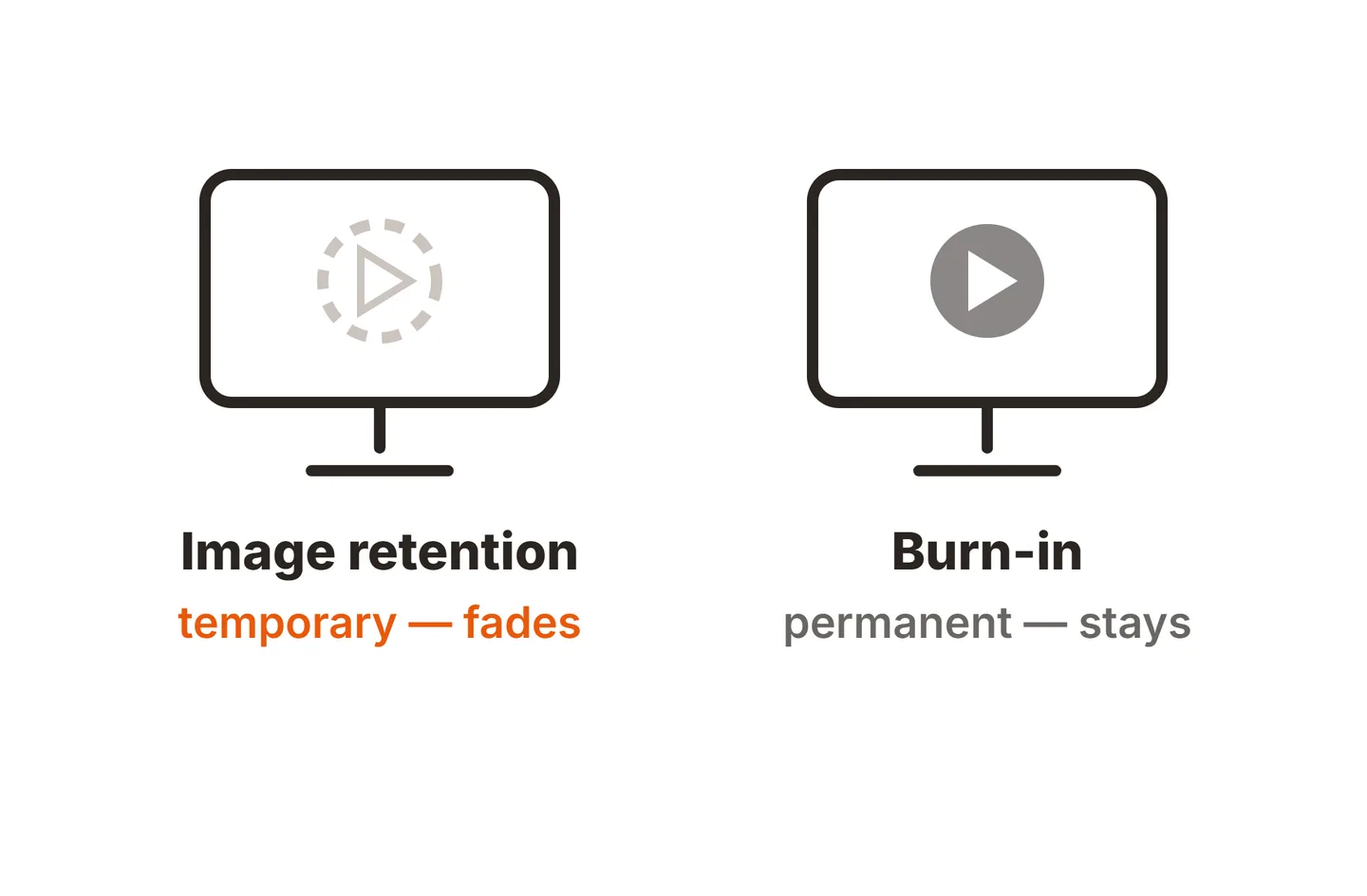
LCD gaming monitors, IPS and VA included, do not get permanent OLED-style burn-in. They can show temporary image retention, which our guide to LCD monitor screen burn explains, but it fades. If you still want an OLED for mixed use, lower the risk: automatically hide the Windows taskbar (right-click the taskbar, choose Taskbar settings, expand Taskbar behaviors and check Automatically hide the taskbar), use dark mode, set a short screen-off timer and let the monitor run its pixel refresh cycles. Also check how many years of burn-in cover the maker’s warranty includes.
Aggressive default picture modes
Gaming monitors usually ship in a punchy mode, often with high brightness, boosted saturation and a sharpening filter. On a wide-gamut panel, ordinary web pages and documents then look oversaturated. Red error messages glow, skin tones turn orange on video calls, and brand colors look wrong. The fix is a setting, not new hardware, and it is covered in the next section.
Stands, coatings and RGB
Many gaming stands tilt and adjust height, but fewer swivel or rotate to portrait, and some budget models only tilt. Glossy and semi-glossy screens, common on OLED gaming models, show deep blacks in a dim room but pick up reflections from office windows and ceiling lights. RGB lighting on the back is harmless, though you will want it off in a shared office or on camera. Most models let you turn it off in the menu.
Few office features
This is the biggest gap for laptop users. Office monitors often include a USB-C port that carries video, data and charging over one cable, plus a built-in KVM switch. Many gaming monitors skip these or offer a USB-C port without enough charging power for a laptop. The comparison further down lists what to look for.
Settings to change before you work on it
Spend five minutes in the on-screen menu and in Windows, and most of the problems above go away. If your monitor lets you save a user preset, save these as a “Work” mode so you can switch back to gaming settings with a couple of button presses.
Pick sRGB or Standard mode
Open the monitor’s picture or game mode menu and choose sRGB. If there is no sRGB mode, use Standard or User. This clamps a wide-gamut panel to the color space Windows, the web and most office apps use, so colors look natural. On some models the sRGB mode locks brightness; if it is too dim or too bright, use User mode and lower saturation instead.Set overdrive to a middle level
Overdrive pushes pixels to change faster. The highest level often adds bright halos behind moving text and windows. A middle setting, often called Normal or Fast rather than Extreme, keeps scrolling clean.Turn Black Equalizer off
Black Equalizer lifts the darkest shades so you can spot enemies in shadows. On the desktop it washes out dark mode apps and photos. Set it to off or zero. LG calls a similar control Black Stabilizer.Lower brightness and turn off sharpness boosts
Gaming presets often run at full brightness. Lower it to match your room, and set sharpness to the monitor’s neutral value so text edges do not get a halo.Set the refresh rate in Windows
Go to Settings > System > Display > Advanced display and choose the highest rate under Choose a refresh rate. Windows does not always pick it on its own, and the smooth scrolling only works if it is set.

Our guides to what overdrive does on a monitor and Black Equalizer go deeper on each setting. If you do photo or design work, the color mode matters even more, and our DCI-P3 vs sRGB explainer covers when you want the full wide gamut and when you want sRGB.
On Windows, it is also worth running the ClearType text tuner once (search Start for “Adjust ClearType text”). It will not fully fix OLED fringing, but it can tidy text on any new screen.
Gaming monitor vs office monitor: the features that differ
Panel speed is not where the two types really part ways. The difference is in the connections and the stand, the things that make a monitor easy to live with for eight hours a day.
| Feature | Typical gaming monitor | Typical office monitor |
|---|---|---|
| Refresh rate | 120Hz to 240Hz or more | 60Hz to 100Hz, some 120Hz |
| Default picture mode | Vivid, often wide gamut | Standard or sRGB |
| USB-C with power delivery | Sometimes, often low wattage or none | Common on business lines |
| Built-in KVM switch | On some models | Common on business lines |
| Height adjust | Common, not on all budget models | Standard on most business lines |
| Pivot to portrait | Less common | Common on business lines |
| Screen finish | Matte on most LCDs, often glossy on OLED | Mostly matte |
| Styling | RGB lighting, angular stands | Plain, slim bezels |
USB-C power delivery matters most if you work from a laptop. One USB-C cable can carry the picture, the monitor’s USB ports and charging power. The USB-IF’s USB Power Delivery specification allows up to 240W over a full-featured USB-C cable, but each monitor sets its own limit, so check that the wattage on the spec sheet covers your laptop’s charger.

A built-in KVM switch lets one keyboard and mouse, plugged into the monitor, control two computers. Press a button or a hotkey and the monitor switches both the picture and your input devices. It is handy if you keep a work laptop and a home PC on the same desk.
Height adjust and pivot help with comfort. The top of the screen should sit at or a little below eye level, and a stand that rotates to portrait turns a side monitor into a tall page for code or documents. If the gaming monitor’s stand is weak, a VESA arm fixes most of this, as long as the monitor has VESA mounting holes.
Verdict by job type
The right answer depends on what fills your screen all day.
| Job | Verdict | Best gaming panel | Watch out for |
|---|---|---|---|
| Coding | Very good | 27-inch QHD IPS, or 4K for denser text | OLED fringing on small fonts, static IDE panels on OLED |
| Office and spreadsheets | Very good | QHD IPS | Vivid default mode, burn-in from grids on OLED |
| Photo and graphic design | Good after setup | IPS with a working sRGB mode | Wide gamut without a clamp, no factory calibration |
| Video calls | Good | Any panel in sRGB mode | No webcam, weak speakers, RGB light on camera |
Coding. A high refresh rate is a real plus when you scroll through long files, and a QHD or 4K IPS keeps small monospace fonts sharp. Rotate a second screen to portrait if the stand allows it. Avoid a QHD OLED as your main coding screen, since thin fonts show fringing and the IDE layout barely moves.
Office work. Email, documents and spreadsheets run well on any IPS gaming monitor once it is in sRGB or Standard mode. Laptop users should look for USB-C charging, or plan on a dock. If you are weighing one big screen against two, our guide to the pros and cons of dual monitors helps.
Design and photo work. A wide-gamut gaming IPS can be a good design screen, but only once you clamp it to sRGB for web work, or use the wide gamut for print or HDR work on purpose. Few gaming models come with a factory calibration report, so a colorimeter helps if color accuracy pays your bills.
Video calls. Any gaming monitor works for calls. Switch to sRGB so skin tones look right on screen-share, turn off rear RGB lighting if it shows on camera, and plan on a separate webcam and headset, since few gaming monitors include either a camera or good speakers.
Conclusion
Yes, a gaming monitor works for most jobs, and a high refresh rate makes everyday scrolling better. A 27-inch QHD IPS model is the safest all-rounder. Before you start work on it, switch to sRGB or Standard, set overdrive to a middle level and turn Black Equalizer off. Pick IPS over OLED if your day is full of static text. Laptop users should check for USB-C charging, a KVM switch and a stand with height adjust. For more help choosing, browse our buying guides or the full SubInsider monitor knowledge base.
Frequently asked questions
Is a gaming monitor good for office work?
Yes, for most office work. A QHD IPS gaming monitor gives you sharp text, steady brightness and smooth scrolling. The weak points are usually the extras: many gaming models lack USB-C charging, a built-in KVM switch or a stand that rotates to portrait. Check those before you buy if you work from a laptop.
Is 144Hz useful for work, or only for games?
It helps at work too. At 144Hz the screen redraws more than twice as often as at 60Hz, so scrolling documents, web pages and code looks smoother and text stays easier to follow while it moves. It will not make you type faster, but it makes long days of scrolling more comfortable.
Can I use an OLED gaming monitor for spreadsheets all day?
You can, but it is not the easiest choice. Spreadsheets keep grid lines, toolbars and the taskbar in the same place for hours, which is the content OLED burn-in comes from. Small text can also show color fringes. If spreadsheets fill most of your day, an IPS monitor is the calmer pick.
Why do colors look too bright on my gaming monitor?
Most gaming monitors ship with a vivid picture mode and a wide color gamut, so web pages, photos and logos look oversaturated. Open the monitor's menu and pick the sRGB mode, or Standard if there is no sRGB option. Skin tones and brand colors should then look natural again.
Do I need a separate monitor for work and gaming?
No. One monitor can do both if you save two presets: a work preset in sRGB mode with moderate brightness, and a gaming preset with your preferred overdrive and refresh settings. Many gaming monitors let you store user modes, so switching takes a couple of button presses.